

JumpCloud SSO with NetBird Self-Hosted
Updated
JumpCloud is a cloud-based directory platform that provides identity, access, and device management. It offers single sign-on (SSO), multi-factor authentication (MFA), and centralized user management.
Management Setup (Recommended)
Add JumpCloud as an external IdP directly in the NetBird Management Dashboard. This is the simplest approach and recommended for most deployments.
Prerequisites
- NetBird self-hosted with embedded IdP enabled
- JumpCloud account with admin permissions
Step 1: Start Creating OIDC Application in JumpCloud
- Navigate to JumpCloud Admin Portal
- Click SSO Applications under USER AUTHENTICATION
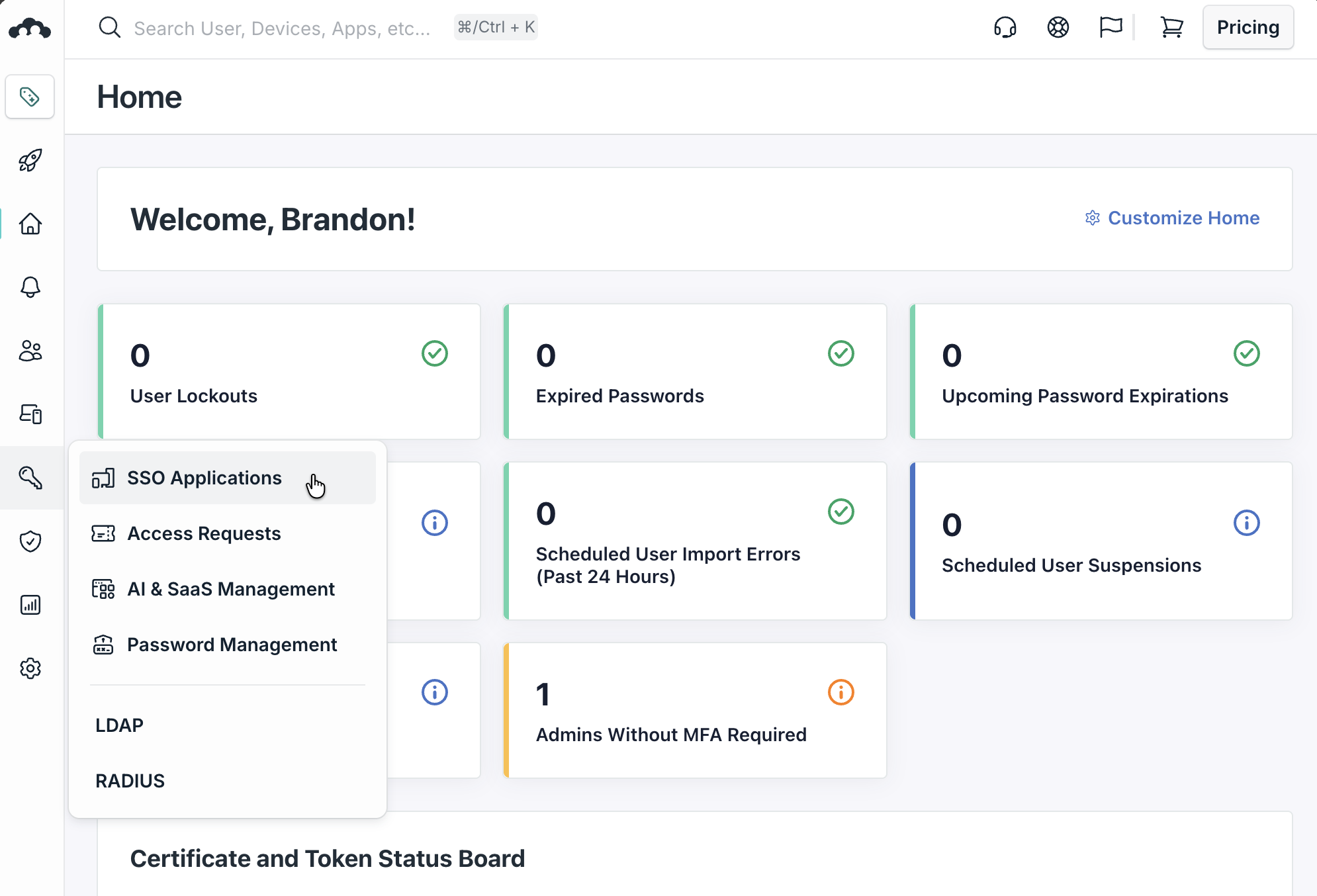
- Click Add New Application → Custom Application
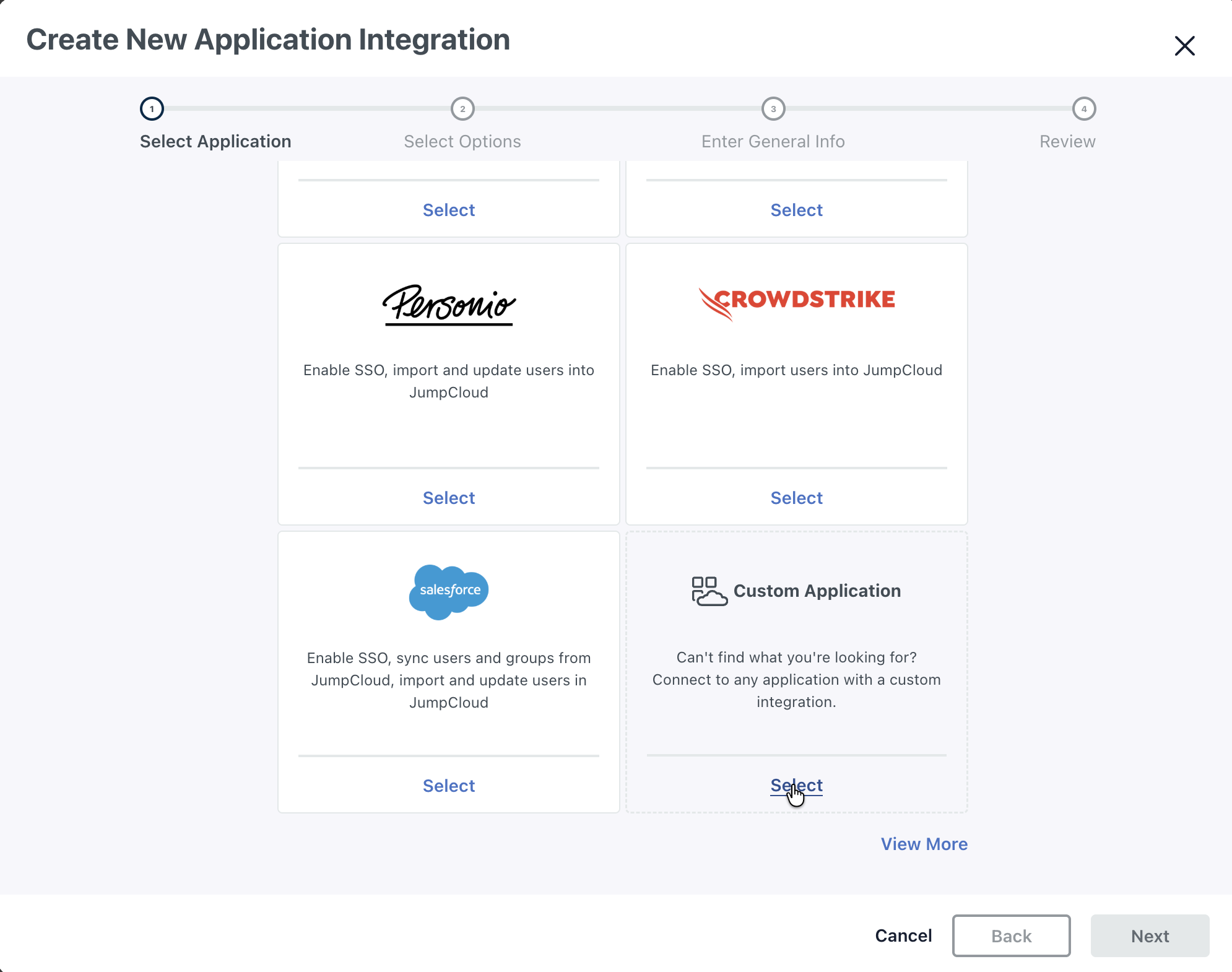
- Confirm Custom application and click Next
- Select Manage Single Sign-On (SSO) and check Configure SSO with OIDC
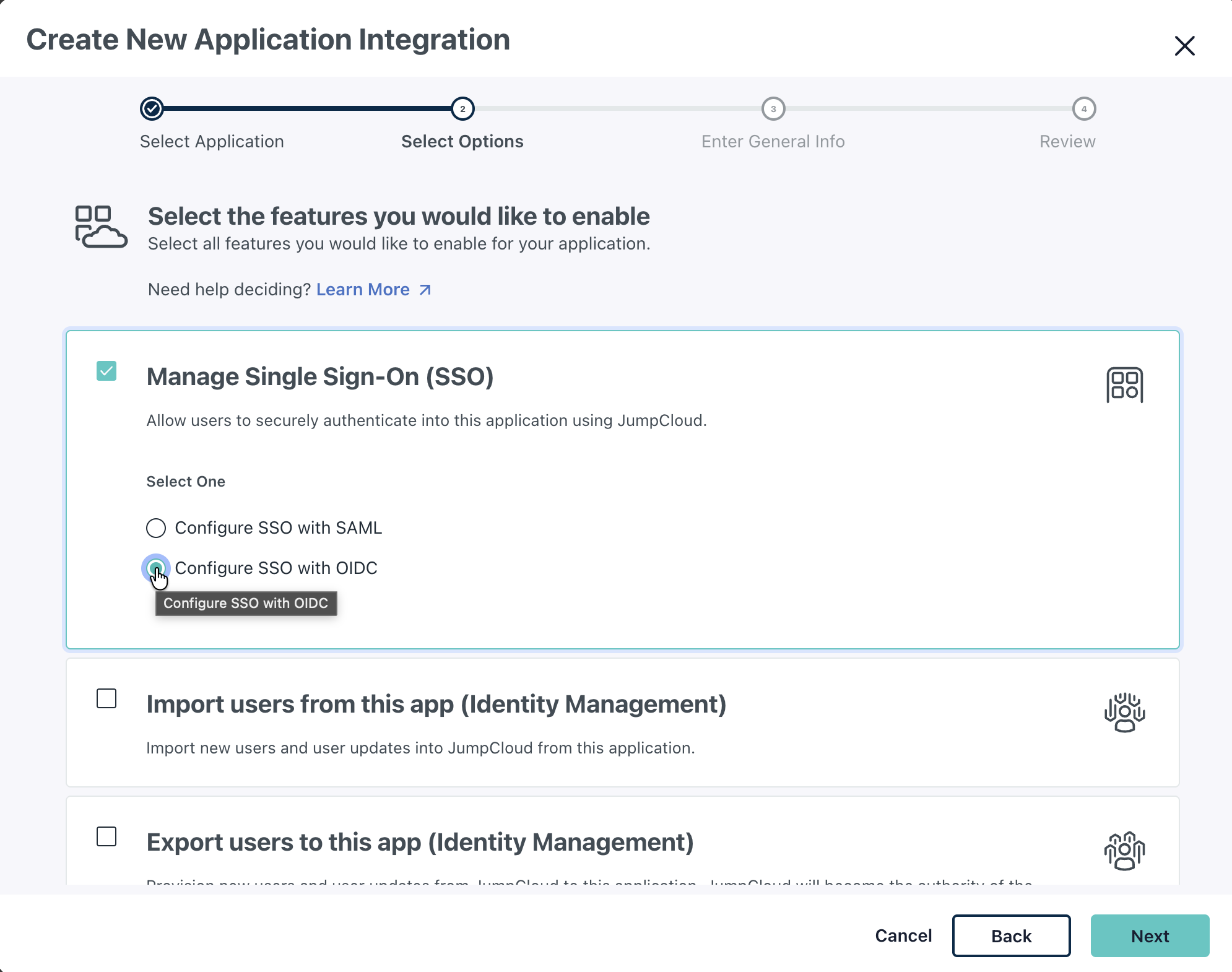
- Click Next
- Enter Display Label:
NetBird - Click Next
- Review and click Configure Application
- On the SSO tab, configure:
- Redirect URIs:
https://<your-netbird-domain>/oauth2/callback(you'll verify this matches exactly in Step 3) - Client Authentication Type:
Client Secret POST - Login URL:
https://<your-netbird-domain>/
- Redirect URIs:
- Under Attribute Mapping, enable:
- Email scope
- Profile scope
- Click Save to save the SSO configuration
- Click the User Groups tab and select at least one user group that can access NetBird
- Don't click Activate yet — keep this tab open and proceed to Step 2
Sometimes, the JumpCloud application configuration will add duplicate attributes, like email and email_verified. Remove any duplicates if they appear.
Step 2: Get Redirect URL from NetBird
- Open a new tab or window and log in to your NetBird Dashboard
- Navigate to Settings → Identity Providers
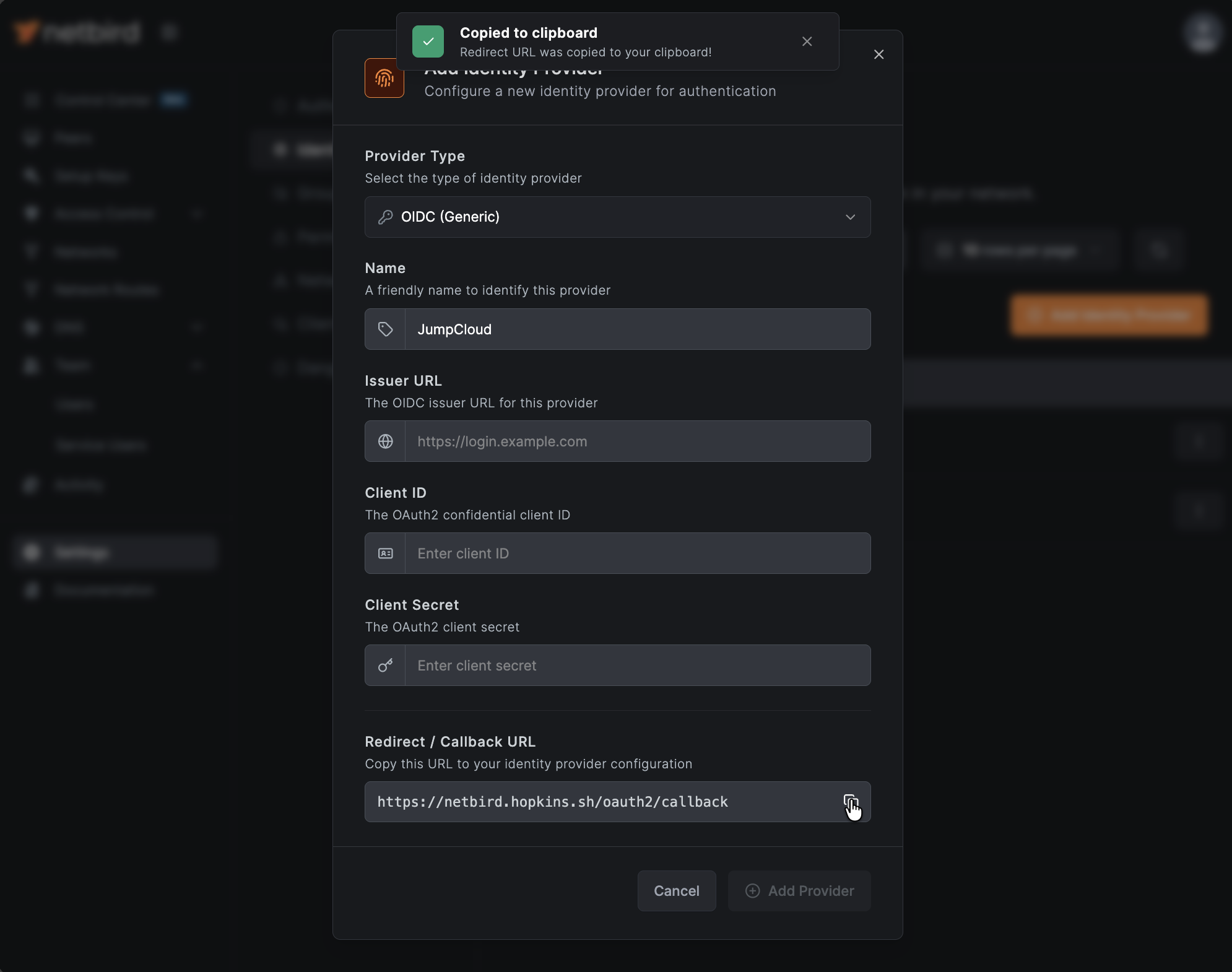
- Click Add Identity Provider
- Fill in the fields:
| Field | Value |
|---|---|
| Type | Generic OIDC |
| Name | JumpCloud (or your preferred display name) |
| Client ID | From JumpCloud application (will fill after Step 3) |
| Client Secret | From JumpCloud application (will fill after Step 3) |
| Issuer | https://oauth.id.jumpcloud.com/ (must include trailing slash) |
Important: The Issuer must be exactly https://oauth.id.jumpcloud.com/ (with trailing slash) to match what JumpCloud returns. If you enter it without the trailing slash, the connector will fail to initialize.
- Copy the Redirect URL that NetBird displays (but don't click Add Provider yet)
Step 3: Complete JumpCloud Application Setup
- Return to the JumpCloud tab
- Click the SSO tab
- Under Redirect URIs, verify the redirect URL matches the exact URL you copied from NetBird (e.g.,
https://netbird.hopkins.sh/oauth2/callback). If it doesn't match exactly, update it to match.- (Optional) In the Post Logout Redirect URIs field, add
https://<your-netbird-domain>/oauth2/logout/callback(using the same domain as the redirect URL) so logout redirects back to NetBird cleanly
- (Optional) In the Post Logout Redirect URIs field, add
- Click Save (if you made any changes)
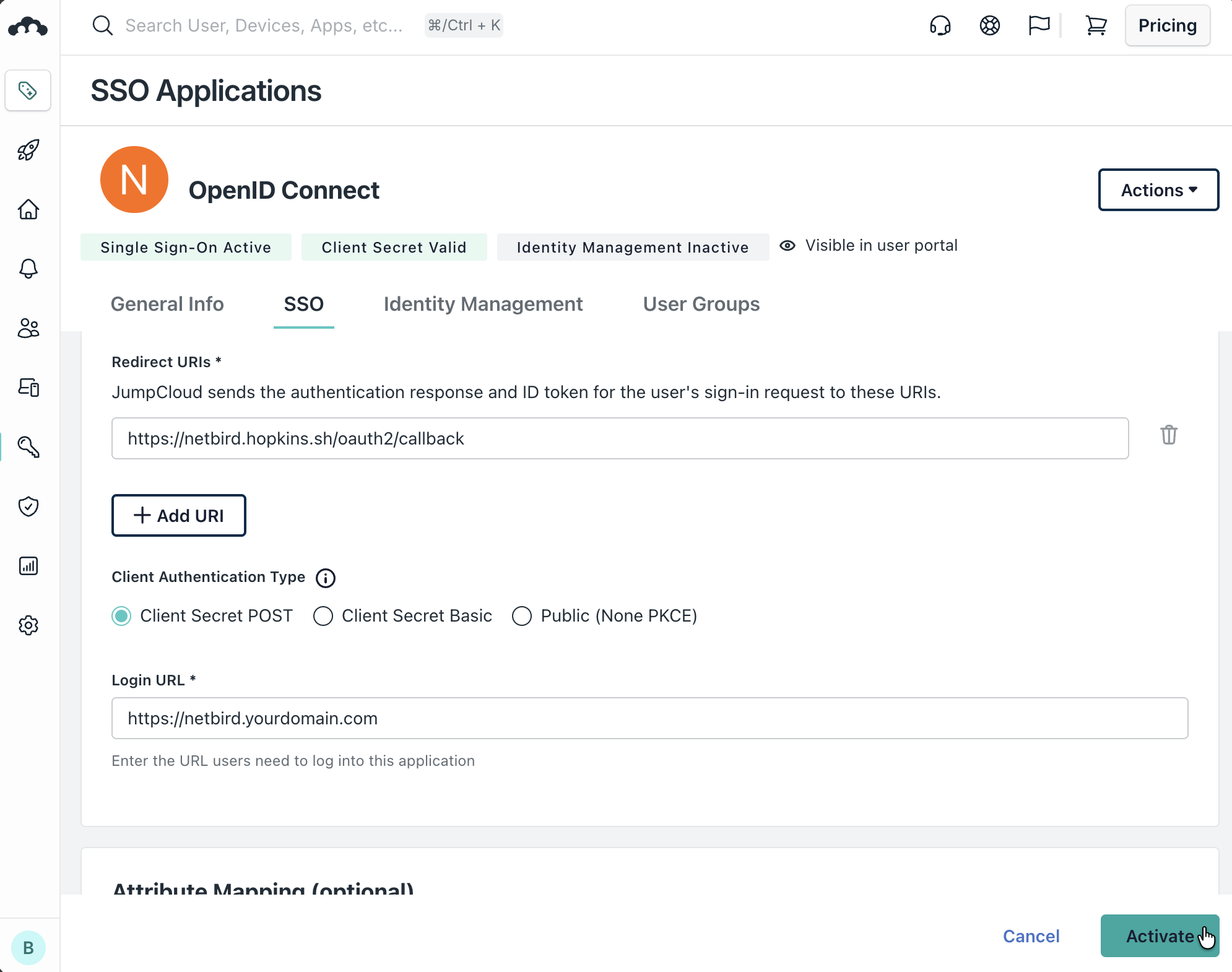
- Click Activate
- Note the Client ID and Client Secret — you'll need these for Step 4
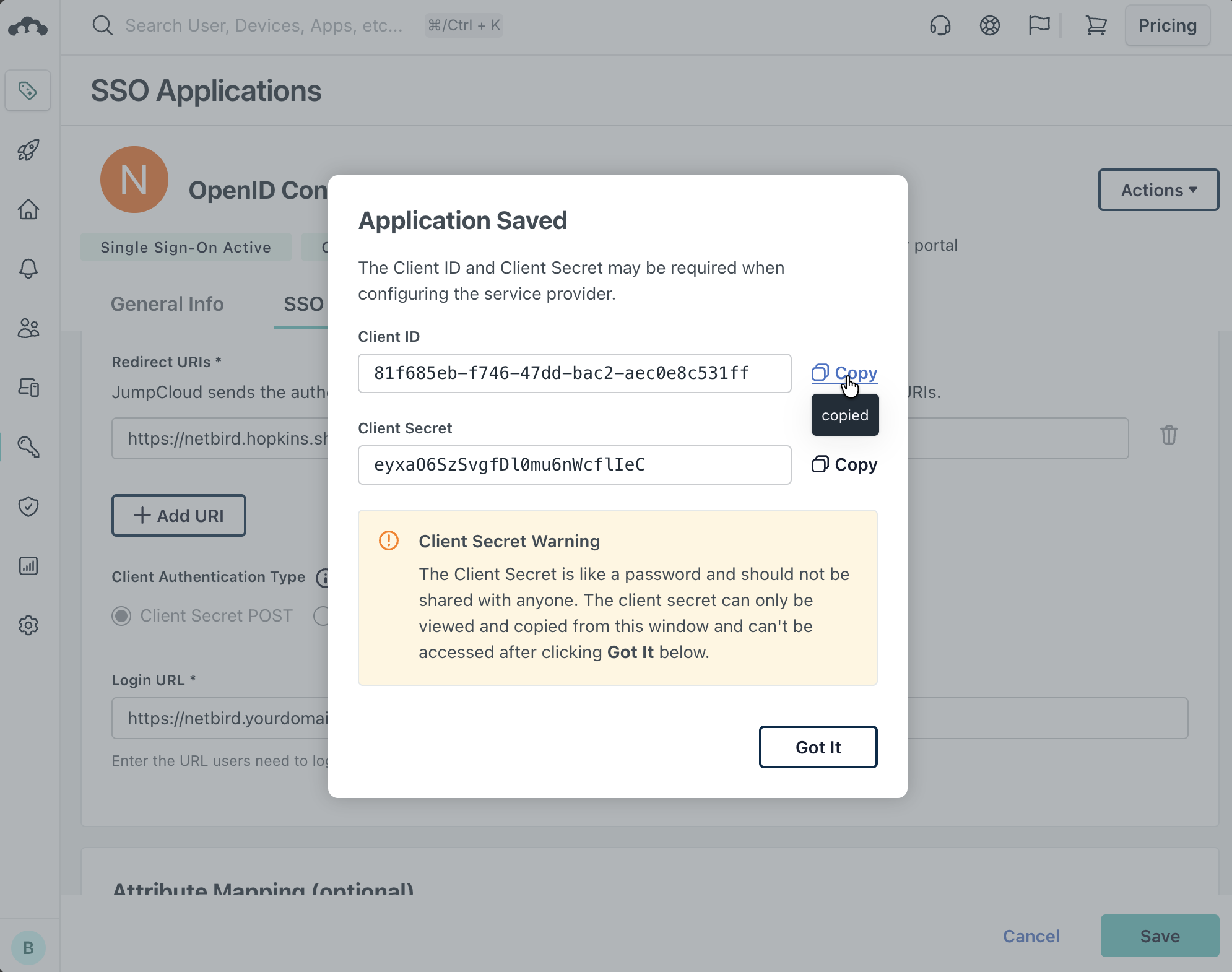
Step 4: Complete NetBird Setup
- Return to the NetBird tab
- Fill in the Client ID and Client Secret from Step 3
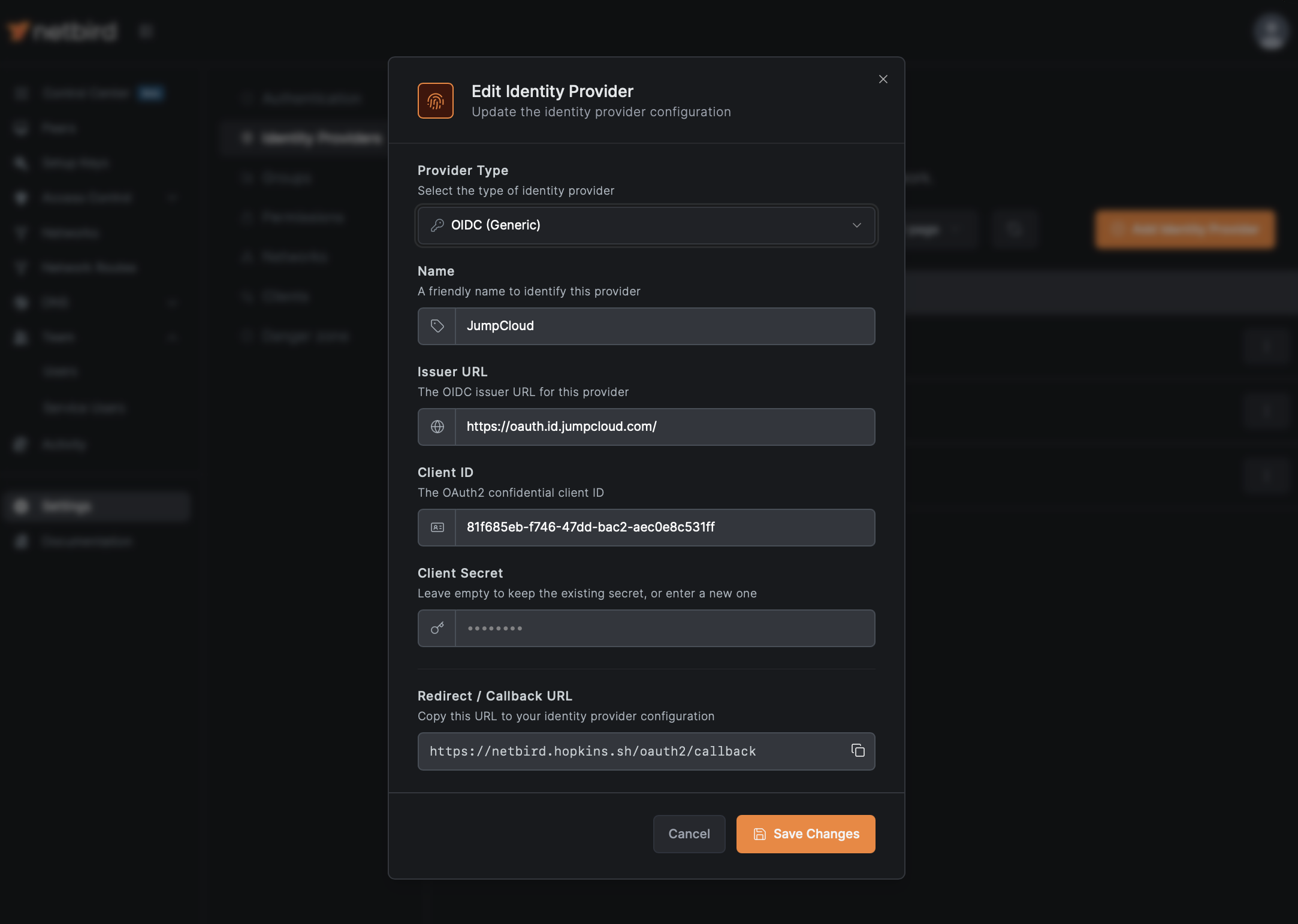
- Click Add Provider
Step 5: Test the Connection
- Log out of NetBird Dashboard
- On the login page, you should see a "JumpCloud" button
- Click it and authenticate with your JumpCloud credentials
- You should be redirected back to NetBird and logged in. Unless your user approval setting were changed you will need to log back into your local admin account to approve the user.
Configuring JWT 'groups' Claim
To sync JumpCloud groups with NetBird, you need to enable the group attribute in your JumpCloud OIDC application.
Step 1: Enable Group Attributes in JumpCloud
- In JumpCloud Admin Portal, go to Access → SSO Applications
- Select your NetBird application
- Go to the SSO tab
- Under Attribute Mapping, find the Group Attributes section
- Check Include group attribute
- In Groups Attribute Name, enter:
groups - Click Save
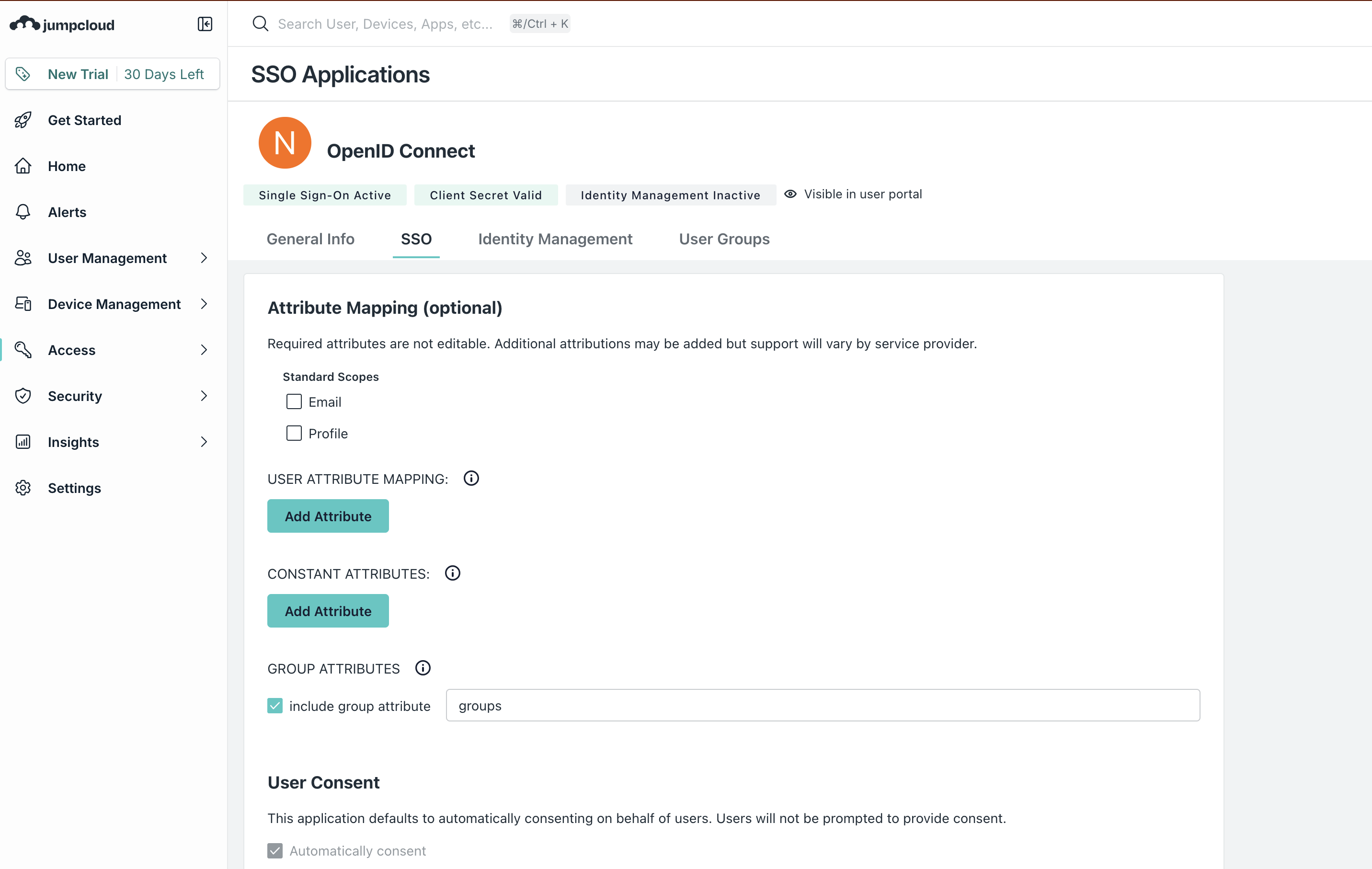
Step 2: Assign User Groups to the Application
- In your NetBird application, go to the User Groups tab
- Select the groups whose members should have access to NetBird
- Click Save
Users will receive group claims based on which assigned groups they belong to.
Step 3: Enable JWT Group Sync in NetBird
- In NetBird Dashboard, go to Settings → Groups
- Enable JWT group sync
- Set JWT claim to
groups - Optionally configure JWT allow groups to restrict access
Known issue: If a user belongs to only one group, JumpCloud may return it as a string instead of an array, which can cause issues. Ensure users are members of at least two groups for consistent behavior, or test with your specific setup.
Standalone Setup (Advanced)
Use JumpCloud as your primary identity provider instead of NetBird's embedded IdP. This option gives you full control over authentication and user management, is recommended for experienced JumpCloud administrators as it also requires additional setup and ongoing maintenance.
For most deployments, the embedded IdP is the simpler choice — it's built into NetBird, fully integrated, and requires minimal configuration to get started. For this implementation, go back up to the Management Setup (Recommended) section above.
For detailed instructions on the standalone setup, see the JumpCloud SSO with NetBird Self-Hosted (Legacy) documentation.
If you prefer to have full control over authentication, consider self-hosted alternatives like PocketID.
Troubleshooting
"Connector failed to initialize" error
- Ensure Attribute Mapping has both Email and Profile scopes enabled
- Verify at least one User Group is assigned to the application before activation
- Check that Redirect URIs exactly matches the URL from NetBird (no trailing slashes)
- Ensure Client Authentication Type is set to
Client Secret POST - Verify Login URL matches your NetBird domain exactly
- Make sure the application is Activated and you have the correct Client ID and Client Secret
- Remove any duplicate attributes in Attribute Mapping (e.g.,
emailandemail_verified)
"Invalid redirect URI" error
- Ensure all redirect URIs are configured in JumpCloud
- Check for trailing slashes
- Verify URLs match exactly
Users can't access NetBird
- Verify the user belongs to an assigned user group
- Check that the user group is assigned to the NetBird application