

Switching Between NetBird Accounts with Profiles
Updated
NetBird supports multiple profiles on a single device, making it easy to switch between work, home, or other networks. Only one profile is active at a time, and switching takes just a click.
This feature also allows you to switch between self-hosted and cloud-hosted NetBird accounts seamlessly without needing to juggle multiple config files.

NetBird Profiles GUI Quickstart
- Open the desktop app. NetBird creates a
defaultprofile automatically. - Open Settings → Profiles and select Add profile.
- Give the profile a recognizable name and configure whether it connects to NetBird Cloud or a self-hosted management URL.
- Select the profile from the selector in the main window or tray menu.
Selecting a profile makes it active and connects automatically. The first time you use a profile, NetBird opens the browser authentication flow if needed. Later switches reuse that profile's saved login state. While the Profiles settings page is open for management, selecting a profile does not interrupt the profile you are editing.
Manage Profiles in the GUI
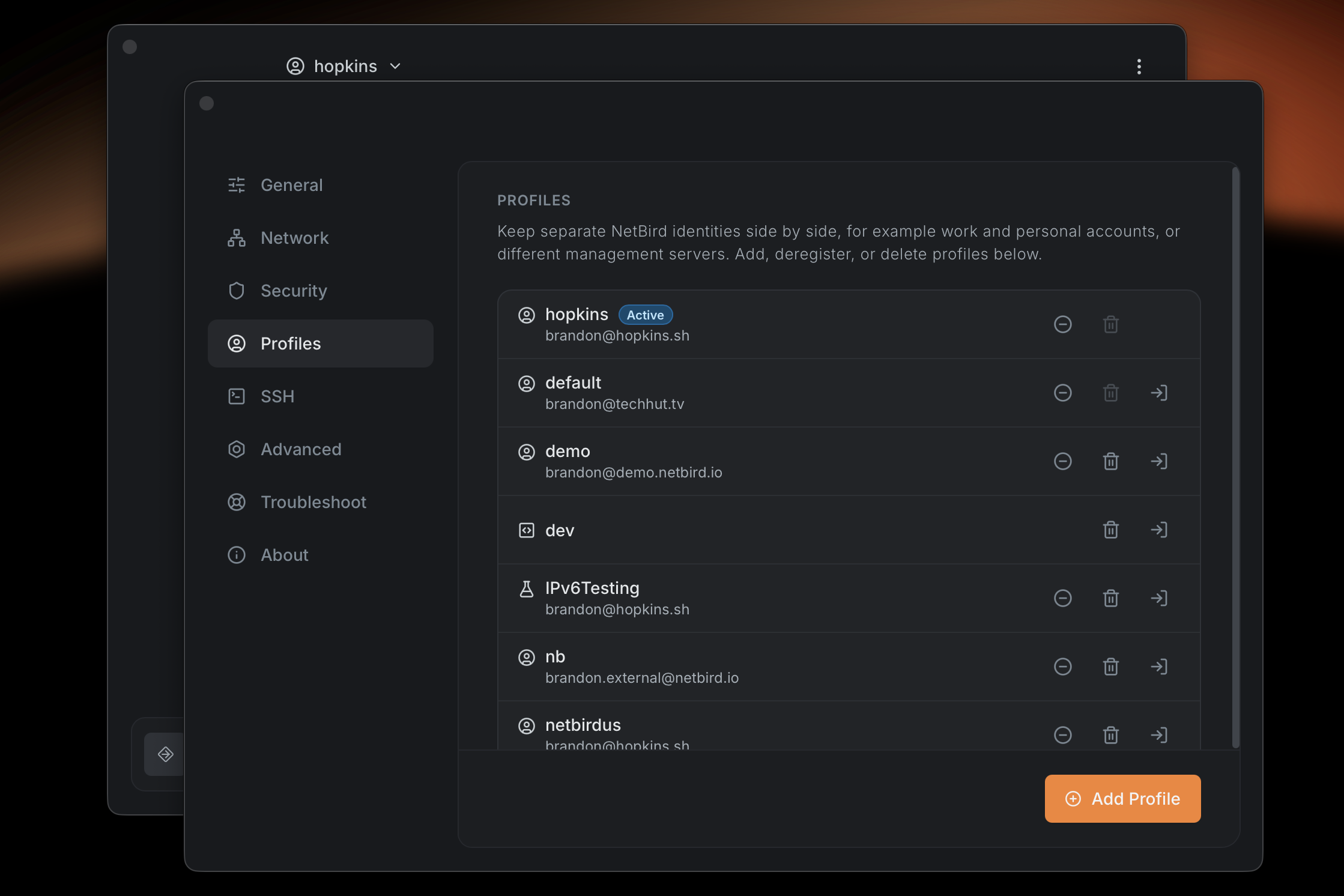
Open Settings → Profiles to:
- Add a profile with a friendly name. Names need not be unique because each profile has a generated ID.
- Edit or rename an existing profile, including its management URL.
- Delete any inactive profile. Active and default profiles cannot be removed.
- Recognize profiles by their assigned Work, Home, Default, or other type icon.
What Is a Profile?
A profile is your NetBird configuration bundle: WireGuard keys, login state, and network settings all in one file. Think of it as a separate "NetBird account" on your machine:
- Default profile
Created automatically on first run or after upgrade. - Custom profiles
Any number of additional profiles you add yourself (e.g.work,home,test).
Names and IDs
Each profile has two parts:
- A name: the free-form, human-readable label you choose (e.g.
work). Names are for display only and do not have to be unique: you can have two profiles both namedwork. - An ID: a unique identifier generated automatically when the profile is created. The
ID is also the profile's on-disk filename (
<id>.json). The CLI shows a short, 8-character form of the ID, which is enough to identify and select a profile.
The default profile is special: its ID is always default. You can rename its display label,
but it keeps that reserved ID and cannot be removed.
The default profile is stored as default.json in NetBird's state directory. Additional service profiles are stored under a per-user subdirectory as <id>.json:
| OS | Default state directory | Additional profile example |
|---|---|---|
| Linux and macOS | /var/lib/netbird/ | /var/lib/netbird/<username>/<id>.json |
| FreeBSD | /var/db/netbird/ | /var/db/netbird/<username>/<id>.json |
| Windows | %ProgramData%\Netbird\ | %ProgramData%\Netbird\<username>\<id>.json |
NB_STATE_DIR overrides the default state directory. Treat profile files as credentials: stop the service before manual maintenance, restrict access, and prefer the GUI or CLI for normal profile management.
Why Use Profiles?
- Seamless switching between multiple NetBird networks/accounts
- No manual config files updates: all configs are managed through the CLI or GUI
- Persistent state: your last active profile reconnects on startup
- Safe defaults: you cannot remove the active/default profile by accident
Upgrading From an Older Version
If you're upgrading from NetBird below version 0.52.0 that did not support profiles, here's what happens:
- During the first launch after the upgrade, your existing config
/etc/netbird/config.json(or Windows equivalent) is automatically copied to a new profile nameddefault. - The
defaultprofile is set as active, and you can start using it immediately.
Disabling Profiles Feature
In some environments, you may want to disable the profiles feature entirely. This can be useful for:
- Managed environments where users should not be able to switch between different NetBird accounts
- Security policies that require a single, fixed configuration
- Automated deployments where profile switching could interfere with operations
To disable the profiles feature, you can use the --disable-profiles flag when installing the service:
sudo netbird service install --disable-profiles
Alternatively, you can set the NB_DISABLE_PROFILES environment variable:
export NB_DISABLE_PROFILES=true
sudo netbird service install
When profiles are disabled:
- Users cannot create, switch, or remove profiles
- The profile management UI is disabled
- All profile-related CLI commands are disabled
- The client operates with a single, fixed configuration
- Profile switching is completely prevented
You can also disable update settings functionality using the --disable-update-settings flag or NB_DISABLE_UPDATE_SETTINGS environment variable. This prevents users from modifying any configuration settings, providing an additional layer of control in managed environments.
Profile CLI Commands
With the CLI, you can manage profiles easily. The main command is:
netbird profile <add|list|select|rename|remove> [name|handle]
select, rename, and remove accept a profile handle (in order of precedence):
an exact ID, a unique name or a unique ID prefix. add takes a free-form name.
See Names and IDs for the distinction between a profile's name and its ID.
Add a New Profile
To create a new profile, use the command:
netbird profile add <PROFILE_NAME>
For example, the command below creates a new profile named work:
netbird profile add work
On success it prints the new profile's short ID alongside the name:
Profile added: a1b2c3d4 work
This command does the following in the background:
- Generates a unique ID and creates an
<id>.jsonfile in your config folder. - Keeps the client disconnected until you run
netbird upornetbird login.
Profile names do not have to be unique. If another profile already uses the same name, the new profile is still created (with its own ID) and a warning is printed:
Warning: 1 other profile(s) already use the name "work".
Use `netbird profile list --show-id` to disambiguate later.
Profile added: e5f6a7b8  work
Rename a Profile
You can change a profile's display name at any time without affecting its ID, config, or login
state. The profile's <id>.json file stays the same, only the name stored inside it changes.
netbird profile rename <HANDLE> <NEW_PROFILE_NAME>
The handle can be the profile's current name, its full ID, or a unique ID prefix. For example,
to rename the work profile to office:
netbird profile rename work office
On success:
Profile renamed from work to office
A few things to note:
- The new name is free-form and does not have to be unique. If another profile already uses
it, the rename still succeeds and a warning is printed (same as
add). - The default profile can be renamed. Its label changes everywhere it's shown, but it keeps
its reserved
defaultID and still cannot be removed. - If the handle is ambiguous or matches no profile, you'll get the same errors as
selectandremove(see below), pointing you at--show-id.
List Profiles
The command below lists all available profiles along with their status:
netbird profile list
For example, running this command might output:
NAME     ACTIVE
work     ✓
default
home
A ✓ in the ACTIVE column marks the active profile; inactive profiles are left blank.
To also show each profile's short ID, add the --show-id flag:
netbird profile list --show-id
ID        NAME     ACTIVE
a1b2c3d4  work     ✓
default   default
e5f6a7b8  home
This is useful when several profiles share the same name. The ID column lets you tell them apart and select or remove the right one by its ID prefix.
Select (Switch) a Profile
To switch to a specific profile, use:
netbird profile select <handle>
The handle can be the full ID, profile's name, or a unique ID prefix:
netbird profile select home       # by name
netbird profile select e5f6a7b8   # by ID prefix
The successful command will output the short ID of the now-active profile:
Profile switched to: e5f6a7b8
If the profile hasn't been used before, you will need to run netbird up or netbird login to authenticate.
If the handle matches no profile, you'll see:
Error: profile "home" not found
If the handle is ambiguous (for example, a name shared by multiple profiles), the command lists the candidates and tells you how to disambiguate:
Error: name "work" is ambiguous (2 profiles share this name)
Run `netbird profile list --show-id` to see IDs, then select by ID prefix:
  netbird profile select|remove <id-prefix>
Remove a Profile
To remove a profile, use:
netbird profile remove <handle>
Like select, the handle can be an exact ID, a unique name, or a unique ID prefix:
netbird profile remove home
If successful, the full ID of the removed profile is printed so you can confirm exactly which profile a name or prefix resolved to:
Profile removed: e5f6a7b8c9d0e1f2a3b4c5d6e7f8a9b0
You can't remove an active profile. If the profile you are trying to remove is active, you'll see an error:
Cannot remove active profile: e5f6a7b8c9d0e1f2a3b4c5d6e7f8a9b0
The default profile cannot be removed either (though it can be renamed):
cannot remove default profile with name: default
If the handle matches no profile, you'll see:
Error: profile "home" not found
If the handle matches multiple profiles, none is removed and the command points you at --show-id (same way as for select).
The command does the following in the background:
- Removes the profile's
<id>.jsonand<id>.state.jsonfiles from your config folder.
Using --profile Flags
--profile FlagsYou can use the --profile flag with any NetBird CLI command to specify which profile to use for that command.
This is useful for running commands in a specific context without switching profiles manually.
netbird up --profile work
netbird login --profile home
The value is resolved as a handle (an exact ID, a unique name, or a unique ID prefix), the same way as
profile select. NetBird switches to the resolved profile then runs the command under the
hood. If the profile is new and hasn't been used yet, you'll be prompted to authenticate.