

Windows Installation
Updated
The NetBird client allows a peer to join a pre-existing NetBird deployment. If a NetBird deployment is not yet available, there are both managed and self-hosted options available.
- Download the latest Windows release:
- Execute the installer and proceed with the installation steps
- This will install the UI client in the
C:\Program Files\NetBirdand add the daemon service - After installing, you can follow the steps from Running NetBird with SSO Login.
Open a new terminal before running netbird commands. The installer adds C:\Program Files\NetBird to the system PATH, but terminals that were already open keep the old PATH.
To uninstall the client and service, you can use Add/Remove programs
Silent and Automated Installation
Both installers support silent (unattended) installation for use with RMM tools, MDM platforms, and scripted deployments.
Silent installation writes to C:\Program Files and registers a Windows service, so it requires an elevated administrator or SYSTEM context. Make sure the deployment job runs elevated: tools such as PDQ, Intune, and Group Policy typically install as SYSTEM when targeting computers, but a job configured to run in the user's context is not elevated and fails with exit code 1625 (This installation is forbidden by system policy). A standard user running the installer interactively is prompted for elevation instead.
EXE Installer (NSIS)
Run the EXE installer with the /S flag for a silent installation:
netbird_installer_<VERSION>_windows_amd64.exe /S
The installer no longer writes a machine-wide HKLM\Software\Microsoft\Windows\CurrentVersion\Run entry. Starting with v0.75.0, the desktop app manages launch at login as a per-user preference.
MSI Installer
Run the MSI installer with msiexec for a silent installation:
msiexec /i netbird_installer_<VERSION>_windows_amd64.msi /quiet
The MSI does not expose an AUTOSTART property. On a fresh desktop installation, the app enables Launch NetBird UI at Login for the current user the first time the UI runs. Upgrades preserve the user's existing preference. Users can change it under Settings → General, and administrators can suppress or remove the per-user registration with the disableAutostart MDM setting.
Launch NetBird UI at Login affects only the graphical interface. The NetBird background service starts independently and can maintain connectivity even when the UI does not launch.
Combining with a Setup Key
For fully automated deployments where peers should register without user interaction, combine silent installation with a setup key:
netbird_installer_<VERSION>_windows_amd64.exe /S
netbird up --setup-key <SETUP KEY>
Or with the MSI installer:
msiexec /i netbird_installer_<VERSION>_windows_amd64.msi /quiet
netbird up --setup-key <SETUP KEY>
For MDM-specific deployment guides, see Deploy with Intune or Deploy with Acronis.
Updating an Existing Installation
There is no separate update package. The same installer upgrades an existing installation in place: run the newer version and it replaces the installed one, keeping the peer's registration and configuration under C:\ProgramData\Netbird. There is no need to re-run netbird up or pass a setup key again after an upgrade.
netbird_installer_<VERSION>_windows_amd64.exe /S
Or with the MSI installer:
msiexec /i netbird_installer_<VERSION>_windows_amd64.msi /quiet /norestart /L*v netbird_upgrade.log
The /L*v log is optional but makes a failed silent upgrade far easier to diagnose.
Like the initial install, an upgrade requires an elevated context, so the upgrade job must run as administrator or SYSTEM. Two more things the upgrade job must get right:
- Use the same installer type you deployed with. Neither installer detects an installation made by the other, so switching from EXE to MSI (or back) produces a second, overlapping installation instead of an upgrade.
- Use a job that runs the installer even when NetBird is already present. Some install jobs deliberately skip machines where the application is already installed, and a job like that will never upgrade. The script in the Group Policy deployment guide, for example, exits early if NetBird is already installed, so use an upgrade-capable job for updates.
The upgrade stops and restarts the NetBird service, so the peer briefly disconnects during the install. This also applies when you push the upgrade over the NetBird tunnel itself: the session drops mid-install and comes back once the service restarts.
Alternatively, an administrator can enable Automatic Updates under Settings » Clients (requires v0.61.0 or later on the clients and, when self-hosting, on the Management server). Clients then prompt the user to install the configured version and the NetBird service performs the install, with no administrator rights required from the user; the Force Automatic Updates toggle (v0.67.0 or later, again on both the clients and the Management server) installs without prompting. If you deploy and hold a specific version with the installer while Automatic Updates is set to Latest Version, clients will be prompted, or with Force updated, past the version you are holding, so pin a Custom Version instead.
The two installers treat downgrades differently:
- The MSI refuses to downgrade. Installing an MSI older than the installed version changes nothing and fails with "A newer version of NetBird is already installed". In quiet mode
msiexecexits with1603, but1603is Windows Installer's generic fatal-error code and also fires on unrelated failures, so confirm a suspected downgrade attempt in the/L*vlog rather than from the exit code alone. To roll back an MSI installation, uninstall NetBird and then install the older MSI; the uninstall leaves the configuration underC:\ProgramData\Netbirdin place, so the peer keeps its identity. - The EXE does not check versions. It removes the existing EXE installation and installs the packaged version even when that version is older, so rolling back an EXE installation is just a normal silent run of the older installer.
Running NetBird with SSO Login
Desktop UI Application
Launch the desktop app and click Connect in the main window or system-tray menu. On first launch, choose NetBird Cloud or enter the URL of your self-hosted deployment. NetBird opens your browser to authenticate the device. See the desktop app guide for the complete interface.
CLI
Alternatively, you could use command line. Simply run
netbird up
It will open your browser and prompt you for your email and password. Follow the instructions.
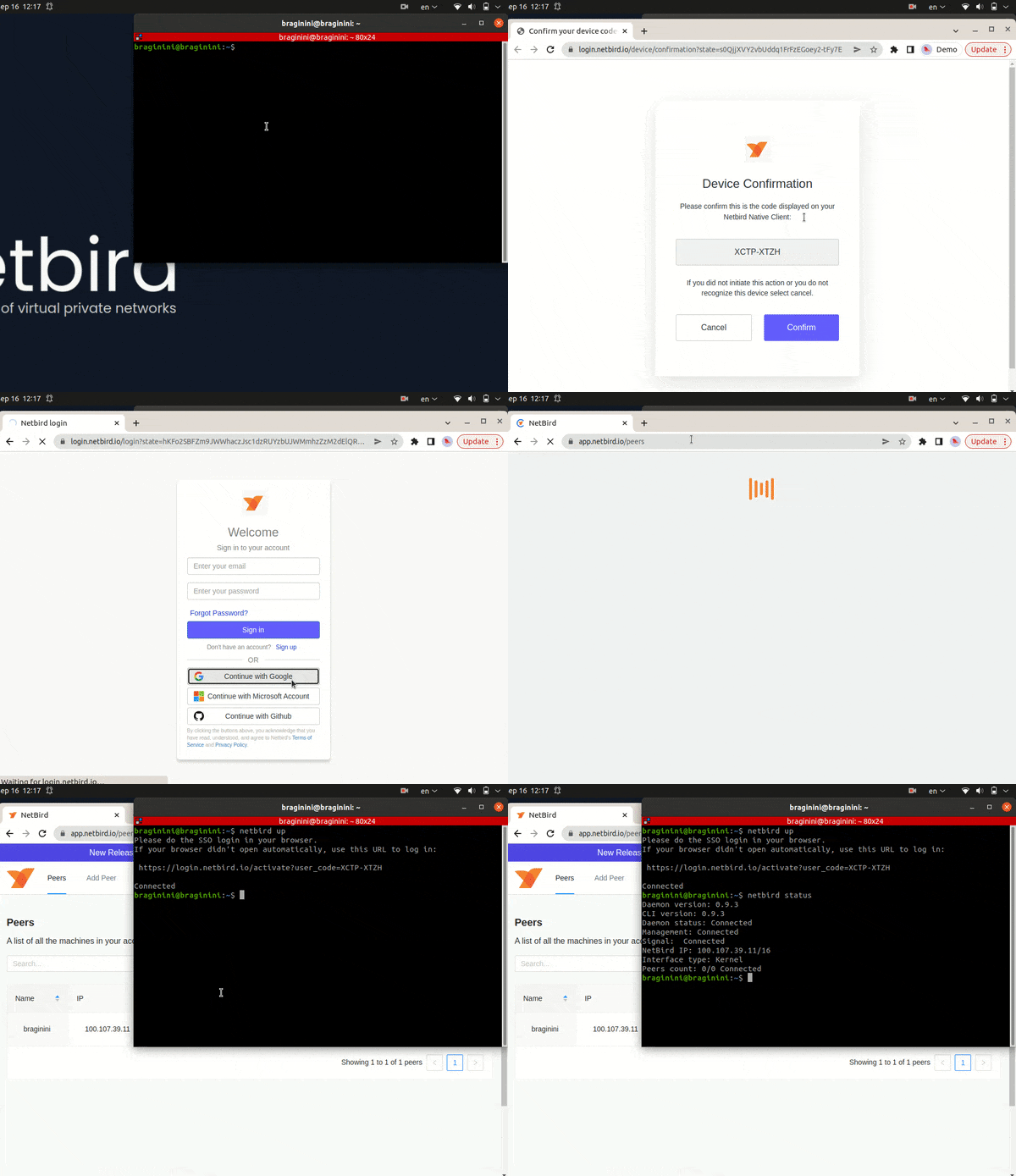
Check connection status:
netbird status
Running NetBird with a Setup Key
In case you are activating a server peer, you can use a setup key as described in the steps below.
This is especially helpful when you are running multiple server instances with infrastructure-as-code tools like ansible and terraform.
For unattended deployments across many machines, pre-populate the client config so each peer registers on first start. See Bootstrap peers via config file.
- Login to the Management Service. You need to have a
setup keyin hand (see setup keys).
For all systems:
netbird up --setup-key <SETUP KEY>
Alternatively, if you are hosting your own Management Service provide --management-url property pointing to your Management Service:
netbird up --setup-key <SETUP KEY> --management-url http://localhost:33073
You could also omit the --setup-key property. In this case, the tool will prompt for the key.
- Check connection status:
netbird status
- Check your IP:
netsh interface ip show config name="wt0"