

tvOS (Apple TV)
Updated
The tvOS app supports all Apple TV devices running tvOS 17.0 or later. It's available to download in the Apple TV app store.
tvOS support is currently in beta.
Configure NetBird on tvOS
First Launch
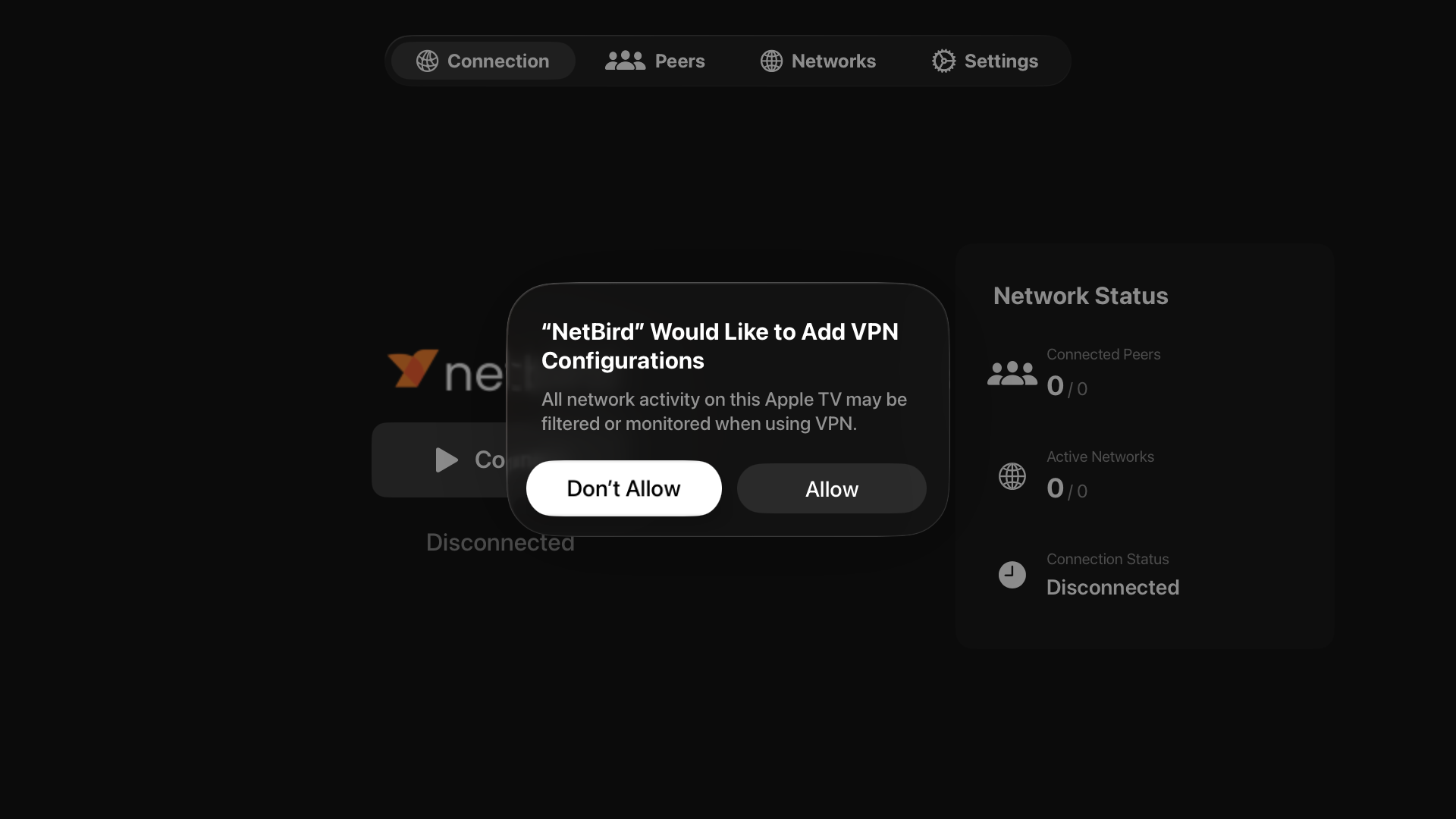
Upon first launch, NetBird will request permission to create a new VPN configuration. Select 'Allow' to continue.
Management Server Configuration
This step only applies to self-hosted users, or cloud users enrolling the device with a setup key. If you're a cloud user and are not enrolling the device with a setup key, you can safely skip to Connecting & Authenticating
By default, the app is configured to connect to NetBird's cloud management server. If you're a self-hosted user, or you'd like to enroll the device with a setyo key, you'll need to change the management server settings.
Navigate to 'Settings > Change Server', and the app will warn you that changing management server settings will erase your current config and disconnect if a connection is currently active:
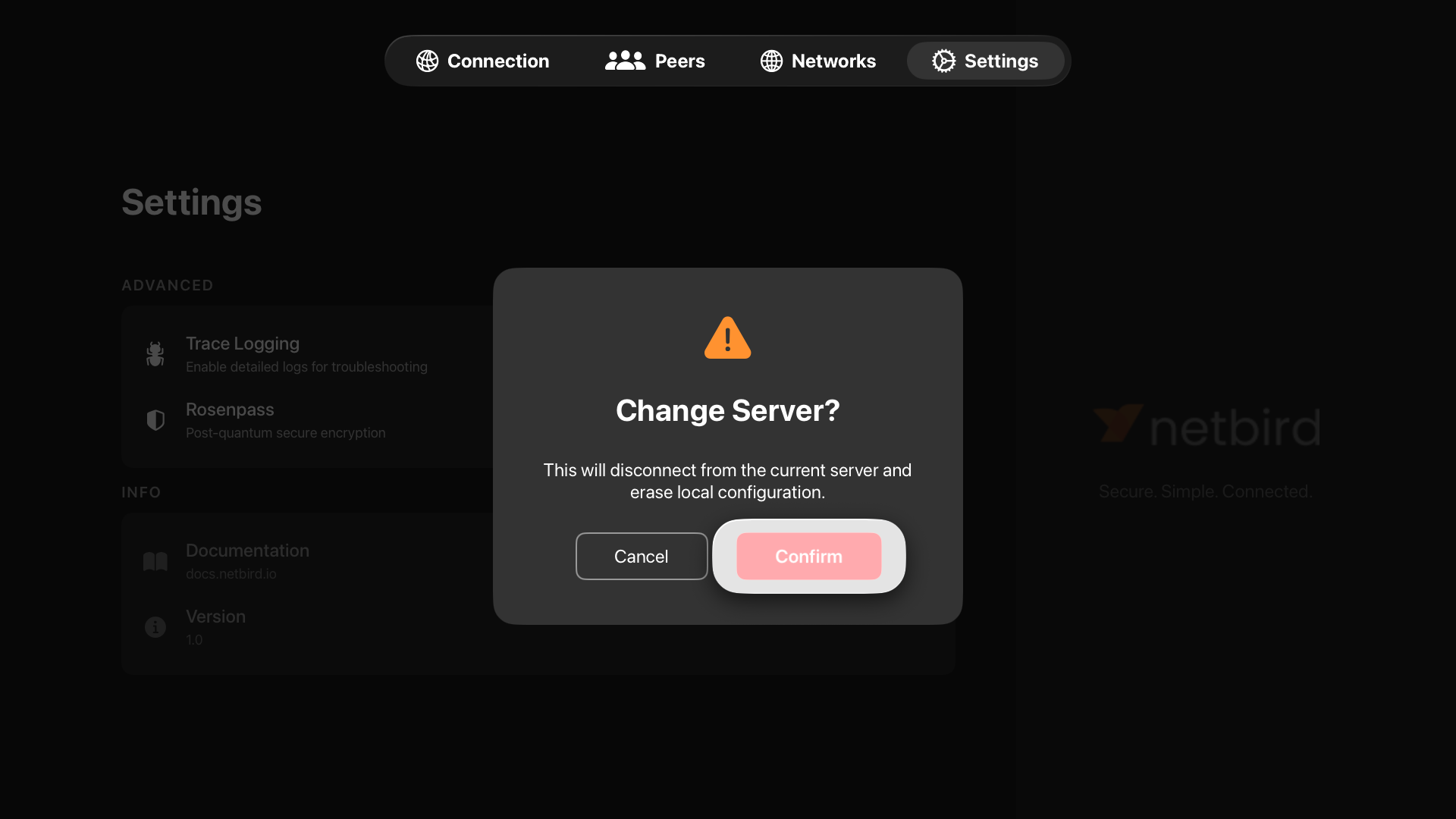
After confirming, you'll be presented with a dialog to enter your management server URL. Cloud users who want to enroll the device with a setup key should enter the URL For cloud users, this is https://api.netbird.io:443.
For self-hosted users, it's usually https://your_management_server_url:443, but you can refer to the exposedAddress field in your config.yaml (or management.json for older multi-container setups) if you're unsure.
If enrolling the device with a setup key, select '+ Add this device with a setup key' and enter your setup key. Select 'Change' to apply your new management server config. NetBird will run a brief verification step on the details you've entered, after which you can move on to connecting.
Connecting & Authenticating
On the main 'Connection' screen, select the 'Connect' button to initiate a connection to your NetBird network.
For self-hosted users not enrolling the device with a setup key, Device Authentication needs to be enabled in the management server config.
If you're not using a setup key, you'll be presented a QR code and device ID:
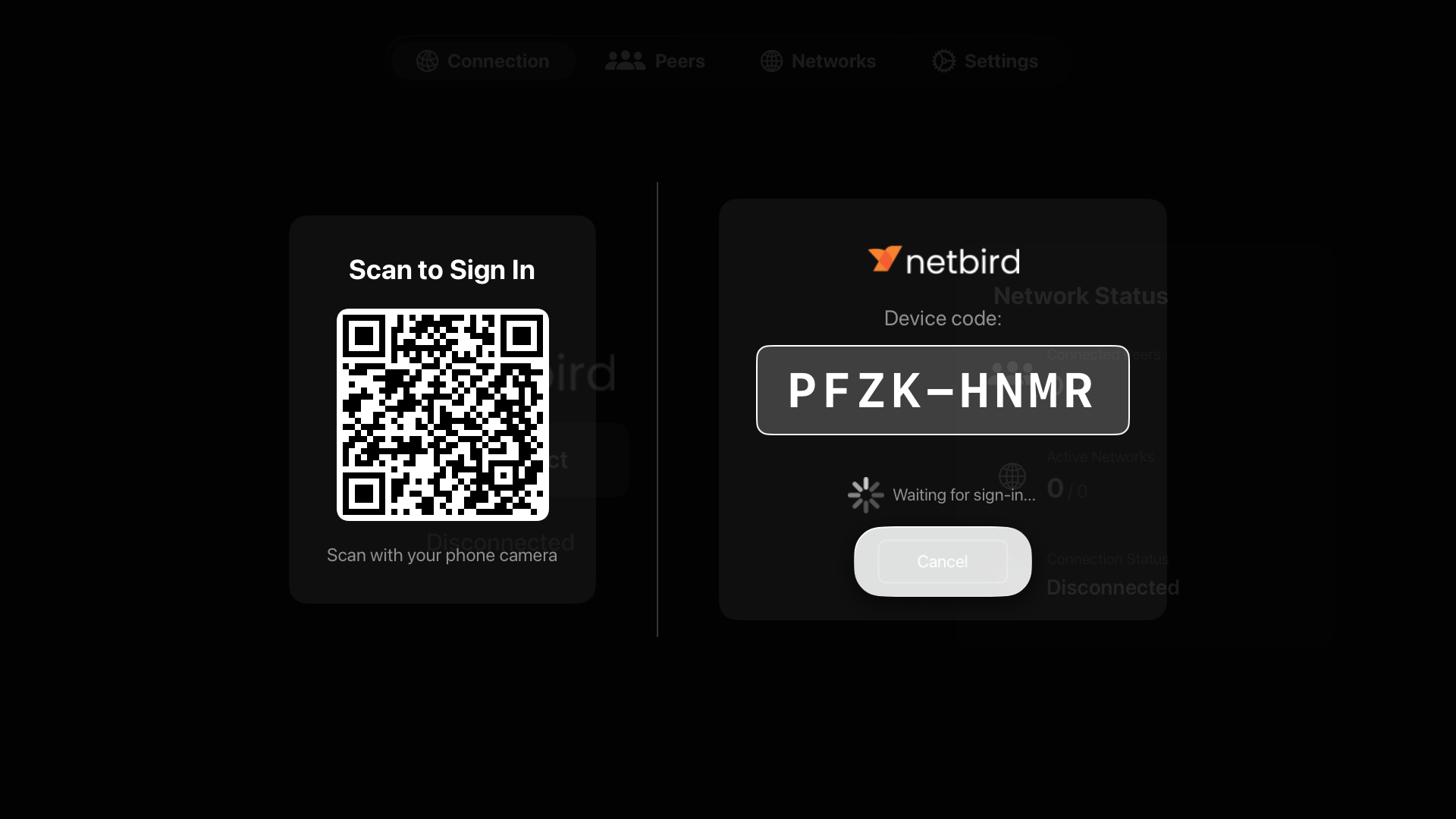
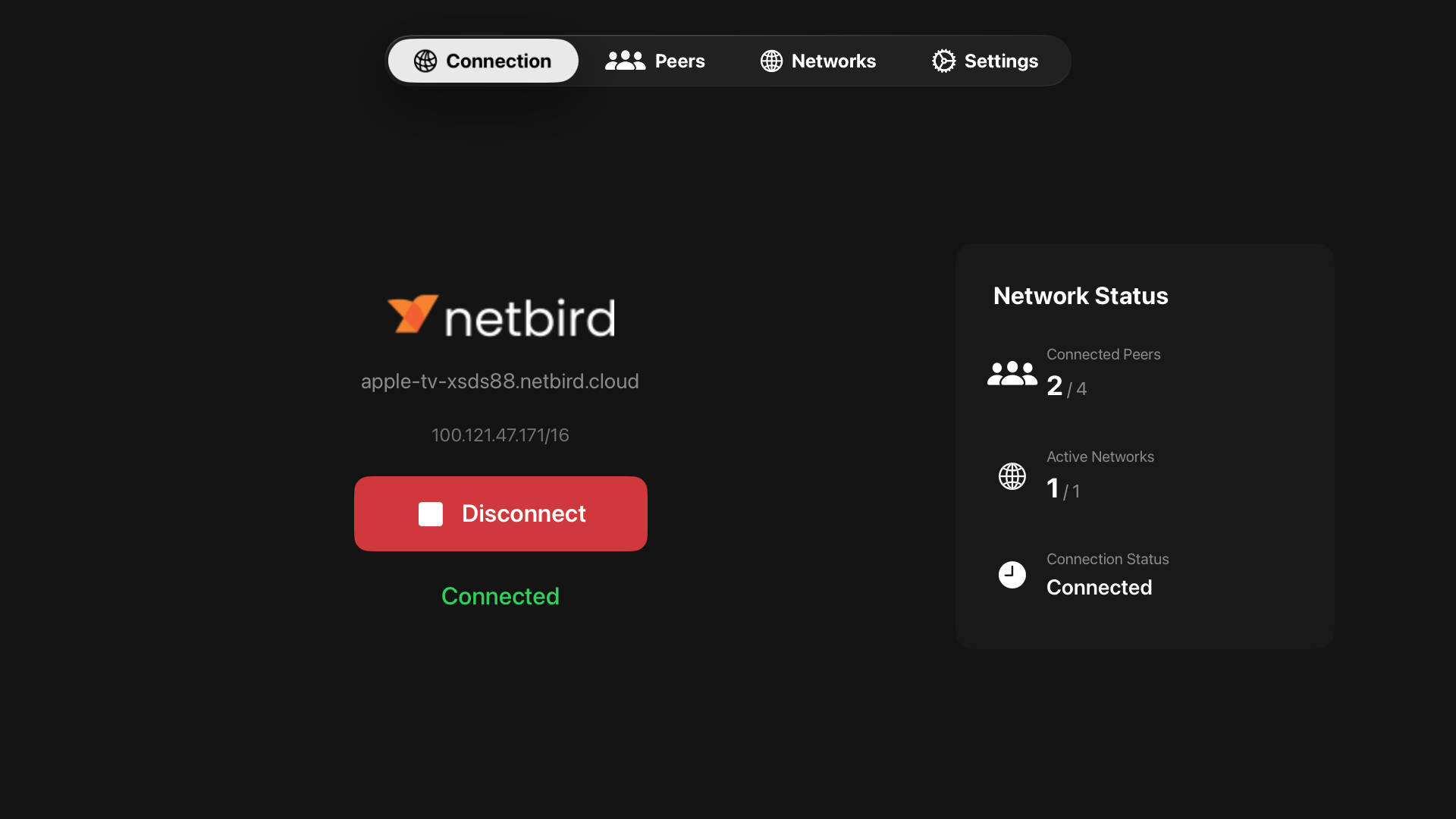
Scan the QR code with a mobile device and you'll be able to sign in to your SSO provider there. If asked to confirm your device code, confirm that the code underneath the QR code matches the one presented by your SSO provider. Once you've completed the SSO flow, after a few seconds the authentication dialog in the NetBird app will automatically dismiss itself. Select the 'Connect' button once more, and your device should now be connected!
What's next?
- Manage your device's access to the network
- Use your device for remote access to your home network
- Use your device as an exit node