

Linux Installation
Updated
The NetBird client allows a peer to join a pre-existing NetBird deployment. If a NetBird deployment is not yet available, there are both managed and self-hosted options available.
Desktop App Dependencies
The desktop app introduced in NetBird v0.75.0 renders its interface in a GTK 4 WebKit webview. The netbird-ui package does not declare these libraries as dependencies, so install them alongside it.
The desktop app requires GTK 4.10 or newer and WebKitGTK 6.0. On older GTK 4 releases the app starts but crashes as soon as it opens a file dialog, so install the netbird CLI only on those systems.
Minimum releases that satisfy both requirements:
| Distribution | Desktop app | CLI |
|---|---|---|
| Ubuntu | 24.04 LTS and newer | any supported release |
| Debian | 13 (trixie) and newer | any supported release |
| Fedora | 43 and newer | any supported release |
| RHEL / AlmaLinux / Rocky | 10 and newer, with EPEL | any supported release |
| Amazon Linux | not available | 2 and 2023 |
Ubuntu 22.04 (GTK 4.6) and Debian 12 (GTK 4.8) ship WebKitGTK 6.0 but their GTK 4 is below 4.10, so the desktop app is not supported there. RHEL 9 provides neither GTK 4.10 nor WebKitGTK 6.0.
Debian 13+ / Ubuntu 24.04+
sudo apt-get install libgtk-4-1 libwebkitgtk-6.0-4 xdg-utils
Fedora 43+ / RHEL 10+
sudo dnf install gtk4 webkitgtk6.0 xdg-utils
On other distributions, install the equivalent GTK 4 (4.10+), WebKitGTK 6.0, and xdg-utils packages from your package manager. Many desktop systems already include some or all of them.
Linux netbird-ui packages are built for x86_64 only. On arm64 and other architectures, use the netbird CLI.
Linux Install Script
curl -fsSL https://pkgs.netbird.io/install.sh | sh
Ubuntu/Debian (APT)
- Add the repository:
 sudo apt-get update
 sudo apt-get install ca-certificates curl gnupg -y
 curl -sSL https://pkgs.netbird.io/debian/public.key | sudo gpg --dearmor --output /usr/share/keyrings/netbird-archive-keyring.gpg
 echo 'deb [signed-by=/usr/share/keyrings/netbird-archive-keyring.gpg] https://pkgs.netbird.io/debian stable main' | sudo tee /etc/apt/sources.list.d/netbird.list
- Update APT's cache
sudo apt-get update
- Install the package
 # for CLI only
 sudo apt-get install netbird
 # for the desktop app (Ubuntu 24.04+ / Debian 13+)
 sudo apt-get install netbird-ui libgtk-4-1 libwebkitgtk-6.0-4 xdg-utils
RHEL 9 / Amazon Linux 2 (YUM)
These releases do not provide GTK 4.10 or WebKitGTK 6.0, so the desktop app is not available. Install the CLI and manage NetBird with netbird commands.
- Add the repository:
sudo tee /etc/yum.repos.d/netbird.repo <<EOF
[netbird]
name=netbird
baseurl=https://pkgs.netbird.io/yum/
enabled=1
gpgcheck=1
gpgkey=https://pkgs.netbird.io/yum/repodata/repomd.xml.key
repo_gpgcheck=1
EOF
- Install the package
sudo yum install netbird
Fedora / RHEL 10+ / Amazon Linux 2023 (DNF)
- Create the repository file:
sudo tee /etc/yum.repos.d/netbird.repo <<EOF
[netbird]
name=netbird
baseurl=https://pkgs.netbird.io/yum/
enabled=1
gpgcheck=1
gpgkey=https://pkgs.netbird.io/yum/repodata/repomd.xml.key
repo_gpgcheck=1
EOF
- Import the file
#Fedora 40 or earlier/Amazon Linux 2023** (DNF 4)
 sudo dnf config-manager --add-repo /etc/yum.repos.d/netbird.repo
#Fedora 41 or later (DNF 5)
 sudo dnf config-manager addrepo --from-repofile=/etc/yum.repos.d/netbird.repo
- Install the package
 # for CLI only
 sudo dnf install netbird
 # for the desktop app (Fedora 43+ / RHEL 10+)
 sudo dnf install netbird-ui gtk4 webkitgtk6.0 xdg-utils
On RHEL, AlmaLinux and Rocky Linux 10, webkitgtk6.0 comes from EPEL, so enable it before installing the desktop app:
sudo dnf install epel-release -y
Amazon Linux 2023 does not provide GTK 4 or WebKitGTK 6.0, so install the CLI only there.
The tray icon uses the D-Bus StatusNotifierItem protocol. GNOME does not support it natively, so on GNOME desktops install gnome-shell-extension-appindicator and enable it:
sudo dnf install gnome-shell-extension-appindicator
sudo gnome-extensions enable appindicatorsupport@rgcjonas.gmail.com
Under X11, you may need to restart GNOME Shell (Alt+F2, r, ⏎) after that. Under Wayland you need to logout and login again.
Fedora Silverblue (Atomic) / Universal Blue (rpm-ostree)
- Create the repository file:
sudo tee /etc/yum.repos.d/netbird.repo <<EOF
[netbird]
name=netbird
baseurl=https://pkgs.netbird.io/yum/
enabled=1
gpgcheck=1
gpgkey=https://pkgs.netbird.io/yum/repodata/repomd.xml.key
repo_gpgcheck=1
EOF
- Install the package
 # for CLI only
 rpm-ostree install netbird
 # for the desktop app
 rpm-ostree install netbird-ui gtk4 webkitgtk6.0 xdg-utils
 # Don't forget to reboot to apply
- Start the service
systemctl enable --now netbird
Fedora Silverblue / Universal Blue / SteamOS / Immutable Distros (Homebrew)
Requires installation of Homebrew, Universal Blue images should have Homebrew preinstalled.
This method does not install the NetBird GUI. It installs the CLI only.
- If NetBird was previously installed with Homebrew, you will need to run:
# Stop and uninstall daemon service:
sudo netbird service stop
sudo netbird service uninstall
# unlink the app
brew unlink netbird
NetBird will copy any existing configuration from the NetBird's default configuration paths to the new default location.
- Install Netbird
brew install netbirdio/tap/netbird
If it gives you an error saying to install Clang, you can install it with
brew install llvm
If that still doesn't work after that, try restarting your terminal to update the path.
- Install and start the client daemon service:
  sudo /home/linuxbrew/.linuxbrew/bin/netbird service install
  sudo /home/linuxbrew/.linuxbrew/bin/netbird service start
You may need to adjust this command if you are not using the default /home/linuxbrew/.linuxbrew prefix for your Homebrew install.
On Fedora-based systems including Universal Blue, SELinux may block NetBird from running due to homebrew installing it in ~/linuxbrew.
You can fix this by running
sudo semanage fcontext -a -t bin_t \
  '/home/linuxbrew/\.linuxbrew/Cellar/netbird/[^/]+/bin/netbird'
sudo restorecon -Rv /home/linuxbrew/.linuxbrew/Cellar/netbird
sudo systemctl restart netbird
If your Homebrew prefix is set to something other than /home/linuxbrew/.linuxbrew, you may need to adjust those commands to match.
You can verify that the NetBird service is running properly before and after making these changes by running:
sudo systemctl status netbird
Fedora Silverblue / Universal Blue / SteamOS / Immutable Distros (Distrobox)
Requires installation of Distrobox, Universal Blue images should have Distrobox preinstalled.
You will also need to maintain and update Debian inside the Distrobox container.
- Create a distrobox container
distrobox create netbird --init --image debian:13 -a "--cap-add=NET_ADMIN" --additional-packages systemd --root
- Install inside the container
distrobox enter --root netbird
curl -fsSL https://pkgs.netbird.io/install.sh | sh
- Export the Netbird binary to the host
#from inside the container
distrobox-export -b /usr/bin/netbird
openSUSE (zypper)
- Add the repository:
sudo zypper addrepo https://pkgs.netbird.io/yum/ netbird
- Install the package / GPG key
- Key Fingerprint:
AA9C 09AA 9DEA 2F58 112B 40DF DFFE AB2F D267 A61F - Key ID:
DFFEAB2FD267A61F - Email:
dev@netbird.io
# MicroOS (immutable OS with selinux)
transactional-update pkg in netbird
reboot

# Tumbleweed / Leap
zypper in netbird
These commands install the CLI. To use the desktop app, install netbird-ui together with your distribution's GTK 4.10+ and WebKitGTK 6.0 packages; openSUSE names them differently from Debian and Fedora, so check with zypper search webkitgtk.
Binary Install
Installation from binary (CLI only)
- Checkout NetBird releases
- Download the latest release:
curl -L -o ./netbird_<VERSION>.tar.gz https://github.com/netbirdio/netbird/releases/download/v<VERSION>/netbird_<VERSION>_<OS>_<Arch>.tar.gz
You need to replace some variables from the URL above:
- Replace VERSION with the latest released version.
- Replace OS with "linux", "darwin" for MacOS or "windows"
- Replace Arch with your target system CPU architecture
- Decompress
  tar xzf ./netbird_<VERSION>.tar.gz
  sudo mv netbird /usr/bin/netbird
  sudo chown root:root /usr/bin/netbird
  sudo chmod +x /usr/bin/netbird
After that you may need to add /usr/bin in your PATH environment variable:
export PATH=$PATH:/usr/bin
- Install and run the service
  sudo netbird service install
  sudo netbird service start
Community packages
The packages in this section are maintained by Linux distributions and other community package repositories. NetBird does not build or publish them. Available versions, architectures, service integration, and desktop app support may differ from the officially supported NetBird packages above.
Your distribution's normal update process will update NetBird when a newer package becomes available.
Alpine Linux (APK)
The netbird package is available in the Alpine Community repository. Make sure the Community repository is enabled, then install the client and its OpenRC service as the root user:
apk update
apk add netbird netbird-openrc
To install the desktop app as well:
apk add netbird-ui
Enable and start the service:
rc-update add netbird default
rc-service netbird start
ALT Linux Sisyphus (APT-RPM)
NetBird is available in the ALT Linux Sisyphus repository:
sudo apt-get update
sudo apt-get install netbird
sudo systemctl enable --now netbird
Arch Linux
Arch User Repository (AUR)
The Arch User Repository (AUR) is a community-driven repository of package build scripts. Packages are user-produced content and are not vetted by the Arch Linux team.
The AUR provides netbird, which builds the client from source, and netbird-bin, which installs the prebuilt release binary. Review the PKGBUILD, then build your preferred package as a regular user. For example, to build netbird:
git clone https://aur.archlinux.org/netbird.git
cd netbird
makepkg -si
The desktop app is available as netbird-ui-bin:
git clone https://aur.archlinux.org/netbird-ui-bin.git
cd netbird-ui-bin
makepkg -si
You can also install these packages with an AUR helper that you already use.
Chaotic-AUR
Chaotic-AUR provides prebuilt packages from the AUR. If you already have Chaotic-AUR configured, install its prebuilt netbird package with Pacman:
sudo pacman -Syu netbird
After installing either AUR package or the Chaotic-AUR package, enable and start the default NetBird client instance:
sudo systemctl enable --now netbird@main.service
NixOS 22.11+/unstable
- Edit your
configuration.nix:
{ config, pkgs, ... }:
{
  services.netbird.enable = true; # NetBird service and CLI
  environment.systemPackages = [ pkgs.netbird-ui ]; # Desktop app
}
- Build and apply the new configuration:
sudo nixos-rebuild switch
openSUSE Tumbleweed (Zypper)
The netbird package is available from the openSUSE Tumbleweed OSS repository:
sudo zypper refresh
sudo zypper install netbird
sudo systemctl enable --now netbird
This package is separate from the NetBird-hosted RPM repository described earlier on this page.
Solus Polaris (eopkg)
The official Solus package recipe provides netbird and netbird-ui, and both packages are available in Polaris (package listings). Refresh the repository and update the system before installing the client:
sudo eopkg update-repo
sudo eopkg upgrade
sudo eopkg install netbird
sudo systemctl enable --now netbird.service
To install the desktop app as well:
sudo eopkg install netbird-ui
The desktop package depends on the netbird client package, so eopkg installs the client automatically if it is not already present.
Verify the service
After installing and starting a community package, check that the CLI can reach the daemon:
sudo netbird status
Before you log in, the command should return daemon status rather than a socket or connection error. Depending on the package version, it may report Daemon status: NeedsLogin or show Management: Disconnected. Continue with one of the login methods below. On Alpine, where these instructions are run as root, omit sudo.
Updating
If your NetBird client was installed through a package manager, use that to update. If you used the one-command script to install, you can follow this to update:
netbird down
curl -fsSLO https://pkgs.netbird.io/install.sh
chmod +x install.sh
./install.sh --update
netbird up
Running NetBird with SSO Login
Desktop UI Application
Launch the desktop app and click Connect in the main window or system-tray menu. On first launch, choose NetBird Cloud or enter the URL of your self-hosted deployment. NetBird opens your browser to authenticate the device. See the desktop app guide for the complete interface.
CLI
Alternatively, you could use command line. Simply run
netbird up
It will open your browser and prompt you for your email and password. Follow the instructions.
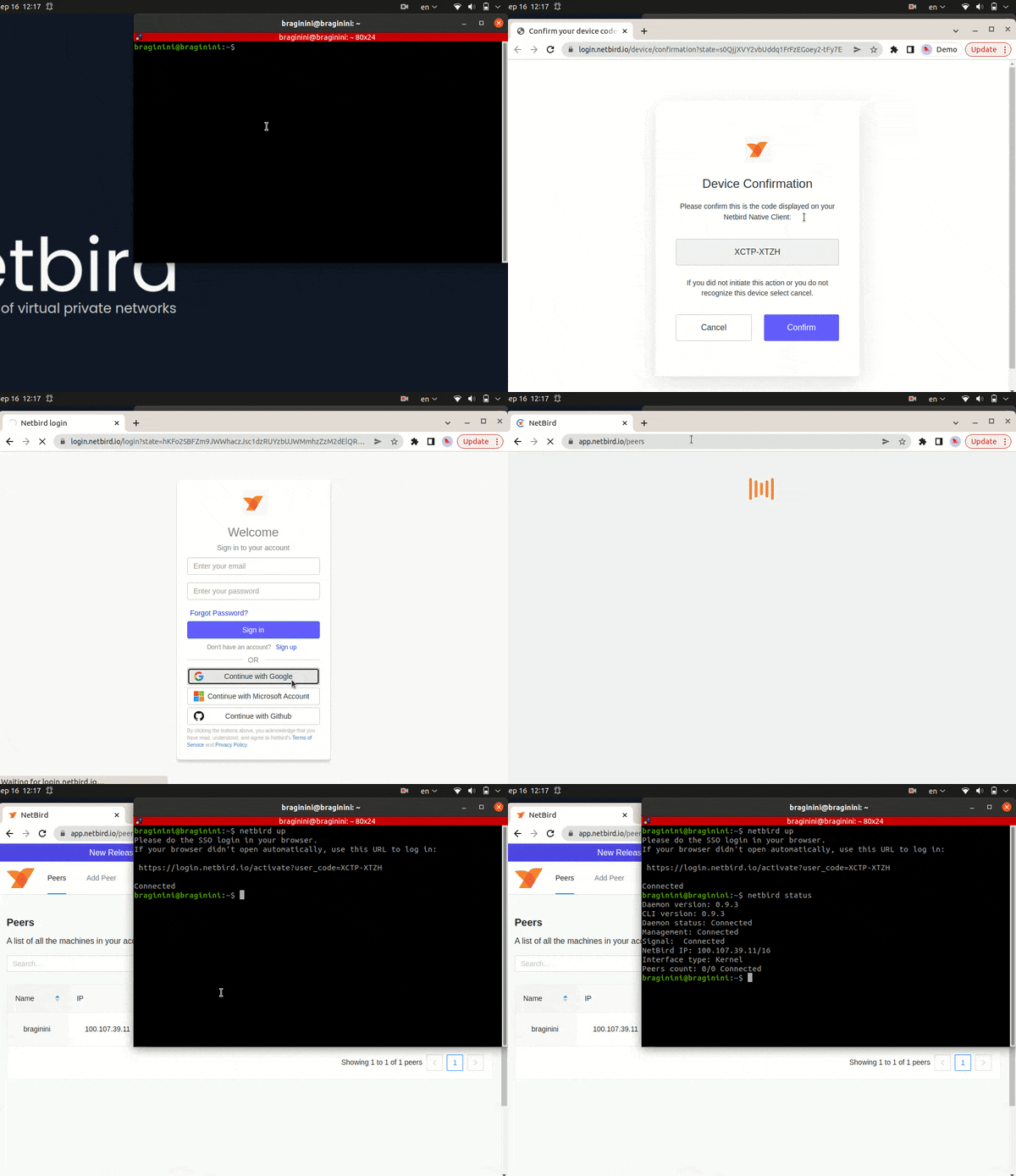
Check connection status:
netbird status
Running NetBird with a Setup Key
In case you are activating a server peer, you can use a setup key as described in the steps below.
This is especially helpful when you are running multiple server instances with infrastructure-as-code tools like ansible and terraform.
For unattended deployments across many machines, pre-populate the client config so each peer registers on first start. See Bootstrap peers via config file.
- Login to the Management Service. You need to have a
setup keyin hand (see setup keys).
netbird up --setup-key <SETUP KEY>
Alternatively, if you are hosting your own Management Service provide --management-url property pointing to your Management Service:
netbird up --setup-key <SETUP KEY> --management-url http://localhost:33073
You could also omit the --setup-key property. In this case, the tool will prompt for the key.
- Check connection status:
netbird status
- Check your IP:
ip addr show wt0