

NetBird Agent command line interface (CLI)
Updated
The NetBird client installation adds a binary called netbird to your system. This binary runs as a daemon service to connect
your computer or server to the NetBird network as a peer. But it can also be used as a client to control the daemon service.
This section will explore the commands available in netbird.
Syntax
Use the following syntax to run netbird commands from your terminal window:
netbird [command] [subcommand] [flags]
command: Specifies the operation that you want to perform or a top-level command:up,login,down,status,ssh,expose,networks,profile,debug,service, andversionsubcommand: Specifies the operation to be executed for a top-level command likeservice:install,uninstall,start, andstopflags: Specifies optional flags. For example, you can use the--setup-keyflag to specify the setup key to be used in the commandsloginandup
To see detailed command information, use the flag --help after each command
Flag value syntax
- Boolean flags that default to
falsecan be enabled by simply passing the flag:--block-inbound. - Boolean flags that default to
truemust use=falseto disable:--strict-host-key-checking=false,--network-monitor=false. - String flags that support clearing a previous value accept an empty string:
--dns-resolver-address "".
Configuration precedence
This is the CLI configuration precedence (highest to lowest priority):
- environment variables (eg:
NB_WIREGUARD_PORT) - command line flags (eg:
--wireguard-port) - configuration file entries
<profile>.json(formerly:config.json), eg:WgPortkey
We are preserving the unusual priority of environment variables for backwards compatibility with existing deployments.
Global flags
netbird has a set of global flags that are available in every command. They specify settings that are core or shared between two or more commands, e.g. --setup-key is used by login and up to authenticate the client against a management service.
Below is the list of global flags:
      --admin-url string        Admin Panel URL [http|https]://[host]:[port] (default "https://app.netbird.io:443")
  -A, --anonymize               anonymize IP addresses and non-netbird.io domains in logs and status output
  -c, --config string           Overrides the default profile file location. Deprecated on `up` and `login`; use `--service-env NB_CONFIG=<path>` instead.
      --daemon-addr string      Daemon service address to serve CLI requests [unix|tcp|npipe]://[path|host:port|name] (default "unix:///var/run/netbird.sock", "npipe://netbird" on Windows)
  -n, --hostname string         Sets a custom hostname for the device
      --log-file console        Sets NetBird log paths written to simultaneously. If "console" is specified the log will be output to stdout. If "syslog" is specified the log will be sent to the syslog daemon. You can pass the flag multiple times or separate entries by comma (default [/var/log/netbird/client.log])
  -l, --log-level string        Sets NetBird log level (default "info")
  -m, --management-url string   Management Service URL [http|https]://[host]:[port] (default "https://api.netbird.io:443")
      --preshared-key string    Sets WireGuard PreSharedKey property. If set, then only peers that have the same key can communicate.
  -s, --service string          NetBird system service name (default "netbird")
  -k, --setup-key string        Setup key obtained from the Management Service Dashboard (used to register peer)
      --setup-key-file string   Path to a file containing a setup key (used to register peer). Ignored if --setup-key is provided.
Environment Variables
Every flag of a netbird command can be passed as an environment variable. We are using the following rule for the environment variables composition:
PREFIX_FLAGNAMEand for flags with multiple parts:PREFIX_FLAGNAMEPART1_FLAGNAMEPART2- The prefix is always NB
- The flag parts are separated by a dash ("-") when passing as flags and with an underscore ("_") when passing as an environment variable
For example, let's check how we can pass --config and --management-url as environment variables:
export NB_CONFIG="/opt/netbird/config.json"
export NB_MANAGEMENT_URL="https://api.self-hosted.com:443"
netbird up
The up command would process the variables, read the configuration file on /opt/netbird/config.json and attempt to connect to the management service running at https://api.self-hosted.com:443.
Here are some additional examples of environment variables:
# Disable profiles feature
export NB_DISABLE_PROFILES=true

# Disable update settings functionality
export NB_DISABLE_UPDATE_SETTINGS=true

# Set custom log level
export NB_LOG_LEVEL=debug

# Set custom daemon address
export NB_DAEMON_ADDR="tcp://localhost:8080"
Beyond flag-derived variables, the client also supports a number of advanced environment variables for tuning networking, firewall, ICE connectivity, and more. See the Client Environment Variables reference for the full list.
Commands
up
Single command to log in and start the NetBird client. It can send a signal to the daemon service or run in the foreground with the flag --foreground-mode.
The command will check if the peer is logged in and connect to the management service. If the peer is not logged in, by default, it will attempt to initiate an SSO login flow.
Flags
      --allow-server-ssh                    Allow SSH server on peer
      --block-inbound                       Block inbound connections. If enabled, the client will not allow any inbound connections to the local machine nor routed networks. This overrides any policies received from the management service.
      --block-lan-access                    Block access to local networks (LAN) when using this peer as a router or exit node
      --disable-auto-connect                Disables auto-connect feature. If enabled, then the client won't connect automatically when the service starts.
      --disable-client-routes               Disable client routes. If enabled, the client won't process client routes received from the management service.
      --disable-dns                         Disable DNS. If enabled, the client won't configure DNS settings.
      --disable-firewall                    Disable firewall configuration. If enabled, the client won't modify firewall rules.
      --disable-ipv6                        Disables IPv6 overlay addressing. The client will not receive an IPv6 address or accept IPv6 traffic from peers. (v0.68.0+)
      --disable-server-routes               Disable server routes. If enabled, the client won't act as a router for server routes received from the management service.
      --disable-ssh-auth                    Disable SSH JWT authentication. If enabled, any peer with network access can connect without user authentication.
      --dns-resolver-address string         Sets a custom address for NetBird's local DNS resolver. If set, the agent won't attempt to discover the best IP and port to listen on. An empty string "" clears the previous configuration. E.g. --dns-resolver-address 127.0.0.1:5053 or --dns-resolver-address ""
      --dns-router-interval duration        DNS route update interval (default 1m0s)
      --enable-lazy-connection              Deprecated and no longer used. Lazy connections are controlled by Management and the NB_LAZY_CONN environment variable.
      --enable-rosenpass                    [Experimental] Enable Rosenpass feature. If enabled, the connection will be post-quantum secured via Rosenpass.
      --enable-ssh-local-port-forwarding    Enable local port forwarding for SSH server
      --enable-ssh-remote-port-forwarding   Enable remote port forwarding for SSH server
      --enable-ssh-root                     Enable root login for SSH server
      --enable-ssh-sftp                     Enable SFTP subsystem for SSH server
      --external-ip-map strings             Sets external IPs maps between local addresses and interfaces. You can specify a comma-separated list with a single IP and IP/IP or IP/Interface Name. An empty string "" clears the previous configuration. E.g. --external-ip-map 12.34.56.78/10.0.0.1 or --external-ip-map 12.34.56.200,12.34.56.78/10.0.0.1,12.34.56.80/eth1 or --external-ip-map ""
      --extra-dns-labels strings            Sets DNS labels. You can specify a comma-separated list of up to 32 labels. An empty string "" clears the previous configuration. E.g. --extra-dns-labels vpc1 or --extra-dns-labels vpc1,mgmt1 or --extra-dns-labels ""
      --extra-iface-blacklist strings       Extra list of default interfaces to ignore for listening
  -F, --foreground-mode                     Start service in foreground
      --interface-name string               WireGuard interface name (default "wt0")
      --mtu uint16                          Set MTU (Maximum Transmission Unit) for the WireGuard interface (default 1280)
  -N, --network-monitor                     Manage network monitoring. Defaults to true on Windows and macOS, false on Linux and FreeBSD. E.g. --network-monitor=false to disable or --network-monitor=true to enable.
      --no-browser                          Do not open the browser for SSO login
      --profile string                      Profile name to use for the login. If not specified, the last used profile will be used.
      --rosenpass-permissive                [Experimental] Enable Rosenpass in permissive mode to allow this peer to accept WireGuard connections without requiring Rosenpass functionality from peers that do not have Rosenpass enabled.
      --ssh-jwt-cache-ttl int               SSH JWT token cache TTL in seconds (default 0, disabled). When enabled, the client caches the JWT so repeated SSH connections skip the OIDC login flow. The receiving SSH server rejects tokens older than 10 minutes, so values above 600 will result in authentication failures for cached tokens.
      --wireguard-port uint16               WireGuard interface listening port (default 51820)
Usage
The minimal form of running the command is:
netbird up
If you are running on a self-hosted environment, you can pass your management url by running the following:
netbird up --management-url https://api.self-hosted.com:443
if you want to run in the foreground, you can use "console" as the value for --log-file and run the command with sudo:
sudo netbird up --log-file console
On Windows, you may need to run the command from an elevated terminal session.
In case you need to use a setup key, use the --setup-key flag :
netbird up --setup-key AAAA-BBB-CCC-DDDDDD
You can set extra DNS labels with the --extra-dns-labels flag:
netbird up --setup-key AAAA-BBB-CCC-DDDDDD --extra-dns-labels vpc1,mgmt1
This feature requires a setup key with the Allow Extra DNS Labels option enabled. See Extra DNS Labels for full details, including wildcard labels and round-robin load balancing.
login
Command to authenticate the NetBird client to a management service. If the peer is not logged in, by default, it will attempt to initiate an SSO login flow.
Flags
      --no-browser       Do not open the browser for SSO login
      --profile string   Profile name to use for the login. If not specified, the last used profile will be used.
Usage
The minimal form of running the command is:
netbird login
If you are running on a self-hosted environment, you can pass your management url by running the following:
netbird login --management-url https://api.self-hosted.com:443
In case you need to use a setup key, use the --setup-key flag:
netbird login --setup-key AAAA-BBB-CCC-DDDDDD
Passing a management url and a setup key:
netbird login --setup-key AAAA-BBB-CCC-DDDDDD --management-url https://api.self-hosted.com:443
down
Command to stop a connection with the management service and other peers in a NetBird network. After running this command, the daemon service will enter an Idle state.
Usage
The minimal form of running the command is:
netbird down
status
Retrieves the peer status from the daemon service.
Flags
  -C, --check string                       Run a health check and exit with code 0 on success, 1 on failure (live|ready|startup)
  -d, --detail                             Display detailed status information in human-readable format
  -t, --filter-by-connection-type string   Filter the detailed output by connection type (P2P|Relayed), e.g., --filter-by-connection-type P2P
  -i, --filter-by-ips strings              Filter the detailed output by a list of one or more IPs (v4 or v6), e.g., --filter-by-ips 100.64.0.100,fd00::1
  -N, --filter-by-names strings            Filter the detailed output by a list of one or more peer FQDN or hostnames, e.g., --filter-by-names peer-a,peer-b.netbird.cloud
  -S, --filter-by-status string            Filter the detailed output by connection status (idle|connecting|connected), e.g., --filter-by-status connected
  -4, --ipv4                               Display only NetBird IPv4 of this peer, e.g., --ipv4 will output 100.64.0.33
  -6, --ipv6                               Display only NetBird IPv6 of this peer
  -j, --json                               Display detailed status information in JSON format
  -y, --yaml                               Display detailed status information in YAML format
Usage
The minimal form of running the command is:
netbird status
This will output:
OS: linux/amd64
Daemon version: 0.27.4
CLI version: 0.27.4
Management: Connected
Signal: Connected
Relays: 2/2 Available
Nameservers: 1/1 Available
NetBird IP: 100.119.62.6/16
Interface type: Kernel
Quantum resistance: false
Routes: -
Peers count: 2/3 Connected
If you want to see more details about the peer connections, you can use the --detail or -d flag:
netbird status -d
This will output:
Peers detail:
 Peer:
  NetBird IP: 100.119.85.4
  Public key: 2lI3F+fDUWh58g5oRN+y7lPHpNcEVWhiDv/wr1/jiF8=
  Status: Disconnected
  -- detail --
  Connection type: -
  Direct: false
  ICE candidate (Local/Remote): -/-
  ICE candidate endpoints (Local/Remote): -/-
  Last connection update: 26 seconds ago
  Last Wireguard handshake: -
  Transfer status (received/sent) 0 B/0 B
  Quantum resistance: false
  Routes: -
  Latency: 10.74ms

 Peer:
  NetBird IP: 100.119.201.225
  Public key: +jkH8cs/Fo83qdB6dWG16+kAQmGTKYoBYSAdLtSOV10=
  Status: Connected
  -- detail --
  Connection type: P2P
  Direct: true
  ICE candidate (Local/Remote): host/host
  ICE candidate endpoints (Local/Remote): -/-
  Last connection update: 26 seconds ago
  Last Wireguard handshake: 25 seconds ago
  Transfer status (received/sent) 2.0 KiB/355 B
  Quantum resistance: false
  Routes: 10.0.0.0/24
  Latency: 20.14ms

 Peer:
  NetBird IP: 100.119.230.104
  Public key: R7olj0S8jiYMLfOWK+wDto+j3pE4vR54tLGrEQKgBSw=
  Status: Connected
  -- detail --
  Connection type: P2P
  Direct: true
  ICE candidate (Local/Remote): host/host
  ICE candidate endpoints (Local/Remote): -/-
  Last connection update: 26 seconds ago
  Last Wireguard handshake: 24 seconds ago
  Transfer status (received/sent) 2.4 MiB/532 KiB
  Quantum resistance: false
  Routes: -
  Latency: 16.24ms

OS: linux/amd64
Daemon version: 0.27.4
CLI version: 0.27.4
Management: Connected to https://api.netbird.io:443
Signal:  Connected to https://signal.netbird.io:443
Relays:
  [stun:stun.netbird.io:5555] is Available
  [turns:turn.netbird.io:443?transport=tcp] is Available
Nameservers:
  [8.8.8.8:53, 8.8.4.4:53] for [.] is Available
NetBird IP: 100.119.62.6/16
Interface type: Kernel
Quantum resistance: false
Routes: -
Peers count: 2/3 Connected
To filter the peers' output by connection status, you can use the --filter-by-status flag with either "connected" or "disconnected" as value:
netbird status -d --filter-by-status connected
This will output:
Peers detail:
 Peer:
  NetBird IP: 100.119.201.225
  Public key: +jkH8cs/Fo83qdB6dWG16+kAQmGTKYoBYSAdLtSOV10=
  Status: Connected
  -- detail --
  Connection type: P2P
  Direct: true
  ICE candidate (Local/Remote): host/host
  ICE candidate endpoints (Local/Remote): -/-
  Last connection update: 28 seconds ago
  Last Wireguard handshake: 27 seconds ago
  Transfer status (received/sent) 2.0 KiB/355 B
  Quantum resistance: false
  Routes: 10.0.0.0/24
  Latency: 20.14ms

 Peer:
  NetBird IP: 100.119.230.104
  Public key: R7olj0S8jiYMLfOWK+wDto+j3pE4vR54tLGrEQKgBSw=
  Status: Connected
  -- detail --
  Connection type: P2P
  Direct: true
  ICE candidate (Local/Remote): host/host
  ICE candidate endpoints (Local/Remote): -/-
  Last connection update: 28 seconds ago
  Last Wireguard handshake: 26 seconds ago
  Transfer status (received/sent) 2.4 MiB/532 KiB
  Quantum resistance: false
  Routes: -
  Latency: 16.24ms

OS: linux/amd64
Daemon version: 0.27.4
CLI version: 0.27.4
Management: Connected to https://api.netbird.io:443
Signal:  Connected to https://signal.netbird.io:443
Relays:
  [stun:stun.netbird.io:5555] is Available
  [turns:turn.netbird.io:443?transport=tcp] is Available
Nameservers:
  [8.8.8.8:53, 8.8.4.4:53] for [.] is Available
NetBird IP: 100.119.62.6/16
Interface type: Kernel
Quantum resistance: false
Routes: -
Peers count: 2/3 Connected
To filter the peers' output by peer IP addresses, you can use the --filter-by-ips flag with one or more IPs separated by a comma as a value:
netbird status -d --filter-by-ips 100.119.201.225
This will output:
Peers detail:
 Peer:
  NetBird IP: 100.119.201.225
  Public key: +jkH8cs/Fo83qdB6dWG16+kAQmGTKYoBYSAdLtSOV10=
  Status: Connected
  -- detail --
  Connection type: P2P
  Direct: true
  ICE candidate (Local/Remote): host/host
  ICE candidate endpoints (Local/Remote): -/-
  Last connection update: 32 seconds ago
  Last Wireguard handshake: 30 seconds ago
  Transfer status (received/sent) 2.0 KiB/355 B
  Quantum resistance: false
  Routes: 10.0.0.0/24
  Latency: 20.14ms

OS: linux/amd64
Daemon version: 0.27.4
CLI version: 0.27.4
Management: Connected to https://api.netbird.io:443
Signal:  Connected to https://signal.netbird.io:443
Relays:
  [stun:stun.netbird.io:5555] is Available
  [turns:turn.netbird.io:443?transport=tcp] is Available
Nameservers:
  [8.8.8.8:53, 8.8.4.4:53] for [.] is Available
NetBird IP: 100.119.62.6/16
Interface type: Kernel
Quantum resistance: false
Routes: -
Peers count: 2/3 Connected
You can combine both filters and get the peers that are both connected and with specific IPs:
netbird status -d --filter-by-status connected --filter-by-ips 100.119.85.4,100.119.230.104
This will output:
Peers detail:

 Peer:
  NetBird IP: 100.119.230.104
  Public key: R7olj0S8jiYMLfOWK+wDto+j3pE4vR54tLGrEQKgBSw=
  Status: Connected
  -- detail --
  Connection type: P2P
  Direct: true
  ICE candidate (Local/Remote): host/host
  ICE candidate endpoints (Local/Remote): -/-
  Last connection update: 35 seconds ago
  Last Wireguard handshake: 33 seconds ago
  Transfer status (received/sent) 2.4 MiB/532 KiB
  Quantum resistance: false
  Routes: -
  Latency: 16.24ms

OS: linux/amd64
Daemon version: 0.27.4
CLI version: 0.27.4
Management: Connected to https://api.netbird.io:443
Signal:  Connected to https://signal.netbird.io:443
Relays:
  [stun:stun.netbird.io:5555] is Available
  [turns:turn.netbird.io:443?transport=tcp] is Available
Nameservers:
  [8.8.8.8:53, 8.8.4.4:53] for [.] is Available
NetBird IP: 100.119.62.6/16
Interface type: Kernel
Quantum resistance: false
Routes: -
Peers count: 2/3 Connected
The peer with IP 100.119.85.4 wasn't returned because it was not connected
Health checks
Use netbird status --check to run a health probe from a script or container orchestrator. These probes do not display the normal status report. A successful probe produces no output and exits with code 0; a failed probe exits with code 1.
live: succeeds when the daemon responds to the status request.ready: succeeds when the daemon status isIdle,Connecting, orConnected. Authentication-required states (NeedsLogin,LoginFailed, andSessionExpired) and unexpected states fail the check.startup: succeeds when management and signal are connected and, if any NetBird relays are configured, at least one relay is available.
For example, the following loop makes each probe result visible:
for check in live ready startup; do
  if netbird status --check "$check"; then
    echo "$check: PASS"
  else
    echo "$check: FAIL ($?)"
  fi
done
ssh
Command to connect via SSH to a remote peer in your NetBird network. The ssh command has several subcommands for different operations.
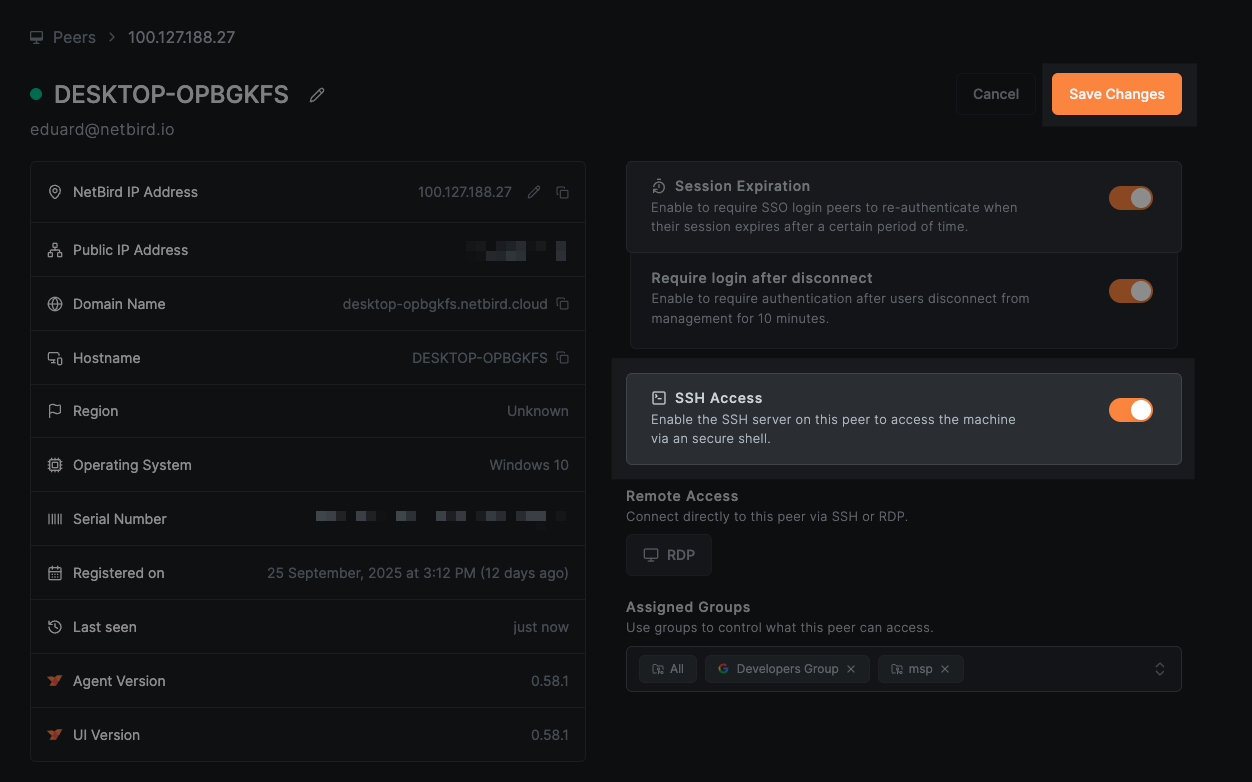
Before using this command, make sure that SSH Access is enabled both on the target peer and in the NetBird Dashboard. Learn more about enabling SSH access.
ssh (connect)
Connect to a remote peer via SSH with an interactive shell or execute a command.
Flags:
  -L stringArray                   Local port forwarding [bind_address:]port:host:hostport
  -R stringArray                   Remote port forwarding [bind_address:]port:host:hostport
  -o, --known-hosts string         Path to known_hosts file (default: ~/.ssh/known_hosts)
      --login string               SSH username (alias for --user)
      --no-browser                 Do not open the browser for SSO login
      --no-cache                   Skip cached JWT token and force fresh authentication
  -p, --port int                   Remote SSH port (default 22)
      --strict-host-key-checking   Enable strict host key checking (default true)
  -t, --tty                        Force pseudo-terminal allocation
  -u, --user string                SSH username
Arguments:
[user@]host: The remote user and NetBird peer hostname or IP address[command]: Optional command to execute on the remote peer
Usage:
Interactive shell:
netbird ssh user@100.119.230.104
Execute a single command:
netbird ssh user@100.119.230.104 "uptime"
Local port forwarding (forward local port 8080 to remote port 80):
netbird ssh -L 8080:localhost:80 user@100.119.230.104
Remote port forwarding (forward remote port 8080 to local port 3000):
netbird ssh -R 8080:localhost:3000 user@100.119.230.104
Port forwarding must be enabled on the SSH server using --enable-ssh-local-port-forwarding and/or --enable-ssh-remote-port-forwarding flags.
For SFTP and SCP, use native clients (sftp and scp commands) which work with NetBird SSH automatically.
Troubleshooting
Connection fails:
- Ensure SSH is enabled on the target peer, which requires root or an administrator.
The commands below use
sudofor Linux and macOS; on Windows run the same ones without it, from an elevated prompt:sudo netbird down; sudo netbird up --allow-server-ssh - Verify SSH Access is enabled in the dashboard (Peers > your_peer > SSH Access)
- Check that an ACL policy allows TCP port 22022
Authentication fails:
- Complete the OIDC flow when prompted (browser window will open)
- Verify your IdP is properly configured
- To disable JWT authentication, as root or an administrator:
sudo netbird down; sudo netbird up --allow-server-ssh --disable-ssh-auth. This drops per-user authentication for SSH on that peer, leaving any peer the ACL policy allows able to connect, so use it to isolate a problem and re-enable it withsudo netbird down; sudo netbird up --allow-server-sshafterwards.
Port forwarding not working:
- Ensure the server has the appropriate flags:
sudo netbird down; sudo netbird up --allow-server-ssh \
  --enable-ssh-local-port-forwarding \
  --enable-ssh-remote-port-forwarding
expose
Command to expose a local port to the public internet via the NetBird reverse proxy. The service remains active as long as the command is running and is automatically removed when you stop it.
Before using this command, make sure the NetBird client is connected (netbird up), and that the Peer Expose feature is enabled by your account administrator in Settings > Clients. See Expose from CLI for the complete guide.
Flags
      --protocol string             Protocol to use: http, https, tcp, udp, or tls (e.g. --protocol tcp) (default "http")
      --with-custom-domain string   Custom domain for the exposed service, must be configured to your account (e.g. --with-custom-domain myapp.example.com)
      --with-external-port uint16   Public-facing external port on the proxy cluster (defaults to the target port for L4)
      --with-name-prefix string     Prefix for the generated service name (e.g. --with-name-prefix my-app)
      --with-password string        Protect the exposed service with a password (e.g. --with-password my-secret)
      --with-pin string             Protect the exposed service with a 6-digit PIN (e.g. --with-pin 123456)
      --with-user-groups strings    Restrict access to specific user groups with SSO (e.g. --with-user-groups devops,Backend)
Usage
Expose a local service running on port 8080 (defaults to HTTP):
netbird expose 8080
This will output:
Service exposed successfully!
  Name:     my-service-abc123
  URL:      https://my-service-abc123.proxy.example.com
  Domain:   my-service-abc123.proxy.example.com
  Protocol: http
  Port:     8080

Press Ctrl+C to stop exposing.
Expose with PIN protection (must be exactly 6 digits):
netbird expose 3000 --with-pin 123456
Expose with password protection and a custom name prefix:
netbird expose 8080 --with-password my-secret --with-name-prefix my-app
Expose with SSO user group restriction:
netbird expose 8080 --with-user-groups engineering,devops
Expose a raw TCP service (e.g. a database or game server):
netbird expose 5432 --protocol tcp
Expose a TLS-terminated service:
netbird expose 8443 --protocol tls
Expose using a custom domain (must be pre-configured in your account):
netbird expose 8080 --with-custom-domain app.example.com
Press Ctrl+C to stop exposing the service. The service is automatically removed from the reverse proxy when the command exits.
Each peer can have up to 10 active expose sessions simultaneously. The session is kept alive with automatic renewals every 30 seconds and expires after 90 seconds if the client disconnects unexpectedly.
networks
Commands to list, select, or deselect networks. This replaces the older routes command (which still works as an alias).
Usage
netbird networks [command]
Subcommands
list: List all available networks and their selection status.select: Select networks to connect to.deselect: Deselect networks.
networks select
Select a list of networks by identifiers, or all to clear all selections and accept all (including new) networks.
Default mode is replace; use -a to append to the current selection.
netbird networks select network...|all [flags]
Flags:
-a, --append Append to current network selection instead of replacing
Examples:
netbird networks select all
netbird networks select route1 route2
netbird networks select -a route3
networks deselect
Deselect a list of networks by identifiers, or all to deselect all.
netbird networks deselect network...|all
profile
Commands to list, add, remove, and switch profiles. Profiles allow you to maintain different accounts in one client app.
Usage
netbird profile [command]
Subcommands
list: List all profiles. Add--show-idto include each profile's ID column.add: Add a new profile by name. Names need not be unique; a unique ID is generated per profile.rename: Rename a profile (by exact ID, unique name, or unique ID prefix) to a new free-form name. The default profile can be renamed.remove: Remove a profile by exact ID, unique name, or unique ID prefix.select: Select a profile to use by exact ID, unique name, or unique ID prefix.
version
Outputs the netbird command version.
Usage
The minimal form of running the command is:
netbird version
This will output:
0.8.2
service
The service command is a top-level command with subcommands to perform operations related to the daemon service.
You should run the service command with elevated permissions.
service install
The install installs the daemon service on the system.
Usage
The minimal form of running the command is:
sudo netbird service install
You can use the global flags to configure the daemon service. For instance, you can set a debug log level with the flag --log-level
sudo netbird service install --log-level debug
You can set a custom configuration path with the flag --config
sudo netbird service install --config /opt/netbird/config.json
Service-specific flags
      --disable-networks          Disables network selection.
      --disable-profiles          Disables profiles feature.
      --disable-update-settings   Disables update settings feature.
      --service-env strings       Sets extra environment variables for the service. You can specify a comma-separated list of KEY=VALUE pairs. E.g. --service-env NB_LOG_LEVEL=debug,CUSTOM_VAR=value
These flags are intended for managed or shared machines where non-admin users should not be able to alter the client configuration through the CLI or UI:
--disable-networksprevents users from listing, selecting, or deselecting networks (including exit nodes) via CLI or UI. The flag is persisted in the service'sservice.jsonstate file; there is noNB_DISABLE_NETWORKSenvironment-variable equivalent.--disable-profilesprevents users from adding, removing, or switching profiles. The client stays locked to the profile that was active at install time. Any attempt to switch profiles via CLI or UI is rejected.--disable-update-settingsprevents users from changing daemon settings (management URL, log level, DNS resolver address, etc.) via CLI or UI. The configuration can only be changed by an administrator who reinstalls the service or usesservice reconfigure.
Typical use: an IT admin deploys NetBird with a setup key and locks the configuration so end users cannot disconnect from the corporate account or point the client at a different management server.
sudo netbird service install \
  --setup-key AAAA-BBB-CCC-DDDDDD \
  --disable-profiles \
  --disable-update-settings
Install parameters (including --disable-profiles, --disable-update-settings, and --service-env) are persisted to a service.json file and survive uninstall/reinstall cycles. To clear saved parameters and revert to defaults, run netbird service reset-params followed by netbird service reconfigure.
These flags can also be set via environment variables: NB_DISABLE_PROFILES and NB_DISABLE_UPDATE_SETTINGS.
service uninstall
The uninstall uninstalls the daemon service from the system.
Usage
The minimal form of running the command is:
sudo netbird service uninstall
service start
Starts the daemon service
Usage
The minimal form of running the command is:
sudo netbird service start
If you installed the service with --disable-profiles or --disable-update-settings, these settings will persist and the respective features will remain disabled when the service starts.
service stop
Stops the daemon service
Usage
The minimal form of running the command is:
sudo netbird service stop
service restart
Restarts the daemon service
Usage
The minimal form of running the command is:
sudo netbird service restart
service status
Shows the status of the daemon service
Usage
The minimal form of running the command is:
sudo netbird service status
service reconfigure
Reconfigures the daemon service with new settings without manual uninstall/install. The command temporarily stops the service, updates its configuration, and restarts it if it was running.
Flags
--service-env strings Sets extra environment variables for the service. E.g. --service-env NB_LOG_LEVEL=debug,CUSTOM_VAR=value
Usage
sudo netbird service reconfigure --service-env NB_LOG_LEVEL=debug
service reset-params
Removes the saved service.json file so the next install uses default parameters.
Usage
sudo netbird service reset-params
debug
The debug command provides tools for diagnosing and understanding the internal operations of the NetBird daemon.
Usage
To access debugging options:
netbird debug [command]
Subcommands
bundle: Create a debug bundle that includes logs and system information for troubleshooting.for: Run the daemon with trace logging for a specified duration and create a debug bundle.log: Manage logging levels for the NetBird daemon.trace: Trace a packet through the firewall.
Flags
-h, --help help for debug
debug bundle
Generates a compressed archive containing diagnostic information, which can be used for troubleshooting.
The file will be generated in the daemon's temporary directory and the path will be printed to the console. With a
standard service installation, the location is /tmp/netbird.debug.<number>.zip on Linux and macOS, and
C:\Windows\Temp\netbird.debug.<number>.zip on Windows. A custom operating-system temporary directory can change this
path.
The local ZIP is created whether or not --upload-bundle is used. With --upload-bundle, the command also prints an
upload key that you can share with the NetBird team.
The file belongs to the daemon service account (root on standard Linux and macOS installations and LocalSystem on
Windows), so elevated permissions may be required to access it directly.
Usage
To create a debug bundle:
netbird debug bundle [-A] [-S] [-U] [-C <count>]
Examples
Create a debug bundle:
netbird debug bundle
This will output:
/tmp/netbird.debug.676945815.zip
Flags
  -A, --anonymize                  Anonymize IP addresses and non-netbird.io domains in the debug output
  -C, --log-file-count uint32      Number of rotated log files to include in debug bundle (default 1)
  -S, --system-info                Adds system information to the debug bundle (default true)
  -U, --upload-bundle              Uploads the debug bundle to a server
      --upload-bundle-url string   Service URL to get an upload URL for the debug bundle (default "https://upload.debug.netbird.io/upload-url")
      --upload-bundle-insecure     Allow uploading to an http or untrusted-TLS upload server (self-hosted); requires root on Linux and macOS, or an administrator on Windows
debug for
Sets the logging level to trace, runs for the specified duration, and then generates a debug bundle. This is useful for capturing detailed logs over a period where issues are occurring.
Usage
To run debugging for a specific time period:
netbird debug for <time> [-A] [-S] [-U] [-C <count>]
Examples
Run debugging for 5 minutes and generate an anonymized debug bundle:
netbird debug for 5m
This will output something similar to:
Netbird up
Log level set to trace.
Netbird down
Netbird up
Remaining time: 00:00:01
Duration completed
Creating debug bundle...
Netbird down
Log level restored to INFO
/tmp/netbird.debug.3162242909.zip
Flags
  -A, --anonymize                  Anonymize IP addresses and non-netbird.io domains in the debug output
  -C, --log-file-count uint32      Number of rotated log files to include in debug bundle (default 1)
  -S, --system-info                Adds system information to the debug bundle (default true)
  -U, --upload-bundle              Uploads the debug bundle to a server
      --upload-bundle-url string   Service URL to get an upload URL for the debug bundle (default "https://upload.debug.netbird.io/upload-url")
      --upload-bundle-insecure     Allow uploading to an http or untrusted-TLS upload server (self-hosted); requires root on Linux and macOS, or an administrator on Windows
debug log
This subcommand manages the logging level for the NetBird daemon during the current session. The change in logging level is temporary and will revert back to the configured default upon daemon restart.
Usage
Adjust the logging level of the NetBird daemon:
netbird debug log level <level>
Available Levels
panic: for panic level, the highest level of severity.fatal: for fatal level errors that cause the program to exit.error: for error conditions.warn: for warning conditions.info: for informational messages.debug: for debug-level messages.trace: for trace-level messages, which include more fine-grained information than debug.
Examples
Set the logging level to debug:
netbird debug log level debug
This will output:
Log level set successfully to debug
debug trace
Traces a packet through the firewall rules to diagnose policy issues. You specify the direction, source IP, destination IP, protocol, and optional port/flag parameters. Use self as an alias for the local peer's IP.
On Linux, the userspace packet filter is only active when the kernel firewall backend is not available. By default, Linux uses the kernel-mode nftables/iptables backend, so debug trace is primarily useful on macOS and Windows where the userspace filter is always used.
Usage
netbird debug trace <direction> <source-ip> <dest-ip> [flags]
Flags
      --ack               TCP ACK flag
      --dport uint16      Destination port
      --fin               TCP FIN flag
      --icmp-code uint8   ICMP code
      --icmp-type uint8   ICMP type
  -p, --protocol string   Protocol: tcp, udp, or icmp (default "tcp")
      --psh               TCP PSH flag
      --rst               TCP RST flag
      --sport uint16      Source port
      --syn               TCP SYN flag
      --urg               TCP URG flag
Understanding the output
The trace walks the packet through each processing stage of the firewall. Each line shows the stage name and its result. Here is an example of an allowed inbound SSH connection:
$ netbird debug trace in 100.64.1.1 self -p tcp --dport 22 --syn

Packet trace 100.64.1.1:54728 → self:22 (TCP)

Received:            Received TCP packet: 100.64.1.1:54728 -> 100.64.0.1:22
Inbound Port DNAT:   TCP port DNAT applied: 100.64.0.1:22 -> 100.64.0.1:22022
Inbound 1:1 NAT:     1:1 NAT not enabled
Connection Tracking: No existing connection found
Routing:             Packet destined for local delivery
Peer ACL:            Allowed by peer ACL rules (d2kab80l3is5mqgsj2b0)
Completed:           Processing completed

Final disposition: ALLOWED
The stages in order:
- Received: The raw packet as it enters the filter.
- Inbound Port DNAT: Port-level destination NAT (e.g. SSH port 22 is rewritten to 22022 where the NetBird SSH server listens).
- Inbound 1:1 NAT: Full address rewrite if 1:1 NAT is configured for this peer.
- Connection Tracking: Checks if this packet belongs to an already-established connection. If it does, it is allowed immediately and later stages are skipped.
- Routing: Determines whether the packet is destined for local delivery or needs to be forwarded to another network.
- Peer ACL / Route ACL: Evaluates the access control rules from your policies. The output includes the policy ID for easier debugging.
- Forwarding (routed packets only): Shows which route handler will forward the packet.
- Completed: Final result.
Here is a denied packet (no matching ACL rule):
$ netbird debug trace in 100.64.2.1 self -p tcp --dport 80 --syn

Packet trace 100.64.2.1:58026 → self:80 (TCP)

Received:            Received TCP packet: 100.64.2.1:58026 -> 100.64.0.1:80
Inbound Port DNAT:   No matching port DNAT rule
Inbound 1:1 NAT:     1:1 NAT not enabled
Connection Tracking: No existing connection found
Routing:             Packet destined for local delivery
Peer ACL:            Blocked by peer ACL rules
Completed:           Packet dropped - ACL denied

Final disposition: DENIED
And a routed packet that is allowed and forwarded:
$ netbird debug trace in 100.64.1.1 10.10.0.1 -p tcp --dport 443 --syn

Packet trace 100.64.1.1:49659 → 10.10.0.1:443 (TCP)

Received:            Received TCP packet: 100.64.1.1:49659 -> 10.10.0.1:443
Inbound Port DNAT:   No matching port DNAT rule
Inbound 1:1 NAT:     1:1 NAT not enabled
Connection Tracking: No existing connection found
Routing:             Routing enabled, checking ACLs
Route ACL:           Allowed by route ACLs (d1se3g0l3is3n6ucpmt0)
Forwarding:          Forwarding to proxy-remote [proxy-remote to 10.10.0.1:443]
Completed:           Processing completed

Final disposition: ALLOWED
Examples
Trace an inbound TCP SYN to SSH:
netbird debug trace in 100.64.1.1 self -p tcp --dport 22 --syn
Trace an outbound UDP packet to port 53:
netbird debug trace out self 100.64.1.2 -p udp --dport 53
Trace an inbound ICMP echo request:
netbird debug trace in 100.64.1.2 self -p icmp --icmp-type 8 --icmp-code 0