

Provision Users and Groups From IIJ ID
Updated
IIJ ID is a cloud-based identity and access management service (IDaaS) from Internet Initiative Japan. It provides single sign-on (SSO), multi-factor authentication (MFA), and centralized user management to help organizations secure and manage access to their resources.
NetBird's IIJ ID integration enhances user management by allowing you to utilize IIJ ID as your identity provider. This integration automates user authentication in your network, adds SSO and MFA support, and simplifies network access management to your applications and resources.
Prerequisites
Before you begin the integration process, ensure you have an IIJ ID administrator account with permission to manage applications, application users, and groups in the IIJ ID console.
Setting Up SSO with IIJ ID
Before configuring SCIM provisioning, you must first set up Single Sign-On (SSO) with IIJ ID. Please follow the detailed setup instructions in our Single Sign-On guide for IIJ ID.
Once SSO is configured, and you can successfully log in to NetBird using your IIJ ID credentials, you can proceed with the SCIM setup below.
Enabling IIJ ID SCIM in NetBird
To enable SCIM synchronization in NetBird, navigate to Integrations > Identity Provider Sync in your NetBird dashboard.
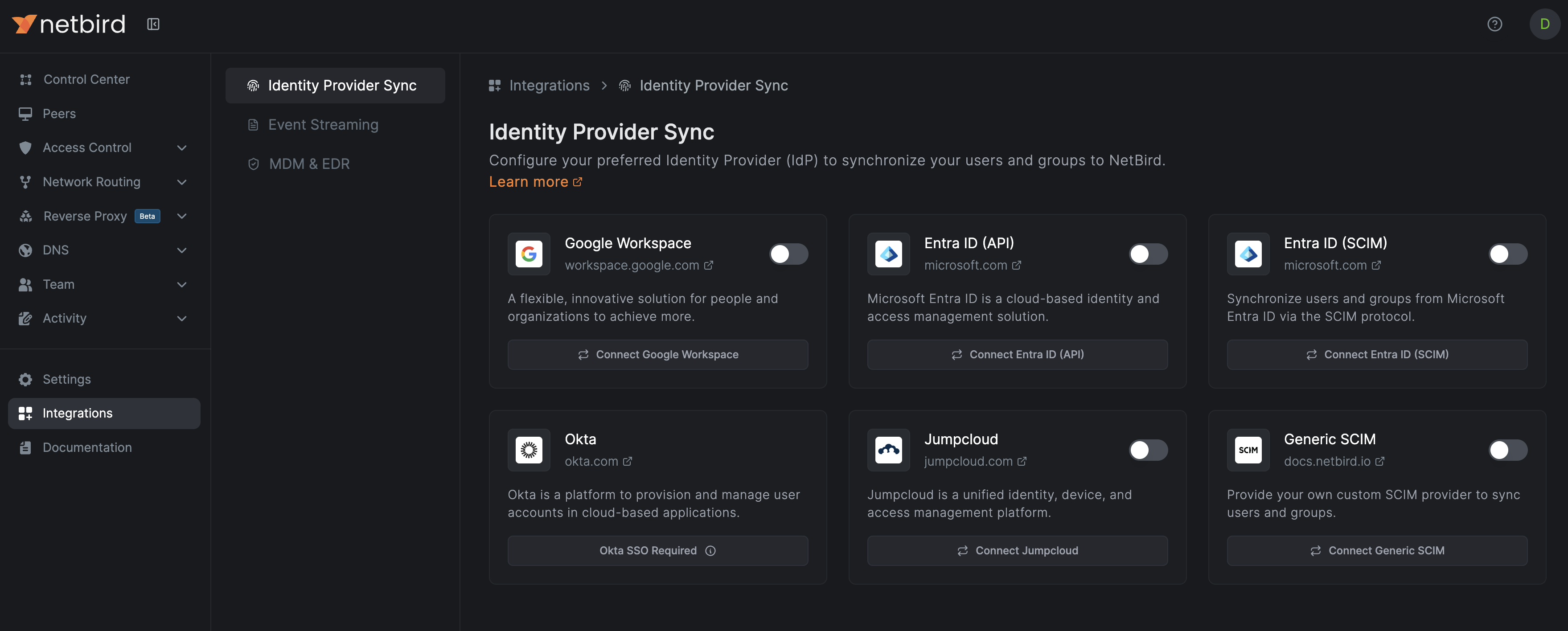
Click the Connect Generic SCIM button, then Get Started on the first screen to launch the configuration wizard. You will be guided through several configuration options:
Groups to be synchronized
By default, all groups exported to the NetBird application in IIJ ID will be synchronized. If you want to synchronize only exported groups that start with a specific prefix, you can specify them in the filter. Keep in mind that the prefix matching is case-sensitive.
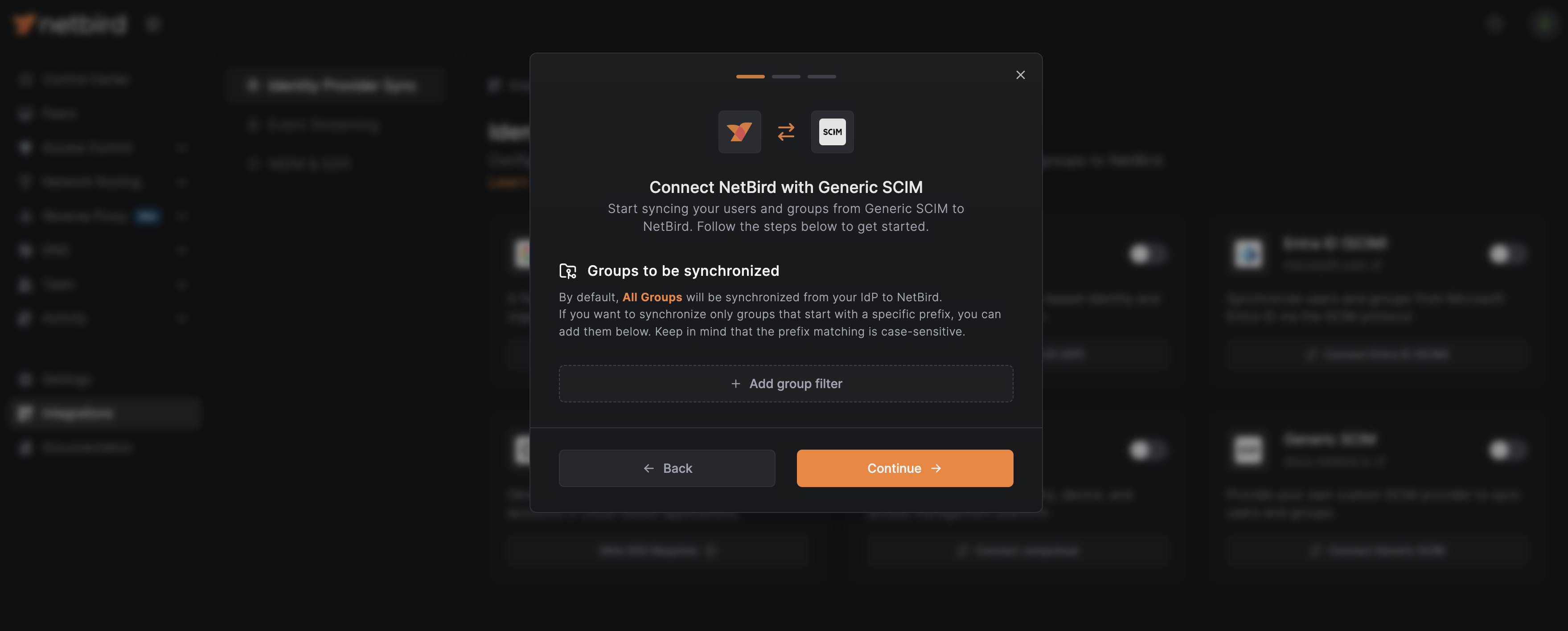
Click Continue to proceed to the next step.
Users to be synchronized
By default, all users from the groups exported to the NetBird application will be synchronized. If you want to further filter and synchronize only users from specific groups, you can specify those group names in the filter. The group name matching is case-sensitive.
Click Continue to generate your SCIM credentials.
SCIM Credentials
NetBird will generate the SCIM credentials required to configure IIJ ID. Make note of both the Base URL and Token Key as you will need them in the next section to complete the IIJ ID configuration.
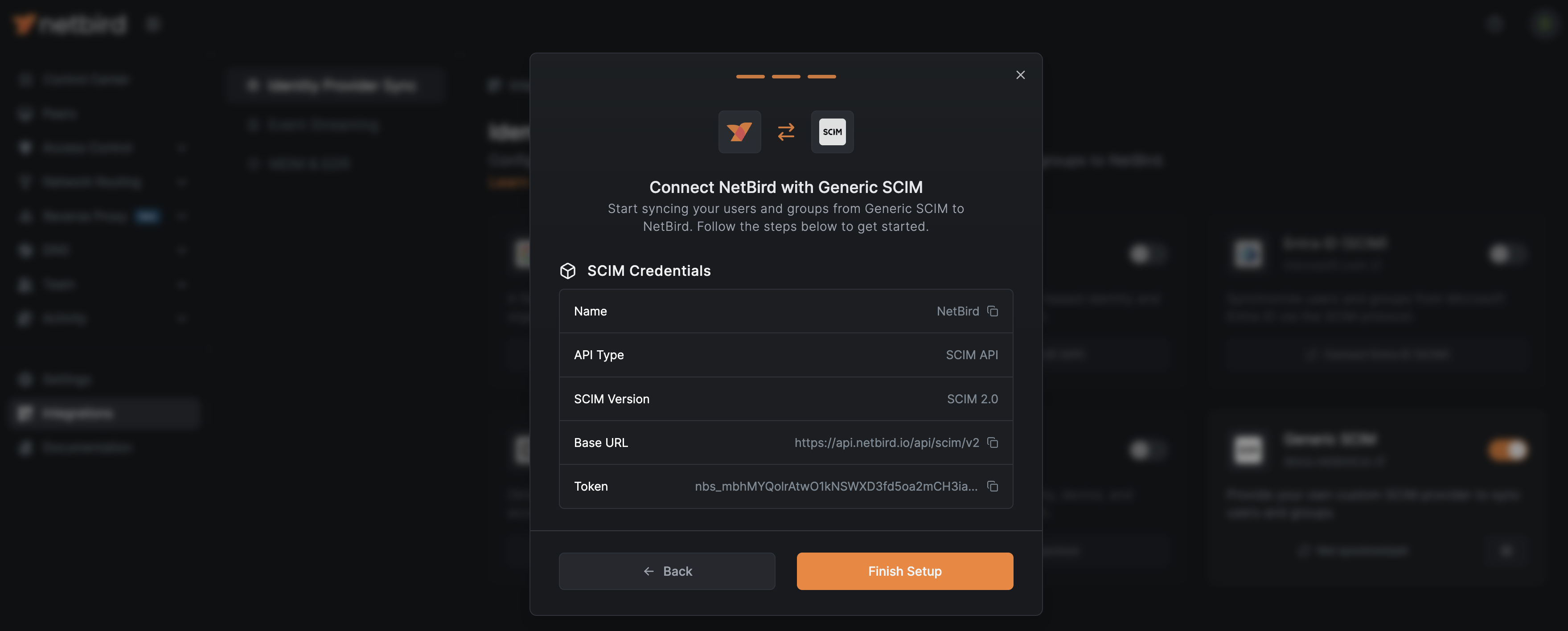
Click Finish Setup to complete the NetBird SCIM configuration. The Generic SCIM card now shows the integration as enabled, and you can proceed to configure provisioning in IIJ ID using the credentials generated above.
Configure Provisioning in IIJ ID
In your IIJ ID console, go to Application > Application Management, click Edit on your NetBird application, and select the Provisioning tab.
Select Export accounts and enter the following details:
- The base URL for the SCIM server:
https://api.netbird.io/api/scim/v2 - Access token: Paste the Token Key you copied from NetBird
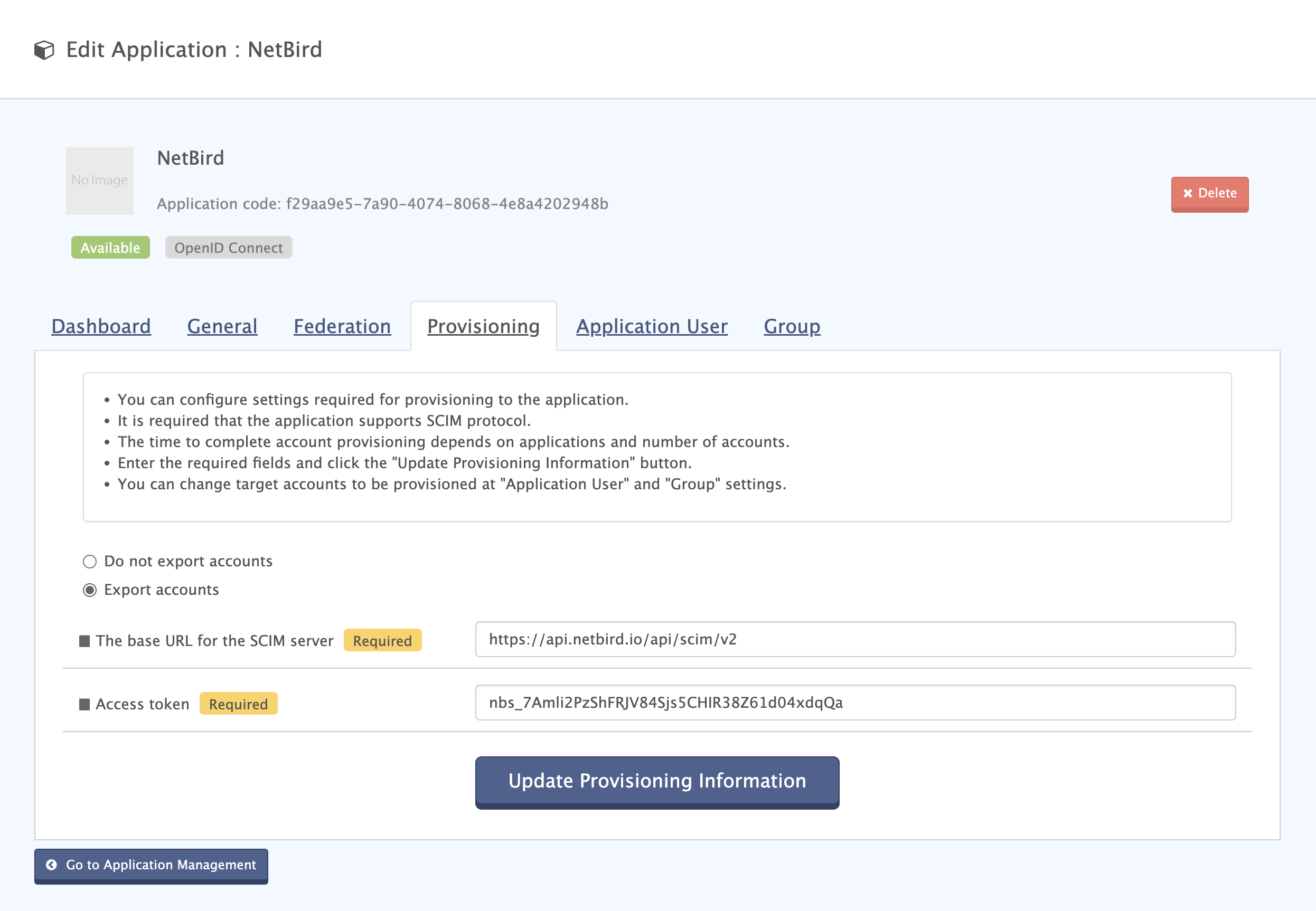
Click Update Provisioning Information to save the configuration.
The default IIJ ID attribute mapping is compatible with NetBird, so no attribute mapping changes are required.
Enable Export for Application Users
In your IIJ ID console, open your NetBird application and select the Application User tab. Click Edit on the entry you
want to synchronize, then set:
- Export:
Export
Click Update Applications User Settings to apply the change.
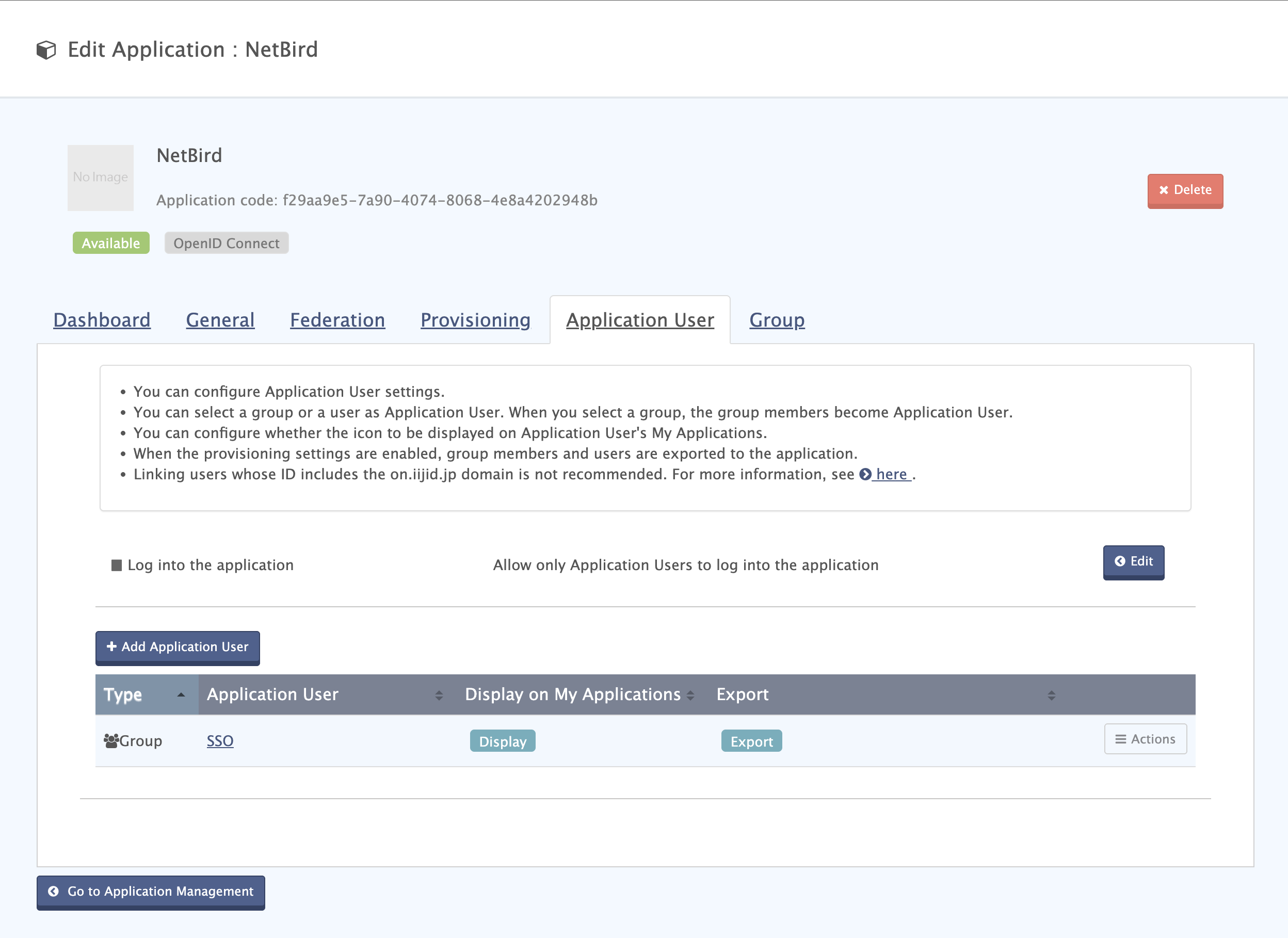
The Export column now shows Export for that entry. When you select a group as an Application User, its members become
Application Users as well, so IIJ ID exports those users to NetBird.
Add Groups to Export
Exporting the users does not export the groups themselves. Still in your NetBird application, select the Group tab,
enter the groups you want to export to NetBird, and click Add.
Once saved, IIJ ID will automatically export the selected users, groups, and their memberships to NetBird.
To synchronize additional users or groups later, add them as Application Users in your NetBird application, enable Export on them the same way, and add their groups on the Group tab.
Verify Synchronization
After configuring provisioning in IIJ ID, the synchronization will begin automatically. You can verify that users and groups
have been successfully synchronized by navigating to Team > Users in your NetBird dashboard.
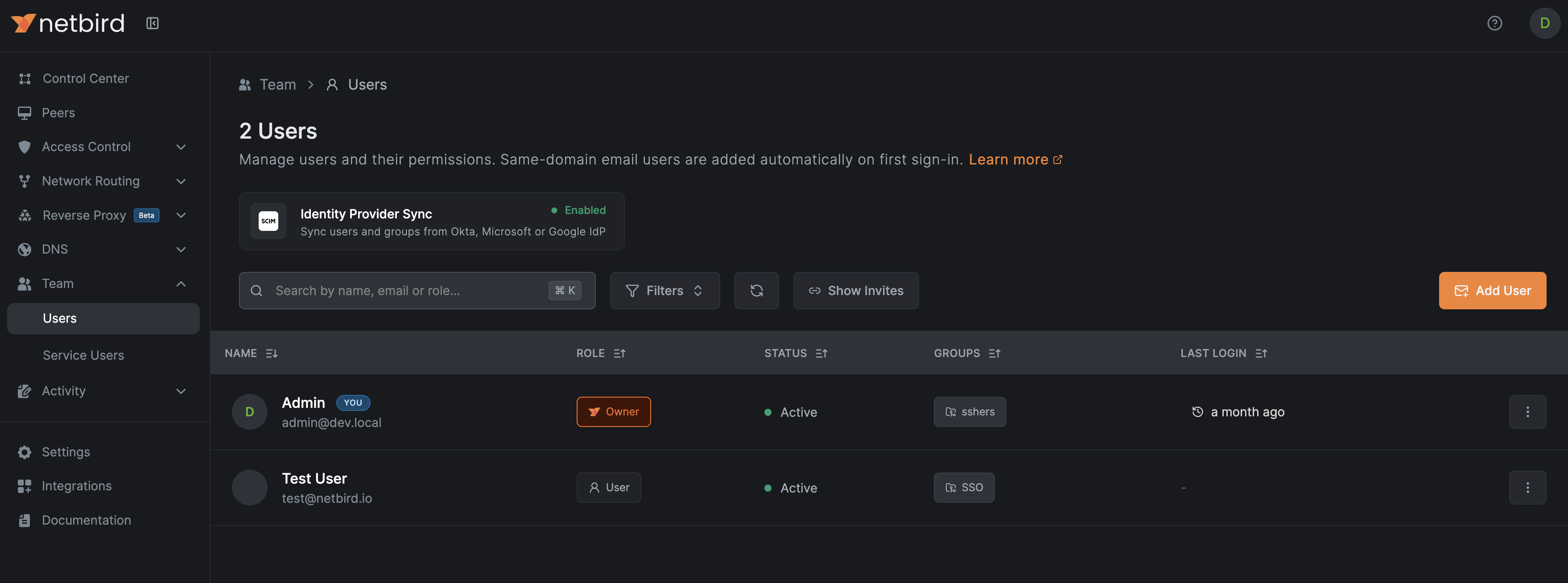
SCIM provisioning will manage only resources that are created through IIJ ID. Any resources created directly in NetBird will not be managed by SCIM.
Synced groups will only be available for membership and will not change the role of user in NetBird