

User Roles
Updated
NetBird has eight user roles - Owner, Admin, Network Admin, Billing Admin, Auditor, User, and two roles scoped to Agent Network, Agent Network Admin and Usage Viewer. A user's role controls the level of access they have to your account, both in the dashboard and through the management API.
Permissions at a glance
Rows are grouped by what a Network Admin can do, from full access down to no access.
| Area | Owner | Admin | Network Admin | Billing Admin | Auditor | User |
|---|---|---|---|---|---|---|
| Control Center | ✅ | ✅ | ✅ | ❌ | 📖 | ❌ |
| Access Control | ✅ | ✅ | ✅ | ❌ | 📖 | ❌ |
| Network Routing | ✅ | ✅ | ✅ | ❌ | 📖 | ❌ |
| DNS | ✅ | ✅ | ✅ | ❌ | 📖 | ❌ |
| Peers | ✅ | ✅ | 📖 | ❌ | 📖 | 📖1 |
| Setup Keys | ✅ | ✅ | 📖 | ❌ | 📖 | ❌ |
| Team | ✅ | ✅ | 📖 | ❌ | 📖 | ❌ |
| Activity | ✅ | ✅ | 📖 | ❌ | 📖 | ❌ |
| Settings | ✅ | ✅ | 📖 | ✅2 | 📖 | ❌ |
| Reverse Proxy | ✅ | ✅ | ❌ | ❌ | 📖 | ❌ |
| Tenants | ✅ | ✅ | ❌ | ❌ | 📖 | ❌ |
| Integrations | ✅ | ✅ | ❌ | ❌ | 📖 | ❌ |
Legend: ✅ = Full access · 📖 = Read only · ❌ = No access
1 A User can only see the peers they own and peers they're allowed to connect to.
2 A Billing Admin's Settings access is limited to Plans & Billing and Invoices.
Agent Network permissions
| Area | Owner | Admin | Auditor | Agent Network Admin | Usage Viewer | User |
|---|---|---|---|---|---|---|
| Providers | ✅ | ✅ | 📖 | ✅ | 📖3 | ❌ |
| Policies & Guardrails | ✅ | ✅ | 📖 | ✅ | ❌ | ❌ |
| Global Limits | ✅ | ✅ | 📖 | ✅ | ❌ | ❌ |
| Usage | ✅ | ✅ | 📖 | ✅ | 📖 | 📖4 |
| Access Logs | ✅ | ✅ | 📖 | ✅ | 📖 | 📖4 |
| Configuration | ✅ | ✅ | 📖 | ✅ | ❌ | ❌ |
Network Admin and Billing Admin have no Agent Network access beyond what every user gets.
3 A Usage Viewer sees the provider list with connection config redacted: no upstream URLs and no operator-supplied header values.
4 Every user, whatever their role, sees their own usage and their own requests on Usage & Logs.
Owner
The Owner has full access to the account and can manage every aspect of it. There can be only one account owner in NetBird. Owners are the only users who can delete the organization account - see Delete NetBird account for more.
Admin
An Admin has full access to the account, with two exceptions: administrators can't delete or change the role of the Owner, and they can't delete the organization account.
Network Admin
A Network Admin fully manages network configuration - Control Center, Access Control, Network Routing, and DNS. They have read-only access to Peers, Setup Keys, Team, Activity, and Settings, and no access to Reverse Proxy, Tenants, or Integrations. A Network Admin can view setup keys but not create them, and can't invite users or create service users.
Billing Admin
A Billing Admin manages billing only. They can access Settings → Plans & Billing and Settings → Invoices, and have no access to any other part of the account.
Auditor
An Auditor can read every configuration in the account but can't modify anything.
User
A User has limited access: they can view the peers they own and other peers they're allowed to connect to.
Agent Network Admin
An Agent Network Admin has full control over Agent Network: providers, policies and guardrails, global limits, usage, access logs, and the configuration pages. They have read-only access to users, groups, peers, and account information, which they need to build policies. They have no access to any other part of the account, such as Control Center, Access Control, Network Routing, DNS, Setup Keys, or Reverse Proxy. The Clusters tab under Agent Network configuration stays hidden for this role because it requires Reverse Proxy permissions.
Usage Viewer
A Usage Viewer has read-only access to the Agent Network Usage overview and to the account-wide Access Logs. They can also read the provider list, with connection config redacted, and users, groups, and peers, which the filters and name columns rely on. They have no access to policies, guardrails, global limits, or Agent Network configuration.
When prompt collection is enabled, access logs contain the captured prompts and completions of every user. Granting Usage Viewer lets that user read other users' prompts.
Agent Network access for every user
Any signed-in user, whatever their role, sees their own usage and their own requests on Usage & Logs. Once an Agent Network policy covers them, they also see the Connect page, which lists the providers and models their policies allow.
Roles and the API
Roles apply the same way whether a user works in the dashboard or through the NetBird management API - a user's permissions over API resources match their role. Every role except User, Agent Network Admin, and Usage Viewer can create a personal access token that carries the same permissions as that user's role, so they can interact with the API programmatically.
Roles and identity provider sync
Roles are managed inside NetBird. When you provision users and groups from your identity provider, synced groups are only used for group membership and will not change a user's NetBird role.
Assign a role
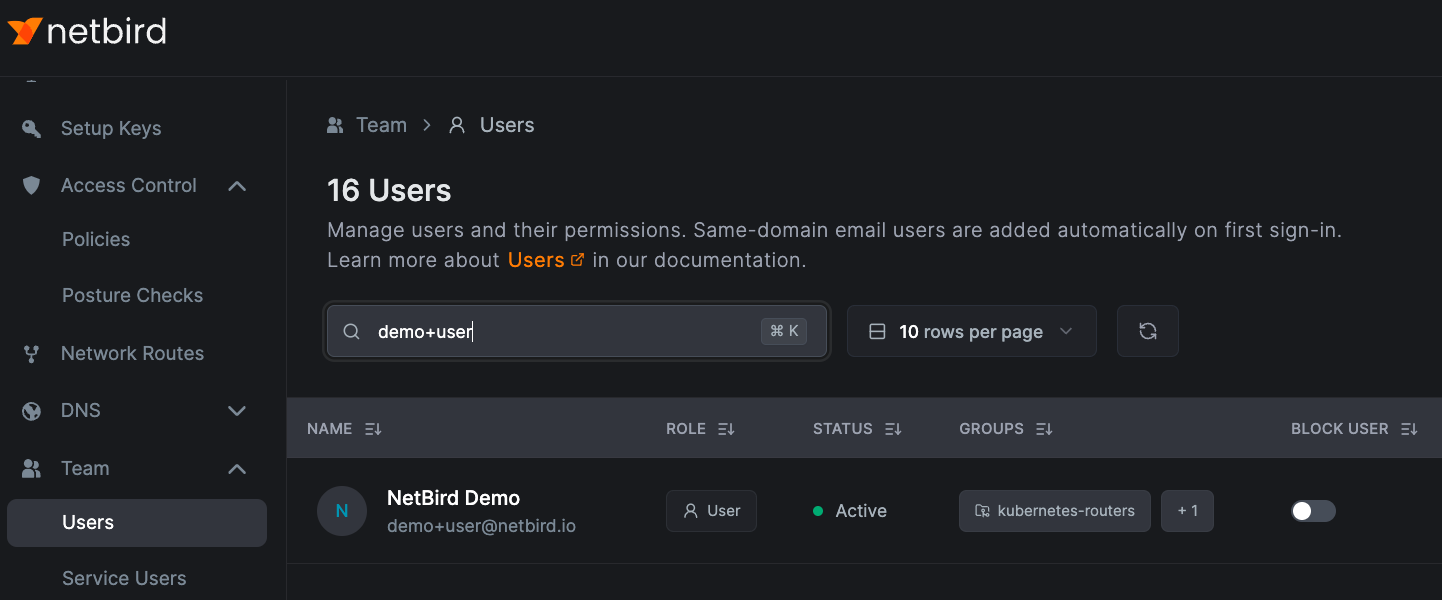
To change a user's role, go to the Team tab, select the Users tab, and click the user you want to update:
Select the desired role from the dropdown. Agent Network Admin and Usage Viewer are under the Agent Network tab:
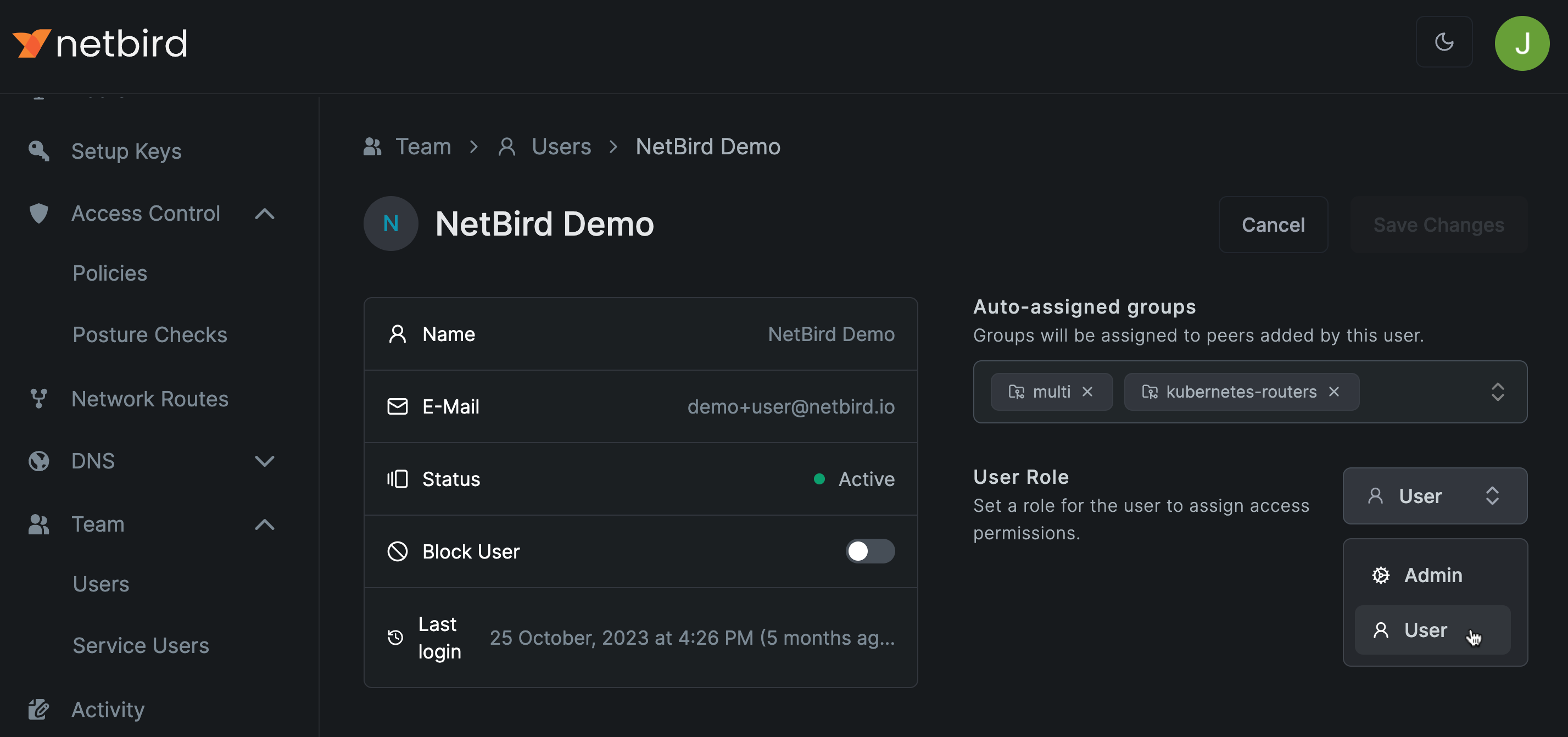
Click the Save button to apply the change.
Only users with the Owner role can assign another user as Owner; this action transfers the Owner role to the other user, making the current user an Admin.
Get started
- Make sure to star us on GitHub
- Follow us on X
- Join our Slack Channel
- NetBird latest release on GitHub