

IIJ ID on NetBird Cloud
Updated
You can use IIJ ID as your Identity Provider with NetBird, but it will require some additional configuration steps. IIJ ID is a cloud-based identity and access management service (IDaaS) from Internet Initiative Japan that provides single sign-on, multi-factor authentication, and user lifecycle management, with support for OpenID Connect, SAML, and SCIM.
NetBird integrates with IIJ ID as a custom OpenID Connect application.
Support for OIDC-compliant IdPs is available on the Team plan and higher. The Free plan supports Google, Microsoft, and social logins. Self-hosted deployments support OIDC-compliant IdPs in both the open source Community Edition and the Enterprise Commercial License. See self-hosted identity providers.
Step 1: Create a Custom OpenID Connect Application
Log in to the IIJ ID console and navigate to Application > Application Management. Click Add Application, then Add Custom Application.
Select OpenID Connect Application and click Next.
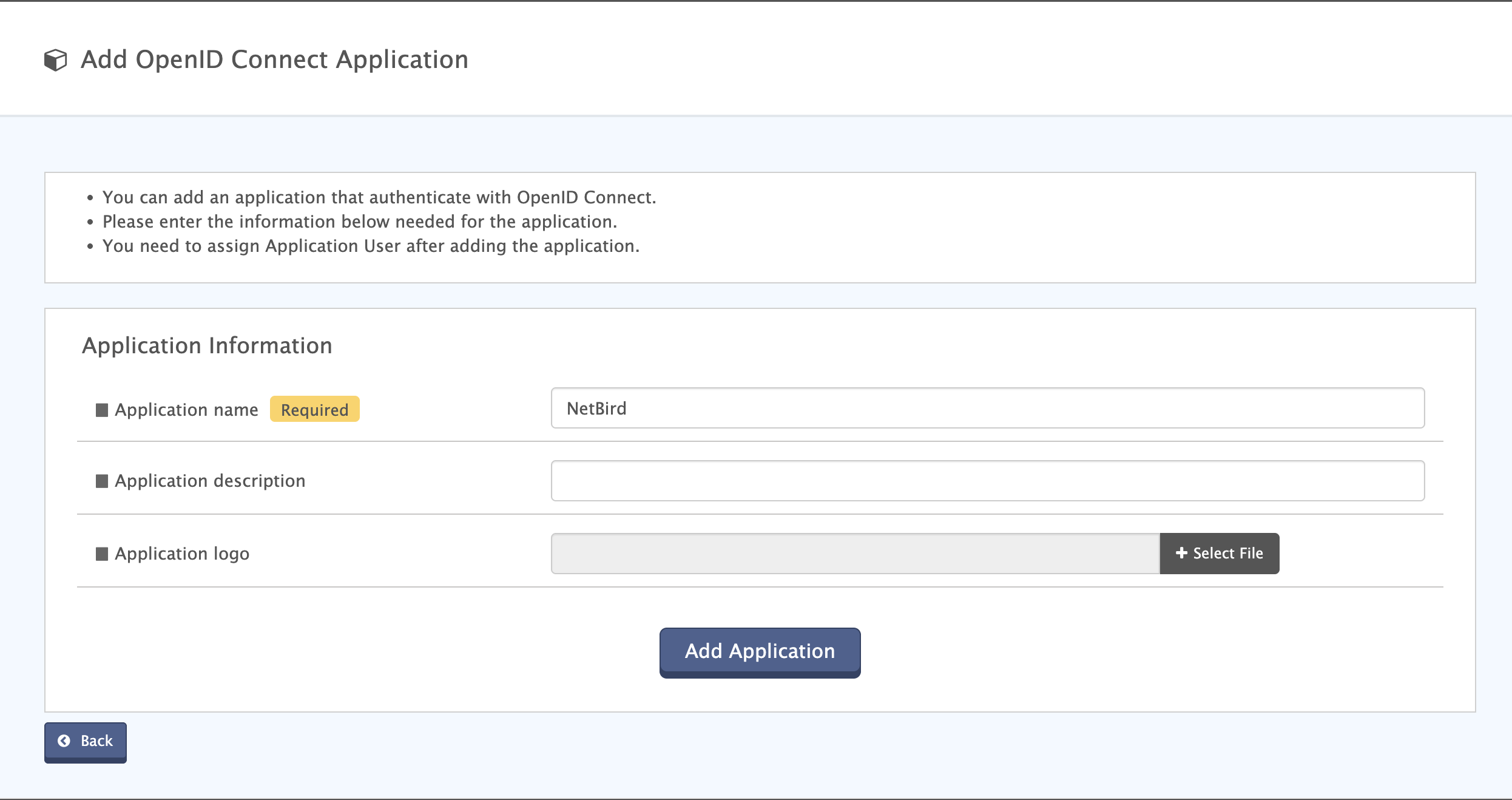
Fill out the application information:
- Application name:
NetBird - Application description: An optional description for your administrators
- Application logo: An optional logo image (GIF, JPEG, PNG, or BMP, up to 10 MB)
Click Add Application.
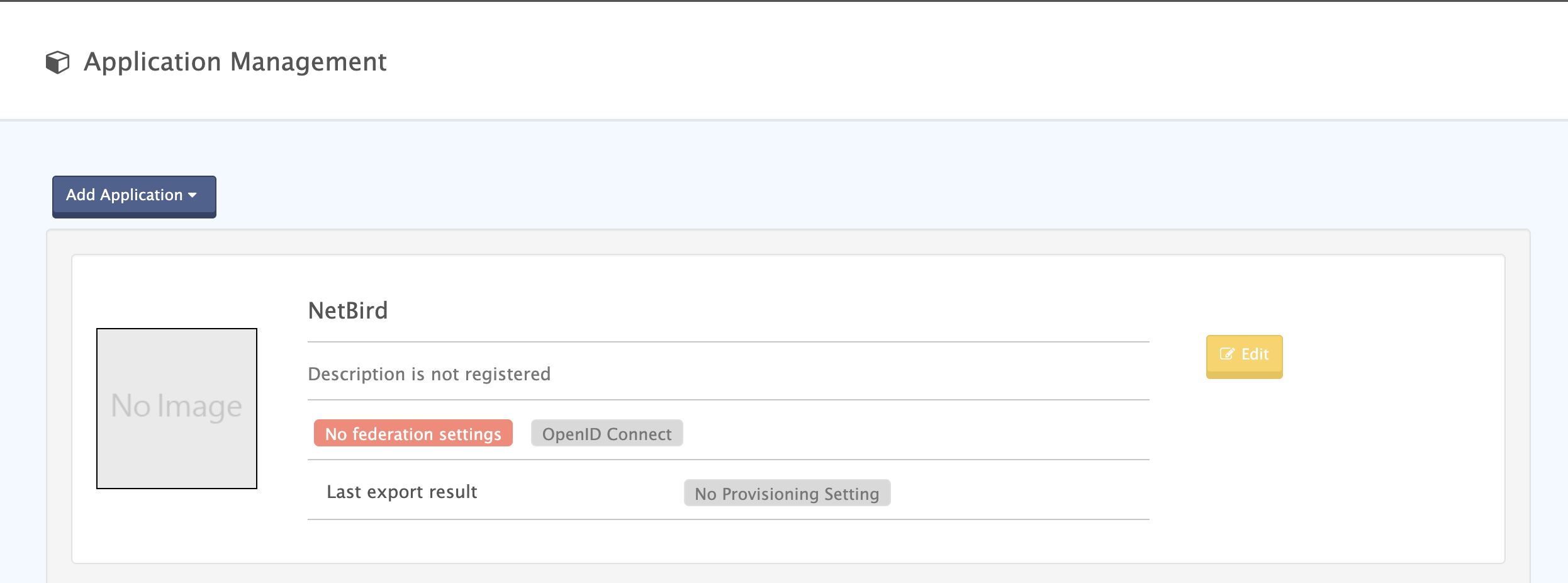
Step 2: Configure the Federation Settings
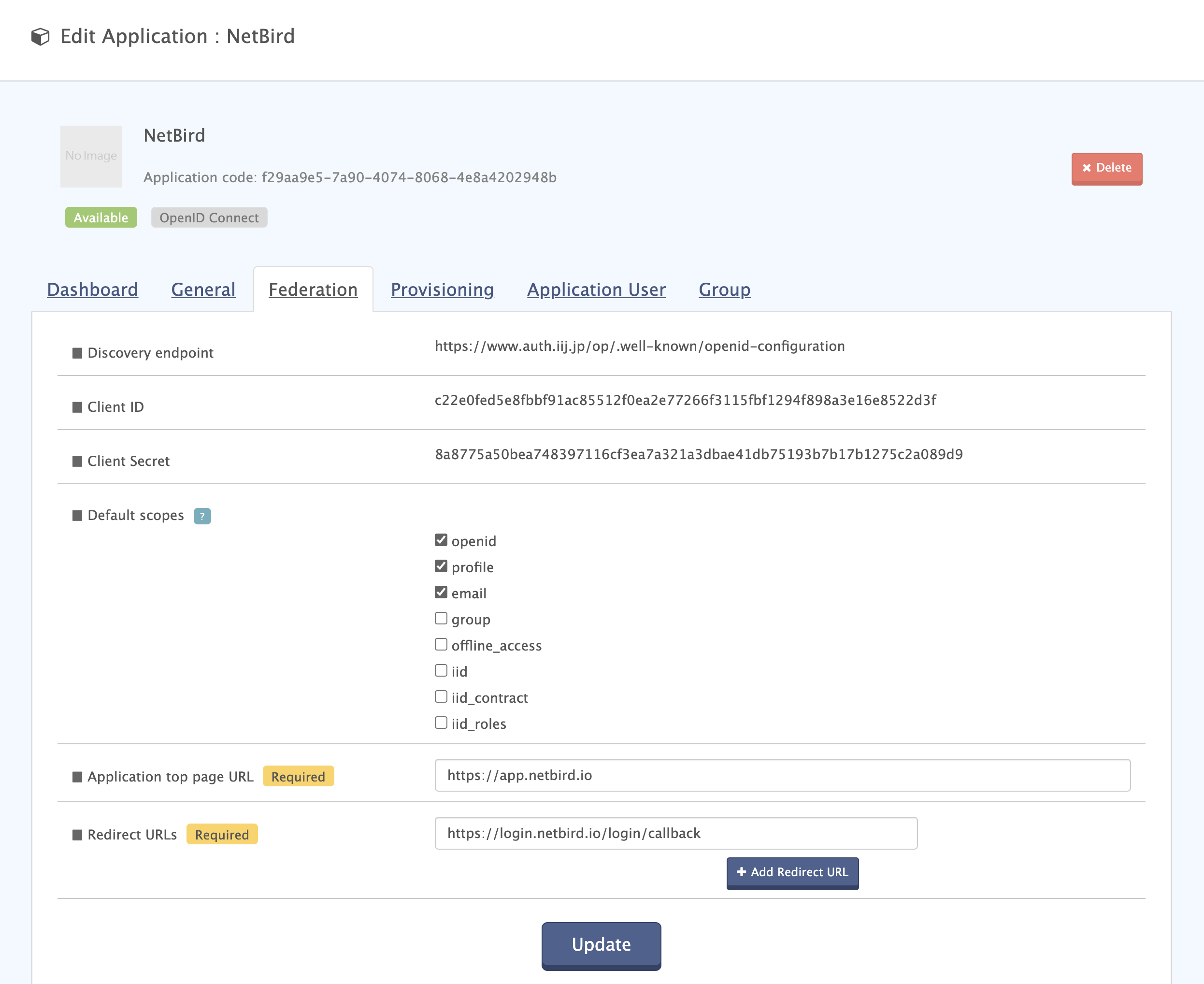
Open the newly created application, click Edit, and select the Federation tab. Set the following:
- Default scopes: Select
openid,profile, andemail - Application top page URL:
https://app.netbird.io - Redirect URLs:
https://login.netbird.io/login/callback
Click Update to apply the configuration.
Step 3: Retrieve the Client Credentials
The Federation tab also displays the OpenID Connect provider information NetBird needs. Copy and store the following securely:
- Client ID
- Client Secret
- Discovery endpoint
NetBird uses the Discovery endpoint to automatically resolve the Authorization, Token, and User Info endpoints of your IIJ ID tenant.
Step 4: Assign Users
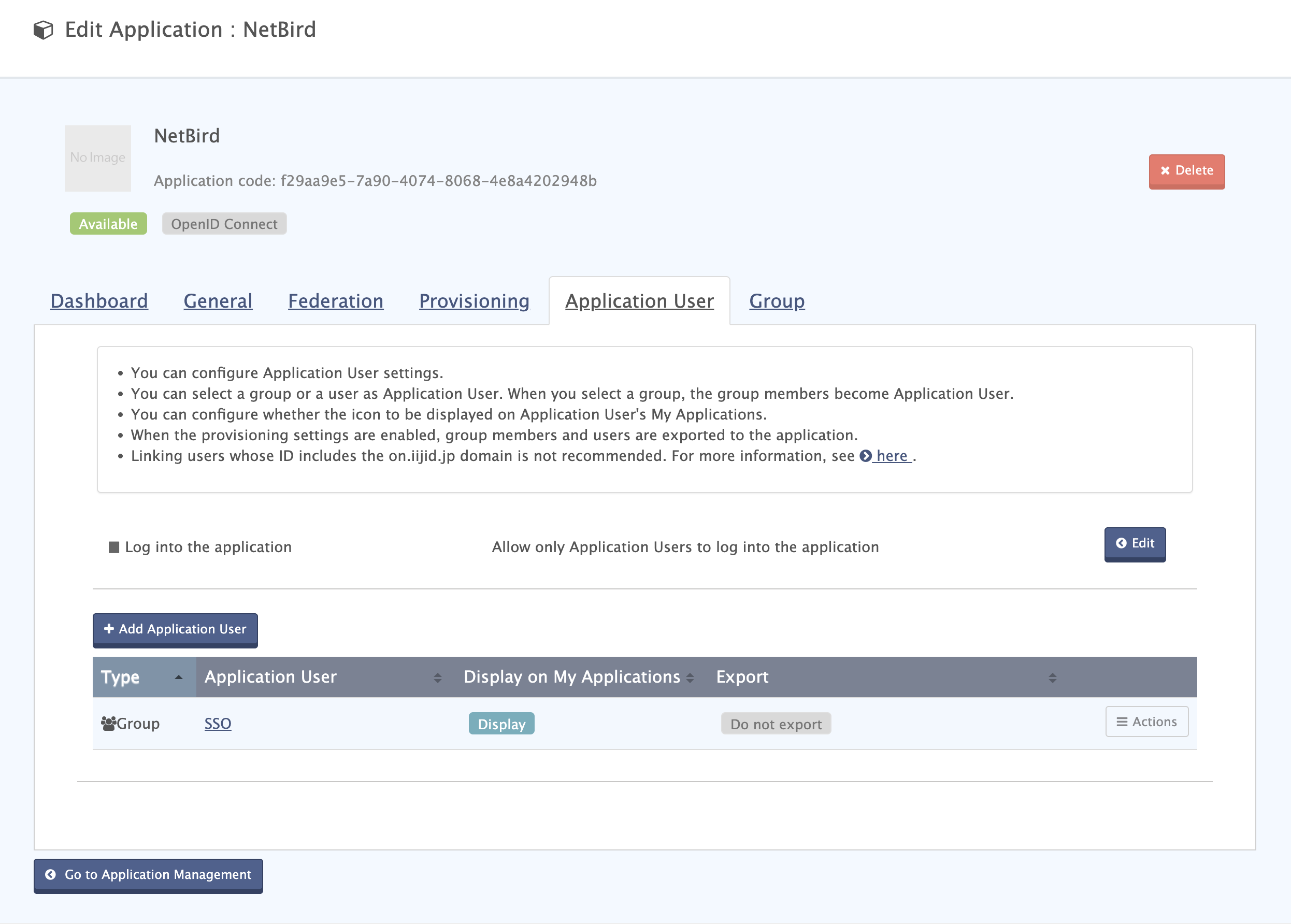
Assign access to the NetBird application so users can sign in to NetBird with IIJ ID. Open the application, select Application User, and click Add Application User. Select the users or groups that should have access, choose whether the application appears in My Applications, and click Add Application User.
Step 5: Share Configuration with NetBird
Send the following information to the NetBird support team at support@netbird.io:
- Client ID
- Client Secret
- Discovery endpoint (the OpenID configuration URL you copied in Step 3)
- Email domains for your users
We recommend using a secure channel to share the Client Secret. You can send a separate email and use a secret sharing service like: