

Custom Domains
Updated
When you create a reverse proxy service, you need to assign it a domain. NetBird provides built-in domains that are automatically available for every account, and also supports custom domains where you bring your own domain name. This page explains how both types work and walks you through adding and verifying a custom domain.
Built-in domains
Every NetBird deployment comes with built-in domains that you can use immediately - no DNS configuration required. The format and labeling of these domains differ between cloud and self-hosted deployments.
Cloud deployments (Free domains)
Cloud accounts receive free domains in the format:
{subdomain}.{nonce}.{cluster}.proxy.netbird.io
For example: myapp.abc123.eu.proxy.netbird.io where myapp is your chosen subdomain, abc123 is a nonce unique to your account, and eu is the proxy cluster region.
NetBird operates multiple proxy clusters in different regions, and your available free domains correspond to these clusters. In the domain selector, free domains appear with a Free badge.
Self-hosted deployments (Cluster domains)
Self-hosted deployments provide cluster domains in the format:
{subdomain}.{proxy-domain}
For example: myapp.proxy.mycompany.com where myapp is your chosen subdomain and proxy.mycompany.com is the domain configured on your proxy instance(s) via the NB_PROXY_DOMAIN environment variable.
There is no nonce in self-hosted domains. In the domain selector, these domains appear with a Cluster badge.
How built-in domains are derived
In both deployment types, built-in domains are dynamically derived from the proxy instances currently connected to the management server. They are not pre-provisioned - they reflect whichever proxy servers are actively registered via gRPC. If a proxy instance disconnects, its associated domain may no longer appear in the selector until the instance reconnects.
Built-in domains are a quick way to get started. They receive automatic TLS certificates and work the same as custom domains in every other respect.
Custom domains
Custom domains let you use your own domain name (e.g., app.example.com) for reverse proxy services. Custom domains work identically in both cloud and self-hosted deployments. Before a custom domain can be used, you must verify ownership by creating a CNAME record in your DNS provider.
To manage custom domains, navigate to Reverse Proxy > Custom Domains in the NetBird dashboard.
Adding a custom domain
Follow these steps to add a custom domain to your account:
- Navigate to Reverse Proxy > Custom Domains in the NetBird dashboard.
- Click Add Domain.
- Enter your domain name (e.g.,
proxy.example.com). - Select the target proxy cluster that will handle traffic for this domain.
- Click Save.
NetBird stores new domain names in lowercase and converts internationalized names to ASCII (punycode). A trailing dot is removed. Equivalent spellings, such as App.Example.com. and app.example.com, refer to the same registration. Invalid names and wildcard registrations such as *.example.com are rejected; enter the domain without the wildcard prefix.
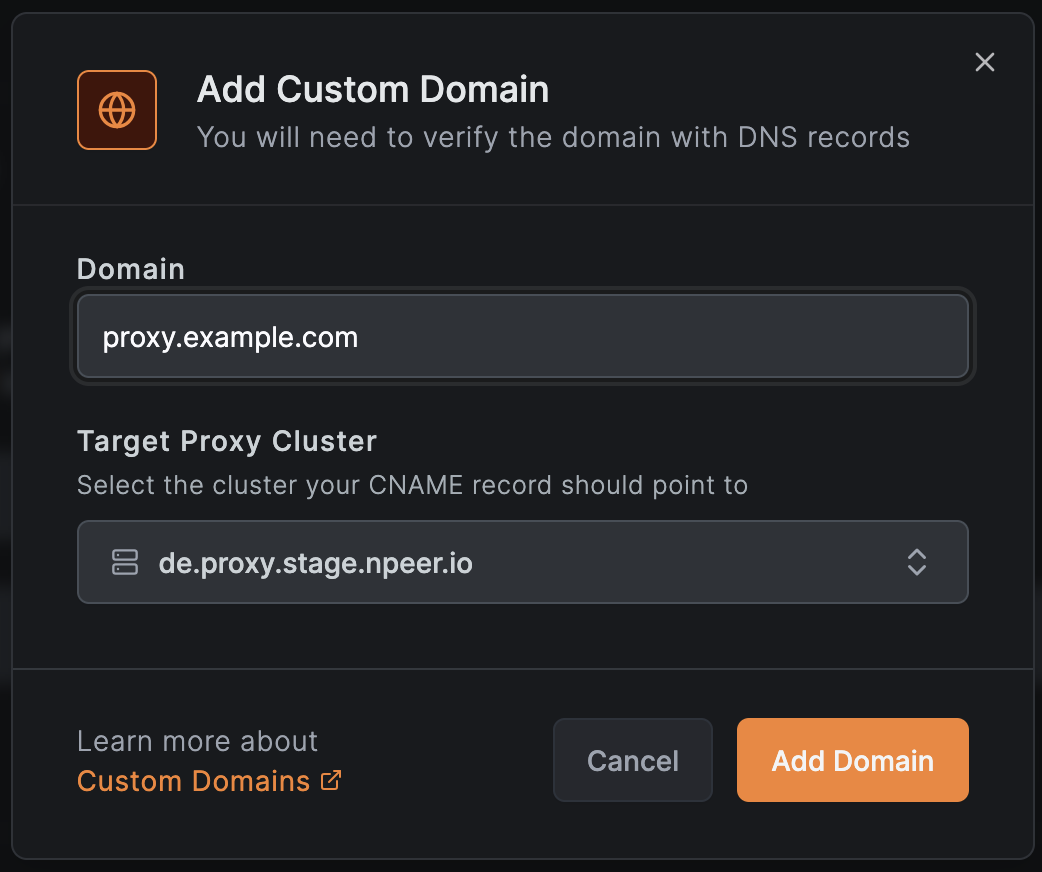
After saving, the domain appears in your list with a Pending Verification status. You must complete CNAME verification before you can use the domain with a service.
Verifying a custom domain
To prove that you own the domain, NetBird requires you to create a specific CNAME record in your DNS provider.
Step 1: Create the CNAME record
In your DNS provider, create a wildcard CNAME record for your custom domain, pointing to the proxy cluster address. The CNAME target depends on your deployment type:
- Cloud deployments - point to a NetBird-hosted cluster address (e.g.,
eu.proxy.netbird.io) - Self-hosted deployments - point to your own proxy URL (e.g.,
proxy.mycompany.com)
For example, on a cloud deployment:
| Record Type | Name | Value |
|---|---|---|
CNAME | *.proxy.example.com | eu.proxy.netbird.io |
On a self-hosted deployment:
| Record Type | Name | Value |
|---|---|---|
CNAME | *.proxy.example.com | proxy.mycompany.com |
The exact target value depends on the proxy cluster you selected when adding the domain. The NetBird dashboard displays the required CNAME record and target after you save the domain.
Check your CAA records
A CAA record lists the certificate authorities allowed to issue certificates for a domain. If your domain has CAA records and none of them authorize the certificate authority the proxy uses, certificate issuance is refused and your services are unreachable over HTTPS.
Domains without any CAA records need no action - when no records exist, every certificate authority is allowed.
Which certificate authority to authorize
NetBird Cloud issues certificates through ZeroSSL on all shared proxy clusters, and ZeroSSL certificates are signed by Sectigo. The value to authorize is therefore sectigo.com.
The sectigo.com value applies only to the shared proxy clusters that NetBird manages on NetBird Cloud. If your services run on a self-hosted proxy, authorize whichever certificate authority that proxy is configured to use instead - for example, letsencrypt.org for Let's Encrypt. Everything else in this section applies either way.
Add the records
If your domain has CAA records, add both of the following. The issue tag covers regular names and issuewild covers wildcard names; the proxy needs both:
| Record Type | Name | Flags | Tag | Value |
|---|---|---|---|---|
CAA | proxy.example.com | 0 | issue | sectigo.com |
CAA | proxy.example.com | 0 | issuewild | sectigo.com |
Some DNS providers ask for flags, tag, and value in separate fields, as above. Others accept the full zone file line:
proxy.example.com. 3600 IN CAA 0 issue "sectigo.com"
proxy.example.com. 3600 IN CAA 0 issuewild "sectigo.com"
Adding these records does not replace your existing CAA records - a domain can authorize several certificate authorities at once, so your other providers keep working. Removing all CAA records from the domain also resolves the problem, but it lifts the restriction for every certificate authority.
CAA records are inherited. A certificate authority checks the exact name first and then walks up the tree, stopping at the closest ancestor that has CAA records. If proxy.example.com has no records but example.com does, the records on example.com apply. Add the records above to proxy.example.com, or include sectigo.com in the records on example.com.
Verify the records
Check the custom domain and each parent name before verifying the domain in the dashboard:
dig CAA proxy.example.com +short
dig CAA example.com +short
Empty output for both means no CAA records apply and nothing needs to change. If either returns records, they must include sectigo.com for both the issue and issuewild tags.
Step 2: Verify in the dashboard
After creating the DNS record, return to the Reverse Proxy > Custom Domains page and click Verify Domain next to the domain.

Confirm that the dialog reflects CNAME record you added to your domain provider and click Start Verification.
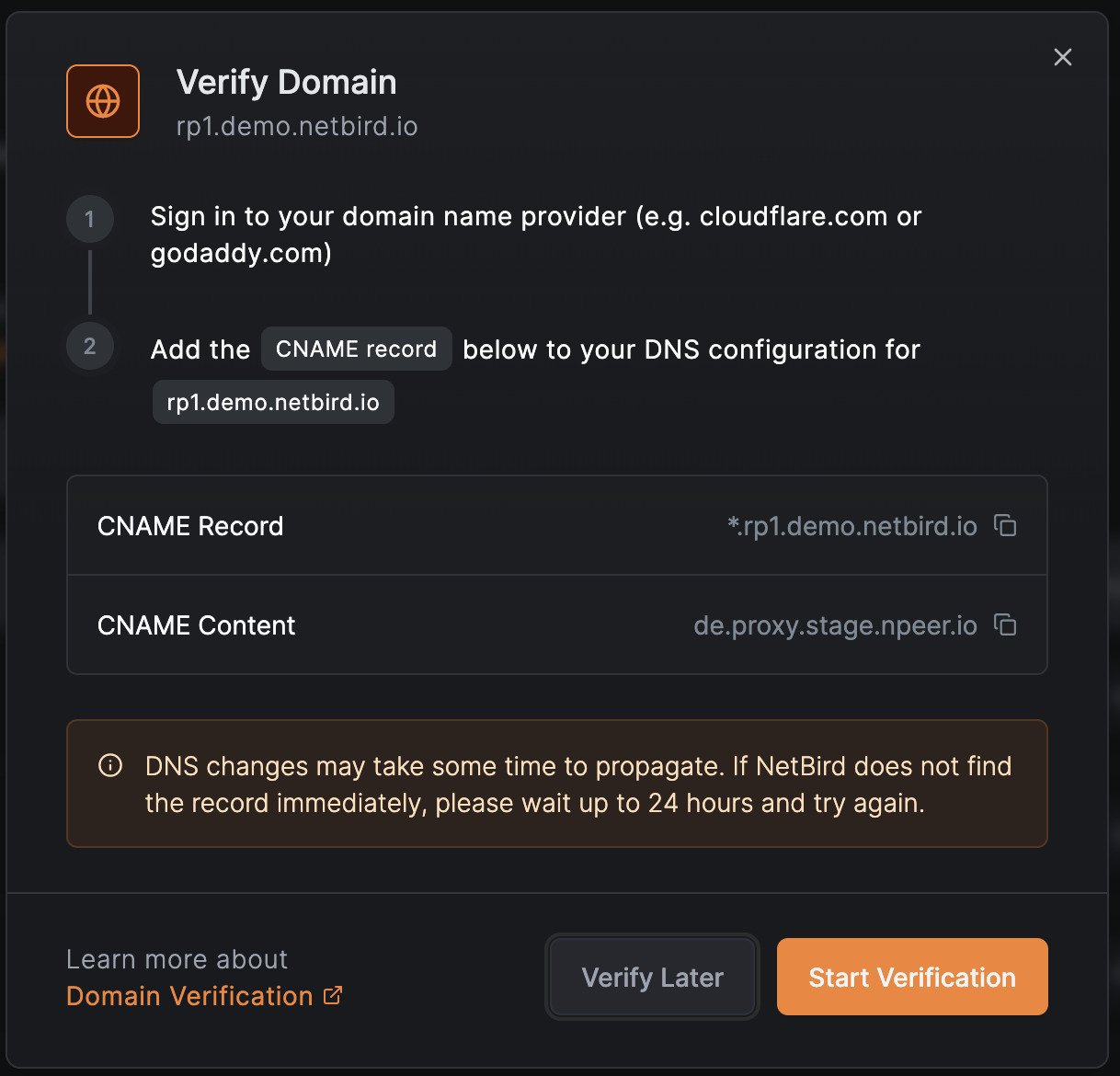
NetBird performs a CNAME lookup on *.<your-domain> and verifies that it resolves to a known proxy cluster. Once verification succeeds, the domain status changes to Active and it becomes available in the domain selector when creating or editing services.
DNS changes can take time to propagate. If NetBird does not find the record immediately, please wait up to 24 hours and try again.
Verification deadline
Complete verification within 48 hours of adding a custom domain. Retrying verification does not extend this deadline. Once a domain becomes Active, it is exempt from this expiry.
NetBird removes expired, unverified registrations at management server startup and every 60 minutes. With management running normally, removal happens between 48 and 49 hours after registration. The account's activity log records Unvalidated domain registration expired. After removal, you can add the domain again and complete verification within a new 48-hour window.
When upgrading a self-hosted management server, existing unverified registrations receive a 48-hour verification window. Legacy registrations that still have services using their domain are retained for administrator review.
Managing custom domains
The Custom Domains page lists all domains associated with your account, including both built-in and custom domains.
Viewing domains
The domain list shows each domain along with its type (Free, Cluster, or Custom), the associated proxy cluster, and the current verification status.
Re-verifying a domain
If a custom domain returns to Pending Verification status - for example, after a DNS configuration change - you can click Verify Domain to trigger a new CNAME lookup.
Deleting a custom domain
To remove a custom domain, click the delete action next to the domain in the list. Deleting a custom domain removes it from your account and makes it unavailable for any new services. Built-in domains (Free or Cluster) cannot be deleted.
Before deleting a custom domain, make sure no active services are using it. Services referencing a deleted domain will no longer route traffic correctly.
Using domains with services
When you create or edit a reverse proxy service, the domain selector presents all available domains:
- All Active custom domains
- All built-in domains - Free domains (cloud) or Cluster domains (self-hosted)
To assign a domain to a service, enter a subdomain on the left side of the selector and choose a base domain on the right side. The full public URL for your service is the combination of both:
{subdomain}.{base-domain}
For example, if you enter dashboard as the subdomain and select proxy.example.com as the base domain, the service is accessible at dashboard.proxy.example.com.
All domain types receive automatic TLS certificates managed by the proxy.
Troubleshooting
Domain shows as Pending Verification
Verify that the wildcard CNAME record for *.<your-domain> is correctly configured and points to the right proxy cluster address. For cloud deployments, this is a NetBird-hosted address (e.g., eu.proxy.netbird.io). For self-hosted deployments, this is your own proxy URL (e.g., proxy.mycompany.com). Use a DNS lookup tool to confirm the record has propagated:
dig CNAME *.proxy.example.com
If the record does not appear, check your DNS provider for typos or wait for propagation to complete.
CNAME pointing to the wrong cluster
The CNAME record must resolve to one of your available proxy clusters. If you selected a different cluster when adding the domain, the verification lookup will fail. Verify the expected target value on the Custom Domains page in the dashboard and update your DNS record accordingly.
Certificate is not issued after verification
If the domain reaches Active but services on it return a TLS error, a CAA record is most likely refusing the certificate authority. Check the domain and its parents:
dig CAA proxy.example.com +short
dig CAA example.com +short
If either returns records that do not include the certificate authority your proxy uses - sectigo.com on NetBird Cloud's managed clusters - add the issue and issuewild records described in Check your CAA records. Certificate issuance is retried automatically once the DNS change propagates.
Domain already in use
Each custom domain must be unique across all NetBird accounts. If you receive an error that the domain is already in use, it may be registered by another account. Verify that you are entering the correct domain name. If you believe this is an error, contact NetBird support.
Related pages
- Reverse Proxy Overview - learn how the reverse proxy feature works
- Authentication - configure SSO, password, PIN, and header authentication, plus access restrictions
- Access Logs - monitor traffic to your reverse proxy services