

Internal DNS Servers
Updated
When your network has on-premise DNS infrastructure — Active Directory, BIND, Unbound, or other internal DNS servers — you may need to configure NetBird to use them. This page covers when a nameserver configuration is needed and when it isn't.
If you don't run internal DNS servers and just want friendly names for private resources, NetBird can host the records itself. See Custom Zones and the DNS Aliases for Routed Networks guide.
When You Don't Need a Nameserver
If you just need access to a few internal resources by domain name, you don't need to configure a nameserver. Create a Network resource with the internal domain name (e.g., fileserver.corp.local) and an access control policy allowing your peers to reach it. The routing peer will resolve the DNS and route traffic to that resource. This works as long as the routing peer itself can resolve the domain.
A domain resource matches the exact name you enter: fileserver.corp.local covers that one host, not other names under corp.local. To reach many hostnames under a domain — several servers, or names you can't list in advance — use a wildcard resource such as *.corp.local, which matches every subdomain. A wildcard routes all of those names through the routing peer, so when you only need a handful of hosts, prefer listing them as specific resources.
Domain Resources and Routing Peer DNS
When you define a Network resource using a domain name (e.g., crm.corp.local), the routing peer resolves that domain using its own local DNS configuration. With Routing Peer DNS Resolution enabled (the default), the client sends its DNS queries for that domain to the routing peer, which looks up the domain and returns the result — so the client needs no nameserver of its own to resolve that name.
This means the routing peer must be able to resolve the domain. If it can't — for example, a Linux routing peer that isn't configured to use your Active Directory DNS — domain resource lookups will fail.
This covers ordinary name-to-IP lookups (A/AAAA records) for the resource's own domain. Two cases still need a nameserver configured on the client:
- Routing Peer DNS Resolution is disabled. It's on by default, but can be turned off per account. With it off, the client resolves the name itself instead of asking the routing peer — so point the client at your internal DNS with a nameserver (or its network adapter's DNS).
- Active Directory. A domain-joined client always needs a nameserver (
corp.example.com→ the DC), no matter how this setting is configured — see Active Directory & Windows File Shares.
To fix this, add the routing peer's group to the internal Nameserver's distribution groups — along with any client groups that resolve these names directly (Active Directory clients always do):
- Go to DNS → Nameservers
- Edit your internal DNS nameserver (or create one if it doesn't exist)
- Under Domains, ensure your internal domains are listed (e.g.,
corp.local) - Add the routing peer's group — plus any client groups that resolve these names directly — to the Distribution Groups
- Save
This ensures the routing peer receives the nameserver configuration and can resolve internal domains on behalf of clients.
This applies to any domain-based resource, not just Active Directory. And the routing peer doesn't have to get the nameserver from NetBird — if it already resolves the domain through its own DNS (a domain-joined file server usually does), no distribution is needed. Add the nameserver to the peer's group only when it can't resolve the domain on its own.
Configuring Nameservers for Internal Domains
To resolve internal domains through NetBird, create a match domain Nameserver pointing to your internal DNS server:
- Go to DNS → Nameservers → Add Nameserver
- Choose Custom DNS
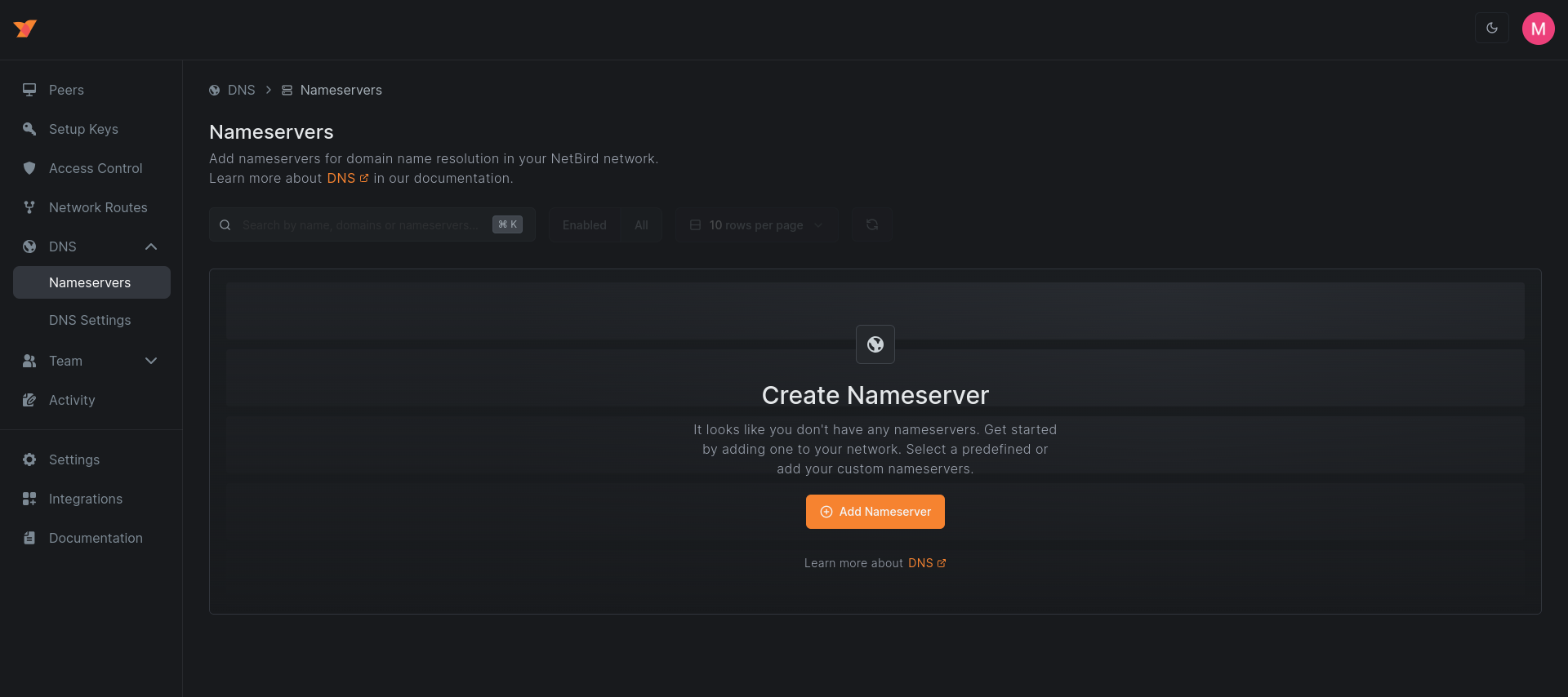
- Add the IP addresses of your internal DNS servers (e.g.,
192.168.0.32) - Select the Distribution Groups — the peer groups that should use this nameserver
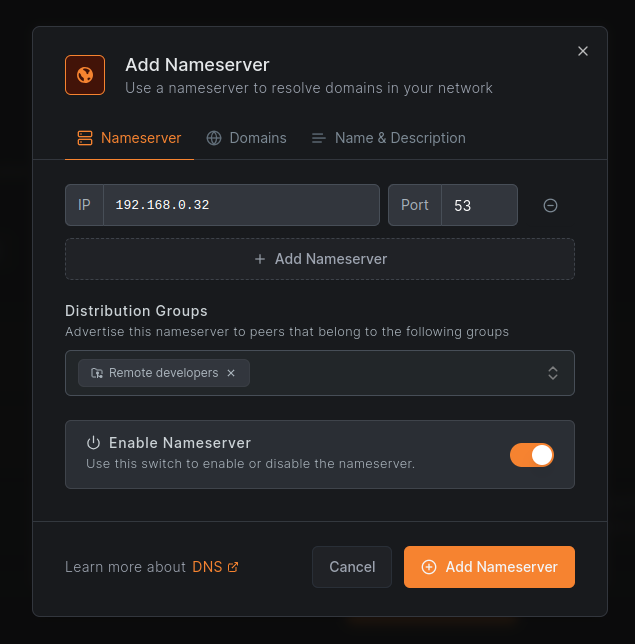
- Under Domains, add a Match Domain and enter your internal domains (e.g.,
corp.local,company.internal)
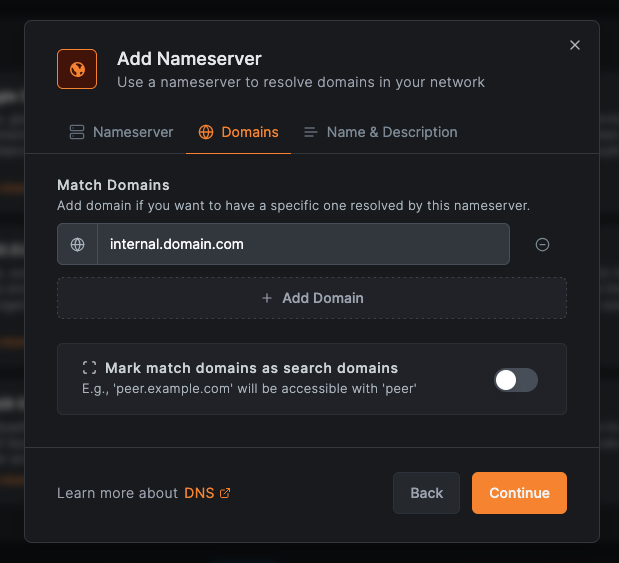
- Save the nameserver
Peers in the distribution groups will use your internal DNS server for the specified domains, while all other domains continue to resolve normally.
Configure 2-3 nameserver IPs for redundancy. If the first fails, peers automatically try the next one.
Private DNS Behind Routing Peers
If your internal DNS server is on a private network (not directly reachable by peers), you need to set up routing in addition to the nameserver configuration above. This is common when your DNS server is on an office LAN or cloud VPC that only the routing peer can access.
Create a Network Resource so peers can reach the DNS server through the routing peer:
- Go to Network Routing → Networks → Add Network
- Add a resource with the DNS server's IP (e.g.,
192.168.0.32/32) - Assign the resource to a group (e.g., "Internal DNS")
- Add the routing peer that can access the private network
For details, see Networks.
Create an Access Control Policy allowing DNS traffic from your peers to the DNS server:
- Source: Your user groups (e.g., "Remote Developers")
- Destination: The DNS resource group (e.g., "Internal DNS")
- Protocol: UDP, Port: 53
For details, see Manage Network Access.
Primary vs Match Domain Nameservers
- Match domain: Handles queries for specific domains (e.g.,
corp.local). Adding a domain automatically matches all its subdomains. - Primary: Handles all queries not matched by other nameservers. To create a primary nameserver, leave the Match Domains section empty.
Each peer should have exactly one primary nameserver. If you don't configure a primary, peers use their original DNS settings for non-matched queries.
A primary nameserver does more than catch unmatched queries. On macOS, a match-domain-only configuration registers a scoped resolver through system APIs and leaves the nameservers in /etc/resolv.conf untouched. Applications that use the system resolver follow the scoped entry, but tools that read resolv.conf directly (dig, host, and some language runtimes) keep querying your LAN or public nameservers and get NXDOMAIN for internal names. Adding a primary group puts NetBird's resolver into resolv.conf, so both kinds of tools query the same server. If your users report that browsers resolve internal names but dig does not, see dig and host fail, but browsers and curl work.
From client v0.78.0, on Windows a primary nameserver makes NetBird the exclusive resolver while the peer is connected. Earlier clients only set the resolver on the tunnel adapter, leaving Windows free to query the other adapters' resolvers alongside it. Windows otherwise queries the resolvers of every network adapter in parallel and keeps the first answer that arrives, which both leaks queries to the local network and lets another resolver answer for a name NetBird is authoritative for. The client prevents that with a Name Resolution Policy Table rule covering every namespace.
The cost is that names only the local network's resolver knows — a home router's own zone, or an internal domain not reachable through NetBird — stop resolving while connected. Declare those zones as match domain nameservers: a more specific rule takes precedence over the catch-all, so a declared zone keeps resolving. .local is exempt, so multicast DNS names keep working. Short names can also stop expanding when another adapter is preferred — see the note under Search Domains.
Setting NB_USE_LEGACY_DNS_RESOLUTION=true on a peer restores the pre-v0.78.0 behaviour — see Client Environment Variables.
Search Domains
Toggle Mark match domains as search domains to enable domain suffix searching. When enabled, typing server expands to server.company.internal. Only applies to match domain nameservers.
Don't convert a match-domain group to primary by emptying its domains. Removing the match domains also removes the search domains, so short names like server stop expanding. Domain-joined Windows machines hide the regression because Active Directory supplies its own suffix, so it surfaces as "short names broke for some users." To add a primary, create a second nameserver group with the same servers and leave the existing match-domain group in place.
On Windows, from client v0.78.0, making NetBird the exclusive resolver also ends the suffix search early. A short name is expanded by the DNS client using the suffix list of the preferred network interface — the one with the lowest interface metric — and Windows no longer falls through to another interface's suffixes when the name is not found there. So when an adapter other than NetBird's is preferred, a short name fails while its fully qualified form still resolves. Earlier clients kept searching the other adapters' suffixes, so the same short name resolved.
NetBird's interface is usually the preferred one, but a tie on the metric is enough to lose it. When that happens, declaring the local network's zone as a match domain with search domains enabled puts both suffixes in the same list, and short names resolve again for either zone. Otherwise use the fully qualified name, or set NB_USE_LEGACY_DNS_RESOLUTION=true to go back to shared resolution.
Split-Horizon DNS
A common setup with two nameservers:
Primary (internet): Select a predefined provider like Cloudflare (1.1.1.1, 1.0.0.1). Assign to "All Peers". Leave match domains empty.
Match domain (internal): Choose Custom DNS with your internal DNS server IPs (e.g., 10.0.0.1, 10.0.0.2). Assign to "All Peers". Add match domain company.internal. Enable search domains.
Result:
google.com→ Cloudflareapp.company.internal→ Internal DNS (10.0.0.1)server→ Expanded toserver.company.internal→ Internal DNS
Route All Queries to Internal DNS
If you are migrating from a VPN that pushed your internal DNS servers for everything (a common OpenVPN setup), the equivalent is the same two groups as in the split-horizon example, but both pointing at your internal servers:
This setup requires internal DNS servers that resolve public domains too, by recursing or forwarding upstream. Active Directory DNS servers do this by default. If your servers are authoritative-only for the internal zone, making them primary cuts off public resolution; use the split-horizon setup above instead.
Primary (internal): Custom DNS with your internal DNS server IPs (e.g., 10.0.0.1, 10.0.0.2). Assign to your target group. Leave match domains empty.
Match domain (internal): Same servers. Add match domain company.internal. Enable search domains.
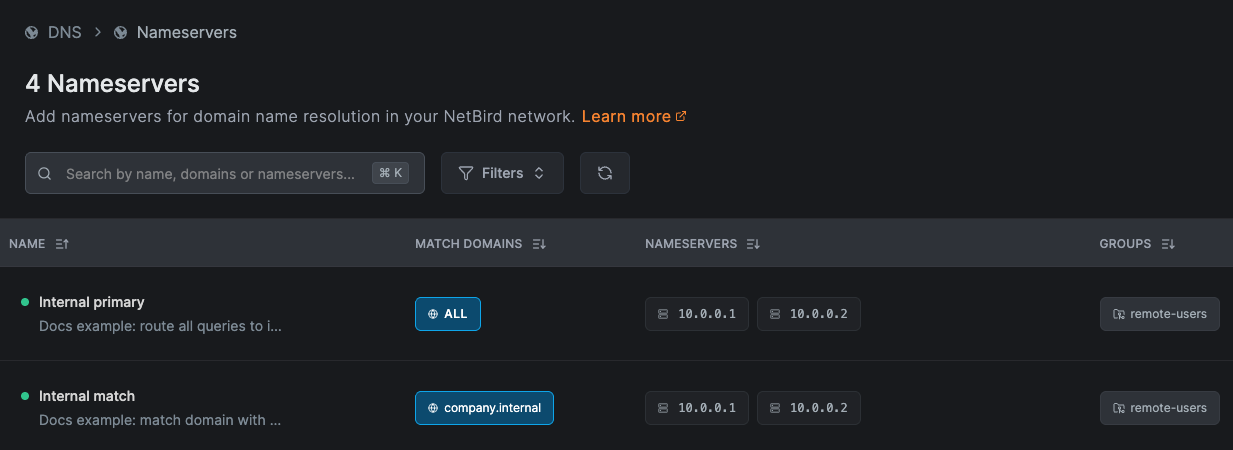
Result:
- All queries, public and internal, go to your internal DNS
serverstill expands toserver.company.internal- Tools that read
/etc/resolv.confdirectly and tools that use the system resolver query the same server
Two groups look redundant when they hold the same servers, but they do different jobs: the primary receives every query, while the match-domain group provides the search-domain expansion. A VPN "pushing DNS servers" maps to the primary group, not to a match-domain group.
DNS Failover and Overlapping Domains
Configure multiple nameserver IPs within a single nameserver entry for automatic failover. The client tries servers in order.
If multiple nameservers match a query, the most specific match wins:
Query: app.us-east.company.internal

Nameservers:
1. company.internal → DNS1
2. us-east.company.internal → DNS2

Result: Uses DNS2 (more specific)
Managing Nameservers
Editing
- Navigate to DNS → Nameservers
- Click the nameserver to edit
- Modify settings and click Save
Changes propagate to peers within 10-30 seconds. No peer restart required.
Temporarily Disabling
Edit the nameserver and toggle Enable Nameserver to OFF. Peers stop using it but the configuration is preserved.
Deleting
Before deleting a primary nameserver, create a new primary first, or peers will revert to their original DNS settings.
- Click the nameserver
- Click Delete and confirm
Active Directory & Domain Controllers
Active Directory (AD) environments have specific DNS requirements because Domain Controllers (DCs) run their own DNS services and rely on DNS for core AD functionality like domain joins, authentication, and service discovery.
Setting up remote access to AD file shares, DFS, and domain login end to end? See the Active Directory & Windows File Shares guide — it ties together the routing, DNS, and Kerberos pieces into a single setup. The sections below are the DNS reference behind it.
Reaching a Domain Controller through a routing peer
With Routing Peer DNS Resolution on (the default), a domain resource is enough for a plain file share — the routing peer resolves its name-to-IP (A/AAAA) lookup. Active Directory needs more:
- What it needs — a domain-joined client needs a nameserver (
corp.example.com→ the DC) for theSRV/ DC-locator records that logon and DFS depend on. It only works once the DC itself is reachable through the peer. - Why a domain resource isn't enough — the routing peer serves only
A/AAAA, notSRV/ DC-locator records. And once it's the client's resolver for the domain, the client stops asking anywhere else — it won't separately query the DC for the records it's missing. So a plain domain resource silently leaves out exactly the records AD login and DFS need.
This is the same on Windows and Linux clients.
Domain Controllers as Routing Peers
We do not recommend using Domain Controllers as routing peers. If you must, you need to disable DNS management for the DC's group. If NetBird manages DNS on a Domain Controller, it can interfere with the AD DNS services that the DC depends on.
To configure this:
- Create a dedicated group for your Domain Controllers (e.g., "Domain Controllers")
- Go to DNS → DNS Settings
- Add the Domain Controller group to Disable DNS management for these groups
- Save Changes
This prevents NetBird from modifying the DC's DNS configuration while still allowing the DC to act as a routing peer. The DC continues using its own DNS for Active Directory services.
For more details on DNS management modes, see DNS Settings.
WireGuard Port Conflict on Domain Controllers
When NetBird is installed on a Windows Domain Controller, the Windows DNS Server service may already be using UDP port 51820 — WireGuard's default port. This causes NetBird to fail during startup.
Symptoms:
- NetBird fails with:
Error: daemon up failed: call service up method: rpc error: code = DeadlineExceeded desc = context deadline exceeded - The peer appears as disconnected in the NetBird management portal
- The WireGuard tunnel cannot establish a connection
Cause:
The Windows DNS Server service uses a dynamic socket pool that can bind to UDP port 51820 before WireGuard claims it. Since both services need exclusive use of the port, WireGuard fails to start.
Diagnosis:
- Open an elevated Command Prompt or PowerShell on the Domain Controller and check what process is using port 51820:
netstat -ano | findstr 51820
- Identify the process holding the port using the PID from the output:
tasklist /FI "PID eq <PID>"
If the process is dns.exe or svchost.exe (hosting the DNS Server service), this confirms the port conflict.
- Optionally, capture a NetBird debug bundle for further investigation:
netbird debug for 1m -U
Fix:
Exclude port 51820 from the DNS Server's socket pool so it cannot claim the port:
dnscmd /config /SocketPoolExcludedPortRanges 51820-51820
Then restart the DNS Server service:
net stop dns && net start dns
Then restart the NetBird service:
netbird service restart
Restarting the DNS Server service temporarily disrupts DNS resolution for all clients using this Domain Controller. Schedule this change during a maintenance window or ensure other DCs can handle DNS queries.
This port exclusion persists across reboots. If you later change the WireGuard listen port in your NetBird configuration, update the exclusion range accordingly.