

Agent Network in Control Center
Updated
Agent Network is also available in Control Center for a better view of who can reach which AI provider. Alongside your peers, groups, and access control policies, it draws Agent Network providers and agent policies on the same canvas, so you can follow a group to the AI providers it is allowed to reach, edit them in place, and build new access with Draft Mode.
Permissions: Viewing and changing providers and agent policies in Control Center requires access to Control Center and the same Agent Network permissions as on the Agent Network pages. The Agent Network Admin role has no access to Control Center, so it manages providers and policies from the Agent Network pages only. Learn more about user roles.
One example carries through the page: giving the Engineers group access to the Anthropic API provider.
How It Looks on the Canvas
Agent Network adds two node types to the graph, and they read left to right like an access control policy:
- Agent policy: a pill in the policy column, showing the policy name and a status dot (green when enabled, grey when disabled). It grants its source group access to one or more providers. See Policies.
- Provider: a card in the destination column, showing the provider's logo, name, and upstream URL, like
https://api.anthropic.com. See Providers.
So the path is group → agent policy → provider. Disabled policies and providers stay on the canvas, dimmed, so you can still see what they would grant.
Agent Network nodes show up in the Peers, Users, and Groups views:
- Groups: the providers the selected group can reach, through which agent policies.
- Peers: the providers reachable through any of the selected peer's groups.
- Users: the providers reachable through the groups of each of the user's peers.
The Networks view does not show Agent Network nodes, because providers are not network resources.
Focus on a Policy or Provider
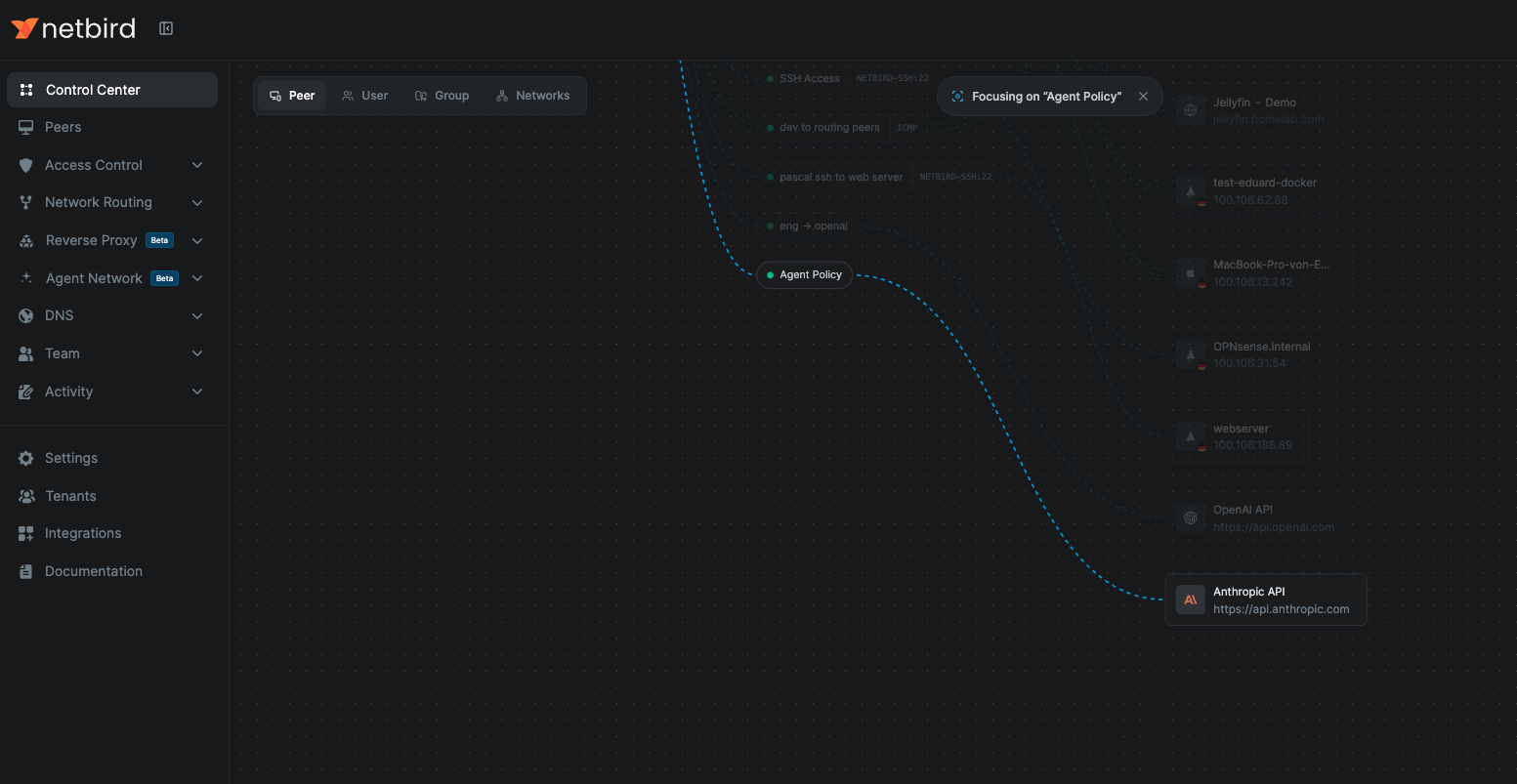
When the graph gets busy, use Focus Mode to isolate one path. Right-click an agent policy or provider and choose Focus, or press F and then select the node. Everything unrelated dims, leaving only the groups and providers connected to it, and a Focusing on pill at the top of the canvas shows what is in focus. Close the pill to return to the full view.
Edit Providers and Agent Policies in Place
You do not have to leave Control Center to change Agent Network configuration. Click a node, or right-click it and choose Edit, to open the same editor you know from the Agent Network pages:
- Provider: the Edit Provider dialog, with the Provider tab (provider, upstream URL, API key, display name) and the Models tab.
- Agent policy: the Update Agent Policy dialog, with the Policy, Limits, and Guardrails tabs.
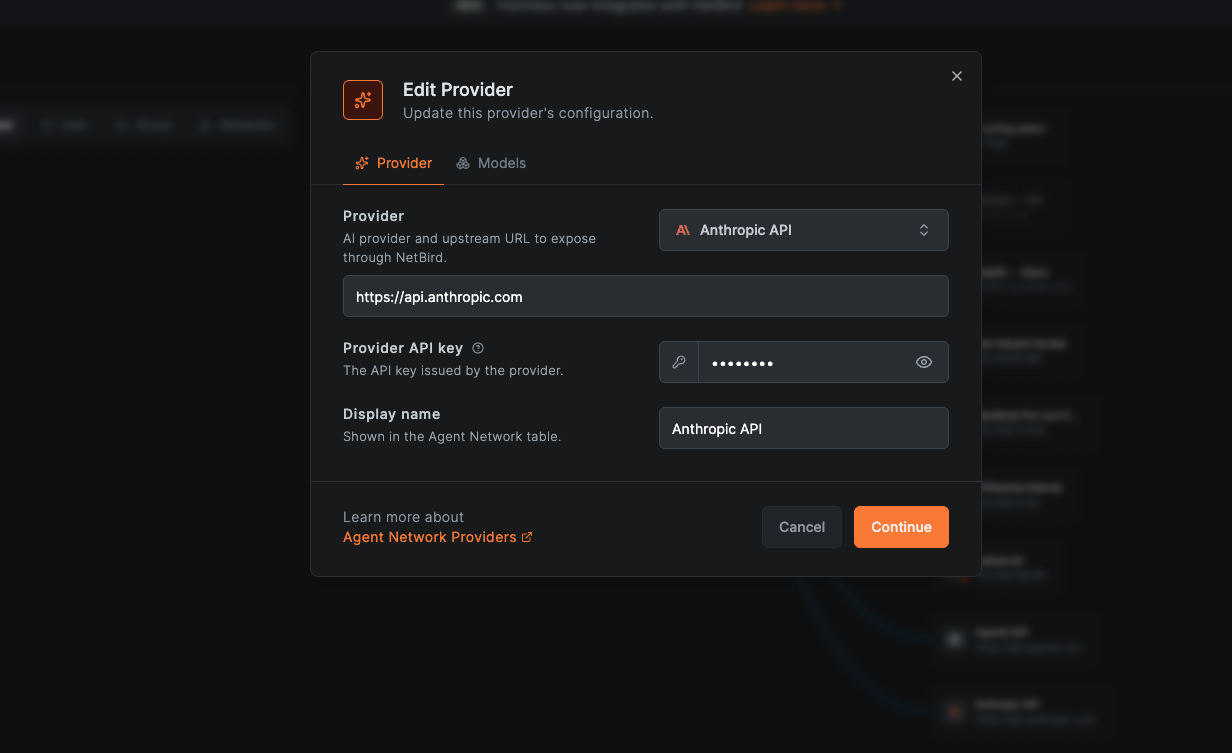
In the live view, saving asks you to confirm, because the change applies to your account immediately. The right-click menu also offers:
- Disable / Enable: turns the provider or policy off or on right away.
- Delete: removes it from your account after a confirmation.
Build Access in Draft Mode
For a new provider, a new policy, or both at once, switch to Draft and stage the change before it goes live. Draft Mode works the same as for the rest of Control Center; see Plan and Deploy Changes with Draft Mode for the full workflow.
Add Agent Network Nodes
Click Add in the toolbar (or press C) and open the Agent Network tab of the components panel:
- Add new: a Provider node ("Connect an AI provider or gateway") and an Agent Policy node ("Authorize groups to reach providers").
- Existing providers and Existing agent policies: the ones already in your account, ready to drag onto the canvas. Each existing policy shows how many groups and providers it connects.
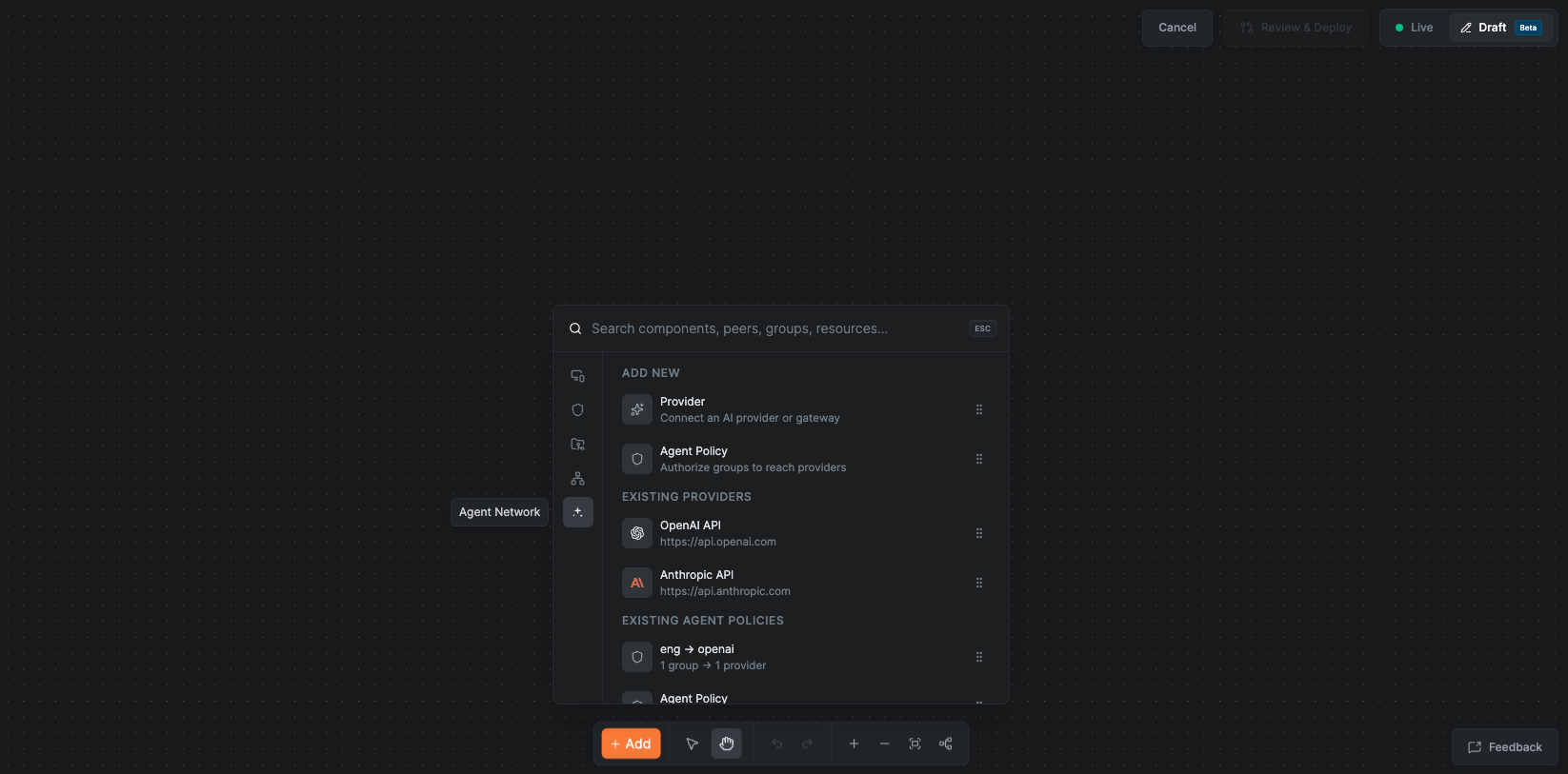
You can also right-click the canvas and choose New Agent Policy or New Agent Provider.
- Dropping a Provider node opens the Connect Provider dialog. The provider card lands on the canvas once you save it, and its creation is tracked in the draft.
- Dropping an Agent Policy node places a blank policy node. It becomes a tracked change once it has a source group and at least one provider.
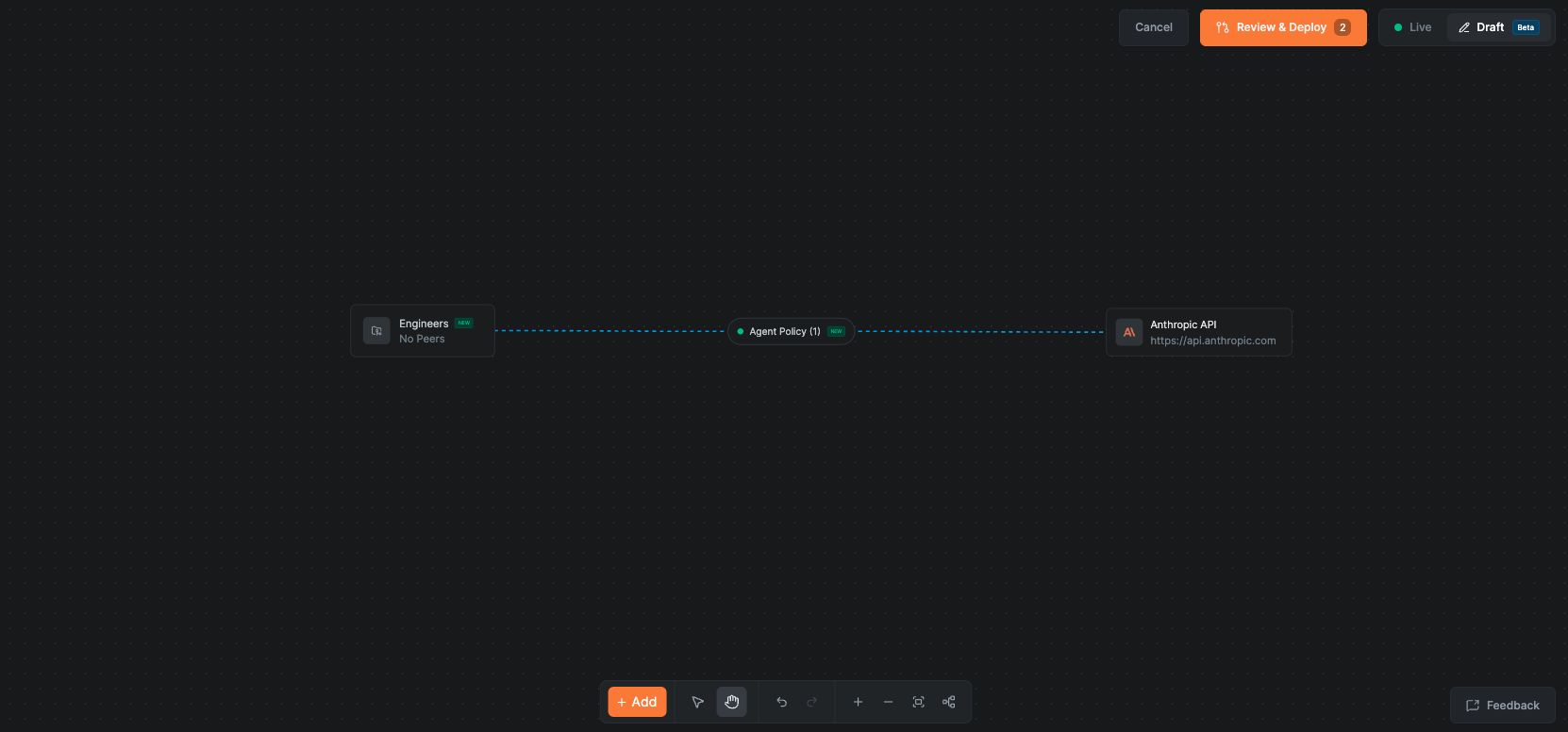
For our example, drag the existing Anthropic API provider and the existing Engineers group onto the canvas. If the provider does not exist yet, drop a new Provider node instead and connect it in the dialog.
Connect Groups to Policies and Providers
Draw connections between nodes to wire up access. Unlike access control policies, the drag direction does not matter here: a group is always the source and a provider is always the destination.
- Group to provider: opens the Create Agent Policy dialog prefilled with both, named after them (
Engineers → Anthropic API). This is the quickest way to grant access. - Group to agent policy: sets the policy's source group.
- Agent policy to provider: adds the provider to the policy. A policy can reach several providers.
For our example, connect Engineers to Anthropic API. Before saving the policy, use the Limits and Guardrails tabs to cap spend and restrict the policy to the models the team actually uses, so the first version you deploy is already scoped. See Token & Budget Limits and Guardrails.
Review and Deploy
Click Review & Deploy to see every change with the request it sends, like POST /agent-network/policies for the new Engineers → Anthropic API policy. Provider API keys are masked in the preview.
On deploy, groups are created first, then providers, then agent policies, so a new policy can point at a group and provider created moments earlier in the same batch.
Approve & Deploy stays disabled while a policy is unfinished. The review flags it when:
- an agent policy has no source group or no provider,
- an agent policy points at a provider or group that is marked for deletion, or
- an agent policy points at a draft provider that was removed from the draft.
Remove and Delete
As elsewhere in Draft Mode, Remove takes a node you created in the draft off the canvas, and Delete marks an existing provider or agent policy for deletion at deploy. Removing a draft provider also drops any new draft policy that pointed at it.
Recap
- Control Center draws Agent Network as group → agent policy → provider, in the Peers, Users, and Groups views.
- Click a provider or agent policy to edit it in place; live saves confirm first and apply immediately.
- In Draft Mode, add providers and agent policies from the Agent Network tab, then connect
Engineersto Anthropic API to create a scoped policy in one step. - Review shows the exact API requests, and the batch deploys groups, then providers, then policies.