

Roll Out NetBird Across Your Organization with MDM
Updated
Installing NetBird on your own laptop takes a minute. Installing it on 500 company laptops, making sure every one of them connects to the right server as the right user, and keeping their settings the way your security team signed off on, is a different job.
This guide shows how to do that with the MDM you already use, and walks through a complete rollout with Microsoft Intune.
TL;DR: a fleet rollout is four jobs with one owner each. Your MDM installs the client and pins its settings, users sign in with SSO once, and you pick one owner for updates. Start with a pilot group, then widen. Jump to the Intune example if you are ready to build.
One device, by hand
On a single machine:
- Download the installer: EXE or MSI on Windows, PKG on macOS.
- Run it with administrator rights.
- Open NetBird and choose the management server: NetBird Cloud, or self-hosted.
- Click Connect and sign in through the browser with your identity provider (IdP). The device joins as a peer under your user.
That is enough for one person. Afterward the device's owner still controls the server URL, profiles, SSH, and every setting your security posture depends on. On one machine, nobody minds. On a fleet, each of those is a support ticket or a gap nobody notices.
Why it does not scale
Repeat those four steps across an organization and each one turns into its own problem:
- Installing needs administrator rights most users do not have (and should not).
- Users get the server wrong and land in an account that is not yours.
- Setup keys break identity. A peer enrolled with a setup key has no user behind it, so user-based policies, login expiration, and offboarding do not apply. Setup keys are for servers, not laptops: see Bootstrap peers via config file.
- Settings and versions drift with no owner to pin them.
- Unmanaged devices look the same as managed ones once someone signs in with valid credentials.
The rollout model
| Job | Owner | What it uses |
|---|---|---|
| Install the client | Your MDM | The standard installer, with no arguments: MSI on Windows, PKG on macOS |
| Enroll the device | The user, once | SSO on first launch. The peer joins under the user's identity; IdP group sync places it |
| Enforce the settings | Your MDM | An MDM policy that pins the management server and locks the settings you choose |
| Update the client | NetBird or your MDM, never both | Automatic Updates, or a new installer version in your MDM |
Two properties make this split work:
- The installer carries no configuration; the policy carries all of it. Same MSI or PKG everywhere. Change the policy anytime and the client applies it within a minute, with no reinstall.
- The policy removes the hard step for users. When it pins the management server, the app skips the server question. The user opens NetBird, clicks Connect, and signs in with the account they already use.
Optional jobs on the same tools:
- Gate access on compliance with your MDM's NetBird integration. See Step 7.
- Enroll devices with no user (kiosks, meeting-room PCs, servers) with a setup key. Keep them in their own group with their own policy.
Skip this guide when it does not match the job. A handful of laptops is faster by hand. A Linux-only fleet has no MDM policy channel today: use service-install flags or a config file. Headless devices belong on setup keys, not this SSO path.
Supported MDMs
NetBird uses three MDM capabilities and adds no agent of its own: app deployment, a managed-configuration channel (HKLM\Software\Policies on Windows, managed preferences on macOS), and an optional compliance signal.
Any MDM that can install a package and write to those channels works. These have dedicated guides:
| MDM | Install the client | Enforce settings |
|---|---|---|
| Microsoft Intune | Deploy with Intune | Windows, macOS |
| Jamf Pro | Deploy with Jamf Pro | macOS |
| Kandji | Deploy with Kandji | macOS |
| Group Policy (Active Directory) | Deploy with Group Policy | Windows |
| JumpCloud | Upload the MSI or PKG as a software package | Windows, macOS |
| Mosyle, Workspace ONE, and others | Upload the MSI or PKG as a software package | Windows, macOS |
This guide covers Windows and macOS. Linux has no MDM channel in NetBird today: install with your configuration management tool and set the same options with service-install flags or a config file.
Example: roll out with Microsoft Intune
This example rolls NetBird out to Windows and macOS laptops at a company that uses Microsoft Entra ID for identity and Intune for device management. Users sign in with their Entra ID accounts. Laptops get the user device policy recommended for end-user machines.
The examples use a self-hosted management server at https://netbird.example.com:443. On NetBird Cloud, use https://api.netbird.io:443 instead.
Before you start
- NetBird SSO with Microsoft Entra ID. On NetBird Cloud, Microsoft sign-in works with no extra setup; for self-hosted, see Microsoft Entra ID.
- Recommended: Entra ID group sync, so each new peer lands in its user's groups and your access policies apply from the first connection.
- An Intune admin with at least the Policy and Profile Manager role, and Windows and macOS devices enrolled in Intune.
- Two Entra ID device groups:
NetBird Pilot(a handful of IT-owned laptops) andNetBird Laptops(every end-user laptop). Keep routing peers and servers out of both: the policy below stops a device from routing other peers' traffic. - The installers: the Windows MSI, and the macOS PKG for Apple Silicon and Intel.
- The policy templates: netbird.admx and netbird.adml for Windows, and netbird-macos.mobileconfig for macOS.
Find laptops where users already installed NetBird themselves. On Windows, the EXE and the MSI do not detect each other: pushing the MSI onto a laptop that has the EXE produces two overlapping installations instead of an upgrade. Uninstall the EXE first, or deploy the EXE with Intune instead. Either way, the peer's registration in C:\ProgramData\Netbird survives the uninstall, so the user does not have to enroll again.
Step 1: Define the policy
Decide what to pin before you deploy anything. For end-user laptops, start from four keys with your server URL (for example https://netbird.example.com:443) as the management URL:
| Key | Value | Why |
|---|---|---|
managementURL | Your server URL | Every laptop talks to your server; the app skips the server question on first launch |
disableUpdateSettings | true | Users can connect, disconnect, and sign in, but cannot change settings |
disableProfiles | true | Users cannot add a second profile (for example a personal NetBird account) |
disableServerRoutes | true | A laptop wrongly assigned as a routing peer does not carry other peers' traffic |
Leave every other key out. A key in the policy is pinned even when its value is false; a key you leave out stays the user's to change. To adapt the policy, see What you can achieve.
On NetBird Cloud, managementURL pins the server, not the account. Every Cloud account shares https://api.netbird.io:443, so this key stops a user from pointing the client at another server, but not from signing out and into a different Cloud account. disableProfiles still blocks a second profile on the device. A peer that leaves your account loses access because your policies no longer apply to it.
Step 2: Deliver the policy
Create the policy first and assign it together with, or before, the app. The desktop app decides whether to ask for a server when it opens for the first time; if the policy has not arrived by then, the user sees the question you meant to remove.
Windows: an Imported Administrative templates profile.
- Import
netbird.admxandnetbird.admlonce per tenant: Devices → Manage devices → Configuration → Import ADMX → Import. - Create the profile: Devices → Manage devices → Configuration → Create → New policy, platform Windows 10 and later, profile type Templates → Imported Administrative templates (Preview). Name it
NetBird: user laptops. - Under NetBird, set Management URL to Enabled with your URL, and Disable update settings, Disable profiles, and Disable server routes to Enabled. Leave everything else Not configured: Disabled pins the setting to
false. - Assign the profile to the
NetBird Pilotdevice group.
Enforce NetBird Settings on Windows has every step in detail, plus an OMA-URI alternative for tenants that cannot import templates.
macOS: a custom configuration profile.
-
Edit
netbird-macos.mobileconfig. Inside themcx_preference_settingsdictionary, keep only the four keys, and replace eachPayloadUUIDwith a fresh value fromuuidgen:<key>managementURL</key> <string>https://netbird.example.com:443</string> <key>disableUpdateSettings</key> <true/> <key>disableProfiles</key> <true/> <key>disableServerRoutes</key> <true/>Write booleans as
<true/>or<false/>, never as<integer>: macOS locks an integer boolean but never applies it. -
Create the profile: Devices → Manage devices → Configuration → Create → New policy, platform macOS, profile type Templates → Custom. Upload the file and name it
NetBird: user laptops. -
Assign it to the
NetBird Pilotdevice group.
See Enforce NetBird Settings on macOS for the template details and how to check the profile arrived.
Step 3: Deploy the client
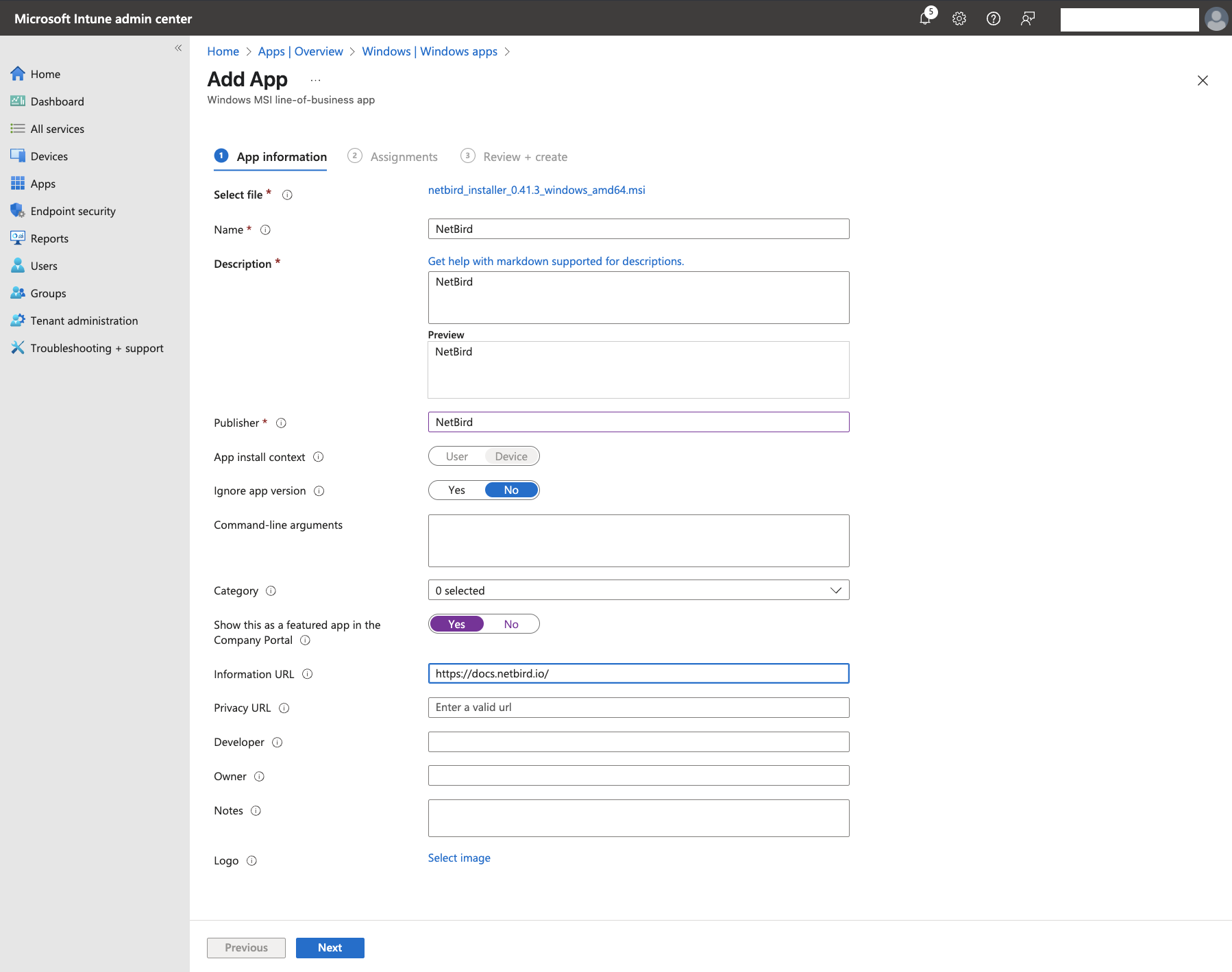
Windows: the MSI as a line-of-business app.
- Apps → Windows → Create, app type Line-of-business app, and upload the MSI.
- Set App install context to Device, and leave Command-line arguments empty: the policy carries the configuration.
- Set Ignore app version according to who owns updates, in Step 5.
- Assign it as Required to the
NetBird Pilotdevice group.
macOS: the PKG as a macOS app.
- Apps → macOS → Create, app type macOS app (PKG), and upload the PKG. Apple Silicon and Intel Macs need different packages: add each as its own app, and assign each to a group that holds only Macs of that type.
- The bundle ID is
io.netbird.client. Set Ignore app version as shown in Step 5. - Assign it as Required to the
NetBird Pilotdevice group.
For a Win32 package with custom detection rules and supersedence, see Deploy with Intune.
Step 4: First sign-in
Intune installs NetBird and starts its service. The device does not join your network until its user signs in, so tell users what to expect before the pilot starts:
- On macOS, the installer opens the NetBird app for the user who is logged in.
- On Windows, a silent install does not open the app. The user opens NetBird from the Start menu once; from then on it opens at every login.
Because the policy pins the server, the app skips the server question. The user clicks Connect, signs in with their Entra ID account in the browser, and is connected. The new peer appears in the NetBird dashboard under that user's name and, with group sync, in that user's groups.
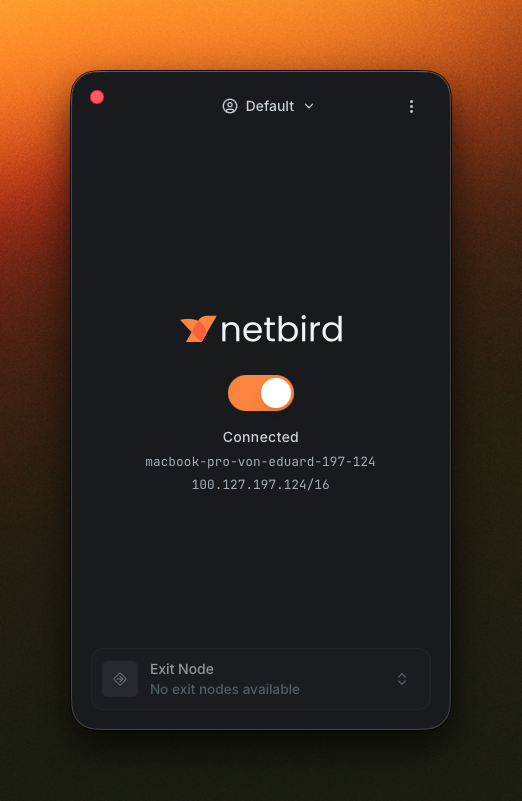
A short message is enough:
NetBird is now installed on your laptop. Open NetBird, click Connect, and sign in with your work account. You only need to do this once.
Step 5: Pick one owner for updates
The client can be updated by NetBird or by Intune. Choose one: when both try, they work against each other.
| Owner | What to do |
|---|---|
| NetBird updates the client | Enable Automatic Updates under Settings → Clients, and Force Automatic Updates to install without prompting. Set Ignore app version to Yes on the Intune apps so Intune only checks that NetBird is installed. Otherwise Intune sees the self-updated version as a different app, tries to reinstall the older one, and the MSI refuses. |
| Intune updates the client | Leave Automatic Updates disabled in NetBird, set Ignore app version to No, and upload each new MSI and PKG when you are ready to roll it out. |
Letting NetBird update is less work and keeps clients close to your management server's version. Letting Intune do it gives you change windows and staged rings. To hold the fleet on a specific version with NetBird, set Automatic Updates to a Custom Version.
Step 6: Verify the pilot, then widen
Check each layer, from Intune down to the device:
-
In Intune, the app's Device install status and the profile's Device status show success for every pilot device.
-
On a Windows device, from an elevated prompt:
reg query HKLM\Software\Policies\NetBird netbird debug config netbird statusreg queryshows what Intune wrote. Innetbird debug config, themDMManagedFieldsarray lists every key the client reads from the policy:"mDMManagedFields": [ "disableProfiles", "disableServerRoutes", "disableUpdateSettings", "managementURL" ] -
On a macOS device, run
netbird debug configandnetbird statusthe same way. The macOS page shows how to check the profile itself. -
In the NetBird dashboard, each pilot device appears under Peers with its user's name and groups.
-
As a user, open the app: the Network, Security, SSH, Advanced, and Profiles settings tabs are gone, and Connect still works.
When the pilot looks right, add the NetBird Laptops group to the assignments of both apps and both profiles. Devices pick them up at their next Intune check-in. If something is off, see Verifying enforcement and Troubleshooting.
Step 7 (optional): Only let compliant devices in
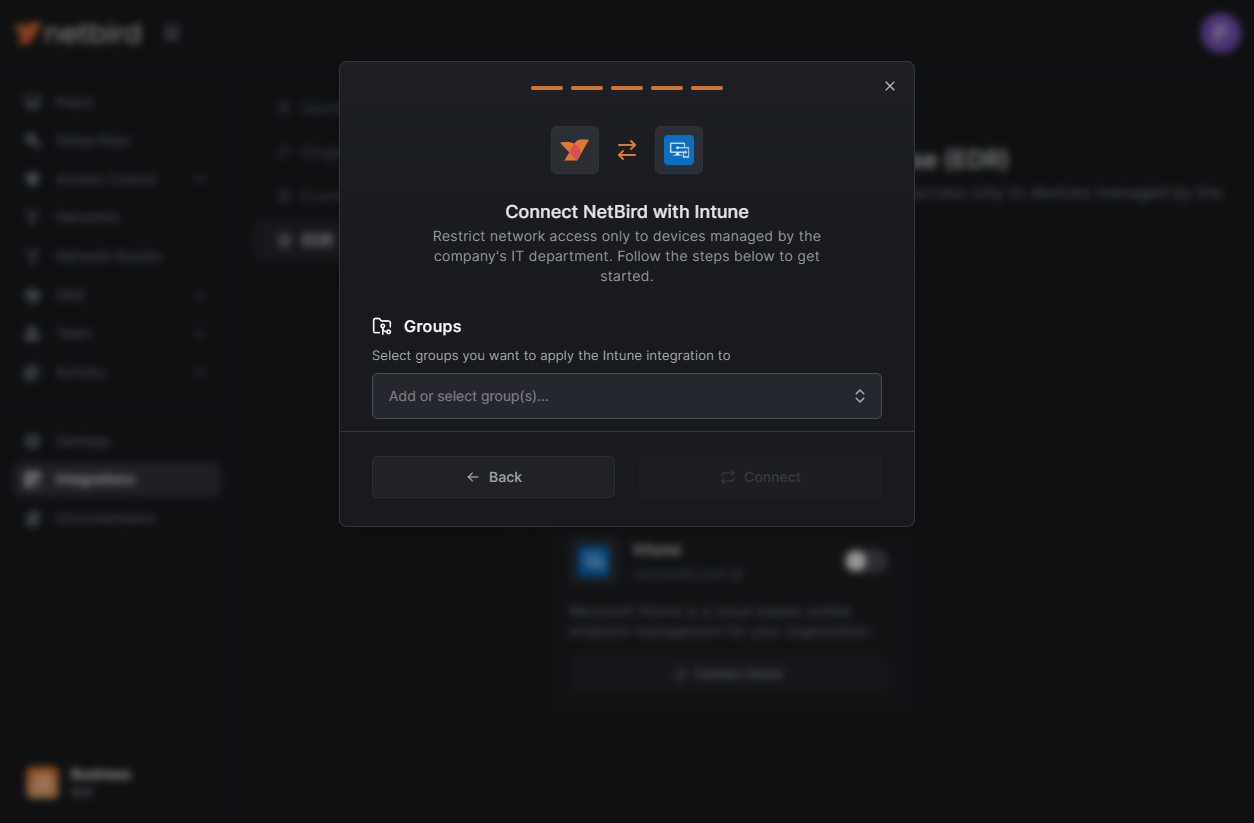
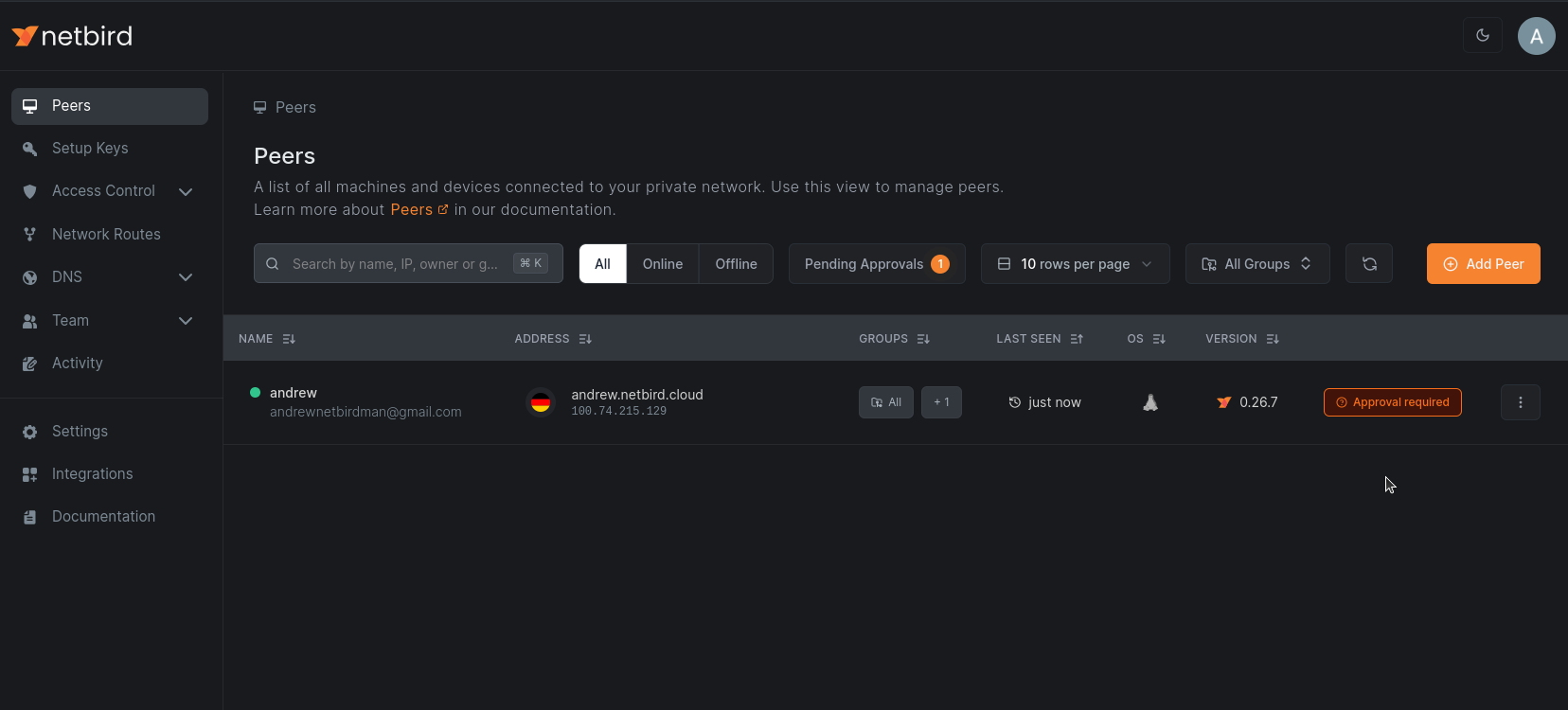
With the client on every company laptop, you can make sure nothing else gets in. NetBird's Intune integration checks each peer in the groups you select against Intune: a device that is not managed by Intune, or not compliant with your compliance policies, waits for approval and cannot reach anything. A personal laptop signed in with a valid account stays locked out.
Connect Intune under Integrations → EDR in the NetBird dashboard and select the groups the check applies to, such as the groups synced from Entra ID for your employees. The integration covers Windows and macOS, and is available on the NetBird Cloud Business plan and with a self-hosted Enterprise license.
A device that fails the check shows Approval required in the peers list until Intune reports it as managed and compliant:
Rollout checklist
- SSO works with your IdP, and groups sync into NetBird
- Access policies use the synced groups
- Laptops with a user-installed NetBird EXE are cleaned up, or you deploy the EXE
- The policy holds only the keys you mean to pin
- The policy is assigned together with, or before, the app
- One owner for updates, with Ignore app version set to match
- Users know to open NetBird, click Connect, and sign in once
- The pilot group checks out in Intune, on the device, and in the dashboard
- Routing peers and servers are outside the laptop groups
- Optional: the Intune integration gates access on compliance
Related
MDM Integration
Every policy key, how the client applies and locks a policy, and troubleshooting
Deploy with Intune
Full Intune app deployment, including Win32 packages
Automatic Updates
How NetBird updates its clients across the fleet
Implement Zero Trust
Groups, access policies, and posture checks for the network your fleet joins