

Multi-Factor Authentication (MFA)
Updated
NetBird supports Multi-Factor Authentication (MFA) to enhance the security of your account by requiring a second form of verification during login. This works automatically if you have enabled MFA in your SSO Provider (Google, Microsoft etc.) and use the interactive SSO login feature in NetBird.
NetBird MFA is primarily for users with email / password login. It is available for all users and can be enabled from the Dashboard on the Settings page https://app.netbird.io/settings.
You may not need NetBird MFA. Your SSO Provider (Google, Microsoft etc.) may already have MFA enabled. Enabling this setting could result in duplicated MFA checks.
This feature is only available in the cloud version of NetBird.
Self-Hosted users can use their own Identity Provider for MFA, or enable MFA for local users when using the embedded identity provider.
Enabling and Disabling MFA
Navigate to the Dashboard's Settings page and the Authentication tab and enable or disable MFA.
After enabling, you can Logout and log back in to see the MFA prompt.
Accounts that use NetBird's embedded identity provider for local users see an additional Enable Local MFA toggle (currently in beta) in the same tab. This enforces a TOTP challenge for all local (email/password) users. See Enable MFA for local users.
- When disabling MFA, the current active MFA devices of all users will not be removed and will be reused when MFA is enabled again. To remove MFA devices from users, check the Reset MFA section below.
- If a user is not part of the account and MFA is enabled, the first-time
Sign Upwill not require MFA.
Only subsequent logins will require MFA.
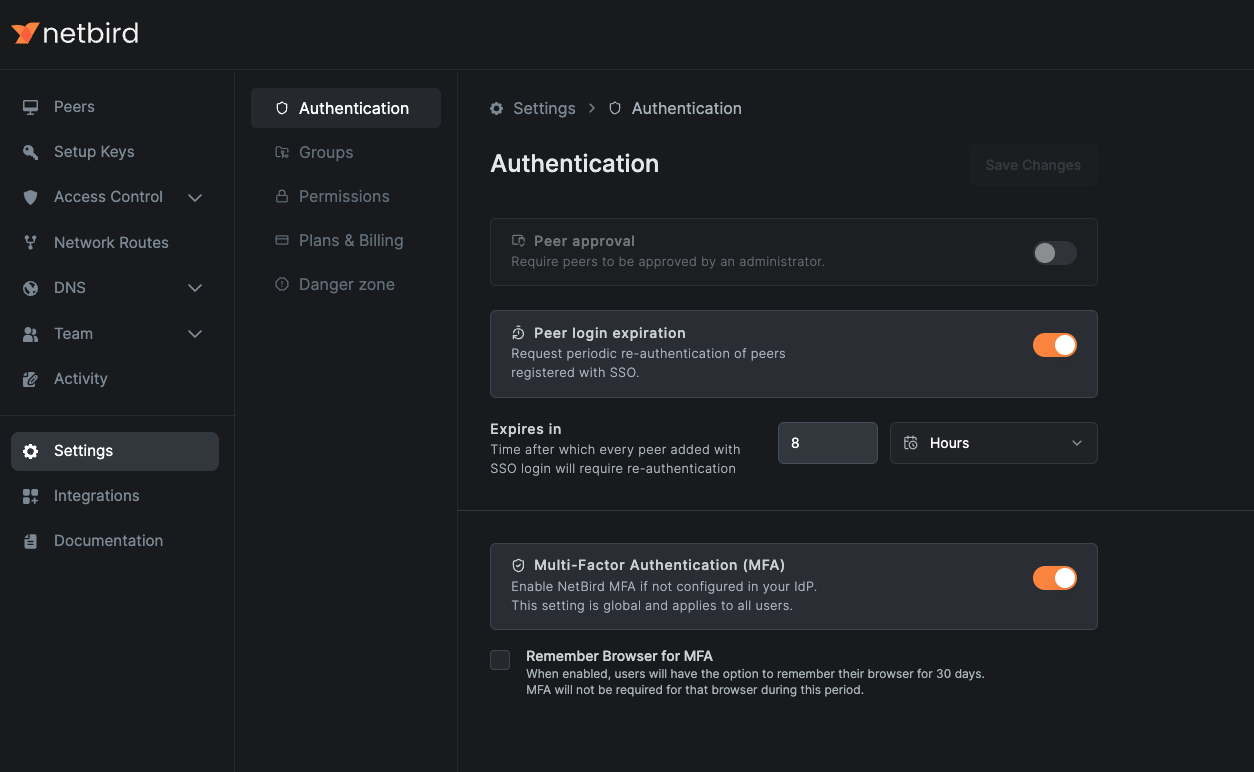
Remember Browser for MFA
When you enable MFA, you can choose to remember your browser for 30 days. This means you will only need to enter the MFA code once every 30 days.
When disabled, you will need to enter the MFA code every time you log in.
Once enabled you will see a checkbox to remember your browser for 30 days while entering the MFA code during login.
Checking User MFA Status
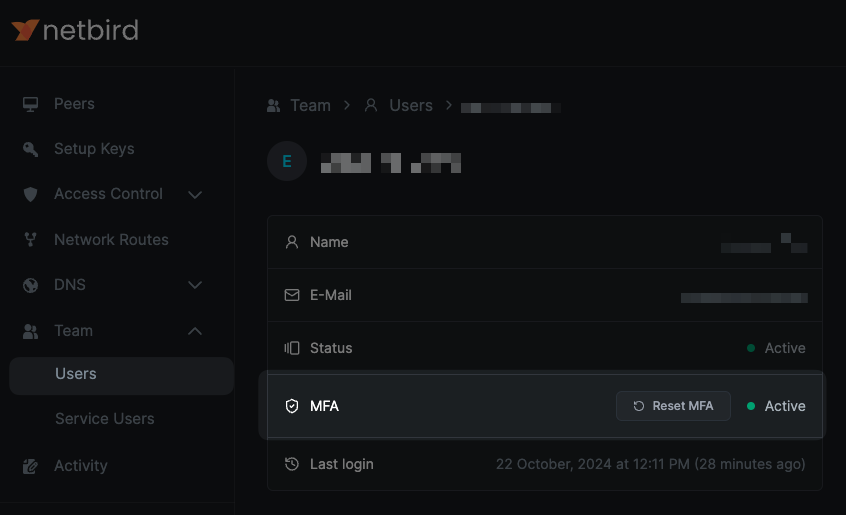
You can check individual user MFA status by going to the Users page of the Dashboard.
Click on a specific user to see their MFA status.
Active- MFA is enabled and user has completed the MFA setup.Not Enrolled- MFA is enabled but user has not completed the MFA setup yet.

Recovery Codes
A recovery code lets you sign in when you can't use your authenticator app, for example after losing or replacing your phone.
You get your recovery code once, when you set up MFA. After you scan the QR code and enter your first one-time code, NetBird shows the recovery code on an Almost There! screen:
- Click
Copy codeand store the code somewhere safe outside your phone, such as a password manager. - Check
I have safely recorded this code. - Click
Continueto finish setting up MFA.
NetBird shows each recovery code only once and can't display it again later. If you set up MFA before recovery codes were available, you don't have one. Ask an Owner or Admin to reset your MFA. You get a recovery code when you set up MFA again at your next login.
Reset MFA
If you lose access to your authenticator app, there are two ways back in: sign in with your recovery code yourself, or ask an Owner or Admin to reset MFA for you.
Sign In with a Recovery Code
- Sign in with your email and password as usual.
- On the Verify Your Identity screen, click
Try another methodand choose the recovery code option. - Enter your recovery code and click
Continue. - NetBird shows you a new recovery code. Copy it, store it safely, confirm you've recorded it, and click
Continue.
Each recovery code works only once. After you use it, your old code is no longer valid and only the new code from step 4 works. Save the new code before you click Continue.
A recovery code gets you signed in, but it doesn't replace your authenticator app. The lost app stays enrolled, so your next login asks for a one-time code from it again. To set up a new authenticator app, ask an Owner or Admin to reset your MFA.
Reset MFA for a User
Owners and Admins can reset MFA for any user in the account. Go to the Users page, click on the user, and click the Reset MFA button.
This removes the user's MFA setup. At their next login, they scan a new QR code with their authenticator app and receive a new recovery code.
If you have lost both your authenticator app and your recovery code, ask an Owner or Admin of your account to reset your MFA.
If every Owner and Admin is locked out, contact support@netbird.io. To avoid this situation, keep more than one administrator in your account.
Get started
- Make sure to star us on GitHub
- Follow us on X
- Join our Slack Channel or Discord server
- NetBird latest release on GitHub