

Notifications
Updated
NetBird can notify you when important events occur in your account, such as peers waiting for approval, routing peer disconnections, or new users joining. You can configure it under Settings > Notifications in the NetBird dashboard. Notifications are currently in beta. Users who can view account settings, such as administrators and owners, can see the configuration, and only users with permission to update settings can change it.
This feature is available in the cloud version of NetBird and in self-hosted deployments with an enterprise license. The open-source self-hosted version does not include notifications.
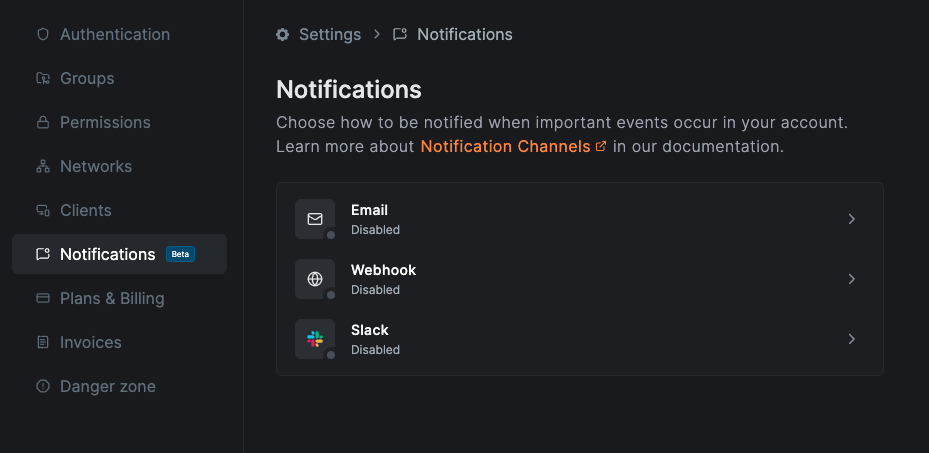
NetBird supports three notification channels:
| Channel | Description |
|---|---|
Email | Send notifications to one or more email addresses |
Webhook | Send notifications as HTTP POST requests to a custom endpoint |
Slack | Send notifications to a Slack channel via an Incoming Webhook |
Each channel can be independently enabled or disabled and configured with its own set of event types. New channels start disabled with all event types selected.
Supported Events
All notification channels support the following events:
| Category | Event | Description |
|---|---|---|
| Peer | Pending Approval | A peer is waiting for approval to join the network |
| Peer | Peer Added | A new peer is added to the network |
| Peer | Routing Peer Disconnected | A routing peer loses its connection |
| Peer | Routing Peer Deleted | A routing peer is deleted from the network |
| User | User Pending Approval | A user is waiting for approval to join the network |
| User | User Joined | A new user joins the account |
| User | Service User Created | A new service user is created |
| Integration | IdP Sync Token Expired | The IdP sync token has expired and needs renewal |
| Integration | EDR Sync Token Expired | The EDR sync token has expired and needs renewal |
You can toggle each event on or off individually per channel.
Email Notifications
The email channel lets you send notifications to one or more email recipients.
Configure Email Notifications
- Navigate to
Settings>Notificationsand click on theEmailchannel. - Use the
Enable Email Channeltoggle to enable or disable all email notifications. - Under
Email Addresses, enter the email address you want to receive notifications and clickAdd. You can add multiple recipients. When you open the email channel for the first time, your own email address is added as a recipient automatically. - Toggle individual events on or off under the
Peer Notifications,User Notifications, andIntegration Notificationssections.
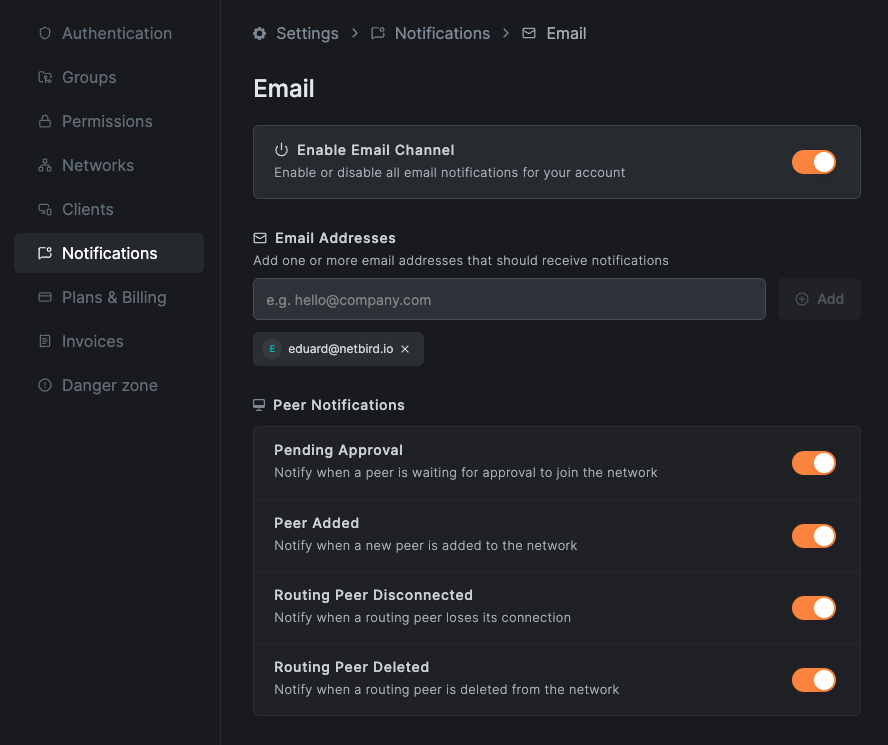
To remove a recipient, click the x button next to their email address.
Webhook Notifications
The webhook channel sends notification events as HTTP POST requests to a URL you specify. This is useful for integrating with third-party tools like Microsoft Teams, PagerDuty, or custom automation systems.
Connect a Webhook
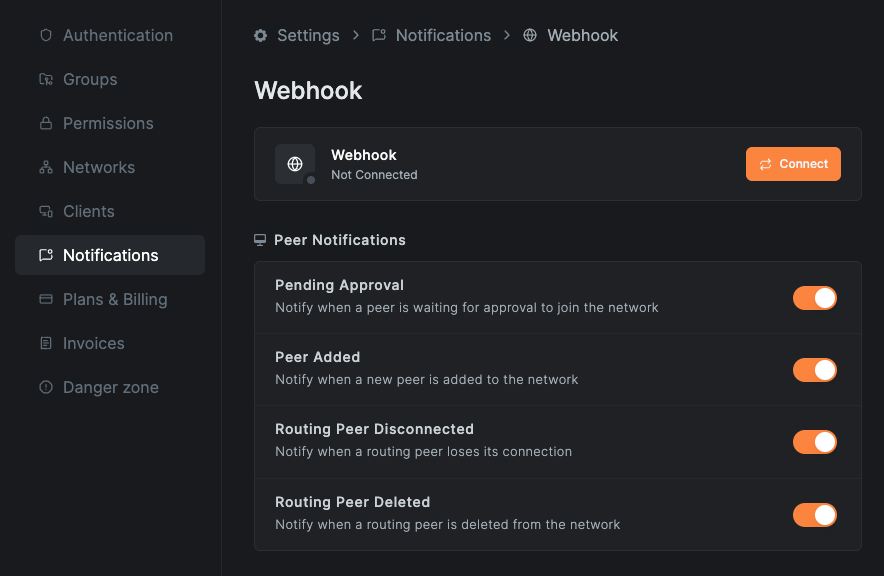
- Navigate to
Settings>Notificationsand click on theWebhookchannel. - Click the
Connectbutton to open the webhook configuration modal.
- In the
Generaltab, enter the full HTTP(S) URL of your endpoint. Notification events will be sent asPOSTrequests to this URL. Optionally, select anAuthenticationmethod for the endpoint:No Authentication,Basic Auth,Bearer Token, orCustom Authentication. When using an authentication method, we strongly recommend an HTTPS endpoint, since the credentials are sent with every request.
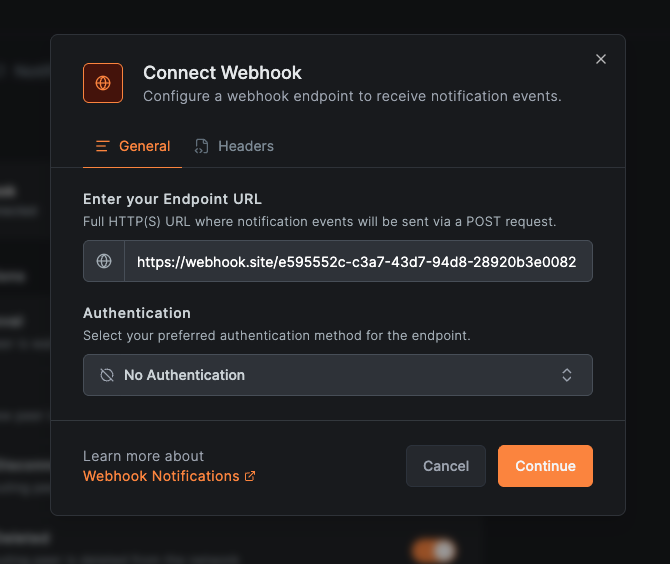
- Click
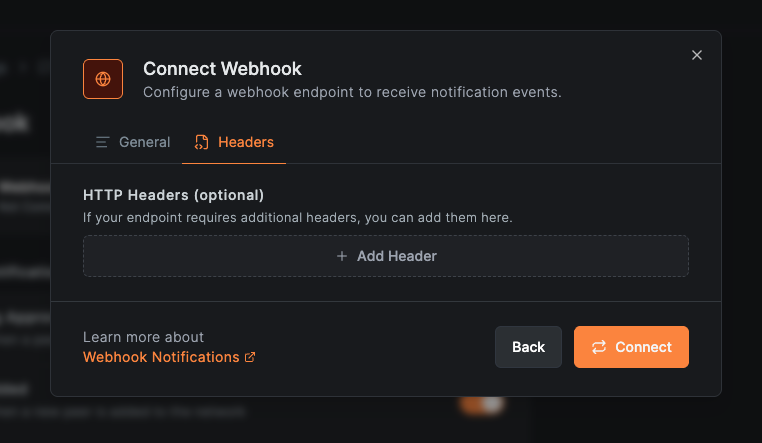
Continueto move to theHeaderstab. Optionally add any custom HTTP headers your endpoint requires.
- Click
Connectto save the webhook.
Once connected, you can toggle individual events on or off, just like with the email channel.
Edit or Delete a Webhook
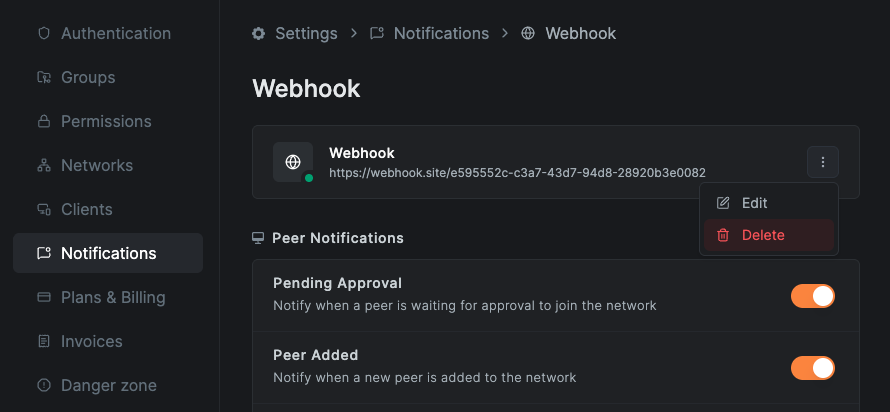
To update the webhook URL, authentication, or headers, open the menu next to the connected webhook and select Edit.
To remove the webhook entirely, select Delete and confirm.
Slack Notifications
The Slack channel lets you receive NetBird notification events directly in a Slack channel via an Incoming Webhook.
Connect Slack
- Navigate to
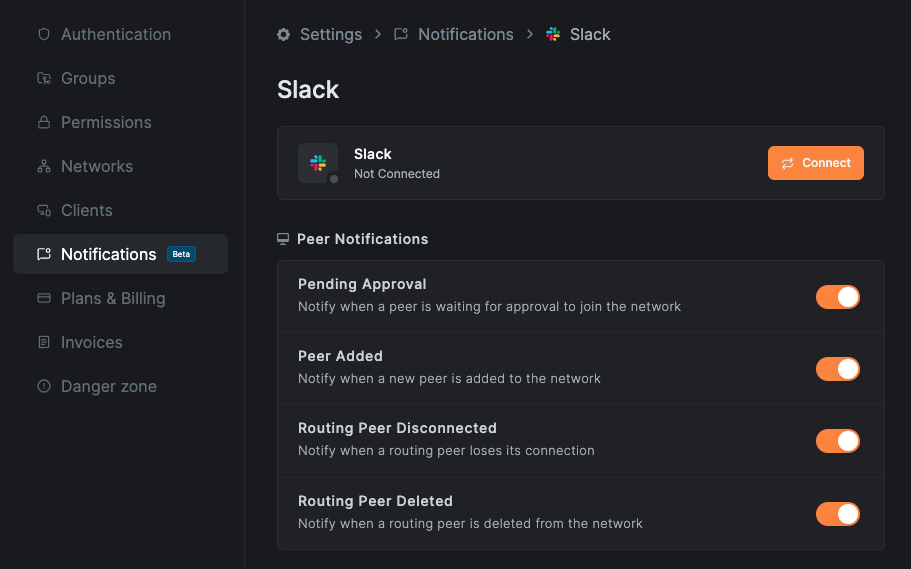
Settings>Notificationsand click on theSlackchannel.
- Click the
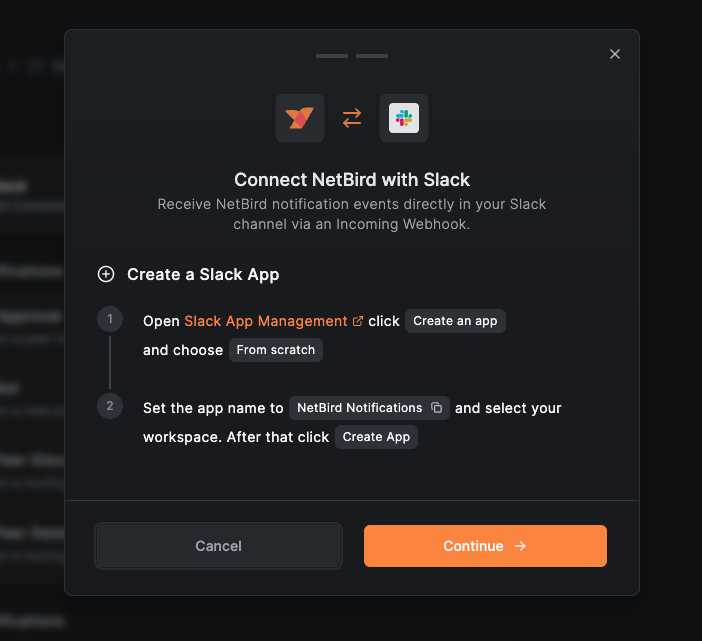
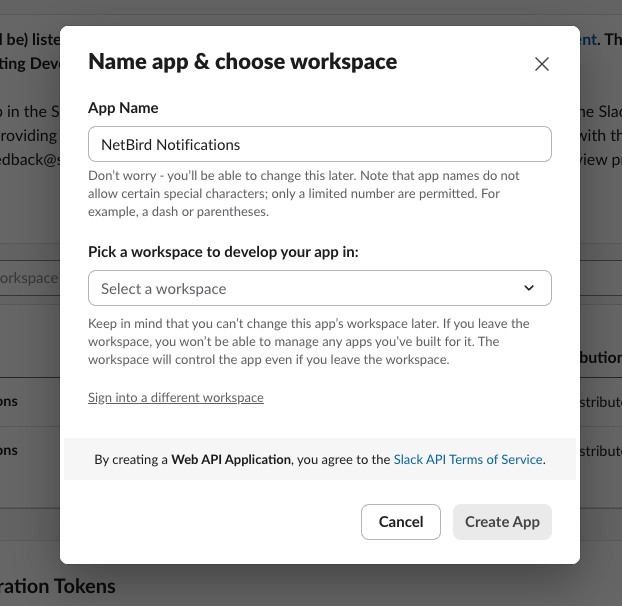
Connectbutton to open the Slack configuration modal. In the first step, you will create a Slack App:- Open Slack App Management, click
Create an app, and chooseFrom scratch.
- Open Slack App Management, click
- Set the app name to
NetBird Notifications, select your workspace, and clickCreate App.
- Click
Continueto move to the second step. Here you will configure the Incoming Webhook:- In the Slack app settings, go to
Incoming Webhooksand toggleActivate Incoming WebhookstoOn.
- In the Slack app settings, go to
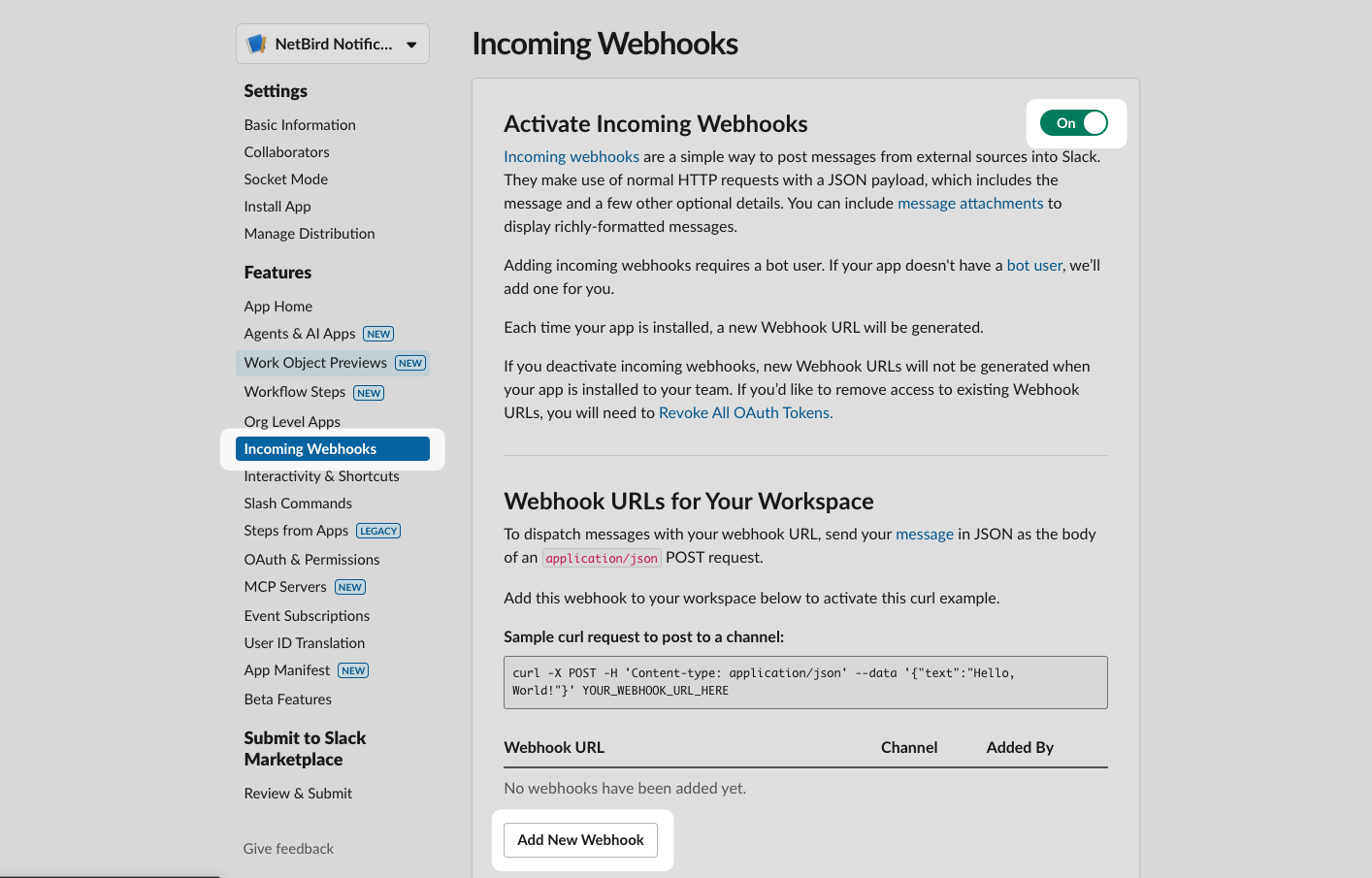
- Click
Add New Webhook to Workspace, select the channel where you want to receive notifications,
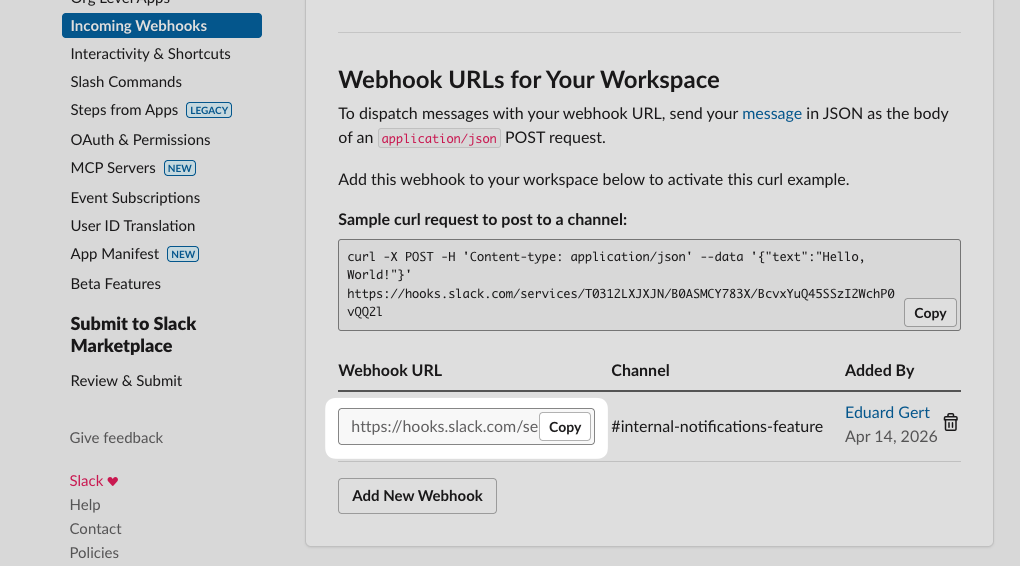
and confirm withAllow. - Copy the generated
Webhook URL.
- Paste the Webhook URL into the input field in the NetBird modal.
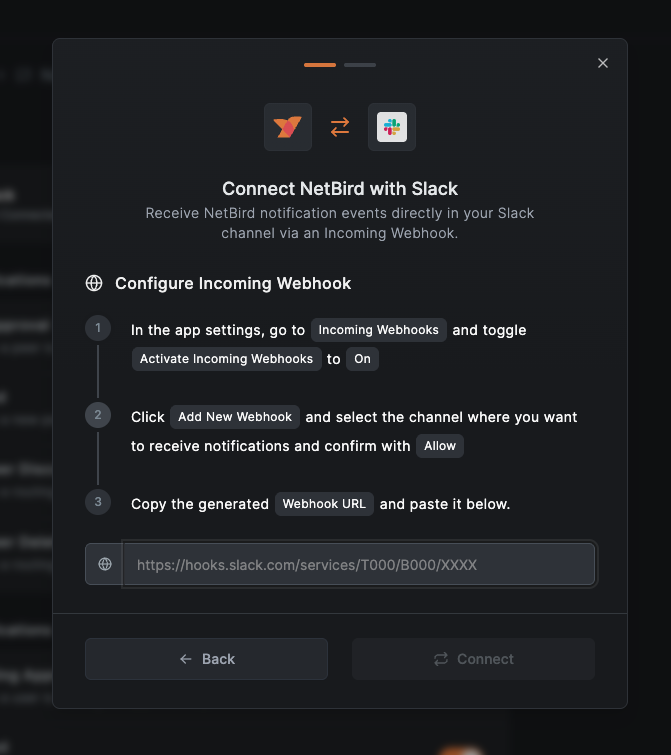
- Click
Connectto save the configuration.
Once connected, you can toggle individual events on or off, just like with the email channel.
Disconnect Slack
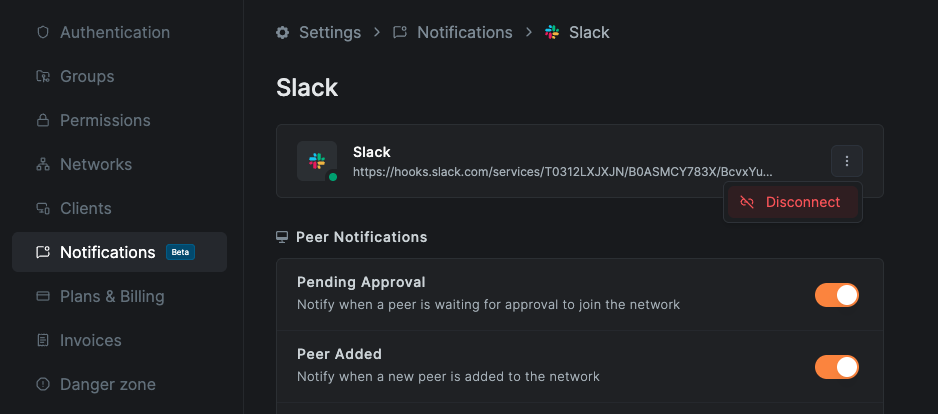
To disconnect Slack, click the dropdown menu on the Slack channel page and select Disconnect. You will no longer receive notifications in your Slack channel.
Get Started
- Make sure to star us on GitHub
- Follow us on X
- Join our Slack Channel
- NetBird latest release on GitHub