

Enable MFA for local users
Updated
NetBird supports multi-factor authentication (MFA) for local users managed by the embedded identity provider. When enabled, all local users are required to set up and verify a time-based one-time password (TOTP) using an authenticator app before they can log in.
This is useful when you want to add an extra layer of security to local users, as it will require all local users to authenticate using the TOTP code on every login.
MFA enforcement applies only to local users authenticated through the embedded IdP. Users who sign in via external identity providers (Google, Microsoft, Okta, etc.) are not affected, as MFA for those users should be configured in the respective IdP.
Prerequisites
- A self-hosted NetBird deployment using the embedded identity provider
- Local authentication must be enabled (not disabled)
- Admin or Owner access to the NetBird Dashboard
Enabling MFA
- Log in to the NetBird Dashboard as an Admin or Owner
- Navigate to Settings → Authentication
- Toggle Local MFA to on
- Click Save
Once enabled, all local users will be prompted to set up TOTP on their next login.
Server administrators can also manage local MFA from the command line with admin mfa status, admin mfa enable, and admin mfa disable. See the self-hosted admin CLI reference.
User experience
First login after MFA is enabled
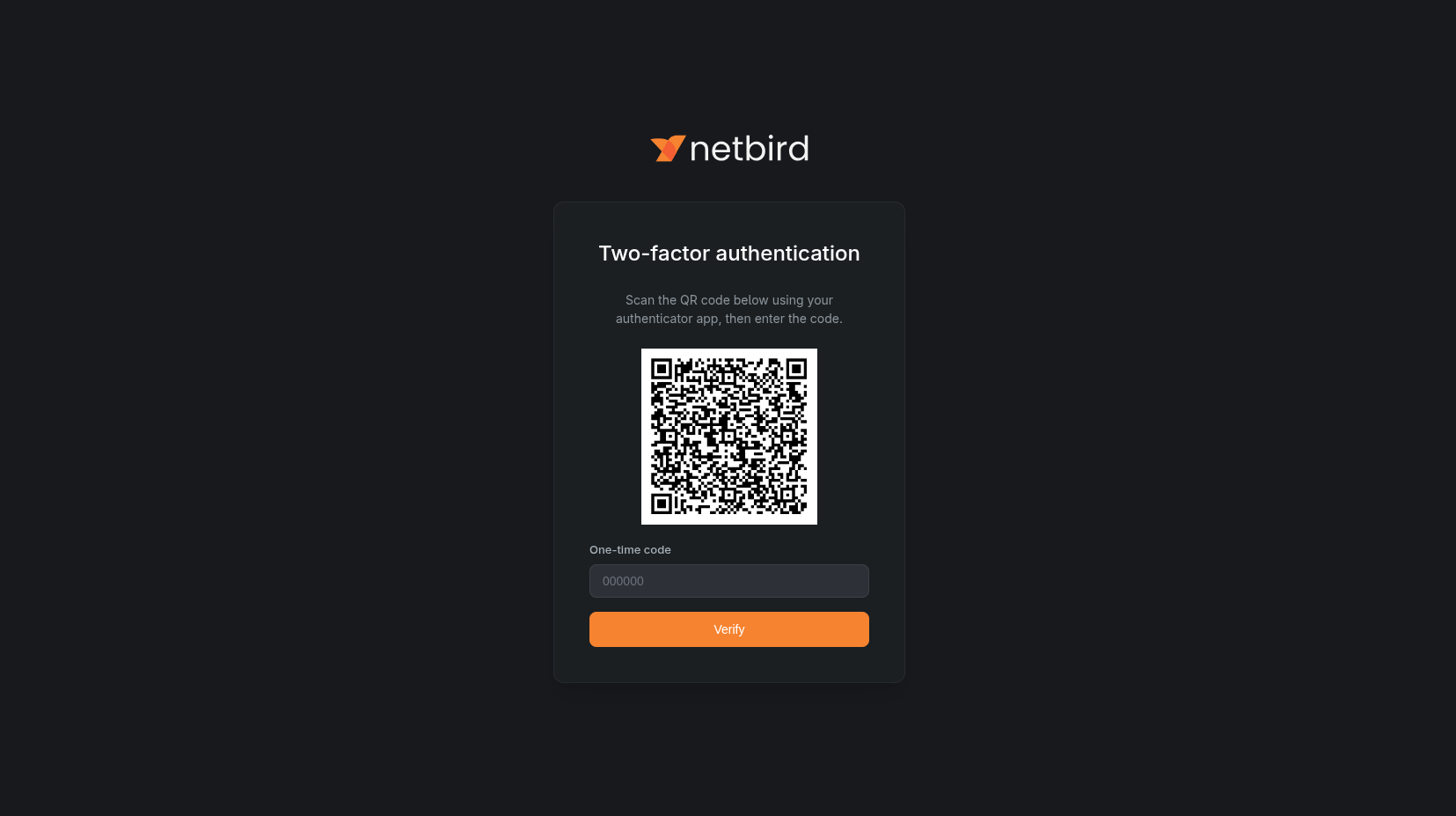
When a local user logs in for the first time after MFA is enabled, they are presented with a TOTP setup screen:
- The user sees a QR code and is prompted to scan it with an authenticator app (e.g., Google Authenticator, Authy, 1Password)
- After scanning, the user enters the one-time code generated by their authenticator app
- The user clicks Verify to complete the setup
Subsequent logins
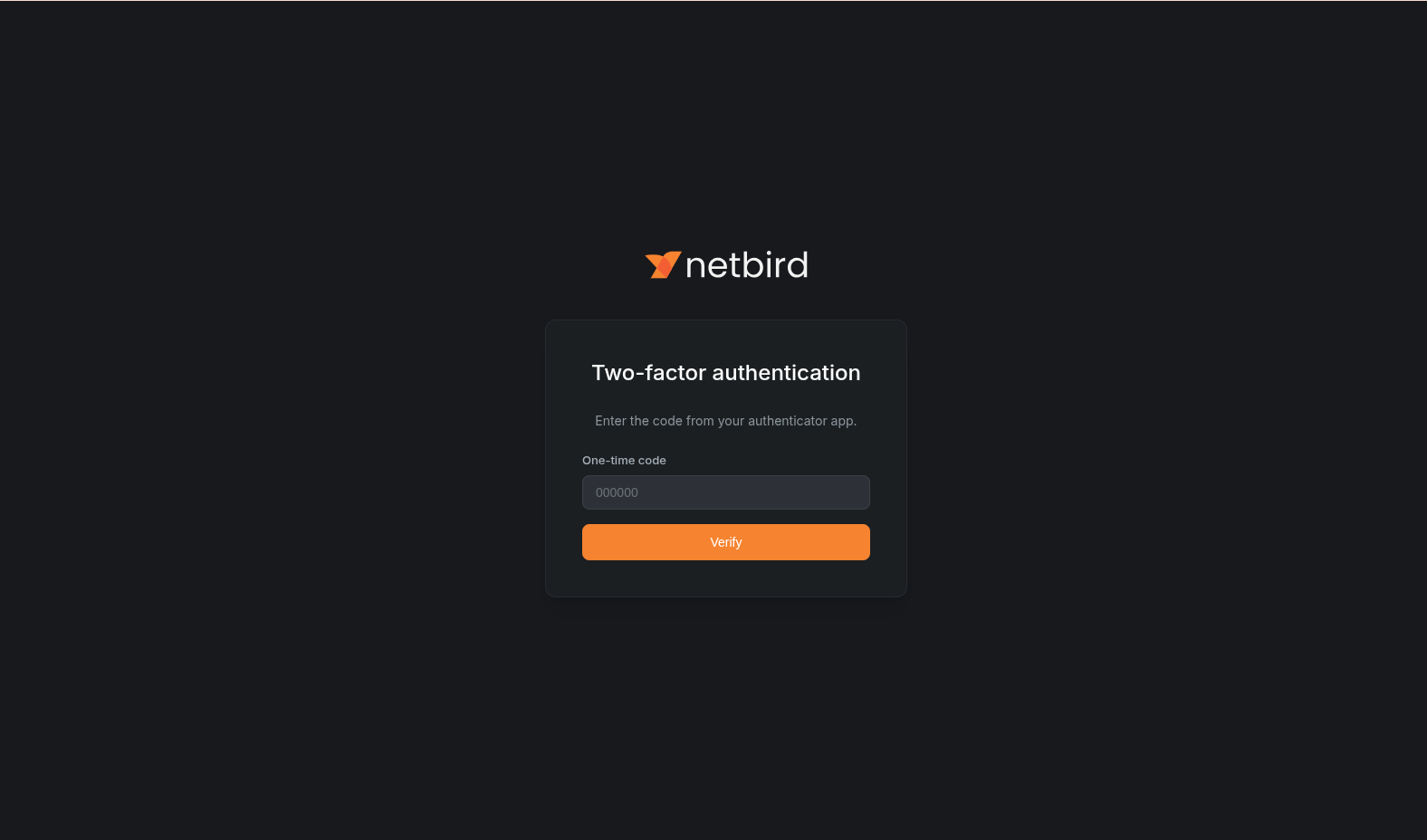
After the initial setup, every login requires a TOTP verification step:
- The user enters their email and password as usual
- A second screen prompts for the one-time code from their authenticator app
- The user enters the code and clicks Verify to complete the login
MFA session configuration
NetBird will hold an MFA session after a user went through the whole authentication process, this session will let users skip the MFA authentication process as long as the session is active.
By default, MFA sessions last up to 24 hours and expire after 1 hour of inactivity. You can customize these values depending on your deployment type.
| Setting | Description | Default |
|---|---|---|
mfaSessionMaxLifetime | Maximum session duration from creation. After this time, the user must re-authenticate with MFA regardless of activity. | 24h |
mfaSessionIdleTimeout | Idle timeout. If the user is inactive for this duration, the MFA session expires and they must re-authenticate. | 1h |
Combined setup (config.yaml)
server:
  auth:
    mfaSessionMaxLifetime: "24h"
    mfaSessionIdleTimeout: "1h"
Restart the server after changing these values:
docker compose restart netbird-server
Older multi-container setup (management.json)
This section applies to deployments using the older multi-container architecture. If you deployed using getting-started.sh, you are on the combined setup and should use the config.yaml instructions above. See the migration guide to upgrade.
{
  "EmbeddedIdP": {
    "Enabled": true,
    "MfaSessionMaxLifetime": "24h",
    "MfaSessionIdleTimeout": "1h"
  }
}
Restart the Management service after changing these values:
docker compose restart management
Disabling MFA
To disable MFA for local users:
- Navigate to Settings → Authentication
- Toggle Local MFA to off
- Click Save
Disable MFA removes the TOTP requirement but does not remove the stored TOTP authenticator information. If you enable MFA again previously enrolled users will be prompted for the same authenticator they registered previously.