

Client Settings
Updated
The Clients tab under Settings holds account-wide settings that control how NetBird clients behave. Changing these settings requires a role with permission to update settings, such as Owner or Admin. Roles with read-only access to settings can view the tab, but the controls are disabled.
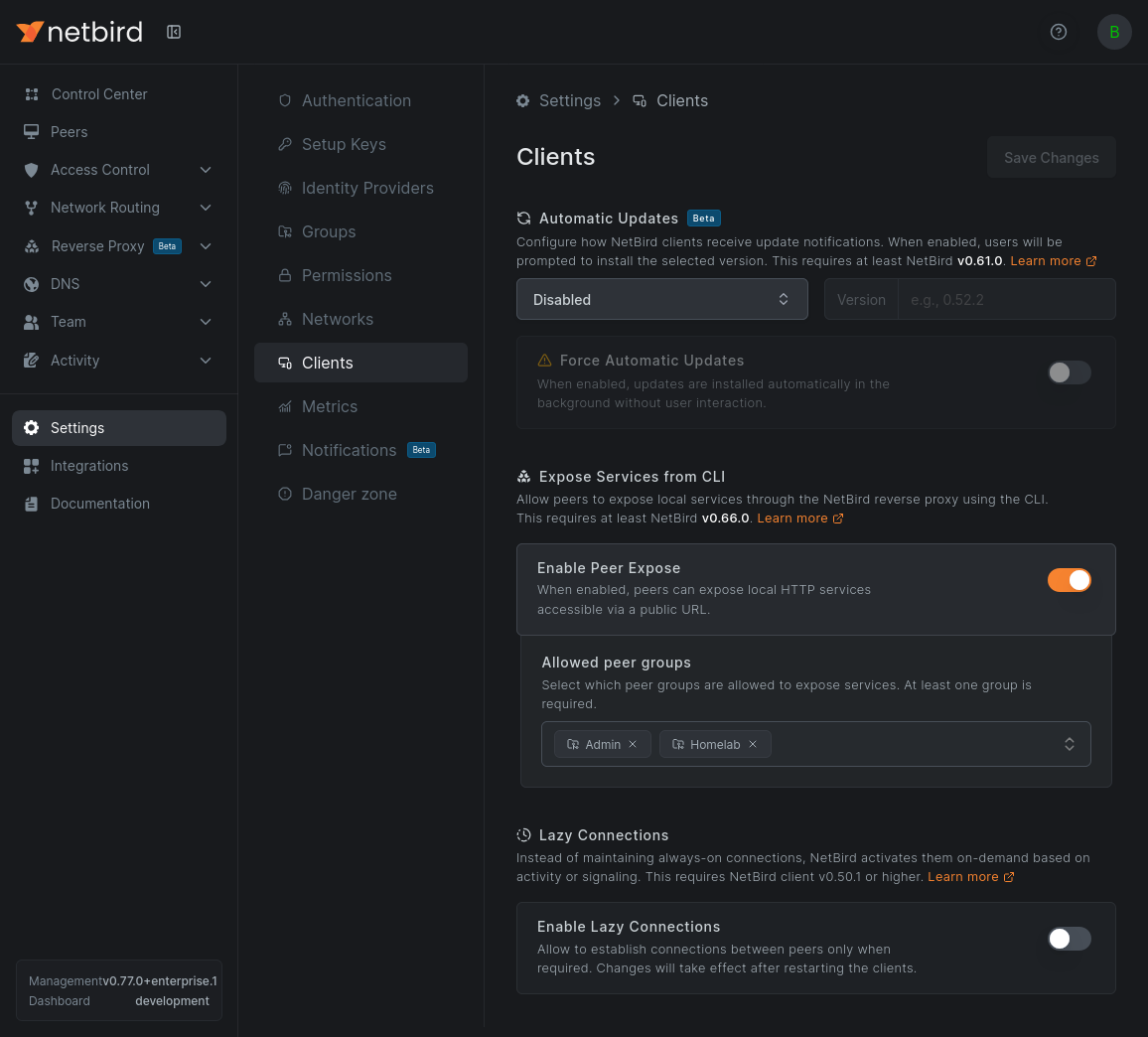
Automatic Updates
Choose an update method for your clients: keep them on the latest stable release, pin them to a specific version, or disable updates. The Force Automatic Updates toggle installs updates in the background without user interaction.
See Client Automatic Updates for the full behavior, platform support, and version requirements.
Expose Services from CLI
The Enable Peer Expose toggle allows peers to expose local HTTP services through the NetBird reverse proxy using the netbird expose command. This requires NetBird v0.66.0 or later.
When enabled, you must select at least one peer group under Allowed peer groups. Only peers in the selected groups can expose services.
See Expose Services from the CLI for command usage and examples.
Lazy Connections
Instead of maintaining always-on connections, NetBird can activate peer connections on demand based on activity or signaling. Enable the Enable Lazy Connections toggle to turn this on for compatible clients. This requires NetBird client v0.50.1 or higher.
See Lazy Connections for how activation works, inactivity thresholds, and per-client overrides.
Unique Peer Hostnames
Two machines in one account can register with the same hostname, for example similar VMs that a provisioning tool all named laptop. Every peer still needs its own DNS name, so by default NetBird keeps the registration and adds the last two octets of the peer's NetBird IP to the DNS label: a second laptop that gets the IP 100.64.12.7 becomes laptop-12-7.netbird.cloud. Renaming a peer to a name another peer already uses gets the same suffix.
The suffix keeps every peer reachable, but it also hides the duplicate. If you want a registration with a duplicate hostname to fail loudly instead, enable the Reject Hostname Collisions toggle. With the toggle on:
- A peer registering with a hostname that another peer in the account already uses is rejected. The client reports
peer with hostname "laptop" is already registered, stops retrying, and stays disconnected until it logs in again with a different hostname. - Renaming a peer in the dashboard or through the API to a name another peer already uses fails with the same error.
- Ephemeral peers are treated exactly like other peers.
Collisions are matched on the DNS label, not the raw hostname. The label is the hostname lowercased with characters that are not valid in DNS replaced by -, so Laptop and laptop collide, and so do my_laptop and my-laptop.
Enabling the toggle does not touch existing peers: labels that already carry a suffix keep it, and a peer logging in again under its own name is not a collision. Deleting a peer frees its name for the next registration. To let a rejected peer join, give the machine a unique hostname or start the client with one: netbird up --hostname <name>.
Keep the toggle off if your fleet registers machines with identical hostnames on purpose, such as autoscaled VMs or containers that join through a setup key. The default suffix exists for that case, and with the toggle on every such machine after the first fails to join.
This setting is available on NetBird Cloud and on self-hosted management servers running v0.81.0 or later. In the API it is the peer_hostname_collision_rejected field of the account settings.
Agent Network-focused view
Accounts using Agent Network see an additional Agent Network focused view toggle. When enabled, the dashboard shows only the Agent Network-related sections and hides parts that are not relevant for it, such as Networks, DNS, and Reverse Proxy. Disable it to bring back the full dashboard.