

Networks
Updated
Every device that runs the NetBird client joins a single private overlay network, encrypted end to end with WireGuard. Nothing is exposed to the public internet, and you never open an inbound port. Peers connect outbound and negotiate connectivity using ICE/STUN for NAT traversal. See Ports & Firewalls for details.
But you can't run the client everywhere. Some devices can't run it at all, like printers, IoT sensors, and appliances you can't install software on. And installing it on every database and server is more overhead than most teams want. A Network fills that gap: a few clients become routing peers that open whole subnets, single hosts, and internal domains to your overlay network, with nothing reachable until a policy allows it.
The common case is VPN-to-Site: your laptop reaches into a remote network and talks to machines that run no client at all.
Throughout this page, a capitalized Network means the configuration object you create here, not the overlay network your clients already form.
The mental model
If you remember one thing, remember this: a NetBird Network is a map of part of your infrastructure, drawn onto your overlay network. The resources are the destinations, the access policies are the gatekeepers that decide who may pass, and the routing peers are the roads that carry traffic to each destination.
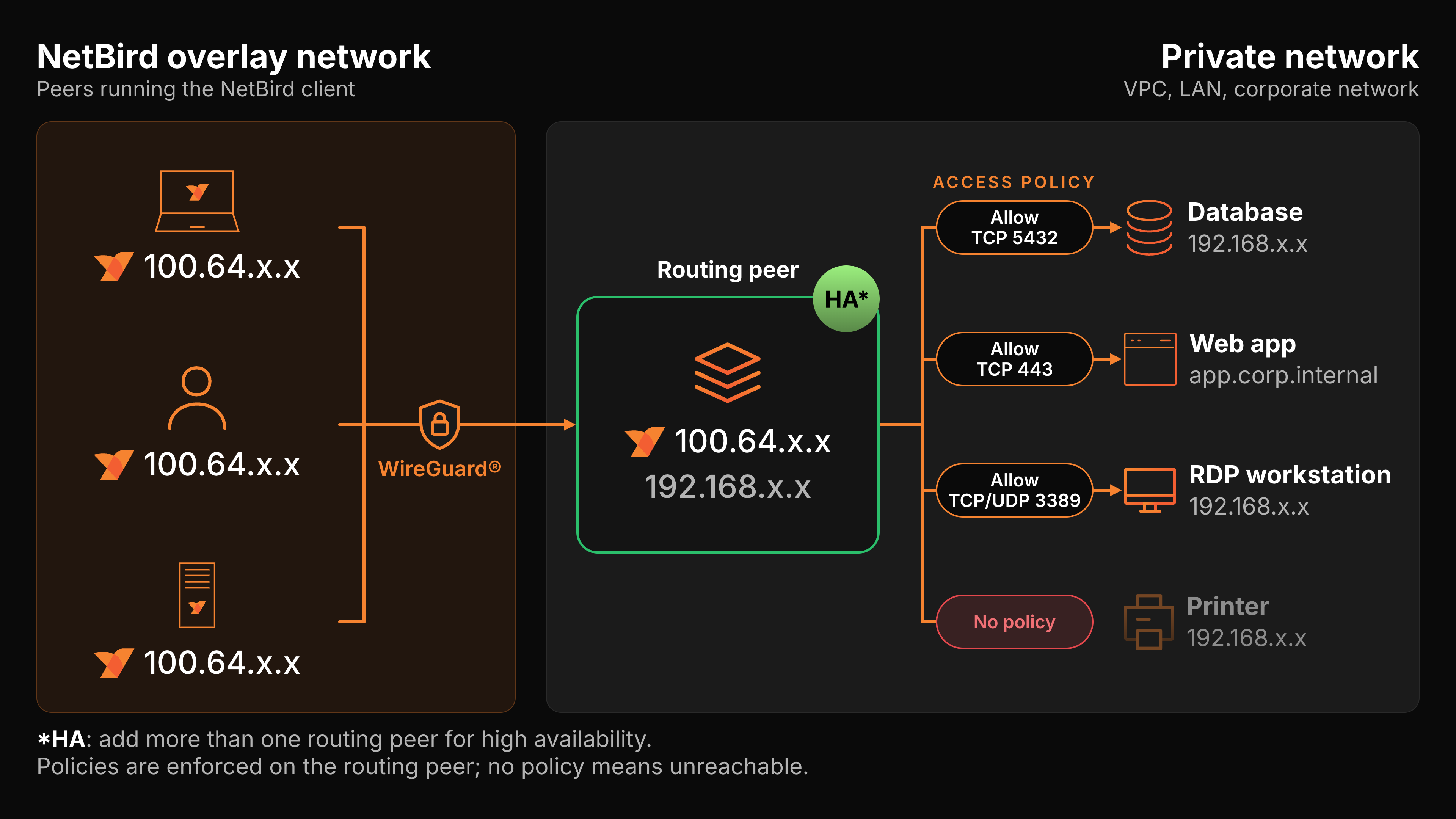
Left to right: peers reach the routing peer through a WireGuard tunnel, and access policies on the routing peer decide which resources behind it each peer can reach. The printer has no policy, so nothing reaches it.
The four building blocks
There are four concepts to learn. One is the Network itself; the other three are the things it holds: resources, access policies, and routing peers. Learn these and you understand Networks. At the end, we'll put all four together in a real example: a remote engineer reaching an office wiki and dashboard.
Network
A Network is a configuration container that maps one environment (an office LAN, a cloud VPC, a data center) into a logical set of routing peers and resources. Create as many Networks as you have environments.
Resource
A resource is something you want to reach inside the private network. It can be one of four types:
- A single IP address, e.g.
10.10.0.5/32 - An IP range / CIDR, e.g.
10.10.0.0/16 - A domain, e.g.
grafana.berlin.internal - A wildcard domain, e.g.
*.berlin.internal
For Zero Trust least privilege, prefer single-host /32 resources over broad ranges. A policy then grants access to exactly one host instead of an entire subnet.
Resources can be collected into a resource group. When an access policy's destination is a group, it applies to every resource in that group. That is how one policy can cover several apps at once.
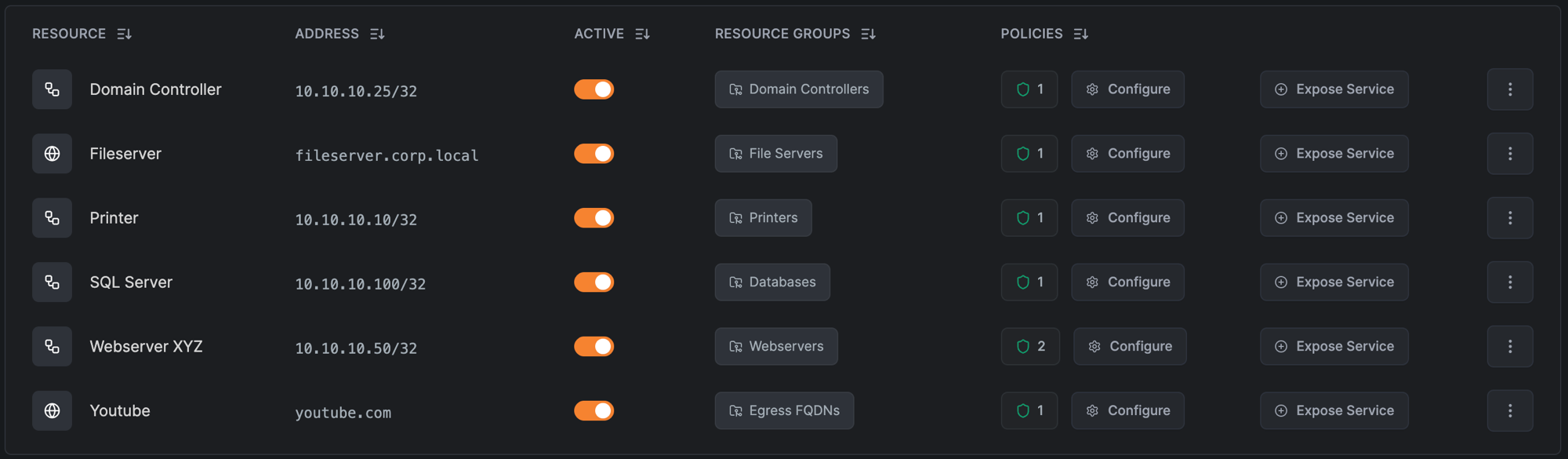
Domain resources
Instead of an IP, a resource can be a domain or a wildcard domain. The NetBird client resolves the name through the routing peer and routes traffic to whatever address it returns. This is useful when a service's IP changes or you'd rather reference it by name. For the resolution mechanics and DNS troubleshooting, see How Routing Peers Work and Internal DNS Servers.
A wildcard resource like *.berlin.internal matches subdomains only, not the base domain. To allow berlin.internal too, add it as a separate resource. Assigning it to the same resource group reuses the existing routing peers and policies.
Access policy
An access policy is the rule that makes a resource reachable. It grants access from a source to a destination, for the chosen protocols and ports. The destination can be one or more groups or resources, a single resource, or a NetBird peer itself for direct peer-to-peer access. A peer can reach a resource only when a policy allows one of its groups to reach that resource or its group.
This is Zero Trust by default: nothing is reachable until a policy says so. The ideal source is a group of users synced from your identity provider, so access follows your existing org structure and updates automatically as people join, move, or leave. See Groups & Policies for how groups and policies work.
Unlike NetBird peers, resources are not automatically members of the built-in All group. A resource with no policy is reachable by no one. You must explicitly grant access.
Routing peer
A routing peer is a NetBird client installed inside the private network that forwards traffic from the overlay network to devices that don't run the client. Any NetBird client can be one (Linux, Windows, macOS, and others), so the role is about where the machine sits, not which OS it runs. For the full picture, see How Routing Peers Work.
A simple routing peer needs little: 2 vCPUs and 4 GB of RAM is a good baseline, and a small VM or even a Raspberry Pi will do for light use. Scale up as network throughput, link saturation, and the number of users grow; Sizing Routing Peers gives a method for high-throughput deployments.
Because routing peers are usually headless servers, register them with setup keys instead of interactive login. Setup-key peers aren't subject to login session expiration, so a routing peer stays connected without periodic re-authentication. That's exactly what an always-on gateway needs. You can assign several routing peers to one Network for high availability; see the production checklist.
A network resource policy grants access to the network behind the routing peer, not to the routing peer machine itself. To reach a service running directly on the routing peer (Pi-hole, a dashboard, SSH), see How a packet reaches a resource.
How a packet reaches a resource
Here is the whole path, end to end:
- Your client encrypts the packet and sends it through the tunnel to the routing peer.
- The routing peer decrypts the packet and forwards it onto the local network toward the resource.
- By default the routing peer masquerades the traffic, rewriting the source to its own LAN IP, so the destination network needs no awareness of NetBird.
- Replies follow the reverse path. The connection is stateful, so return traffic needs no extra policy.
Through the peer, or to the peer?
One subtlety causes most policy mistakes. A network resource policy permits traffic through the routing peer to the resources behind it: the routing peer's forward chain. Reaching a service running on the routing peer itself (SSH, a dashboard) is the input chain, and that needs a separate peer-to-peer access policy with the routing peer's group as the destination. If users need both, create one policy of each kind.
If a resource stays unreachable even though the policy looks right, Troubleshooting resource connectivity helps you find which layer is dropping the traffic.
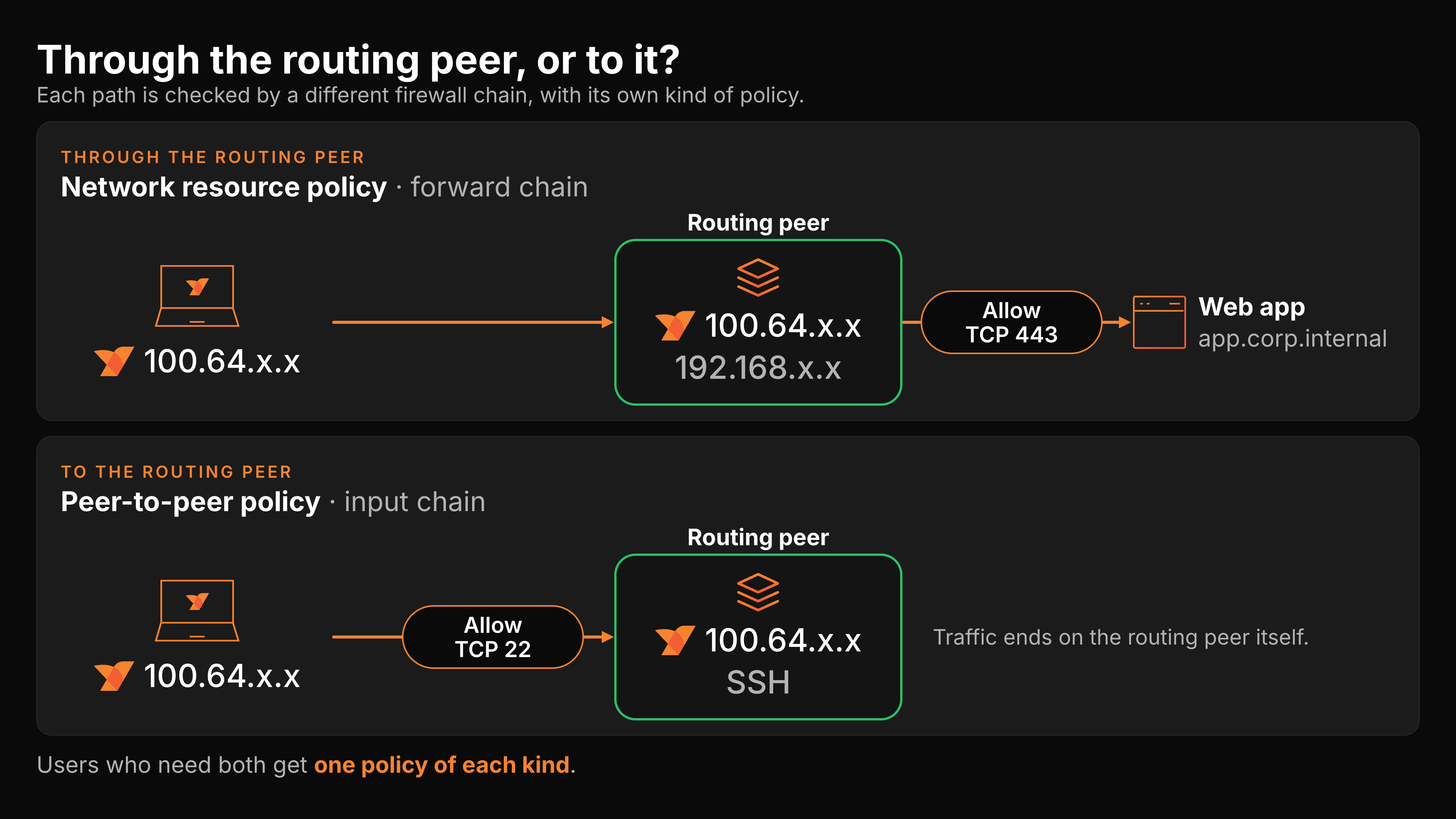
For the full kernel-level traffic walkthrough, host requirements (IP forwarding, container capabilities), masquerade internals, and the forward-vs-input-chain rule in depth, see How Routing Peers Work.
"To the peer" has a further subtlety: a peer-to-peer policy reaches the routing peer at its NetBird IP (its 100.x overlay address). To reach it at its LAN IP — e.g. clients resolve its name to that address — you also need a resource that covers that IP (the route), and on userspace peers NB_ENABLE_LOCAL_FORWARDING. See Reaching the routing peer itself and the Reach Services on the Routing Peer use case.
Walkthrough: access two internal apps
A remote engineer in the Development group needs to reach two apps in the Berlin office: an internal wiki running on the host 10.10.0.5, and an internal dashboard at grafana.berlin.internal. The two apps live on distinct hosts, so they're independent resources. One machine inside the office runs the NetBird client and serves as the routing peer.
- Install the routing peer. On a host inside the office network, install the NetBird client and register it with a setup key.
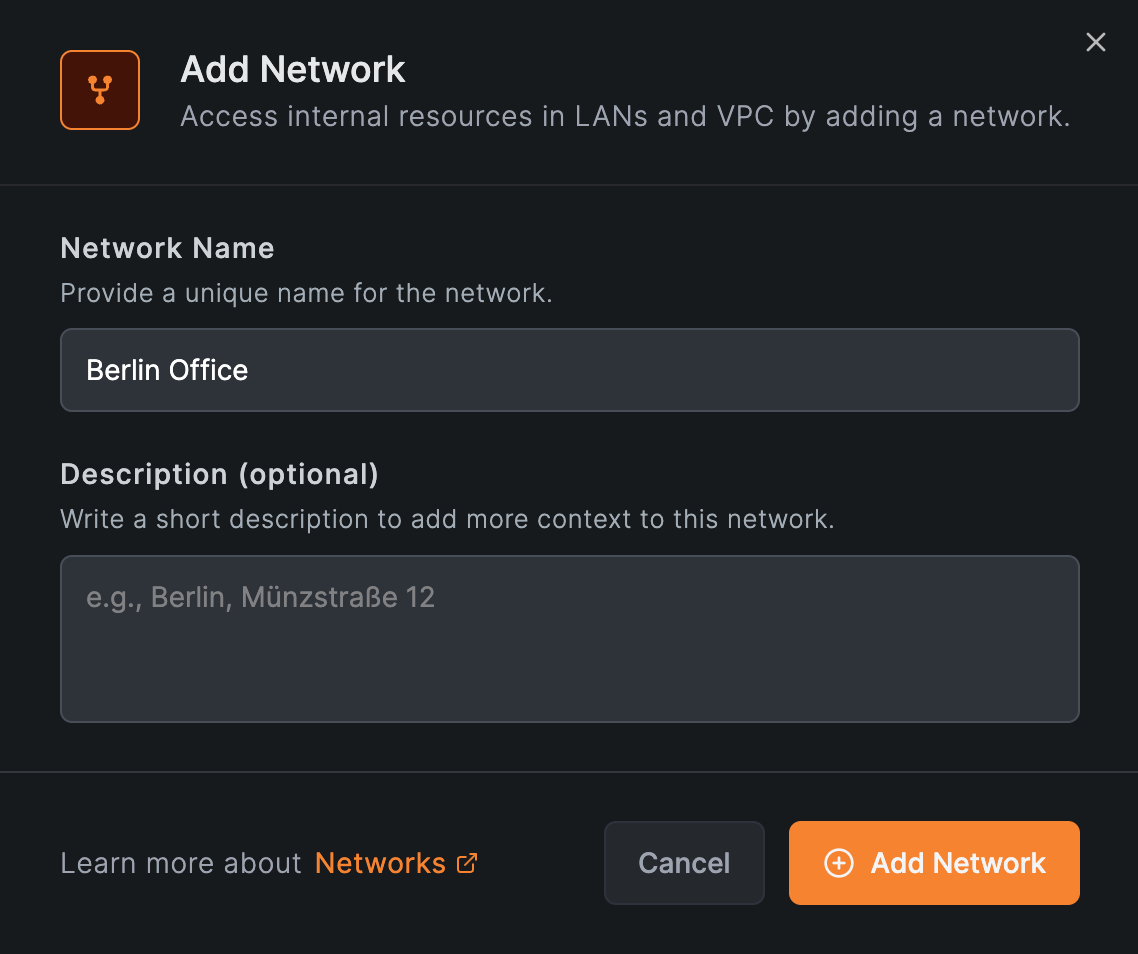
- Create the Network. Go to Networks, add a Network named
Berlin Office.
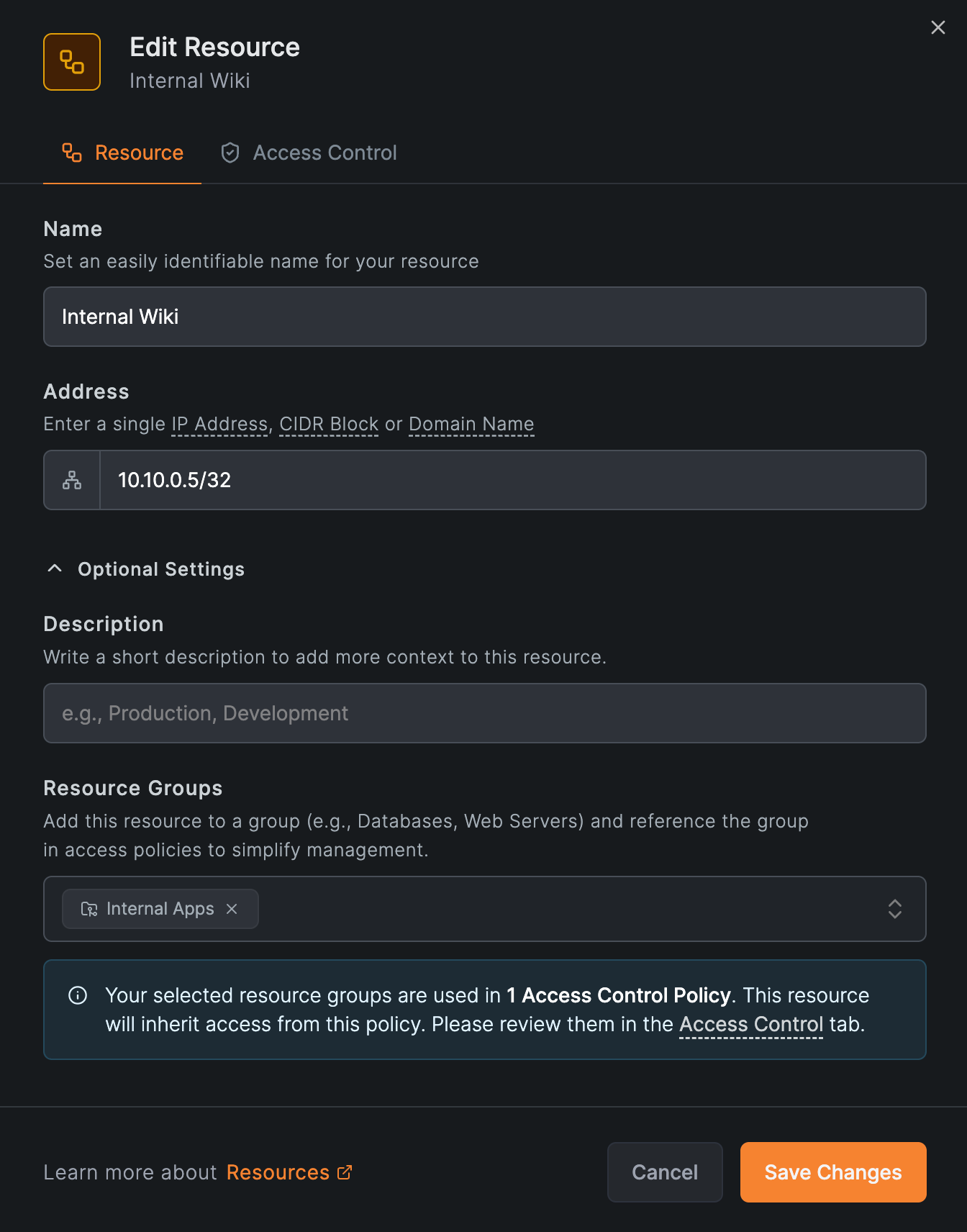
- Add the wiki as a
/32resource. Add a resource namedInternal Wikiwith the address10.10.0.5/32, and assign it to anInternal Appsresource group. The Add Resource modal has two tabs: Resource (name, address, groups) and Access Control (policies).
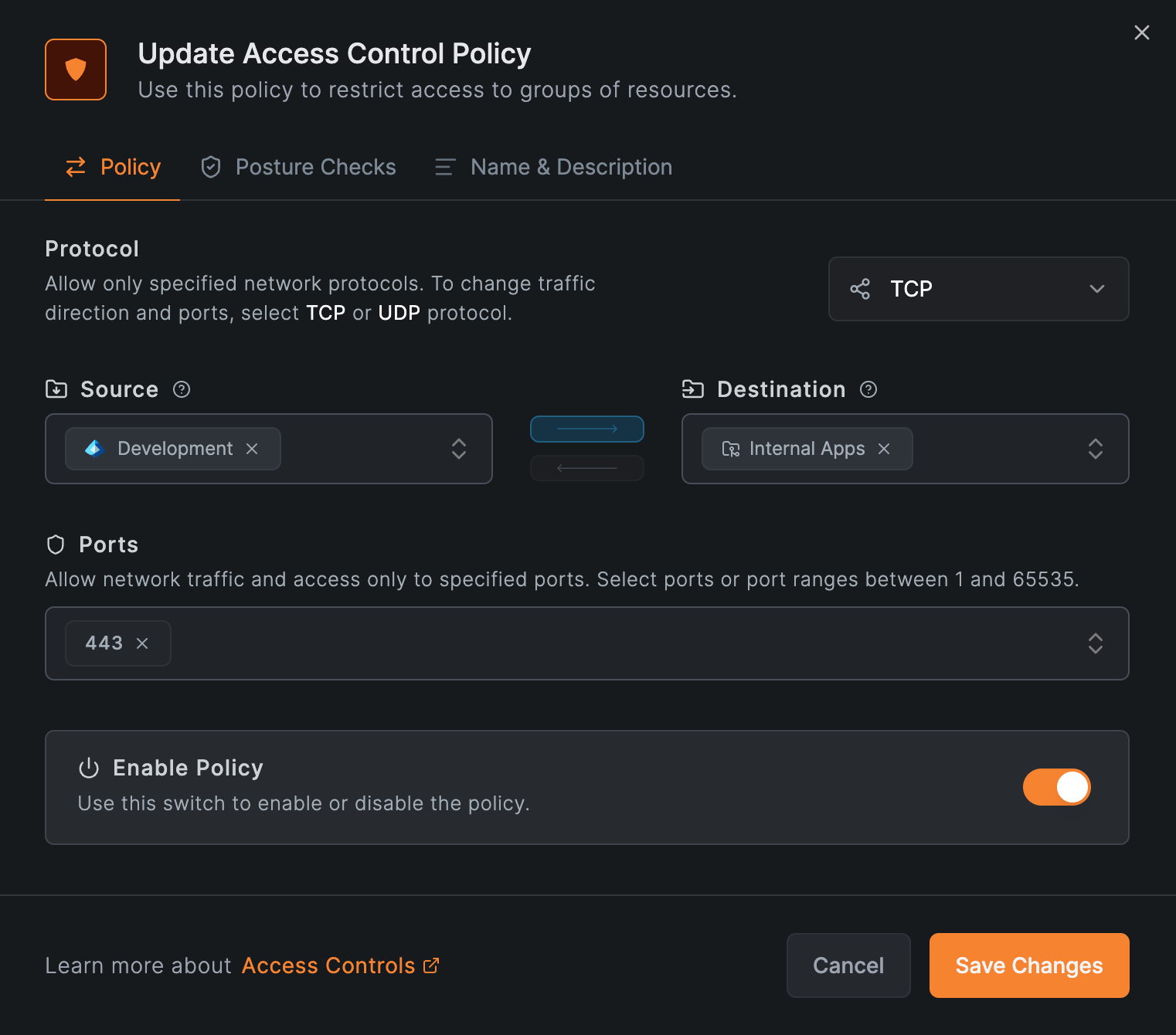
- Write the policy. Create one access policy with source
Developmentand destinationInternal Apps, allowing TCP on port 443.
-
Add the dashboard as a domain resource. Add
grafana.berlin.internaland assign it to the sameInternal Appsgroup, so it's covered by the policy you just created. Because it's an internal-only name, the routing peer must be able to resolve it. See Internal DNS. -
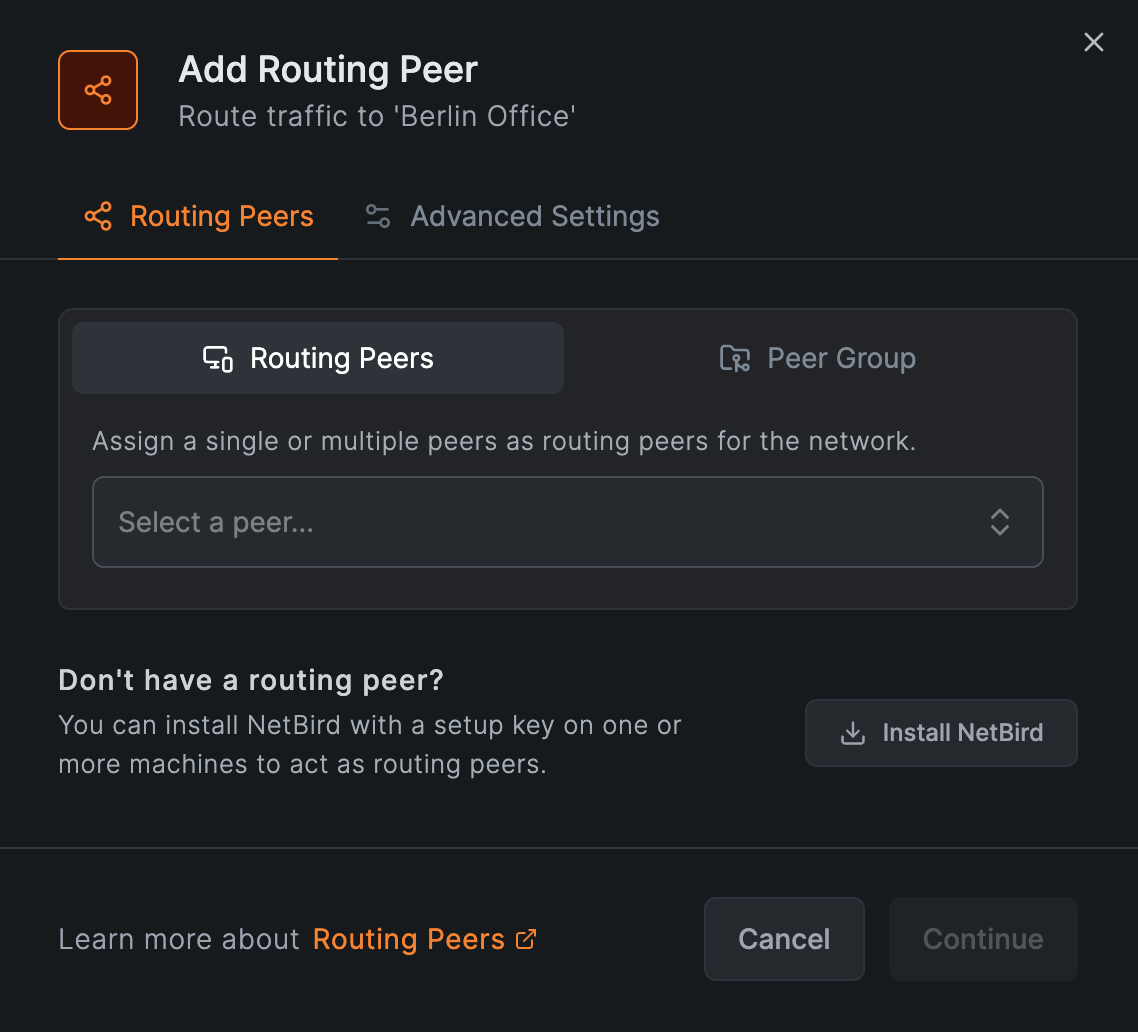
Add the routing peer. Assign the office host to the
Berlin OfficeNetwork as its routing peer.
- Verify. On the engineer's laptop, confirm the Network is active and reach the apps:
netbird networks ls
The engineer now reaches exactly the wiki and the dashboard, and nothing else. Any other group is still denied by default. That is Zero Trust access in practice.
This single policy grants the Development group access to every resource in Internal Apps, the wiki and the dashboard alike. That's what you want when a group should reach a set of apps together. If a source group needs only some of them, put those resources in their own group with their own policy, so access stays scoped to exactly what's needed.
Production checklist
Before you depend on a Network in production, work through these:
- High availability. Add more than one routing peer to the same Network for redundancy. Added individually, each routing peer gets its own metric: the lowest is the primary and higher ones are failovers. With equal metrics, each peer picks one when it connects, by connection type and then latency; this is not load balancing. Added as a group, the routing peers share one metric, so they can't act as primary and failover. Keep highly available peers in different failure domains. See High availability.
- Monitoring. Enable the Routing Peer Disconnected event in Notifications to get alerted by email, webhook, or Slack when a routing peer goes offline.
- Masquerade. On by default and the simplest option. Turn it off only when you need source-IP visibility, and only on Linux routing peers, as that's the only platform where it can be disabled. Disabling it requires a return route in the destination network, and makes high availability something you have to arrange rather than something you get. See Masquerade.
- Internal DNS. Domain resources resolve on the routing peer, so it must be able to resolve the name. If it already can, nothing more is needed; if it can't, distribute a nameserver to the routing peer's group. See Internal DNS Servers.
- Access to the routing peer itself. If users also need services on the routing peer host (SSH, a dashboard), add a separate peer-to-peer access policy for the input chain, as explained above.
Networks or Network Routes?
Networks is the default for every remote-access scenario: VPN-to-Site, Site-to-Site (two clientless networks reaching each other through a routing peer at each end), and Site-to-VPN (a clientless device initiating connections to your overlay network).
The only case that still requires Routes is exit nodes, which send a group's internet-bound traffic out through a chosen peer. For everything else, use Networks: it enforces access by default, while a Route without ACL Groups grants unrestricted access.
Recap
In one breath, for the office example above:
- Network — the Berlin Office container.
- Resource — the wiki (
10.10.0.5/32) and dashboard (grafana.berlin.internal) you reach. - Access policy — the rule letting
Developmentreach them, and nothing else. - Routing peer — the office host that forwards the traffic.
Access is denied until a policy allows it. That default is what makes a NetBird Network Zero Trust. For a full rollout across your organization, see Implementing Zero Trust.
Networks keep resources private to your overlay network. If you instead need to make a service available on the public internet, NetBird's built-in Reverse Proxy handles that, with automatic TLS and authentication and no open ports on your machines.
More scenarios
Access Home Devices
Reach a home NAS, media server, or IoT devices from anywhere.
Cloud to On-Premise
Connect cloud workloads to databases and services on-prem.
Site-to-Site
Connect two networks so clientless devices on each can talk.
Site-to-VPN
Let clientless devices initiate connections to your overlay network.
Reach Services on the Routing Peer
Reach a file server or SMB/DFS share when the file server itself runs the NetBird client.
Active Directory & Windows File Shares
Reach domain controllers and SMB shares from remote peers.
Go deeper
How Routing Peers Work
Traffic flow, host requirements, high availability, and access control in depth.
Masquerade
When to keep or disable source-IP rewriting on a routing peer.
Internal DNS
Resolve internal domains through your routing peers.
Setup Keys
Register headless routing peers without interactive login.
Get Started
- Make sure to star us on GitHub
- Follow us on X
- Join our Slack Channel
- NetBird latest release on GitHub