

Routes
Updated
Routes are deprecated. Every use case except exit nodes has moved to Networks. Use Networks for all new configurations. For a side-by-side comparison of the two models, see How Routing Peers Work.
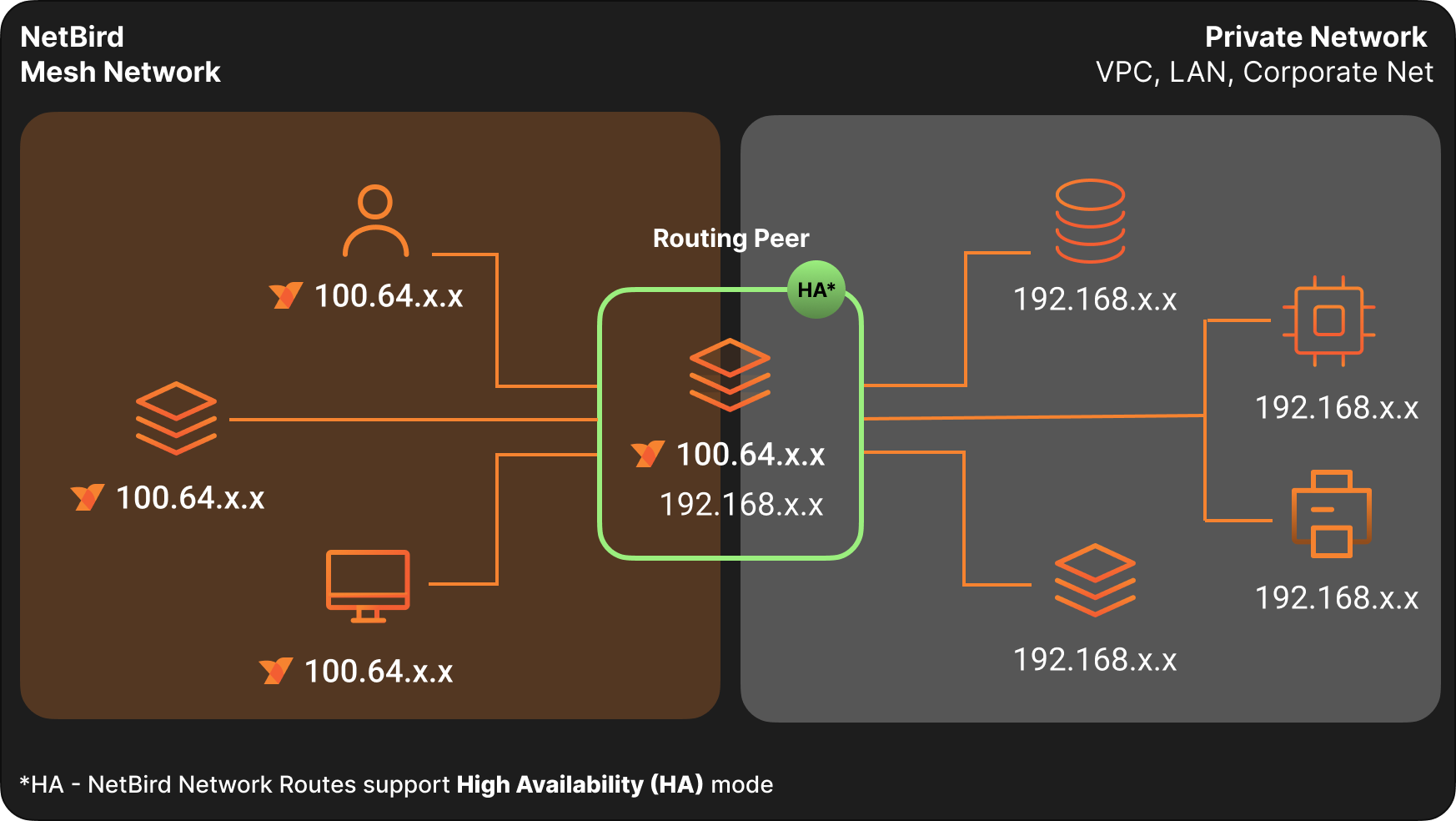
Routes let you route traffic from NetBird peers to private networks without installing the NetBird client on every device. A routing peer forwards packets between your NetBird mesh network and your internal networks (LANs, VPCs, data centers).
Routes also power exit nodes: a default route (0.0.0.0/0) that sends all internet traffic from peers in its distribution groups through a routing peer. That route grants access to any network the routing peer can reach; see the exit nodes guide for how to limit this with Block LAN access.
Routes require NetBird v0.9.0 or later.
By default, Routes bypass Access Control rules. Traffic flows freely to routed networks unless you configure access control explicitly. See Routes caveats for details.
Key Concepts
Network Identifiers and Ranges
A network identifier is a name for the network you want to route. A range is an IP address block in CIDR notation representing the external network. Together, an identifier and its ranges form a single network route.
Routing Peer
A routing peer is a NetBird device that forwards traffic between the NetBird network and a private network. It must have network access to the resources you want to reach.
A network route grants access to the network behind the routing peer, not to the routing peer machine itself. If you need to reach services running on the routing peer, create a separate peer-to-peer access control policy that targets the routing peer's group as the destination.
For the mental model — how traffic flows, host requirements, high availability, masquerade, and the forward-vs-input-chain rule — see How Routing Peers Work.
Routing Group
A routing group is a set of routing peers. Each peer in the group routes packets between your routed network and other NetBird peers. Using a routing group provides automatic high availability.
Masquerade
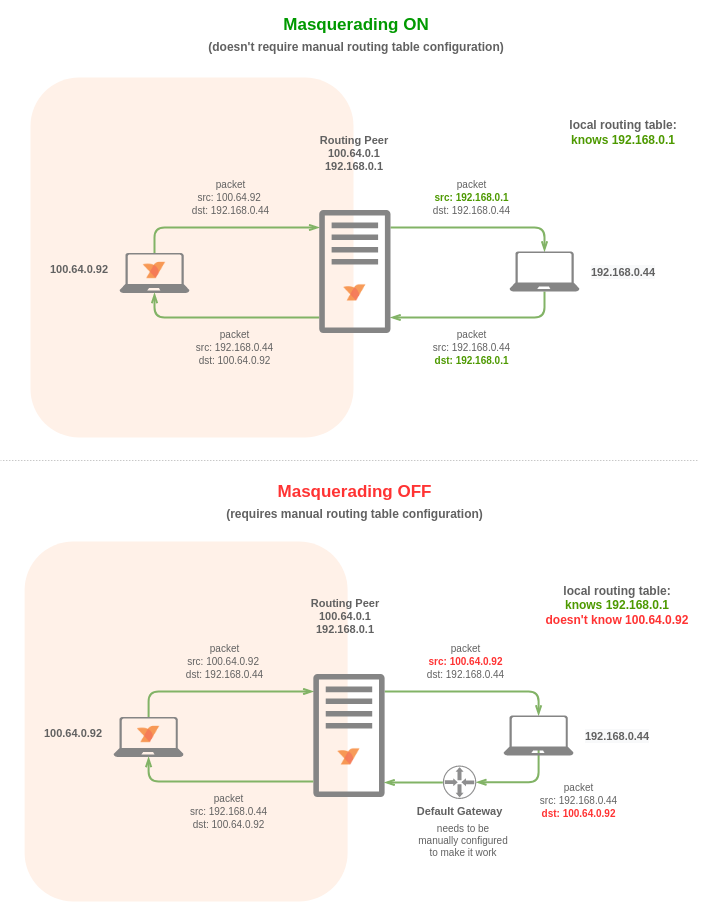
When enabled (the default), the routing peer performs NAT on forwarded traffic, hiding the original source IP. This simplifies setup by eliminating the need for return routes on the remote network.
Disable masquerade when you need source IP visibility for auditing or compliance. In this case, you must configure a return route to your NetBird network in your external network infrastructure.
Distribution Groups
Distribution Groups specify which peers receive the network route configuration. Peers belonging to these groups automatically receive the route.
Peers must still be connected to the routing peer to use the route.
ACL Groups
Access Control Groups provide granular control over services within your routed network. When you associate these groups with routes, the routes inherit access control policies where the groups are defined as destinations.
Routes without ACL Groups permit unrestricted access.
Metric
Metric determines routing peer priority in high availability configurations. Lower values indicate higher priority. Outside high availability setups, the metric has no effect.
High Availability
A highly available route combines multiple routes with the same network identifier and ranges but different routing peers or peer groups. This provides redundant paths between your peers and external networks.
Connected peers select a routing peer based on connection type and metric priority.
DNS Routes
Instead of specifying network ranges directly, you can use DNS routes. Add domains to a route, and the client dynamically resolves them. The resolved IP addresses become routes.
For example, route traffic to website.com or api.website.com through a specific machine by configuring DNS routes for these domains instead of specifying IP ranges.
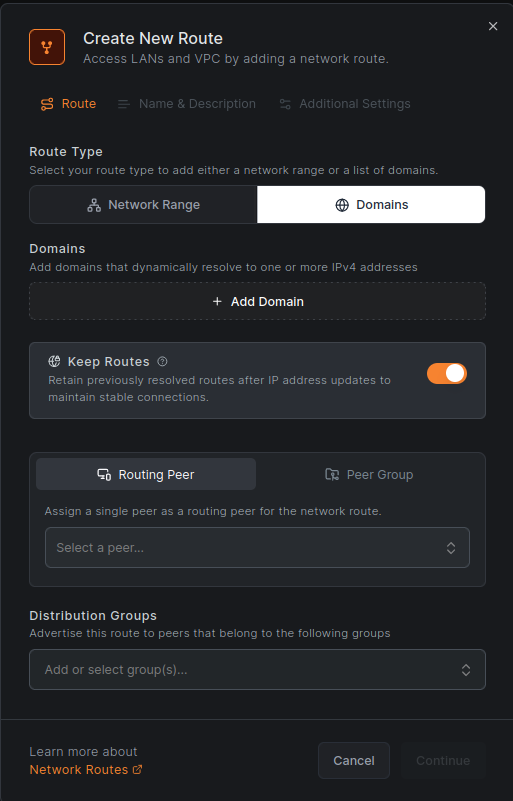
By default, DNS routes resolve every 60 seconds. Adjust this interval with the --dns-router-interval flag:
netbird up --dns-router-interval 30s
The Keep routes option is enabled by default. When enabled, if a domain stops resolving to an IP address, the existing route remains (and new resolved addresses are added). When disabled, routes are replaced with newly resolved addresses only.
This preserves connections during IP changes, such as DNS-based load balancing where long-running connections to a previous IP remain valid.
DNS Routes require NetBird v0.28.0 or later. Wildcard domains are not supported.
Starting with NetBird v0.59.0, the local DNS forwarder port changed from 5353 to 22054 to avoid collisions. The Management Service applies the new port only when all peers in the account run v0.59.0 or newer.
Managing Network Routes
A network route describes a network you want to connect with your NetBird peers. It includes an identifier, network range, routing peer or peer groups, and parameters for priority and masquerading.
Creating a Network Route
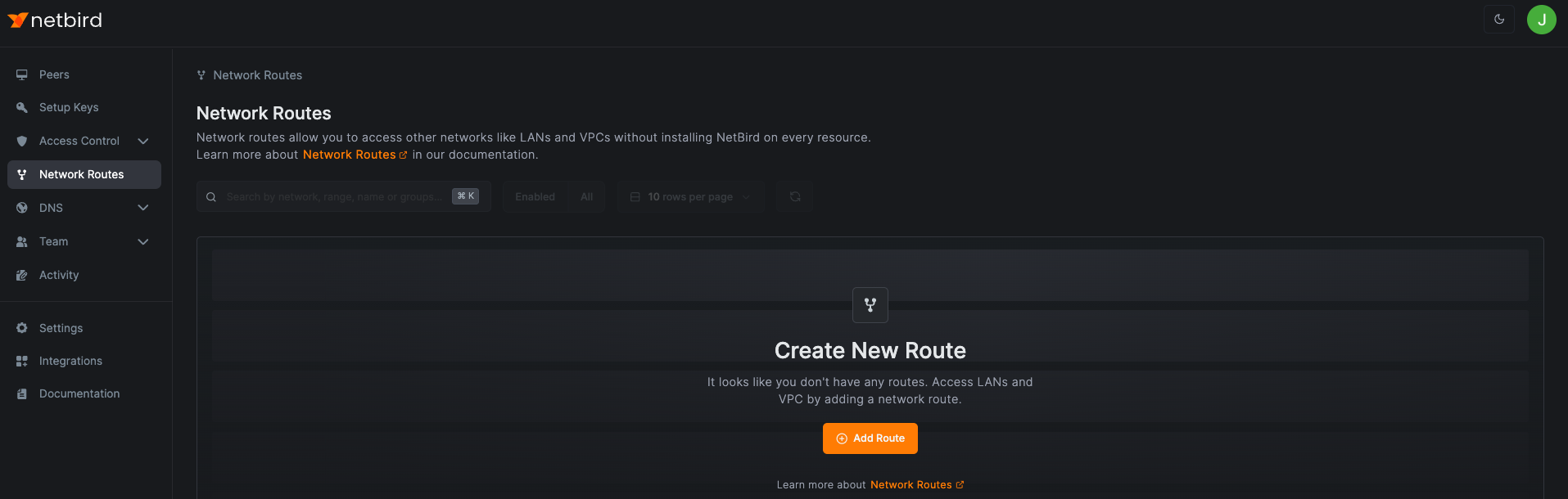
Access Network Routing → Routes and click Add Route.
Enter your route details. In this example:
- Network identifier:
aws-eu-central-1-vpc - Description:
Production VPC in Frankfurt - Network range:
172.31.0.0/16 - Routing peer:
ec2-demo-node - Distribution Groups:
All
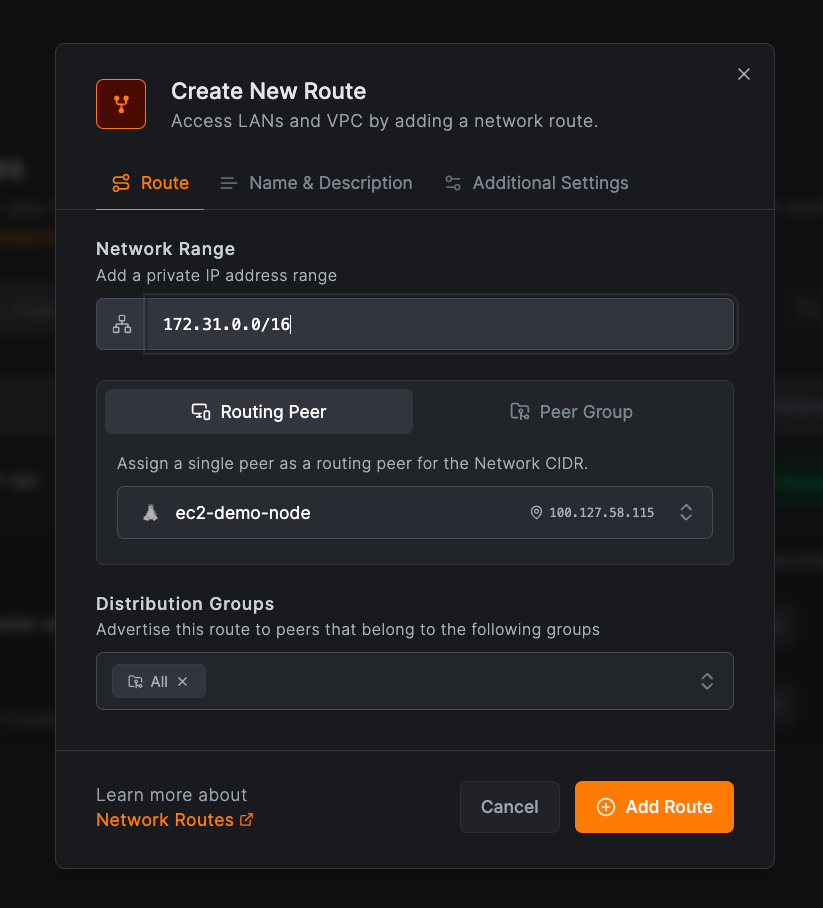
Click Add Route to save.
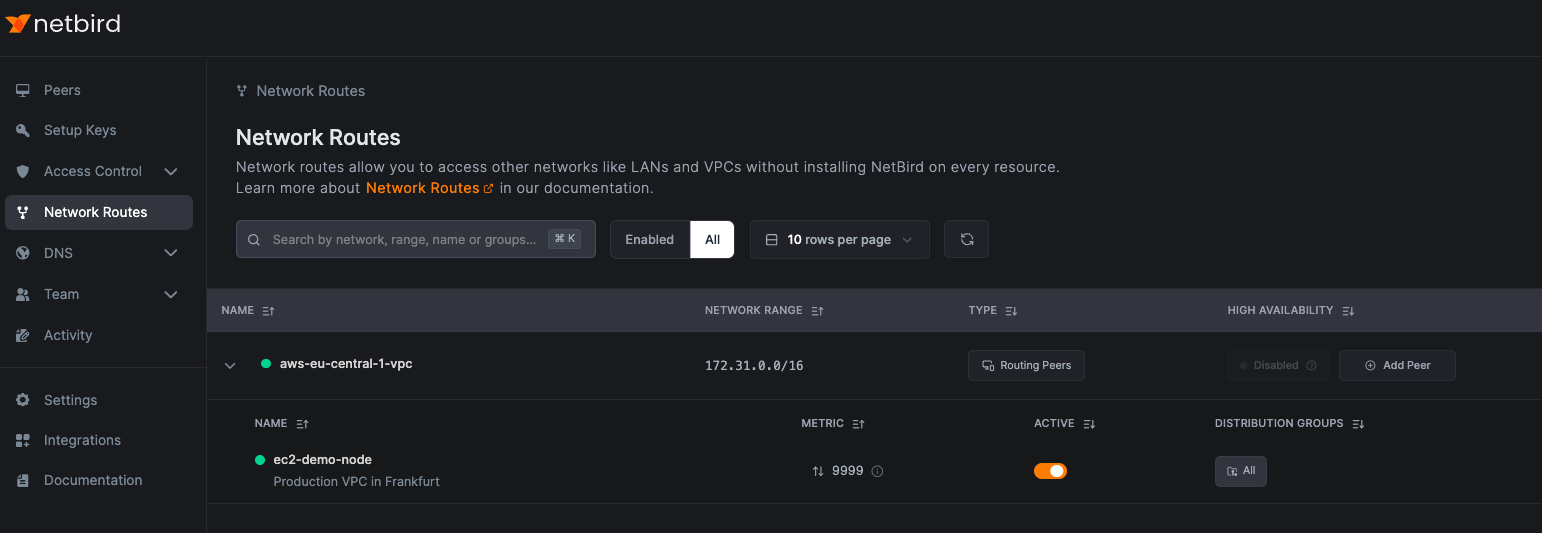
Peers connected to your routing peer can now send traffic to your external network.
Creating a Network Route with Routing Group
Select the Peer group tab when creating a route to use a peer group as your routing peers. Ensure the groups contain Linux, Windows, macOS, or Docker peers, as traffic routing is supported on these platforms.
Groups with multiple peers automatically provide high availability.
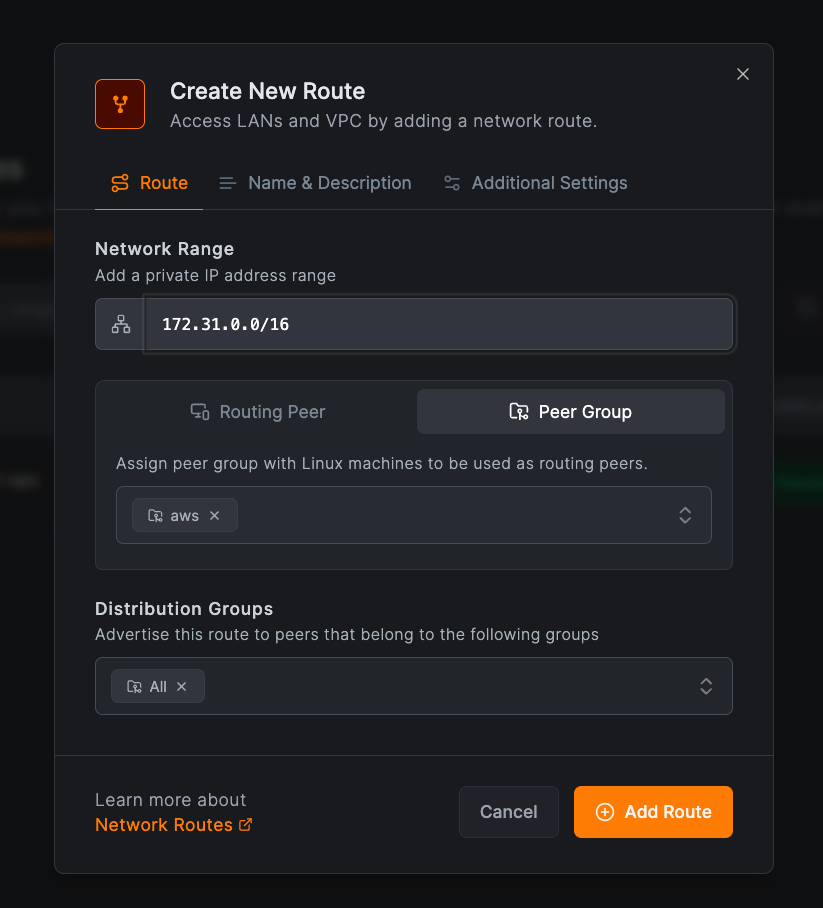
Click Add Route to save.
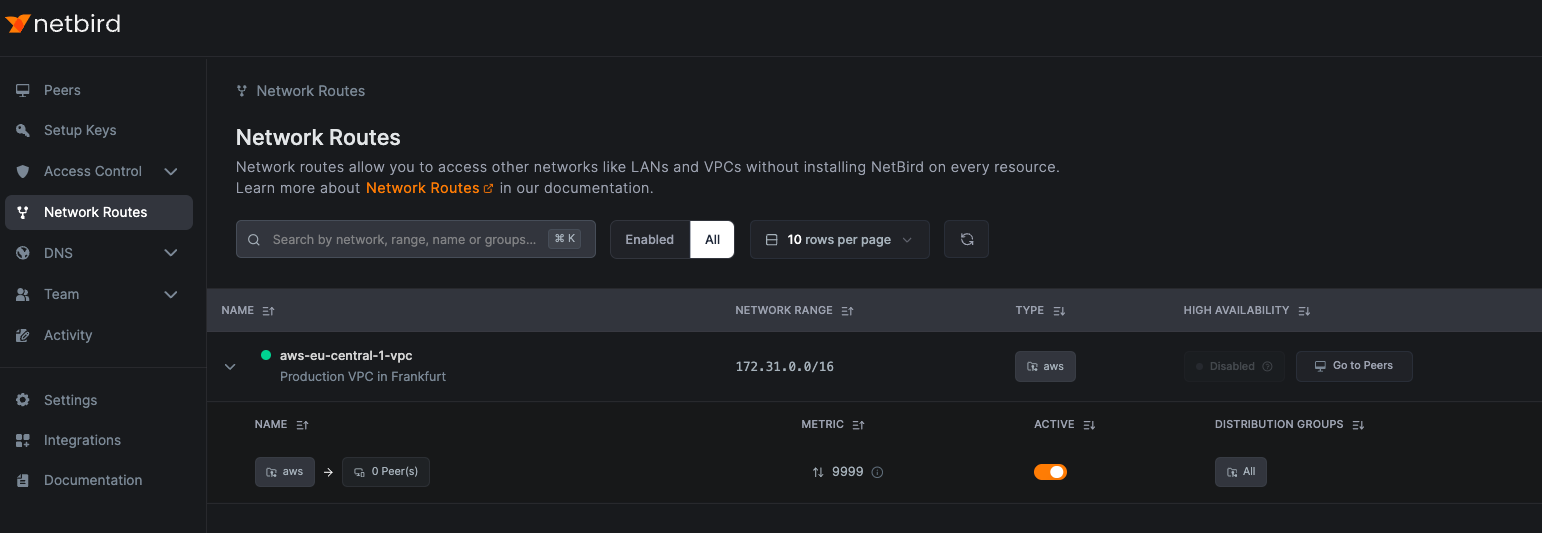
Creating Highly Available Routes
To avoid single points of failure, we recommend installing NetBird on every resource. When that is not feasible, use high availability mode to ensure reliable connections. Multiple NetBird peers can serve as routing peers for the same private network.
Enable high availability in two ways:
- Use a peer group with multiple peers
- Add individual peers to the route
The first option is covered above.
To add individual peers, click Add Peer in the High Availability column. Select a peer in the Routing Peer field, choose the Distribution Groups, and click Add Route.
This example adds aws-nb-europe-router-az-b to the aws-eu-central-1-vpc route:
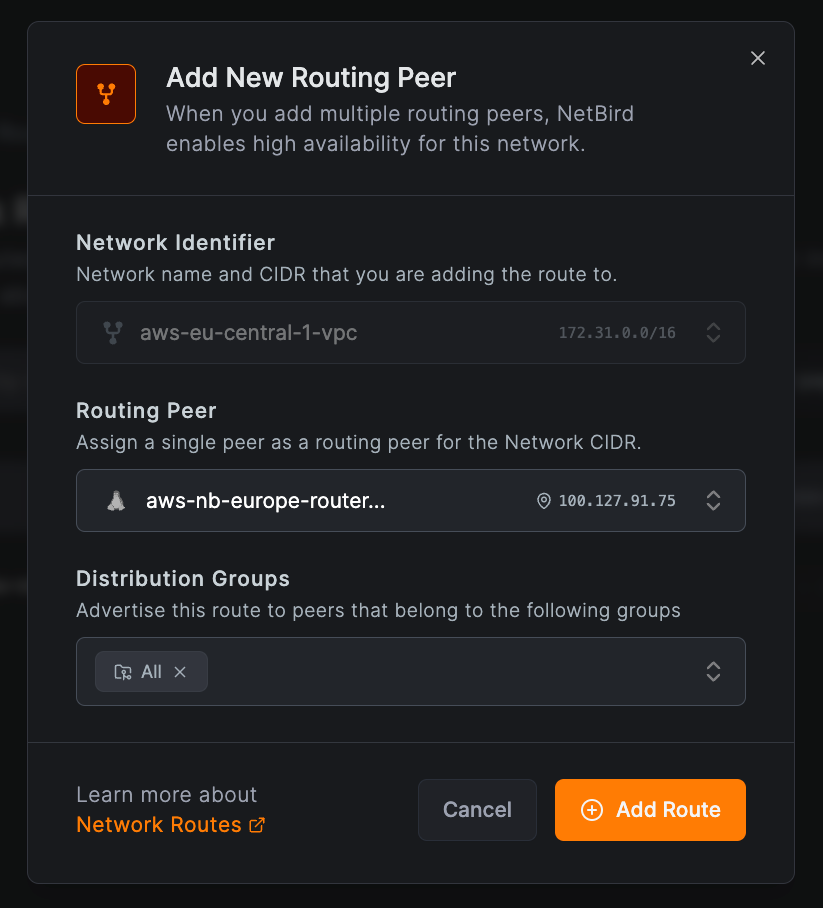
Peers connected to either aws-nb-europe-router-az-a or aws-nb-europe-router-az-b now have highly available access to 172.31.0.0/16.
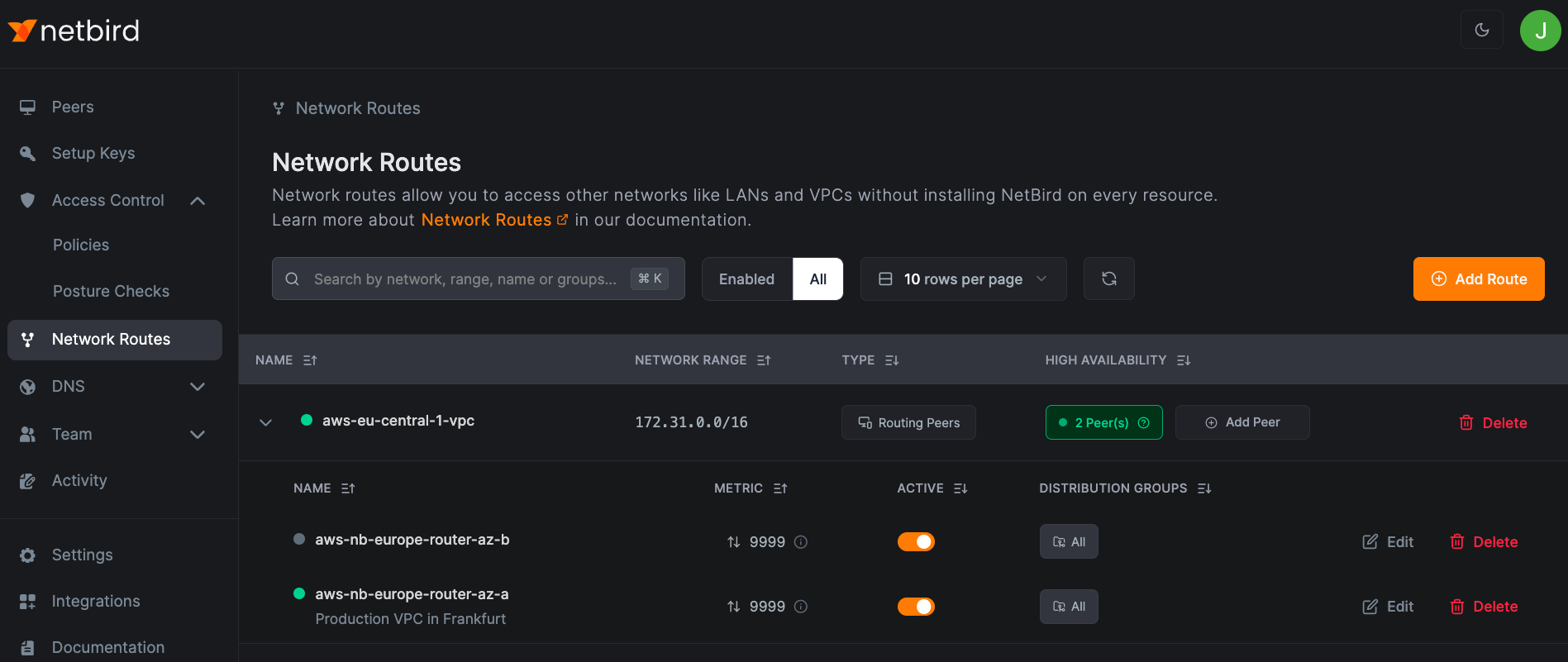
You can add unlimited routing peers to a highly available route. Each connected peer selects one routing peer based on metric priority (lower = higher priority) and connection type (direct or relayed).
Applying Different Routes to Peers with Group Attribution
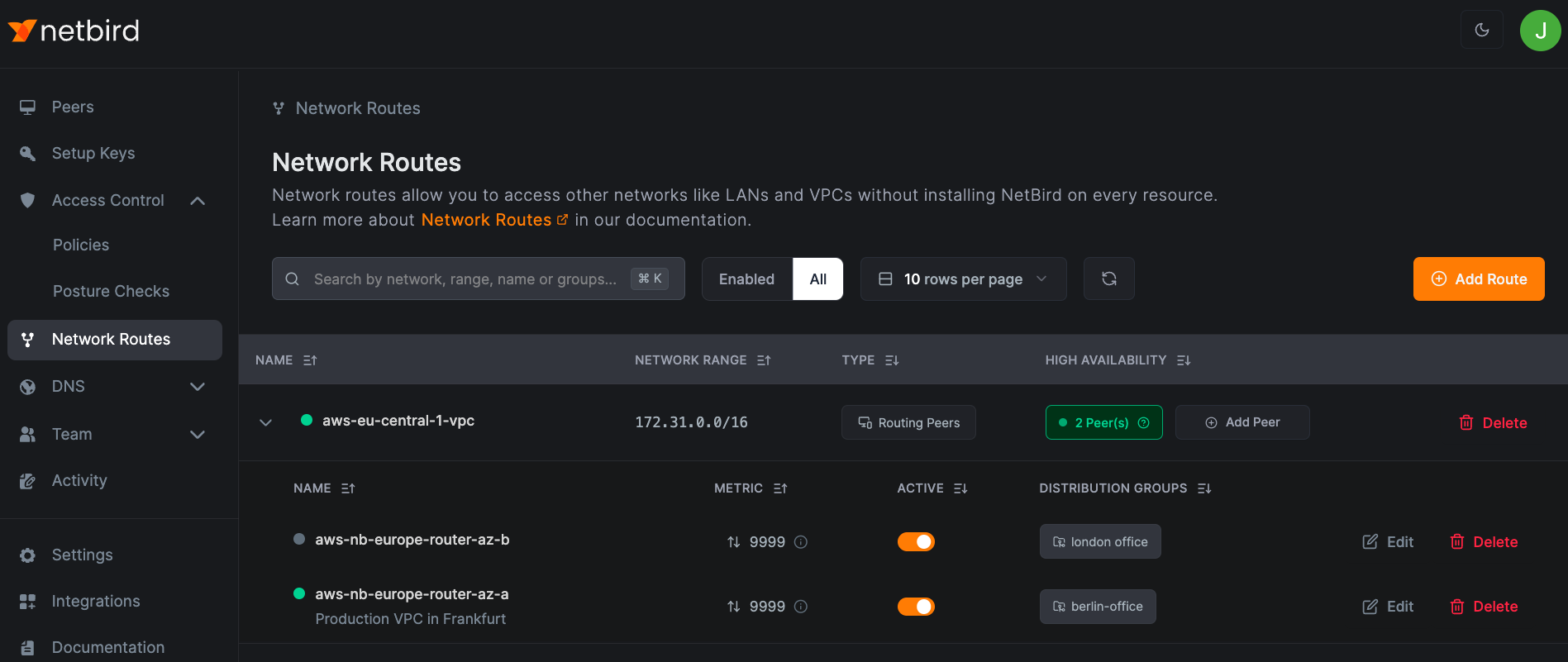
Select multiple distribution groups to control which peers use each routing peer. Peers in the specified groups automatically use the route.
Ensure access control rules allow connectivity between these peers and the routing peers.
In this example, peers in berlin-office use aws-nb-europe-router-az-a to access aws-eu-central-1-vpc, while peers in london-office use aws-nb-europe-router-az-b:
Routes Without Masquerading
Disable masquerade when you need source IP transparency or want to manage routing on your external network. The routing peer forwards packets with the original NetBird peer IP intact.
This requires configuring your external network router with a return route to your NetBird network through the routing peer. Devices without the client can then communicate with your NetBird peers.
Network Routes Caveats
Unless configured explicitly, Routes ignore Access Control rules. This can lead to unexpected access.
This limitation led to the creation of Networks, which uses mandatory Groups for both access control and advertisement. Clients do not see a resource until they have access to its Group.
Example: Unexpected Access Through Network Routes
Consider a Network Route distributed through Group R (Routing Peer) to Group A (intended client):

After creating an Access Policy granting only ICMP access from Group A to Group R:

You might expect only ICMP traffic to work. However, all traffic to the routed network succeeds because Routes only require connectivity to the Routing Peer to activate:
root@brys-vm-nbt-ubuntu-01:~# netbird networks ls
Available Networks:

  - ID: network-route-srvs-site
    Network: 192.168.100.0/24
    Status: Selected
root@brys-vm-nbt-ubuntu-01:~# ping -c1 192.168.100.10
PING 192.168.100.10 (192.168.100.10) 56(84) bytes of data.
64 bytes from 192.168.100.10: icmp_seq=1 ttl=63 time=0.521 ms

--- 192.168.100.10 ping statistics ---
1 packets transmitted, 1 received, 0% packet loss, time 0ms
rtt min/avg/max/mdev = 0.521/0.521/0.521/0.000 ms
root@brys-vm-nbt-ubuntu-01:~# curl 192.168.100.10/health && echo
OK
Mixing Network Routes and Networks
When using both Routes and Networks with the same Routing Peer, permissions can overflow unexpectedly.
In this example, a Network Resource for *.nb.test uses ACL group manual:srvs:

An HTTP-only policy grants access from manual:client:
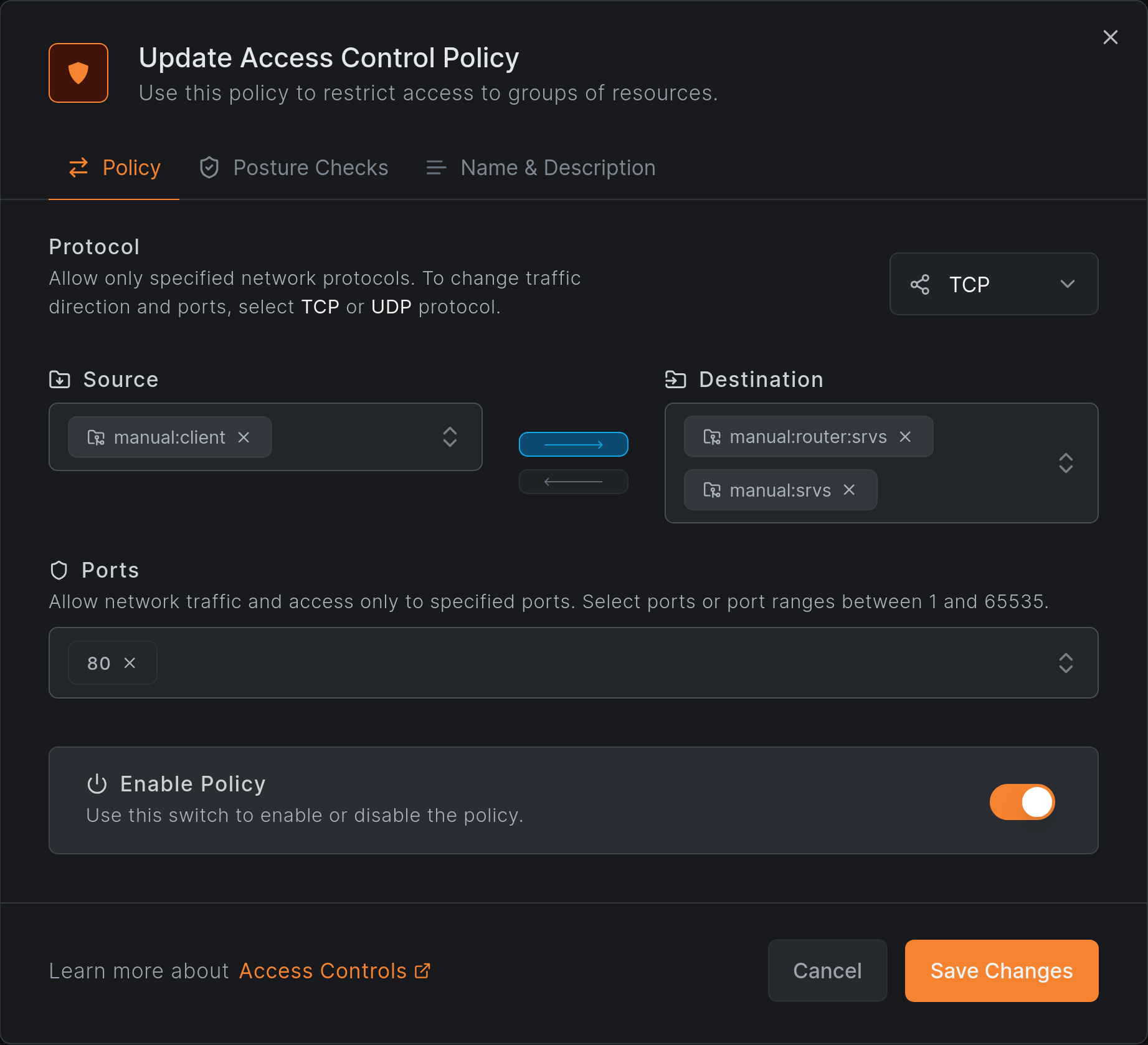
HTTP access works as expected:
root@brys-vm-nbt-ubuntu-02:~# netbird networks ls
Available Networks:

  - ID: *.nb.test
    Domains: *.nb.test
    Status: Selected
    Resolved IPs: -
root@brys-vm-nbt-ubuntu-02:~# curl srv.nb.test/health; echo
OK
root@brys-vm-nbt-ubuntu-02:~# netbird networks ls
Available Networks:

  - ID: *.nb.test
    Domains: *.nb.test
    Status: Selected
    Resolved IPs:
      [srv.nb.test.]: 192.168.100.10
However, ICMP and SSH also work, which violates the HTTP-only policy:
root@brys-vm-nbt-ubuntu-02:~# ping -c1 srv.nb.test
PING srv.nb.test (192.168.100.10) 56(84) bytes of data.
64 bytes from 192.168.100.10: icmp_seq=1 ttl=63 time=0.242 ms

--- srv.nb.test ping statistics ---
1 packets transmitted, 1 received, 0% packet loss, time 0ms
rtt min/avg/max/mdev = 0.242/0.242/0.242/0.000 ms
root@brys-vm-nbt-ubuntu-02:~# ssh srv.nb.test
root@srv.nb.test: Permission denied (publickey).
Why Does This Happen?
The Routing Peer belongs to both routing groups:
m:group-rfor the Network Routemanual:router:srvsfor the Network and its domain Resource

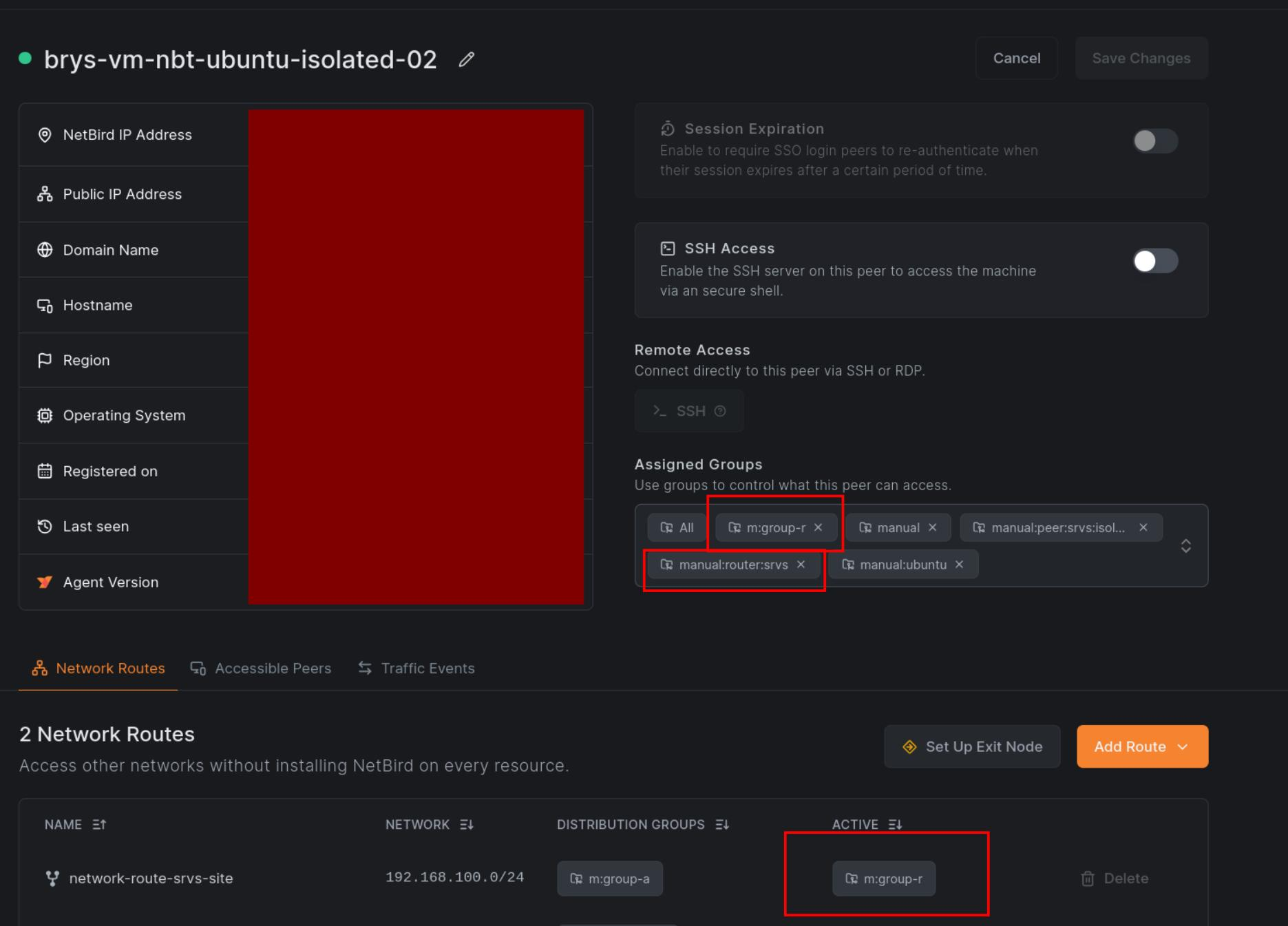
The Network Route grants unrestricted access to the network range, bypassing the HTTP-only restriction on the Network Resource.
To prevent permission overflow, use dedicated Routing Peers for Routes and never use them for Networks. This separation is achievable but easy to overlook during configuration.
Guides
Site-to-Site (legacy)
Connect two networks through routing peers at each end
Exit Nodes
Route all internet traffic through a specific peer
Access Control
Use ACL Groups to control who can access routed networks
Overlapping Routes
Handle scenarios where multiple routes have the same CIDR
Get started
- Make sure to star us on GitHub
- Follow us on X
- Join our Slack Channel
- NetBird latest release on GitHub