

Remote Jobs
Updated
Remote Jobs allow administrators to trigger actions on connected peers without requiring direct CLI access. This is useful for troubleshooting remote machines, collecting diagnostic information from end-users, or automating peer-level operations from the Dashboard or API.
Remote Jobs require the target peer to be online and running NetBird v0.64.0 or later.
Remote Jobs are opt-in on the peer and disabled by default. A peer accepts remote jobs only when started with --allow-remote-jobs, or when the allowRemoteJobs MDM policy is set. Enabling it is a privileged operation on the client (like enabling the embedded SSH server). Peers that have not opted in report this to Management, and the Dashboard disables the Run Remote Job button for them.
Overview
Remote Jobs are managed per-peer and follow a simple lifecycle:
- An administrator creates a job targeting a specific peer
- The management server sends the job request to the peer via its gRPC connection
- The peer executes the job and reports back with results
- The administrator retrieves the results from the Dashboard or API
Each peer can have only one pending job at a time. Jobs transition through the following statuses:
- Pending - Job has been created and sent to the peer
- Succeeded - The peer completed the job successfully
- Failed - The job failed (a reason is provided)
Jobs that don't receive a response within 5 minutes are automatically marked as failed.
Permissions
Remote Jobs are controlled by the RemoteJobs permission module:
- Create - Required to trigger new jobs on peers
- Read - Required to view job history and results
Configure these permissions through your RBAC role assignments.
When to Use Remote Jobs
Remote Jobs are designed for situations where you need diagnostics from a peer but can't — or don't want to — ask someone to run CLI commands on the machine:
- Supporting non-technical users - An end-user reports connectivity issues on their laptop. Instead of walking them through terminal commands, you trigger a debug bundle directly from the Dashboard and get the logs you need.
- Troubleshooting headless infrastructure - A routing peer running on a cloud VM or IoT device has intermittent issues. You collect a debug bundle remotely without SSH-ing into the machine or disrupting its workload.
- Investigating intermittent problems - A peer experiences brief connectivity drops. You enable Bundle Duration to have the peer collect logs over a time window, capturing the issue as it happens rather than after the fact.
- Sharing diagnostics with support - You need to file a bug report or support request. A single remote job produces an anonymized bundle with an upload key you can paste directly into a GitHub Issue or Slack thread.
- Fleet-wide diagnostics via API - You script debug bundle collection across multiple peers using the API, making it easy to gather logs during an incident or a scheduled health check without manual intervention.
Job Types
Debug Bundle
The Debug Bundle job remotely collects diagnostic information from a peer, including logs and system details. The generated bundle is uploaded and can be retrieved using an upload key.
Parameters:
| Parameter | Description | Range | Default |
|---|---|---|---|
| Log File Count | Number of log files to include | 1 - 1000 | 10 |
| Bundle Duration | Time period to collect logs before creating the bundle | 1 - 5 minutes | Disabled |
| Anonymize | Remove sensitive information (IP addresses, domains, etc.) | On / Off | Off |
| Anonymization Level | With Anonymize on, default keeps internal (private) IP ranges readable; strict also anonymizes private, CGNAT and link-local addresses | default / strict | default |
| Upload URL | Upload service the peer requests an upload URL from (must be an https URL). A peer with the debugBundleUploadURL MDM policy set overrides this value | https URL | Default upload server |
Result:
On success, the job returns an upload key that can be used to retrieve the debug bundle. Share this key with NetBird support via GitHub Issues, Slack, or your support channel.
Using the Dashboard
Creating a Remote Job
- Navigate to Peers in the Dashboard
- Click on the peer you want to target
- Click the Run Remote Job dropdown button
- Select Debug Bundle
- Configure the job parameters:
- Set the Log File Count (how many log files to include)
- Optionally enable Bundle Duration to collect logs over a time window before generating the bundle
- Toggle Anonymize Log Data to strip sensitive information
- Click Create Debug Bundle
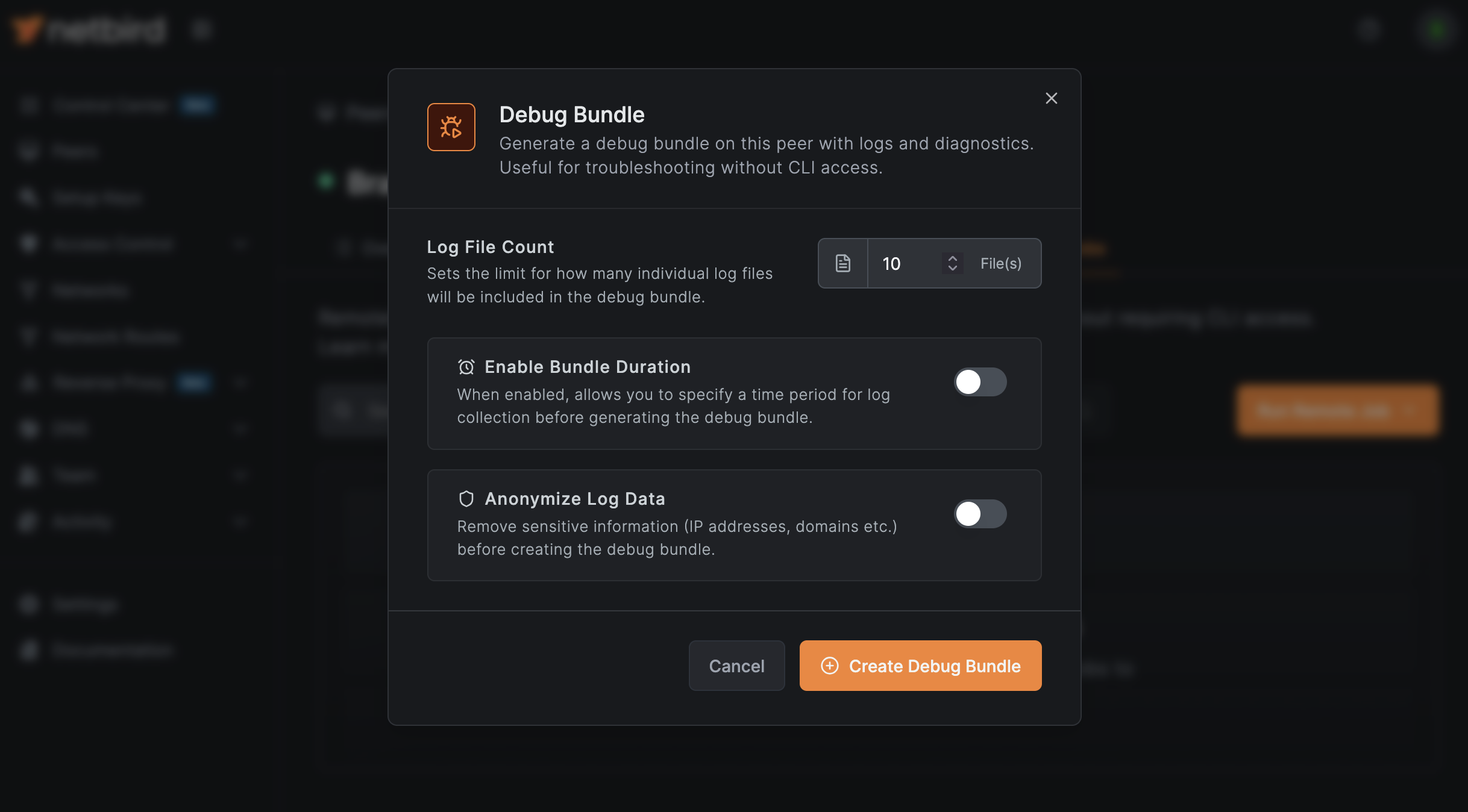
The Run Remote Job button is disabled when the peer is offline, when the peer has not opted into remote jobs, or when you lack the required permissions.
Viewing Job History
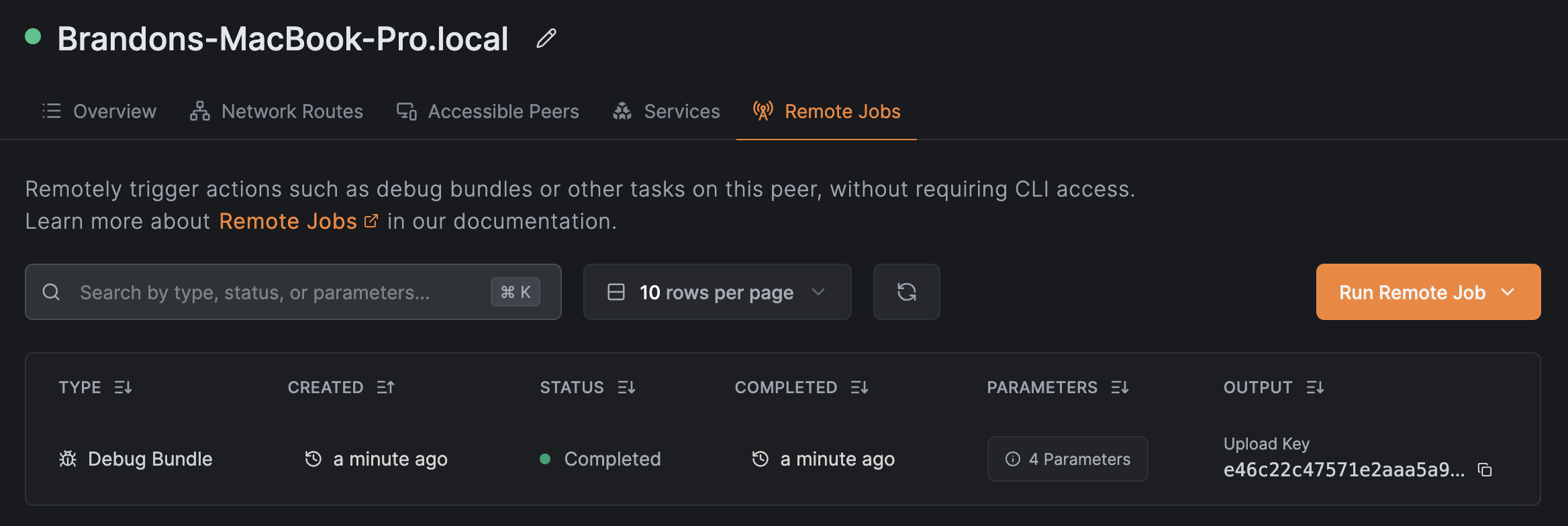
The Remote Jobs tab on the peer detail page shows all jobs for that peer, sorted by creation time (newest first). The table displays:
- Type - The job type (e.g., Debug Bundle)
- Status - Color-coded status badge (yellow for pending, green for succeeded, red for failed)
- Created / Completed - Timestamps for the job lifecycle
- Parameters - Hover to view the full parameter configuration
- Output - On success, the result (e.g., upload key with copy button). On failure, the error reason.
Using the API
Remote Jobs can be managed programmatically through the Management API. See the Jobs API reference for full details including request/response schemas and code examples in multiple languages.
Create a debug bundle job:
curl -X POST https://api.netbird.io/api/peers/{peerId}/jobs \
  -H "Authorization: Token <PAT>" \
  -H "Content-Type: application/json" \
  -d '{
    "workload": {
      "type": "bundle",
      "parameters": {
        "log_file_count": 10,
        "bundle_for": false,
        "anonymize": true
      }
    }
  }'
List jobs for a peer:
curl https://api.netbird.io/api/peers/{peerId}/jobs \
  -H "Authorization: Token <PAT>"
Get a specific job:
curl https://api.netbird.io/api/peers/{peerId}/jobs/{jobId} \
  -H "Authorization: Token <PAT>"
Limitations
- The target peer must be online and connected to the management server
- The target peer must have opted into remote jobs (
--allow-remote-jobsor theallowRemoteJobsMDM policy) - Only one pending job per peer at a time
- Peers must be running NetBird v0.64.0 or later
- Jobs time out after 5 minutes if the peer does not respond
- Upload keys for debug bundles expire after 30 days