

VNC Access
Updated
NetBird includes a built-in VNC server, so you can see and control the screen of a peer from the NetBird Dashboard. There is nothing to install on the machine you connect from, and no port is opened to the internet: the connection runs through your private network.
VNC access is disabled by default. Enable it on the peer you want to reach. You also need a Dashboard role that is allowed to start remote access to peers.
NetBird server or external server
You can reach a peer's screen in two ways. They differ in what NetBird can guarantee.
| NetBird VNC server | External VNC server | |
|---|---|---|
| What it is | The server built into the NetBird client | Any VNC server already running on the peer |
| Who can connect | Only NetBird users who are allowed to reach the peer | Whatever the server itself is set up to allow, such as a password. NetBird does not check |
| Approval | The signed-in user on the peer approves each connection, unless approval is turned off | NetBird does not ask the peer's user. Whether anyone is asked depends on the server's own settings |
| View-only sessions | Yes | No |
| Typed paste and remote cursor | Yes | No |
| New desktop mode | Linux and FreeBSD | No |
| Platforms | Linux, FreeBSD, macOS, Windows | Any system the server runs on |
| Viewer | The Dashboard's browser viewer | The Dashboard's browser viewer |
The NetBird server can be used only through the Dashboard's browser viewer. Other VNC clients cannot connect to it.
Requirements
To use VNC access, you need:
- NetBird v0.84.0 or later on the peer you want to reach.
- A supported system on that peer for the NetBird server: Linux, FreeBSD, macOS or Windows. It is not available on Android or iOS.
- NetBird's VNC server enabled on the peer. Not needed for an external server. See Enabling VNC.
- A Dashboard role that can start remote access to peers. The VNC button is disabled for users without permission.
- The peer online. If connection approval is on, the NetBird UI also has to be running on it.
Nothing needs to be installed on the machine you connect from. The viewer runs in your browser.
Enabling VNC
On the machine you want to reach, enable the VNC server.
Using the GUI:
- Open the NetBird desktop app.
- Go to Settings → VNC.
- Turn on Enable VNC Server.
Using the CLI:
sudo netbird down
sudo netbird up --allow-server-vnc
On Windows, run the same commands from an elevated prompt without sudo. To turn the server off again, run netbird down, then netbird up --allow-server-vnc=false. The peer disconnects during this sequence.
Enable VNC Server and turning connection approval off require administrator
rights, because the VNC server shows the screen of whoever is signed in. The NetBird UI
shows those switches as unavailable and gives you the command to run. On a managed
workstation, an administrator has to run it, or set
allowServerVNC through MDM. Turning
the server off, or turning approval back on, never requires administrator rights.
The VNC server stays off while the peer blocks inbound connections.
Connecting from the Dashboard
- Open Peers and select the peer, or use the actions menu of its row in the peers table.
- Under Remote Access, click VNC. A viewer window opens.
- Choose how to connect, then click Connect.
- If connection approval is on, the person signed in on the peer sees a prompt and has to accept it. See Connection approval.
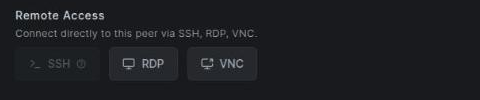
The VNC button sits next to SSH and RDP under Remote Access. It is disabled, and a tooltip explains why, when:
- you do not have permission to launch a VNC session;
- the peer is offline.
The button stays enabled when NetBird's VNC server is not available on the peer's operating system or is not enabled on the peer. The connection screen then offers the External option for a VNC server you run yourself.
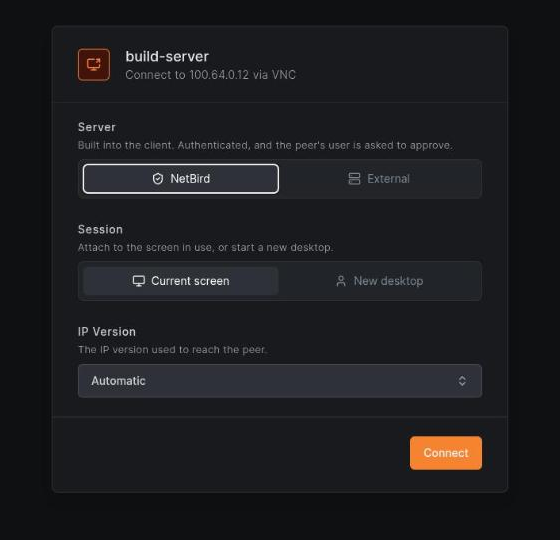
The connection screen has these options:
| Option | Values | Notes |
|---|---|---|
| Server | NetBird or External | NetBird uses the built-in server. External reaches a VNC server that is already running on the peer. |
| Port | 1 to 65535, default 5900 | Only for External. |
| Session | Current screen or New desktop | New desktop is offered for Linux and FreeBSD peers running the NetBird server. |
| User | An operating system user | Only for New desktop. |
| IP Version | Automatic, IPv4 or IPv6 | IPv6 is disabled when the peer has no IPv6 address. |
Connection modes
| Current screen | New desktop | |
|---|---|---|
| Available on | Linux, FreeBSD, macOS, Windows | Linux and FreeBSD |
| What you see | The screen of the user signed in on the peer | A separate desktop for the user you name |
| Needs on the peer | Someone signed in at the console | Xvfb, or Xorg with the dummy driver, installed, and an existing operating system user |
| User field | Not used | Required |
| Several viewers | They share the screen | They share one desktop per user |
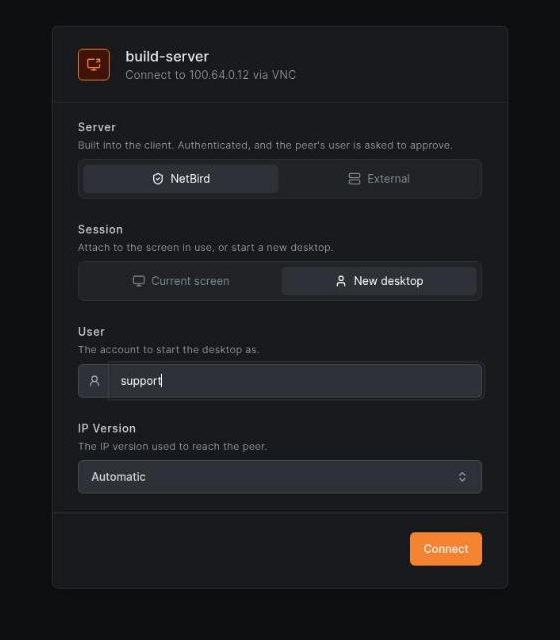
Current screen is the right choice when you want to help someone or look at what they see. New desktop lets you work on a Linux or FreeBSD machine without disturbing whoever is using its screen. The desktop closes a few minutes after the last viewer leaves.
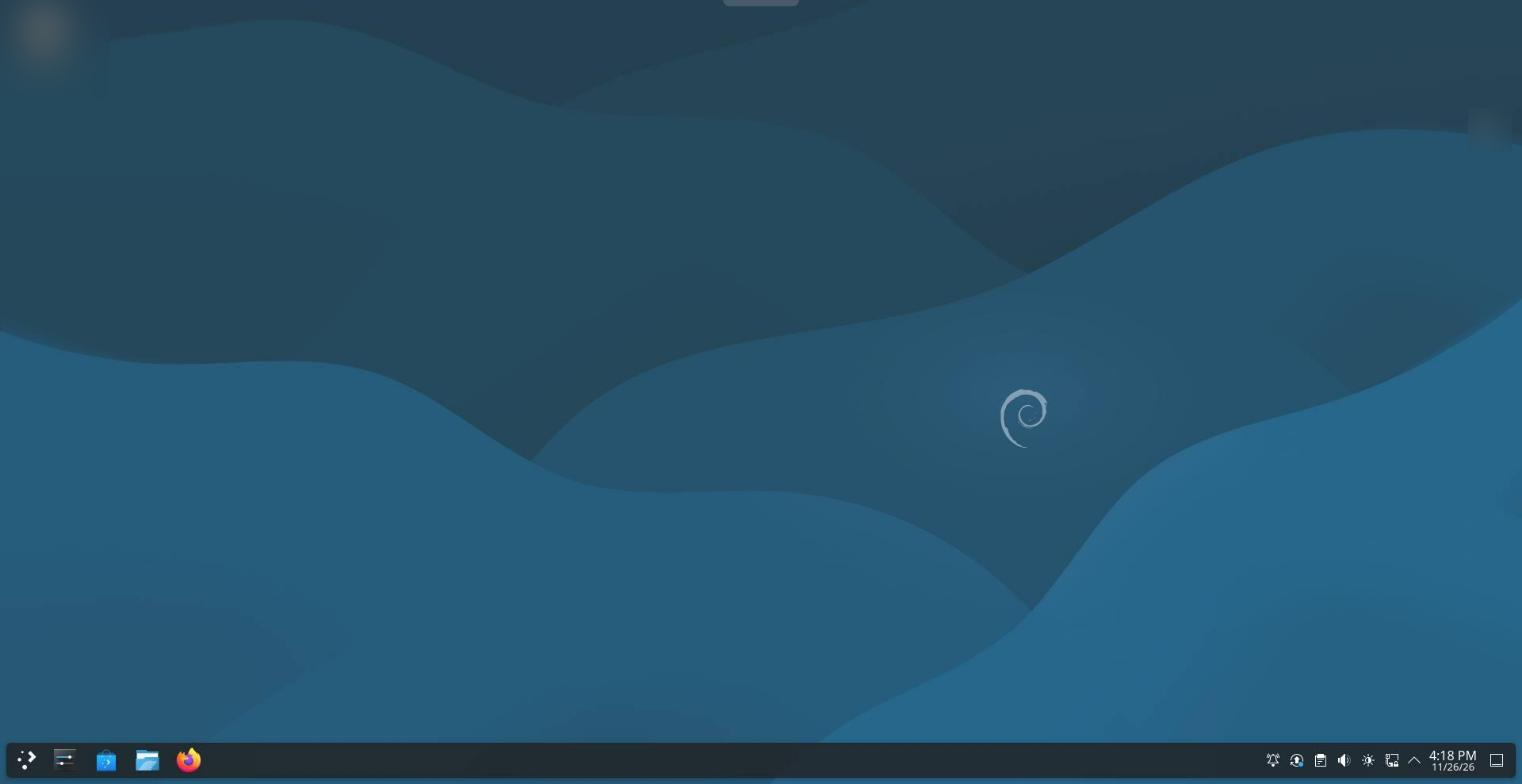
Text console
On a Linux or FreeBSD peer that has no graphical session, such as a server, Current screen shows the text console instead of failing. You see whatever is on the machine's console, such as the login prompt or a shell, with nothing extra installed on the peer. The text console is captured by the NetBird service inside the running system, so it needs the operating system and NetBird to be up. It does not show the BIOS or early boot, and it does not replace out-of-band management such as iLO.

| Linux | FreeBSD | |
|---|---|---|
| What you see | The text console | The text console |
| Needs on the peer | A framebuffer console (/dev/fb0) that the NetBird service can read | A console driver that allows capturing the screen |
| Keyboard and mouse | Yes, when the uinput kernel module is available (/dev/uinput). Without it the session is view-only | No. The session is view-only |
NetBird switches to the text console on its own when it finds no graphical session. Most servers and virtual machines have a framebuffer console already. A peer without the NetBird UI cannot show the approval prompt, so turn connection approval off for unattended servers.
Connection approval
By default, the person signed in on the peer has to approve every connection. The NetBird UI on the peer opens a small window titled Allow VNC Connection?.
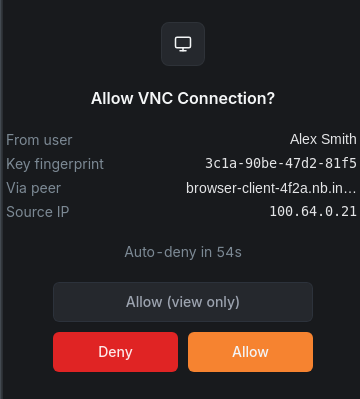
It shows who is asking:
| Field | What it shows |
|---|---|
| From user | The NetBird user who started the session |
| Key fingerprint | The fingerprint of the key the session was created with |
| Via peer | The peer the connection comes through |
| Source IP | The address the connection comes from |
| OS user | The operating system user the session runs as |
Below the details, a countdown reads Auto-deny in 60s and counts down, and three buttons offer the choices:
- Allow: the viewer can see and control the screen.
- Allow (view only): the viewer can see the screen, but its keyboard and mouse input is ignored. It sits on its own row above Deny and Allow.
- Deny: the connection is refused. This button has the focus when the window opens.
The allow buttons become available a moment after the window appears, so a stray key press or click cannot accept a connection by accident.
If nobody answers within 60 seconds, the connection is denied.
To accept connections without asking, for example on an unattended machine, start the client with --disable-vnc-approval (and --disable-vnc-approval=false to turn the prompt back on), clear Require Connection Approval under Settings → VNC, or set disableVNCApproval through MDM.
With approval turned off, anyone who is allowed to reach the peer can view and control its screen without the signed-in user knowing. Leave approval on for machines that people use.
Using the viewer
Move the pointer to the top edge of the window to show the toolbar. Drag its handle to move it.
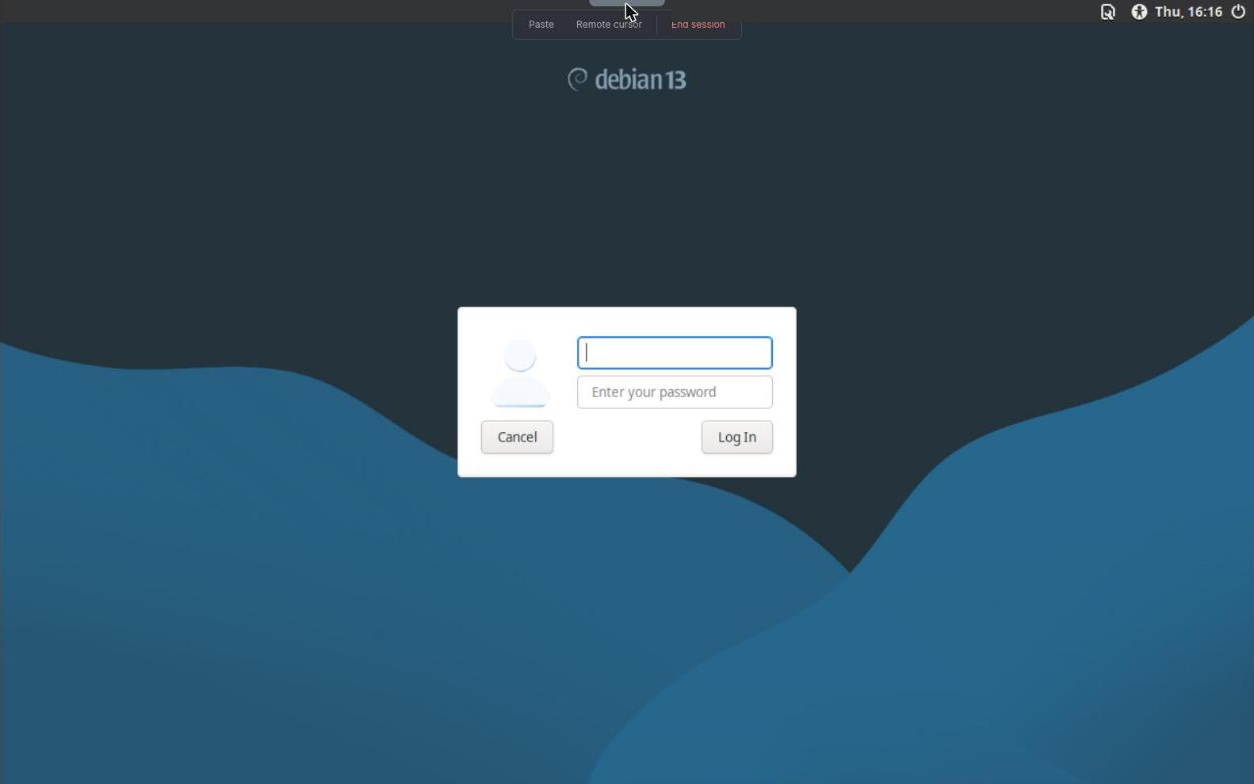
| Control | What it does |
|---|---|
| Ctrl+Alt+Del | Sends Ctrl+Alt+Del to the peer. Shown for Windows peers, and hidden in view-only sessions. |
| Paste | Types the text on your clipboard on the remote machine. It works on login screens, where the clipboard is not shared. Not available for external servers. |
| Remote cursor | Also shows the remote machine's own pointer. Not available for external servers, in view-only sessions, or for macOS peers. |
| End session | Ends your session. Nothing changes on the peer. The window offers Reconnect. |
The toolbar remembers where you put it. Remote cursor is a switch: it stays highlighted while it is on.
A View-only badge appears when the peer's user chose Allow (view only). An External VNC tag stays visible under the handle for the whole session when you connected to an external server, even when the toolbar is hidden.
What the viewer shows
While a connection is being set up, the viewer window tells you what it is waiting for:
- Requesting temporary peer access… while the Dashboard asks for access for this session.
- Bringing up NetBird overlay… while the browser joins your network.
- Connecting to VNC server… while it reaches the peer. If it takes a while, the message adds that the peer may be asking its user for approval.
If the connection fails, the connection screen comes back with the reason. When a session ends, or you choose End session, the window shows Disconnected from the peer's name with a Reconnect link. If the viewer cannot find the peer, it says No peer selected or Could not load this peer. Close the window and open it again from the peer.
Clipboard
- Text copied on the remote machine is copied to your browser clipboard.
- When the viewer window gets focus, the text on your browser clipboard is sent to the remote machine, if your browser allows it. The browser may ask you once.
Ctrl+Vand Paste type the text on the remote machine instead.
The clipboard is sent on window focus for external servers too. If you do not want your clipboard to reach a server that NetBird does not check, clear it before you focus the window.
Supported features
- Screen, keyboard and mouse, including the scroll wheel.
- Copy and paste of text. Text you copy on the peer is available in your browser, and the Paste button in the toolbar sends your clipboard text to the peer, including to login screens. See Clipboard.
- Ctrl+Alt+Del for Windows peers, including the sign-in screen, UAC prompts and the lock screen.
- View-only sessions.
- Remote cursor.
- IPv4 and IPv6.
- Two modes on Linux and FreeBSD: the current screen, or a separate desktop.
- The text console of Linux and FreeBSD machines without a graphical session. See Text console.
What works where
| Linux and FreeBSD | Windows | macOS | |
|---|---|---|---|
| New desktop | Yes | No | No |
| Needs a user signed in | A graphical session, or the text console when there is none | A locked or sign-in screen is refused while approval is on. It works with approval off | Yes. At the login window the connection is refused |
| Remote cursor | Yes | Yes | No. The pointer of the person on the Mac is not shown, so you cannot see their mouse move |
| Text console | Linux: yes, with input when uinput is available. FreeBSD: view-only | Not applicable | Not applicable |
| Display shown | The screen | The primary screen | The main display only, at half resolution on Retina displays |
| The peer's user has to grant | Nothing | Nothing | Screen Recording and Accessibility |
| Ctrl+Alt+Del | Not applicable | Yes, except on Windows Server Core | Not applicable |
macOS permissions
macOS only lets an app capture the screen and send keyboard and mouse input after the user of that Mac has allowed it. NetBird needs two permissions:
- Screen Recording, to see the screen. Without it, the viewer shows the desktop wallpaper and no windows.
- Accessibility, to type and click. Without it, the viewer shows the screen but your keyboard and mouse do nothing.
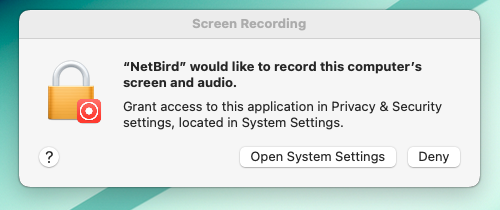
The first time someone connects, macOS asks for these on the Mac's own screen, so the person sitting at the Mac has to respond. For Screen Recording, the prompt says "NetBird" would like to record this computer's screen and audio, and offers Open System Settings and Deny.
The Accessibility prompt says "NetBird" would like to control this computer using accessibility features, with the same two buttons.
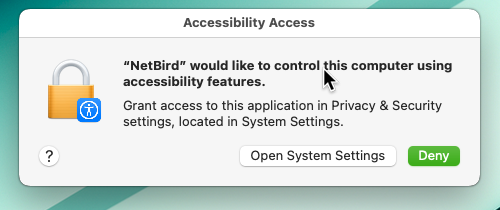
NetBird asks for Accessibility again every few seconds until it is granted, and if macOS cannot show the prompt, NetBird opens System Settings → Privacy & Security → Accessibility for the user.
Until Screen Recording is granted, the viewer connects but shows only the desktop picture and the menu bar. There is no Dock and there are no windows. If you see this, the permission is missing.

To grant the permissions without waiting for the prompt, do this on the Mac:
- Open System Settings → Privacy & Security.
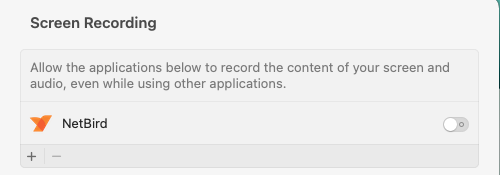
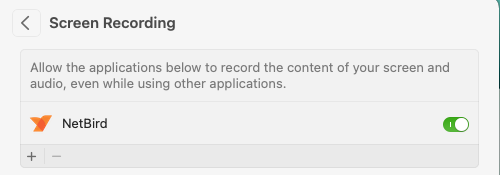
- Open Screen Recording (called Screen & System Audio Recording on newer versions of macOS) and turn on NetBird.
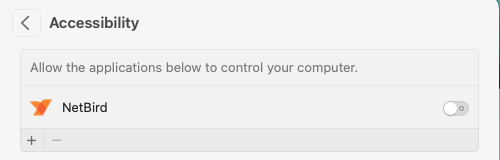
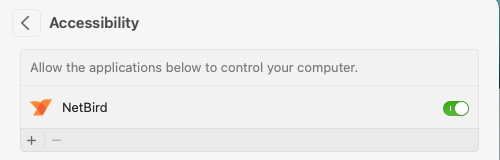
- Open Accessibility and turn on NetBird.
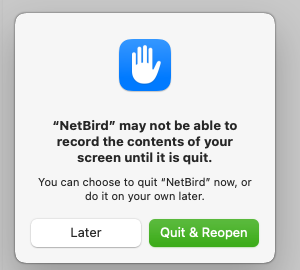
- If macOS says "NetBird" may not be able to record the contents of your screen until it is quit, choose Later. The permission takes effect right away, so an open viewer does not have to reconnect.
Before you turn the switch on, the Screen Recording list shows NetBird with its switch off. Afterwards the switch is green.
The Accessibility list works the same way. NetBird appears with its switch off, you turn it on, and the change takes effect right away. macOS does not ask for a password or a restart for either permission here.
Do this before you need to reach an unattended Mac, because nobody is there to approve the prompts. If a permission is removed later, NetBird asks for it again at the next connection.
Windows sessions
Windows can have several sessions at once: the one on the machine's own screen (the console) and one for each user connected over Remote Desktop. VNC shows one of them, and NetBird picks it like this:
- An active session with a signed-in user. That is the user at the console, or a user connected over Remote Desktop.
- Otherwise, the console at the sign-in screen.
- Otherwise, the console session.
If more than one session has a signed-in user, NetBird picks the first active one it finds. You cannot choose a session from the viewer.
- Approval goes to the user in the session being shown. If that session is locked, or is at the sign-in screen, nobody can answer, so the connection is refused while approval is on.
- Sign-in and lock screens can be reached only with connection approval off. Ctrl+Alt+Del works in a signed-in session whether approval is on or off.
- Changes of session, such as a user switch, or Remote Desktop connecting or disconnecting, make NetBird follow the new session. A VNC session that is open at that moment can end, and you can reconnect.
- A user connected over Remote Desktop is shown when theirs is the active session with a signed-in user.
Using an external VNC server
Choose External to reach a VNC server that is already running on the peer, on any operating system, and enter its port.
- NetBird does not check who connects to it, and it does not ask the peer's user to approve. Who can connect, and whether the peer's user is asked, depends on how that server is configured.
- There is no view-only mode, and the Paste and Remote cursor controls are not shown.
- If the server asks for a password, the viewer shows a VNC Password prompt for the peer and port. The password is the one set on that server, not a NetBird password. If the server rejects it, the prompt comes back with The server rejected that password. and you can try again. If the server stops waiting, the prompt says so and you use Reconnect. Cancel takes you back to the connection screen.
- Only servers that ask for a password alone are supported. A server that also asks for a username is refused.
Security
- Only a NetBird user who is allowed to reach the peer can open a session on the built-in server. The browser proves its identity with a key created for that session alone.
- The access the Dashboard grants for a session is temporary and is removed when the session ends.
- If access is withdrawn while a session is open, the session is closed.
- Unless you turn approval off, the person on the peer decides every time.
Monitoring
netbird status shows whether the server is on, and how many sessions are active: VNC Server: Disabled, Enabled, or Enabled (N active session(s)). netbird status --detail also lists each session, with who is connected, from which address, as which operating system user, and in which mode. The desktop app on the peer shows a Screen shared badge while someone is connected.
Troubleshooting
| Message | What it means |
|---|---|
| You are not allowed to connect to this peer. | Your user is not allowed to reach this peer, or the operating system user you asked for. |
| The peer's user declined the connection request. | The person on the peer chose Deny. |
| The peer's user did not answer the connection request in time. | Nobody answered within 60 seconds. Try again and ask the user to watch for the prompt. |
| The connection request could not be shown to the peer's user. Make sure the NetBird UI is running on the peer. | Start the NetBird UI on the peer. |
| Nobody is signed in on the peer. | There is no signed-in user, for example at a login screen or on a locked Windows machine. Have someone sign in. On Linux and Windows you can also turn approval off. On macOS, sign in locally. |
| The peer cannot capture its screen. | On macOS, check that Screen Recording is allowed. On Linux, check that a graphical session or console is available. |
| Could not start the virtual session on the peer. | New desktop failed. Check that Xvfb or Xorg with the dummy driver is installed and that the user exists. |
| This action is not supported on the peer's platform. | For example, New desktop on Windows or macOS. Use Current screen. |
| Could not reach the peer. It may be offline. | The connection timed out. The viewer retries once on its own. |
| Nothing is listening on port N on the peer. | For an external server, the port is wrong or the server is not running. |
| The VNC session keys could not be obtained. The NetBird client may not support VNC. | The NetBird client your Dashboard serves to the browser is older than v0.84.0. On a self-hosted Dashboard, ask your administrator to update it. |
| This VNC server asked for credentials the viewer cannot supply. | An external server wants a username or another credential. Set it to ask for a password only. |
Limitations
- The built-in server is reachable only through the Dashboard's browser viewer.
- Access policies have no VNC rule type. Access is granted for each session, to the Dashboard user who starts it.
- Only one display is shown per peer.
- On macOS peers the pointer of the person using the Mac is not shown, so you cannot follow their mouse. The Remote cursor control is not available there.
- Settings such as image quality and scaling cannot be changed from the interface.