

Ask and Build with the NetBird Assistant
Updated
Running a network means answering the same kinds of questions over and over: who can reach this server, why can't this laptop connect, who changed that policy. Each answer exists somewhere in the dashboard, but finding it means knowing which page holds it and reading several of them side by side.
The NetBird Assistant does that reading for you. It is a chat inside the dashboard: ask in plain words, and it looks up your peers, groups, policies, and logs, answers from what it finds, and prepares changes for you to approve.
Availability: The assistant is available on NetBird Cloud and is enabled per account. If there is no Assistant button in the dashboard header, it is not enabled for your account yet: contact support@netbird.io to have it enabled.
The assistant never changes your account itself: every change it prepares goes to Draft Mode in the Control Center, and reaches your network only when you click Approve & Deploy.
One example carries through the whole page: giving the Backend group access to orders-db, a PostgreSQL database at 10.0.20.15 in the Staging network, on TCP port 5432 and nothing else.
Open the Assistant
Click Assistant in the dashboard header. The chat opens in a panel beside the page you are on.
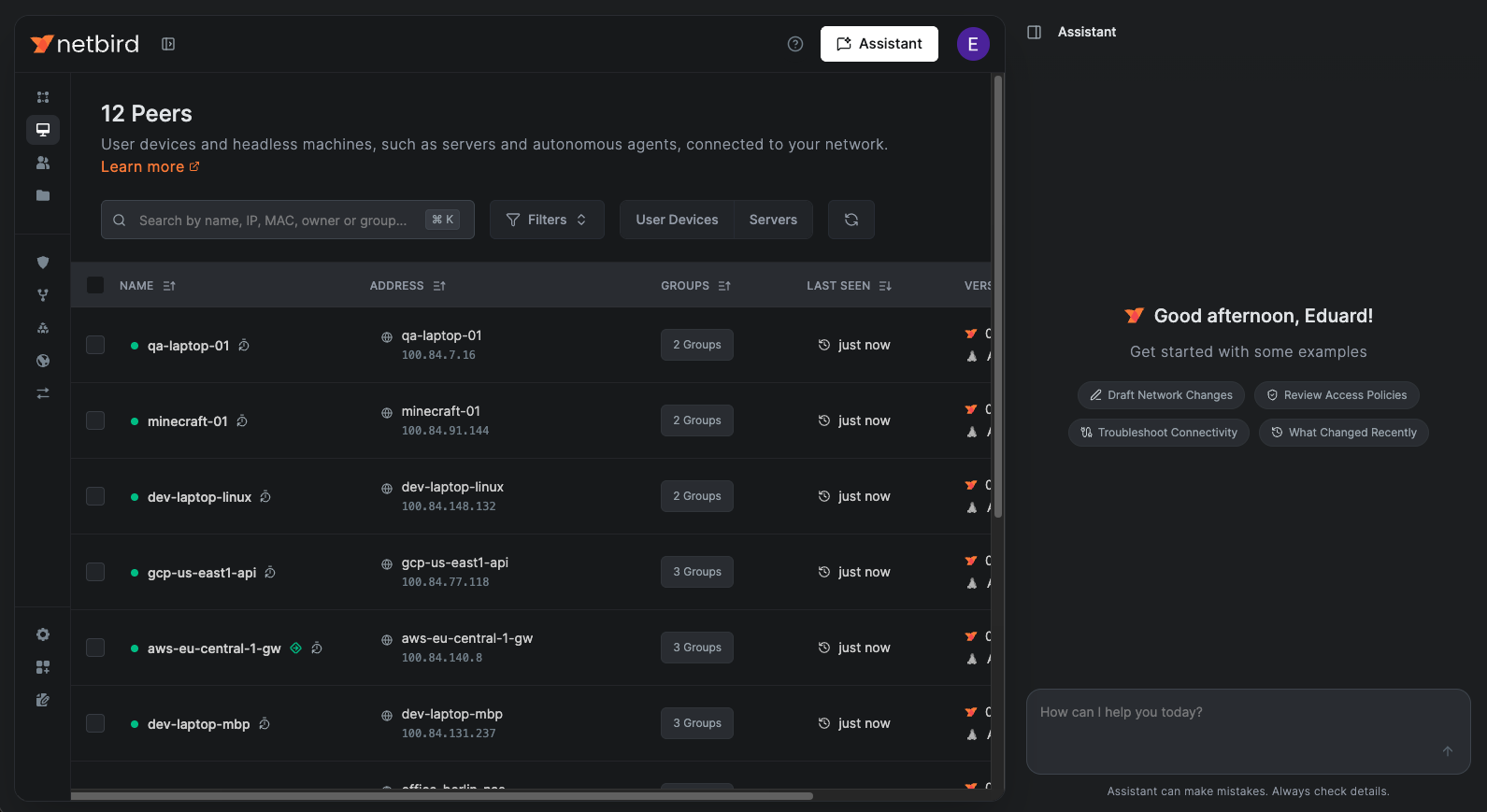
Type a question, or start from one of the examples:
- Draft Network Changes: give a team access to a server, built as a draft.
- Review Access Policies: see who can reach what, with anything too broad pointed out.
- Troubleshoot Connectivity: find out why a peer cannot reach something.
- What Changed Recently: the last 7 days of changes in your account.
Once a chat has a message, a New Chat button (the plus icon) appears in the panel header. Click it to start over with a clean conversation.
A chat lives only in your browser tab. Reloading or closing the page, or clicking New Chat, discards it, and there is no chat history to return to later.
Page Context
The assistant knows which page you have open and uses it as context for your question. A context chip above the message box names what will be sent along with your message.
These pages provide context:
- Peer: the page of a single peer. The chip shows the peer's name.
- Group: the page of a single group. The chip shows the group's name.
- Network: the page of a single network. The chip shows the network's name.
- User: the page of a single user or service user. The chip shows the user's name.
- Settings: any tab under Settings. The chip shows the tab, for example "Settings · Authentication".
- Integrations: any tab under Integrations. The chip shows the tab in the same way.
List pages, such as the Peers table or Access Control, and Control Center provide no context, so name what you mean in your question there.
With context, you can ask without naming things. On a peer's page, "is this one online?" or "what can it reach?" is about that peer.
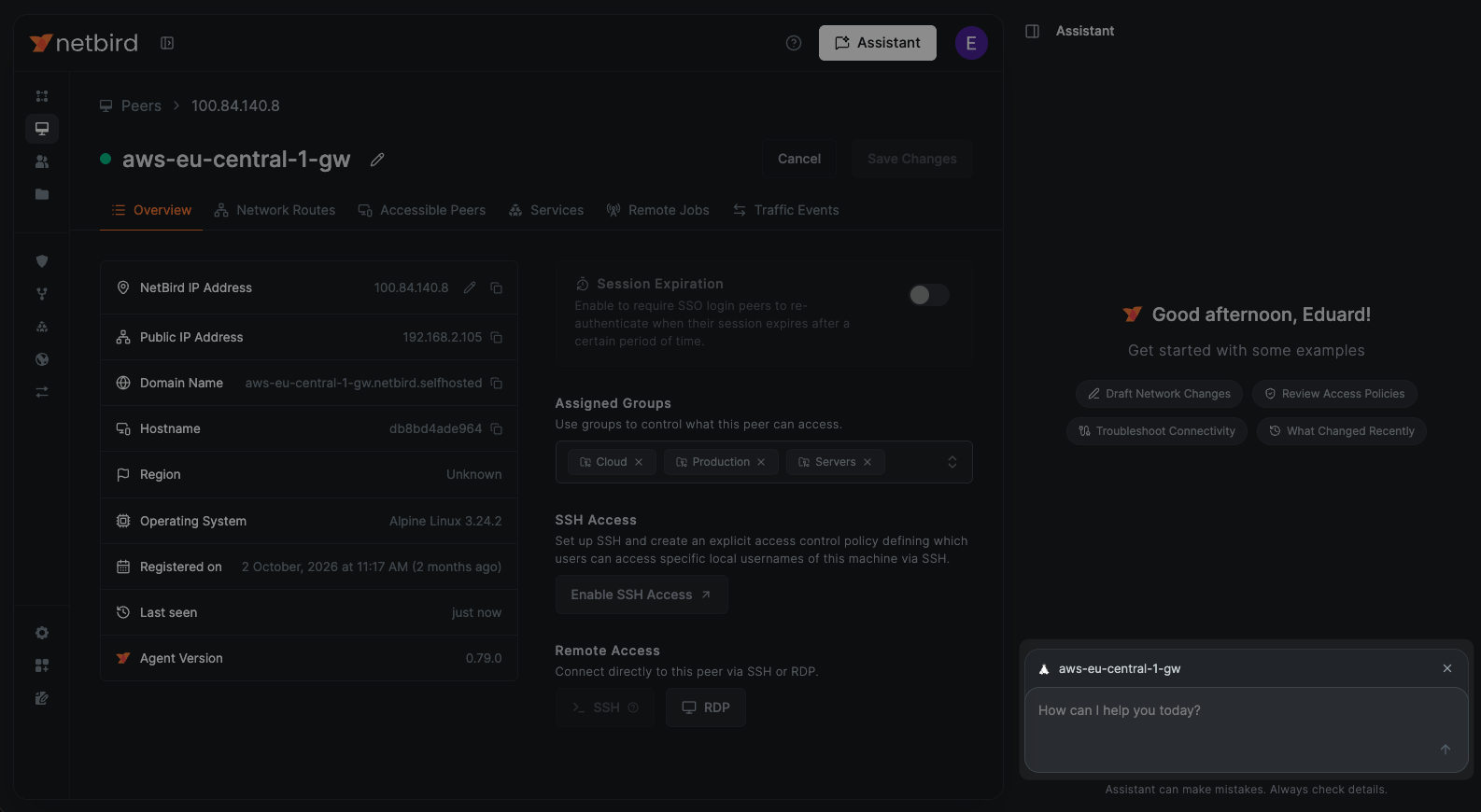
The context follows you: open another page and the chip changes to match. Click the x on the chip to remove the context when your question is about something else.
Examples
The examples below show the kinds of request the assistant handles: setting up access, checking it, making routine changes, investigating who did what, and learning how a feature works.
Set Up Access
Describe what should be able to reach what, and the assistant builds the groups, the network, and the policy in Draft Mode:
- "Give the Backend group access to our orders Postgres database in the Staging network. The database is at 10.0.20.15, call the resource orders-db. Allow only TCP port 5432 and name the policy 'Backend to Orders DB'."
- "I want to connect my developers to AWS"
For our example, type the first one. The assistant switches to Control Center, opens an empty draft, and looks up the names you used. When a group or network with that name exists, it uses that one. In our account neither Backend nor Staging exists yet, so the assistant says so and asks how to proceed, and we tell it to create both.
Watch the Draft Take Shape
The assistant draws the result on the canvas one step at a time:
- Source: a new
Backendgroup. - Destination: a new resource
orders-dbwith the address10.0.20.15inside a newStagingnetwork. That is the one host, not the subnet around it. - Policy:
Backend to Orders DB, protocol TCP, port5432.
The new policy opens nothing else: no SSH on port 22, no other port on that host, and no other host in the network. Because Backend is a new group here, that is all it can reach. A group that already exists keeps the access its other policies grant, so check those before you deploy.
Policies the assistant drafts carry only the protocol and ports the service needs, so the first policy you deploy is already the least-privilege one.
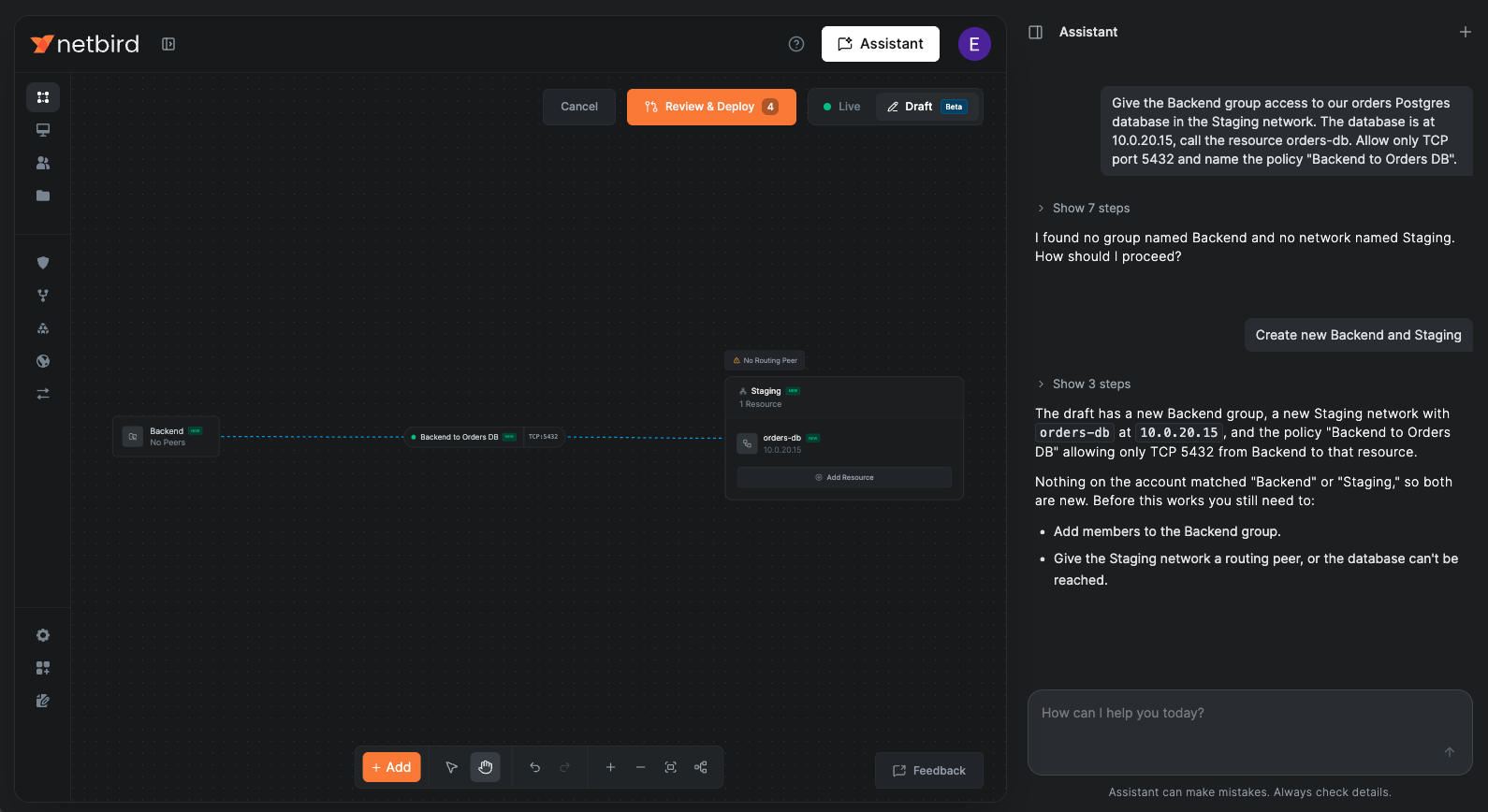
The assistant also tells you what is still missing before the access works: here, the new Backend group has no members, and the Staging network needs a routing peer to reach the database.
The draft is an ordinary one: move, rename, or remove anything the assistant drew, or ask it to change something, for example "also allow port 6432 for PgBouncer".
Review and Deploy
Click Review & Deploy to see the list of changes, then Approve & Deploy to apply them. See Review and Deploy for what the dialog shows.
The draft is what gets deployed, not the assistant's summary of it. Read the change list before you approve.
Check Access
Ask what the current configuration allows:
- "What can this user access?"
- "Are my developers able to access AWS?"
- "Who can reach the orders database?"
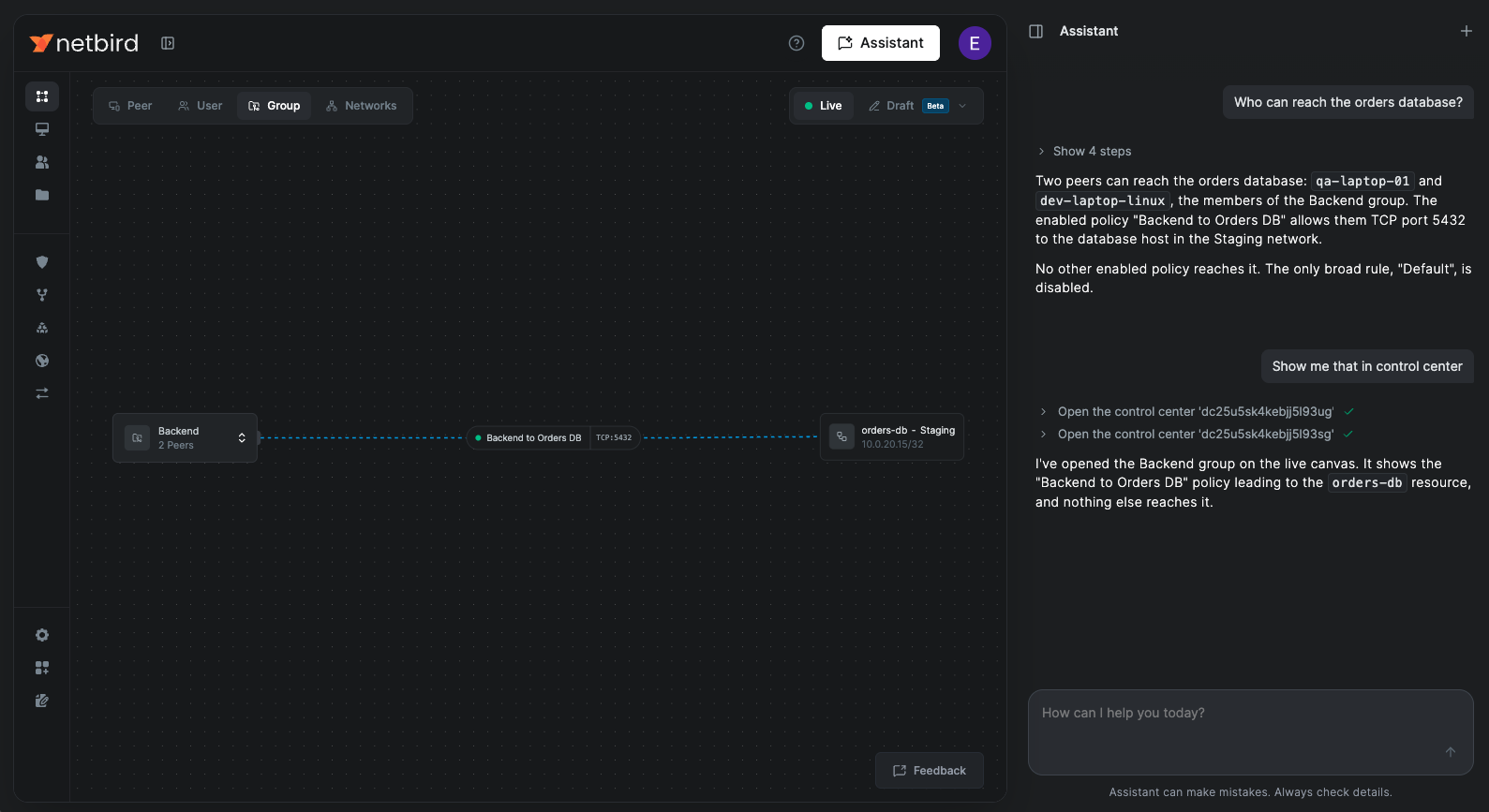
The assistant reads your policies and groups and answers in the chat: which policies grant the access, on which protocols and ports, and anything that stands out, such as a policy that is wider than you would expect. For our example that is the Backend group and its one policy on TCP port 5432 to orders-db.
It can also show the answer on the live Control Center view, focused on the user, group, or peer you asked about. If it does not open the view on its own, ask for it: "show me that in Control Center".
A report that something is broken gets a different treatment. For "this user reports a problem accessing the orders database, can you check?", the assistant checks the likely causes, such as:
- Is the user's peer online, and the routing peer of the network? Has a login expired, or is a peer waiting for approval?
- Does a policy connect the user's group to the resource, on the right protocol and port?
- Does a posture check block the connection?
It then tells you what it found and how to fix it.
Make Routine Changes
Repetitive edits across many peers or policies are drafted the same way as new access:
- "Add all mobile peers to the group Mobile"
- "Copy all policies with access to AWS and give access to the QA team on port 80 and 443"
- "Add the group Admin to all policies"
The assistant opens a draft, reads the peers or policies the request covers, and adds the changes to the canvas. It tells you which items it matched and on what basis: "mobile peers" could mean peers running iOS or Android, or peers with "mobile" in their name, and the answer says which reading it used.
Investigate Who Did What
Security questions fall into three groups, and each is answered from a different record:
- Who changed something? "Check who changed the policy
Backend to Orders DBin the last 7 days" is answered from audit events. - Who connected to a host or port? "Who connected to
orders-dbon port 5432 yesterday?" is answered from traffic events. - Who reached a public service? "Check who accessed my exposed reverse proxy service last night" is answered from the reverse proxy access logs.
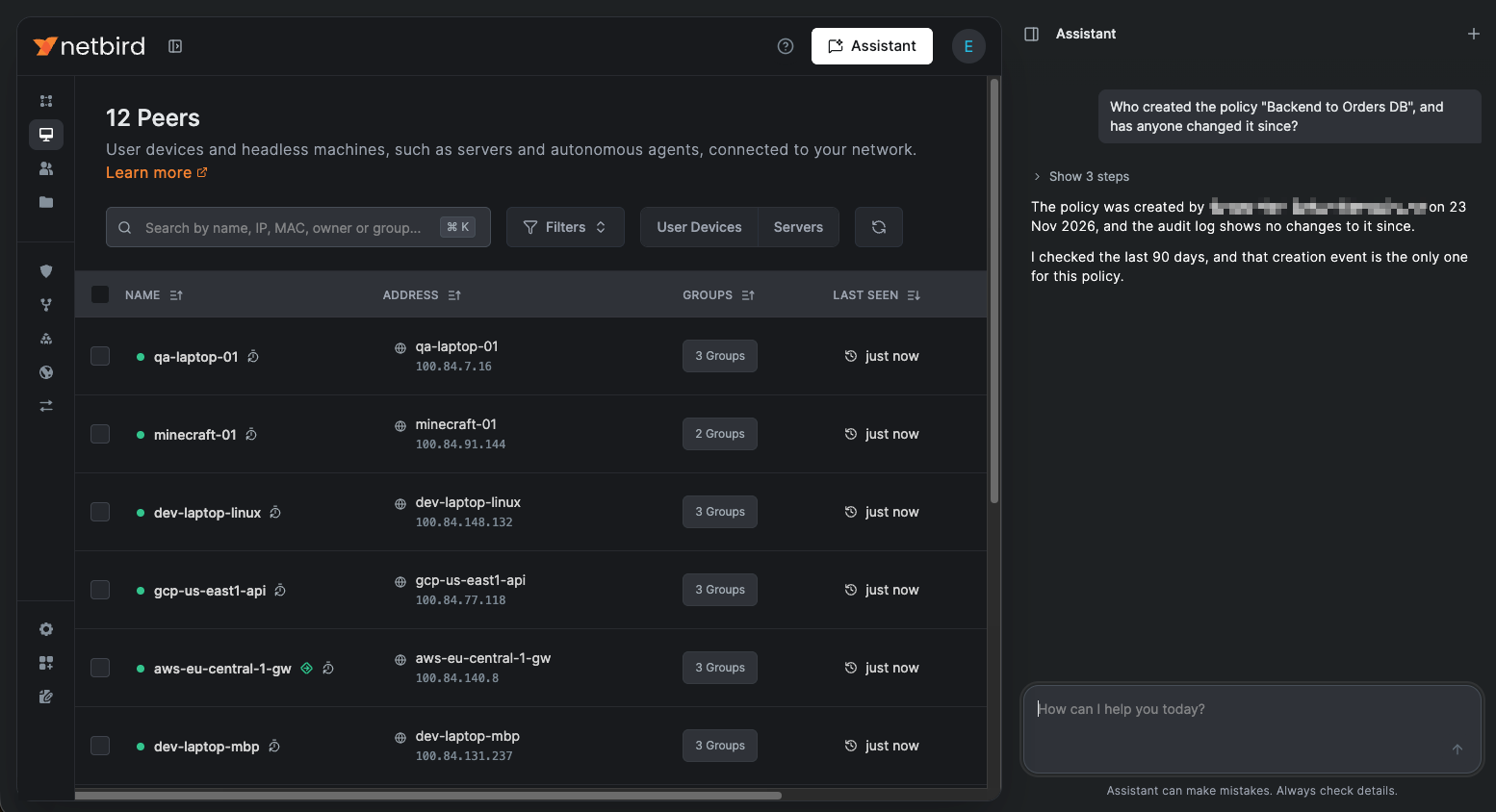
The assistant reads the record, answers from the rows it found, and can open the matching log page so you can see them yourself. For our example, "Who created the policy Backend to Orders DB, and has anyone changed it since?" returns who created the policy and when, and that the audit log shows no changes since.
A broader question like "What changed in my account this week?" comes back as a table, with the changes worth a second look called out: a policy that was added or widened, something deleted, a role changed, a setup key or access token created.
Learn How to Do Something
Ask how a feature works or where to configure it:
- "How can I configure an exit node?"
- "How do I limit access to my resource?"
- "How do I configure peer expiration?"
The assistant answers from the NetBird documentation: it gives you the short version and cites the page it read. When the answer ends in something you do in the dashboard, it can also open that page for you.
Questions about your own account are answered from your account, not from the docs. "Do I have an exit node?" is a lookup; "how do I set one up?" is an explanation.
Access and Data
What the assistant can reach. The assistant works through your dashboard session. It sees only what your role lets you see in the dashboard, and nothing more. Whatever your role, its access is read-only: it cannot change your account. When a request needs a change, the assistant prepares it as a draft in Draft Mode in the Control Center, and you deploy it yourself.
What is sent, and where. Nothing is sent until you send a message. Your message and the page context shown in the chip are then processed by the NetBird Assistant service and by Claude, an AI model from Anthropic. The model provider does not store your prompts or the answers.
Account data is sent only when a question needs it, and only the part it needs. The lookups run in your dashboard: for a question about peers, the dashboard fetches your peers and sends those along, and the same goes for groups, policies, or logs. A question that needs no account data, such as "how do I configure an exit node?", sends none.
What to keep out of the chat. Anything you type is treated as chat content, so do not paste secrets such as setup keys or access tokens.
Recap
- The assistant reads your account and never writes to it: every change is a draft you deploy yourself.
- Our example followed that rule: we asked for access to the orders database and got a draft with the
Backendgroup, the single-host resourceorders-dbin theStagingnetwork, and one policy on TCP port5432. Nothing was written until Approve & Deploy. - "Who can reach it?" is answered from your policies and groups; "who changed it?" and "who connected to it?" are answered from the audit, traffic, and reverse proxy logs.
- "How do I…?" is answered from the documentation, and the assistant can open the dashboard page where you do it.