

Approve users
Updated
The user approval feature enhances security by requiring manual administrator approval before a user can join your NetBird organization via domain matching. New NetBird Cloud accounts have user approval enabled by default.
Signed in and waiting for approval yourself? See Pending approval and account invitations for what the Waiting for Approval screen means and what to do next.
Require user approval
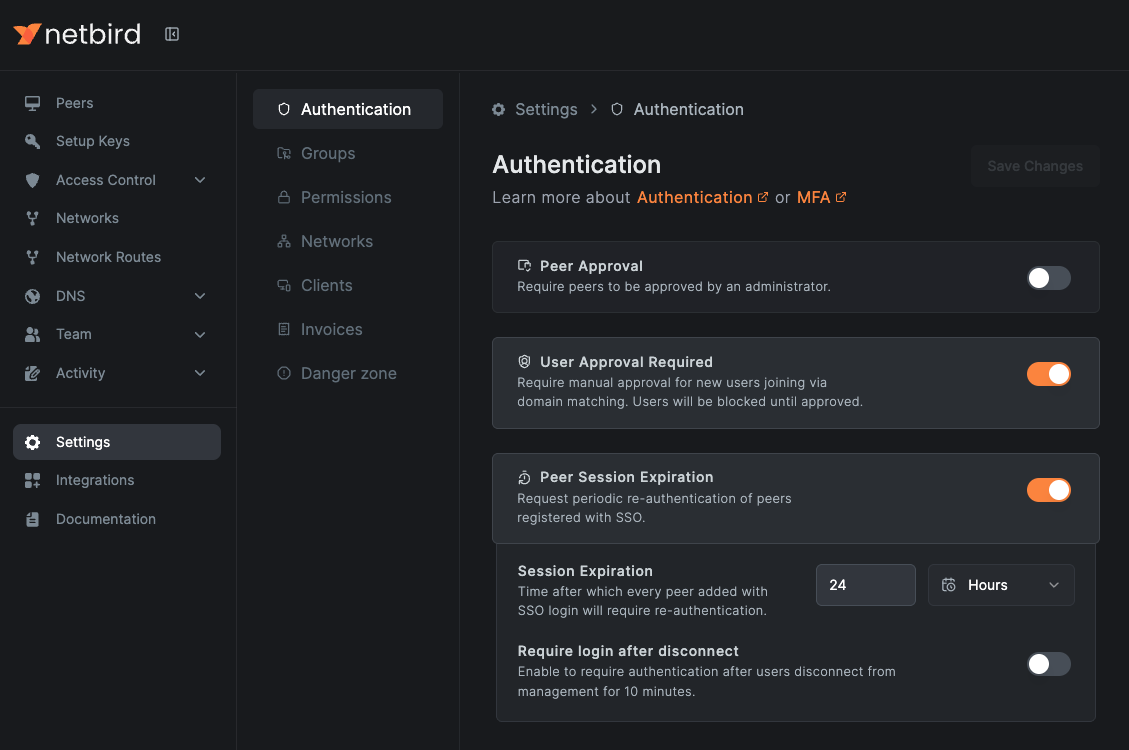
In the dashboard, go to Settings → Authentication and enable or disable User Approval Required.
- Enabled: Require manual approval for new users joining via domain matching. Users will be blocked until approved. Learn how to approve or reject users in the section below.
- Disabled: Manual approval for new users is not required. Users joining via domain matching will be automatically added to the organization.
Approve or reject user
To approve a user, open Users from the top of the sidebar and click the Approve or Reject button on the right side of the users table.
While they wait, the user sees a Waiting for Approval screen that names the account owner's email address, partly hidden, when NetBird can look it up. Otherwise it just asks them to contact the account owner. Any admin can approve them, not only the owner. Once approved, the user clicks Refresh on that screen to join the account.
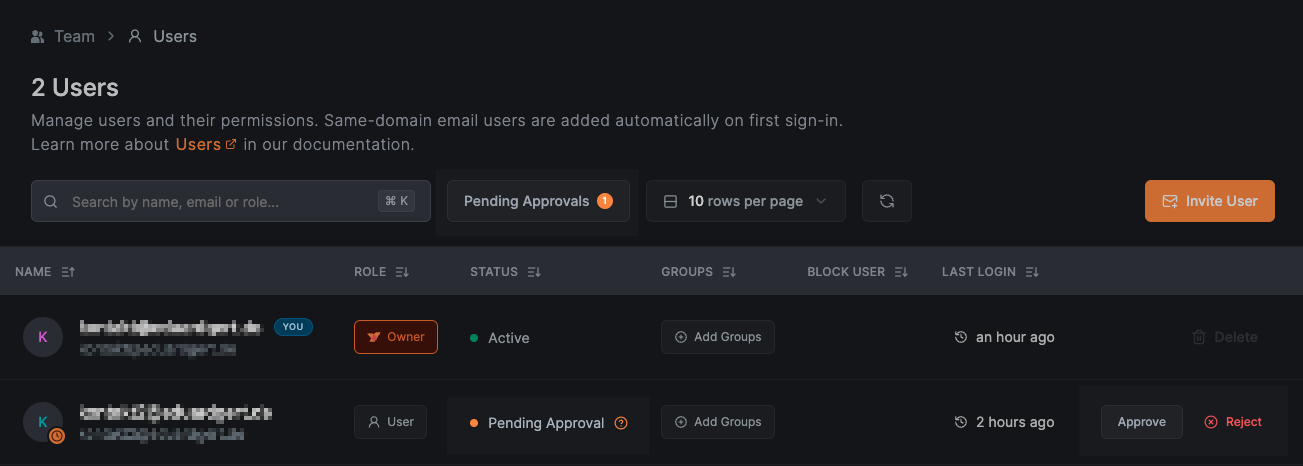
Pending users have the Pending status in the Users table. When several people are waiting, the Pending Approval button above the table filters it down to just those users, and carries a badge with the number outstanding. The button only appears while at least one user is waiting.
Reject removes the user from the account, and that removal can't be undone. A rejected user can sign in again and be recreated as pending; rejection does not permanently block future sign-ins.
The Approve and Reject buttons only render for roles that can update users, which means Owner and Admin. A Network Admin has read-only access to the Users page and won't see them. See User Roles for the full breakdown.
Get started
- Make sure to star us on GitHub
- Follow us on X
- Join our Slack Channel or Discord server
- NetBird latest release on GitHub