

JumpCloud on NetBird Cloud
Updated
You can use JumpCloud as your Identity Provider with NetBird, but it will require some additional configuration steps. JumpCloud is a cloud-based directory platform that provides identity, access, and device management in a unified solution. It offers single sign-on, multi-factor authentication, directory services, device management, and network access control, providing a comprehensive approach to managing users, devices, and applications from a single platform.
-
Access the JumpCloud and navigate to USER AUTHENTICATION > SSO Applications
-
Click + Add New Application, select Custom Application and click Next
-
Enable Manage Single Sign-On (SSO), select Configure SSO with OIDC and click Next

-
Add NetBird as Display Label and click Next. Optionally, you can enter a Description, adjust the User Portal Image and choose to hide or Show in User Portal.
-
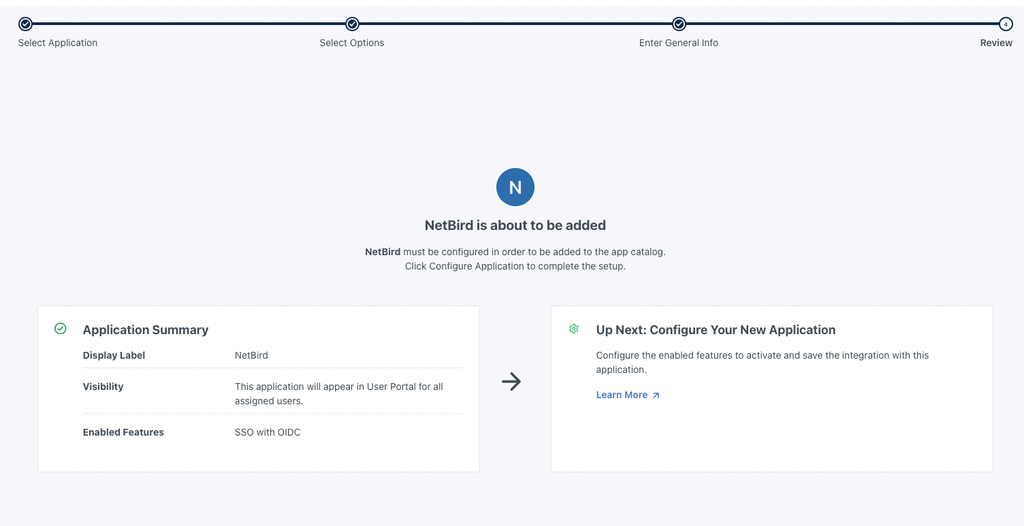
Review the application setting and click Configure Application to proceed
- On the New Application screen, go to the SSO tab and under Endpoint Configuration set the following values:
-
Redirect URIs: https://login.netbird.io/login/callback
-
Login URL: https://app.netbird.io
- Under Attribute Mapping enable Email and Profile scopes
Sometimes, the Jumpcloud application configuration will add duplicate attributes, like email and email_verified. The duplicates should be removed.
-
Go to the User Groups and select the list of groups to which you want to give access to the application and then click activate
-
Record the Client ID and Client Secret that JumpCloud generates for your application.
-
Share your Client ID and Client Secret with our team, along with the region your JumpCloud console is in (US, EU, or India). Please use a secure method for sharing this information.
We recommend using a secure channel to share the Client’s secret. You can send a separate email and use a secret sharing service like: