

cidaas on NetBird Cloud
Updated
You can use cidaas as your Identity Provider with NetBird, but it will require some additional configuration steps. cidaas is a cloud-native Identity and Access Management platform that provides single sign-on, multi-factor authentication, user self-service, and fine-grained authorization.
Support for OIDC-compliant IdPs is available on the Team plan and higher. The Free plan supports Google, Microsoft, and social logins. Self-hosted deployments support OIDC-compliant IdPs in both the open source Community Edition and the Enterprise Commercial License. See self-hosted identity providers.
Step 1: Create a New Application
Log in to your cidaas tenant's admin console (e.g., https://<your-tenant>.cidaas.eu). Click Apps in the left-hand sidebar, select App Settings, then click + Create New App.
This opens the Create App form, which is divided into three sections: App Details, App Settings, and Company Details.
Step 2: Fill in App Details
Configure the App Details section with the following settings:
- App Name:
NetBird - App Display Name:
NetBird - App Logo URL:
https://netbird.io/_next/static/media/netbird-logo.46570303.svg - App Type:
Regular
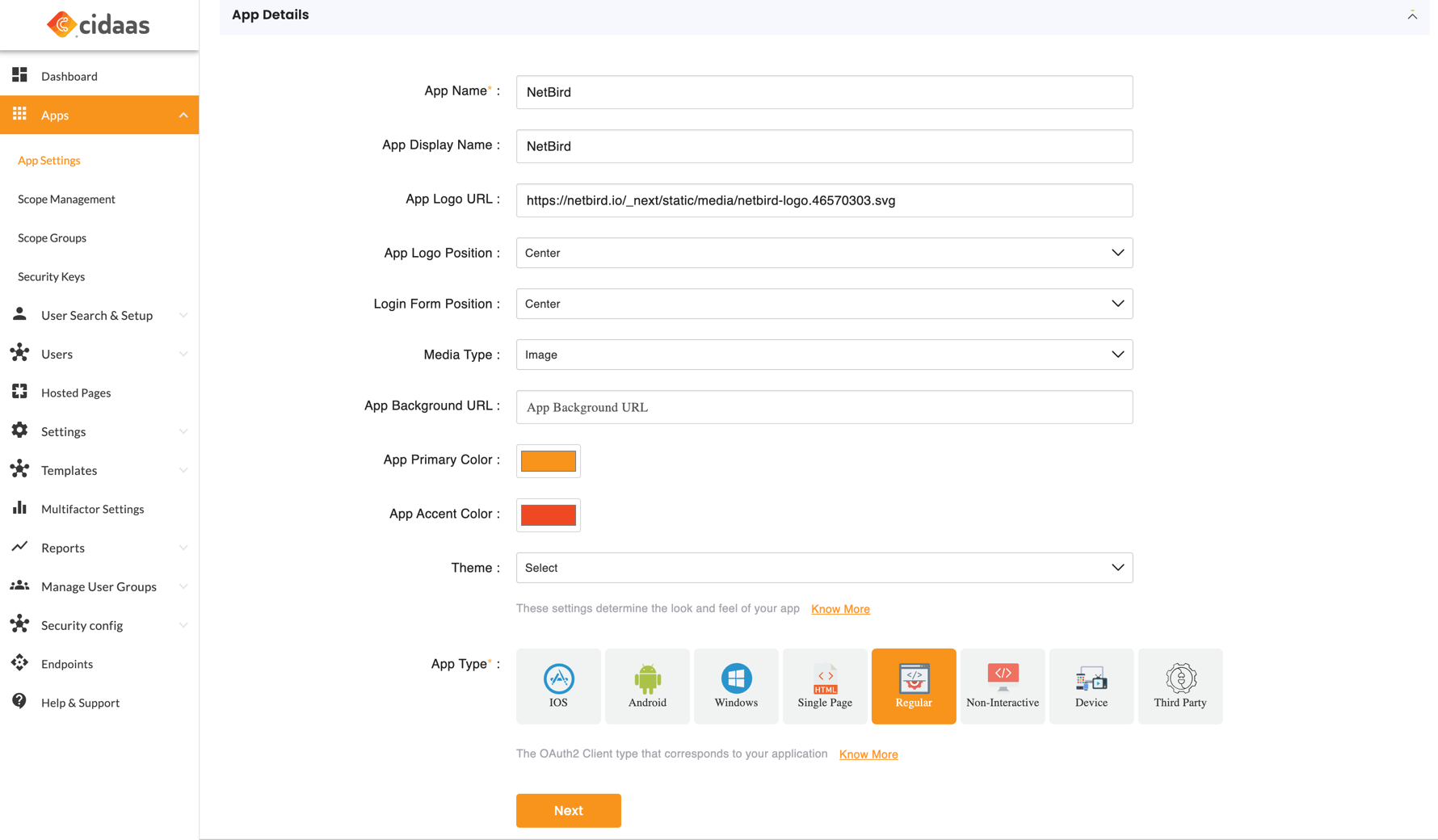
Click Next to proceed to App Settings.
Step 3: Configure App Settings
Configure the App Settings section with the following settings:
- Scopes:
openid,email,profile - Hosted Page Group:
default - OAuth Standard:
OAuth2.1 - Redirect URLs:
https://login.netbird.io/login/callback - Allow Logout URLs:
https://login.netbird.io/oauth/revoke
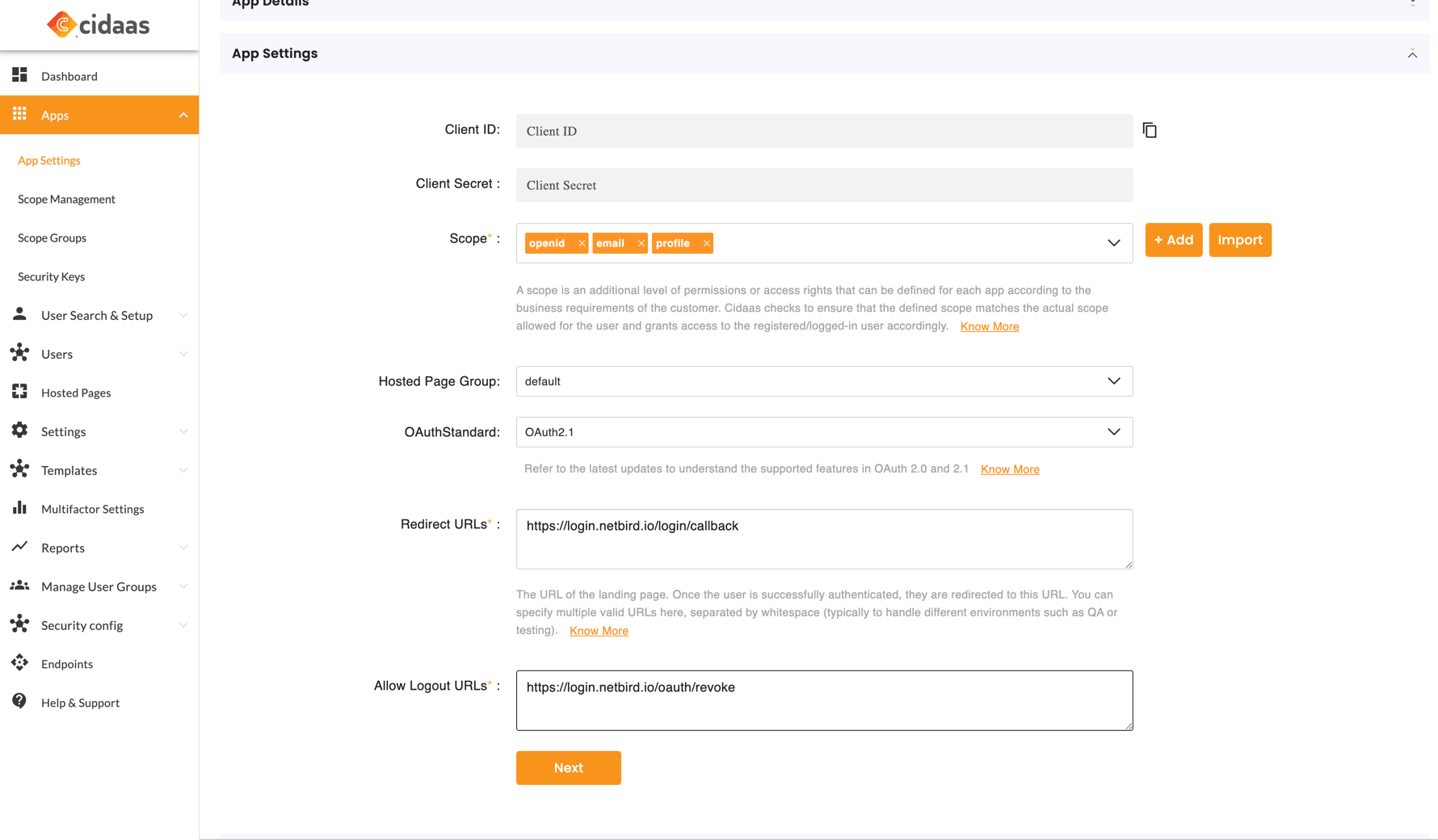
Click Next to proceed to Company Settings.
Step 4: Configure Company Settings
Configure the App Settings section with the following settings:
- Company Name:
NetBird GmbH - Company Address:
Brunnenstraße 196 10119 Berlin - Website URL:
https://netbird.io - Terms and Conditions URL:
https://netbird.io/terms - Privacy Policy URL:
https://netbird.io/privacy - Imprint URL:
https://netbird.io/imprint
Click Submit to create the application. You should see an App created successfully confirmation.
Step 5: Verify the Application Status
Ensure the application status is set to Active. If it is not active, select Active from the status dropdown.
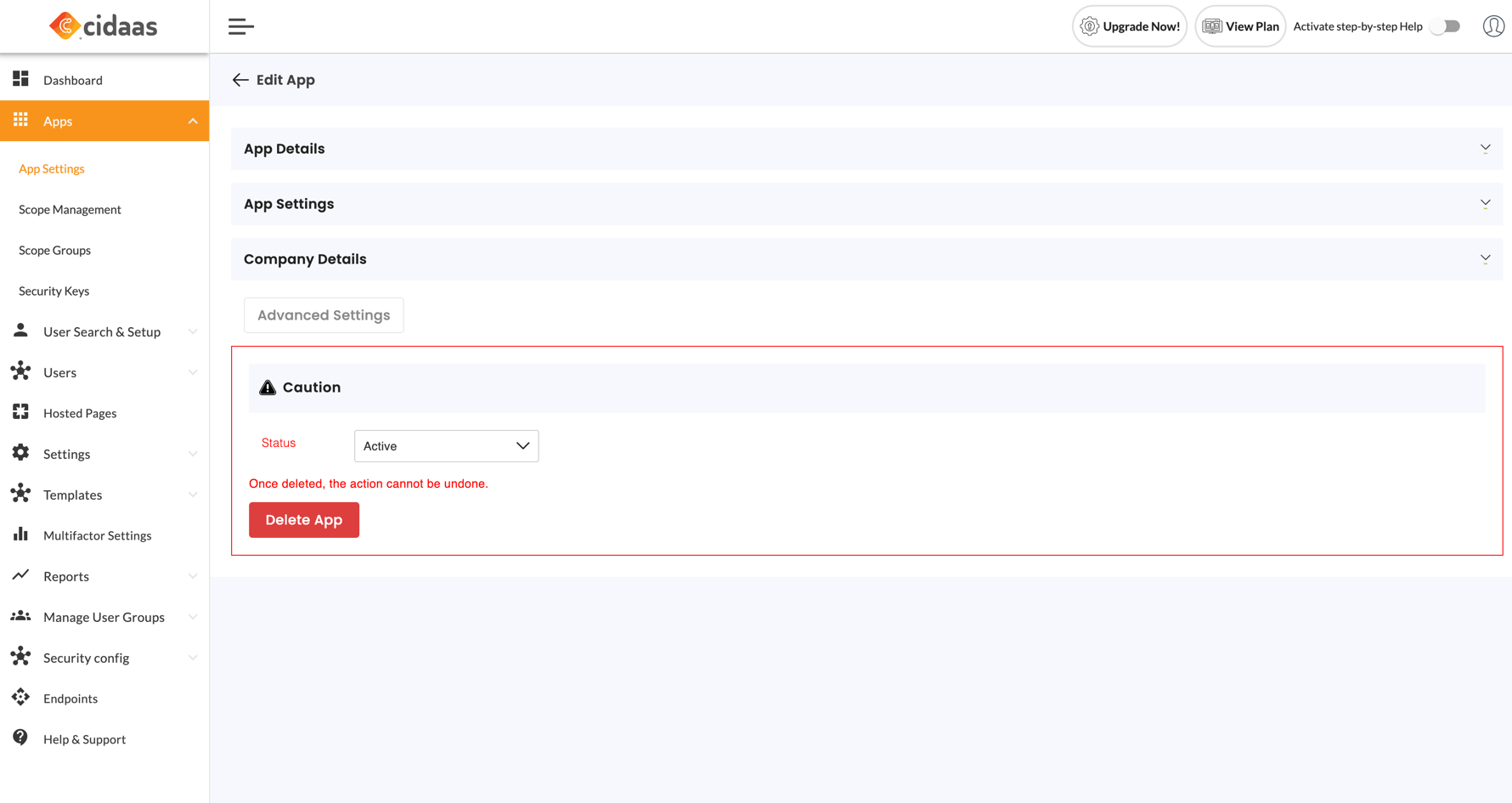
Step 6: Copy the Client Credentials
From the application's App Settings tab, copy the Client ID and Client Secret.
Step 7: Share Configuration with NetBird
Send the following information to the NetBird support team at support@netbird.io:
- Client ID
- Client Secret
- cidaas Tenant URL (e.g.,
https://your-tenant.cidaas.eu) - Email domains for your users
We recommend using a secure channel to share the Client Secret. You can send a separate email and use a secret sharing service like: