NetBird Distributor Portal for Distributors
Updated
NetBird Cloud offers a dedicated Distributor Portal for distributors who sell NetBird MSP accounts to their customers. As a distributor, you can create and manage customer accounts from a single dashboard, assign each customer a NetBird plan, and consolidate billing under a single invoice.
A distributor account is a standard NetBird account with the added 'Customers' section. Every customer you create from the Distributor Portal is provisioned as a NetBird MSP account — meaning your customer can in turn onboard their own tenants and manage tenant networks via the MSP Portal.
The Distributor Portal sits one level above the MSP Portal:
Distributor account
└── Customer account (MSP-enabled)
    └── Tenants (the customer's end customers)
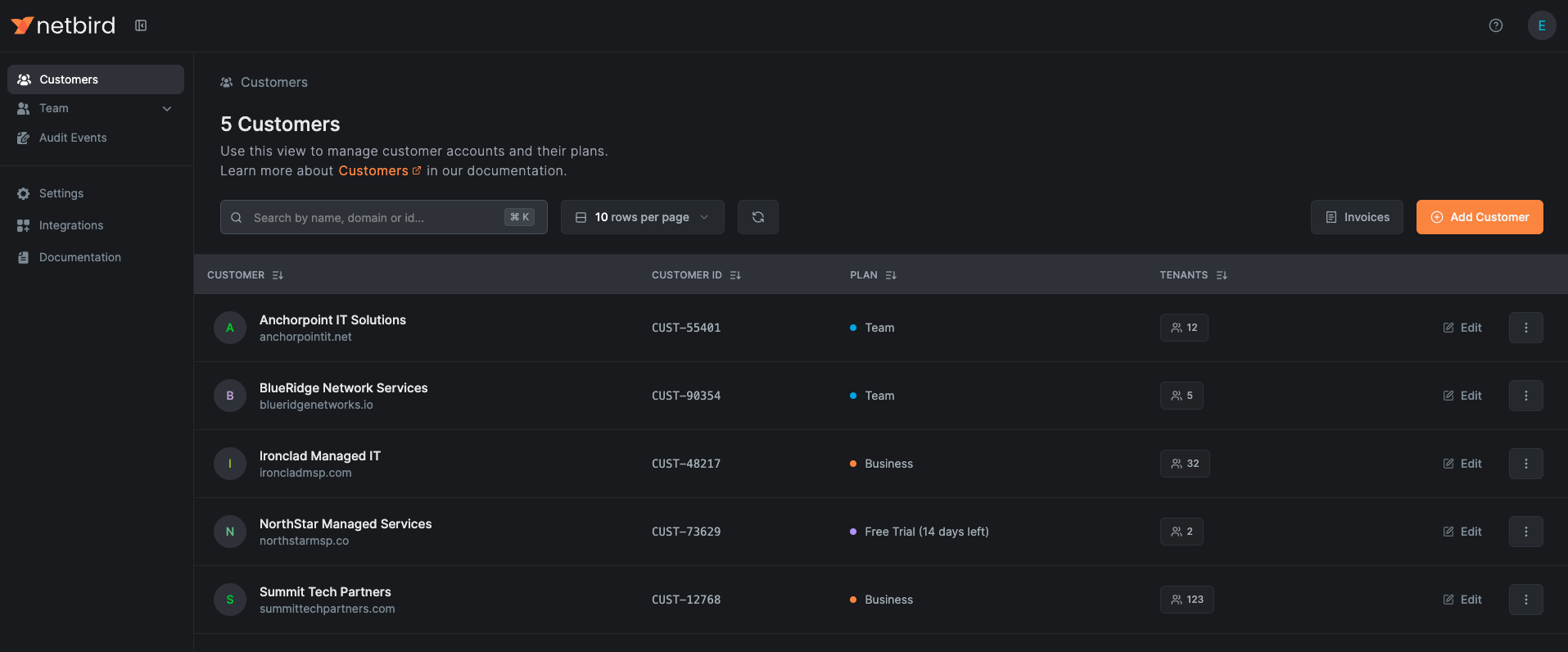
The Distributor Portal is focused on commercial enablement — onboarding customers, assigning plans, and consolidating billing. Day-to-day network operations inside each customer account are performed by the customer themselves through their own MSP Portal.
Apply for a Distributor Account
To apply for a distributor account, send an email to sales@netbird.io with the following details:
- Your name
- Company name
- Approximate number of customers you plan to manage
- How you heard about NetBird (optional)
Our partner team will review your request and, if approved, grant you distributor status and access to the Distributor Portal.
Access the Distributor Portal
Once approved, you will see the 'Customers' section in your NetBird dashboard sidebar. From there you can add new customer accounts, assign plans, and manage existing customers.
The 'Customers' page is only visible to users with the Owner or Admin role on the distributor account.
Add a New Customer
In the 'Customers' section of your dashboard, click the Add Customer button to create a new customer account.
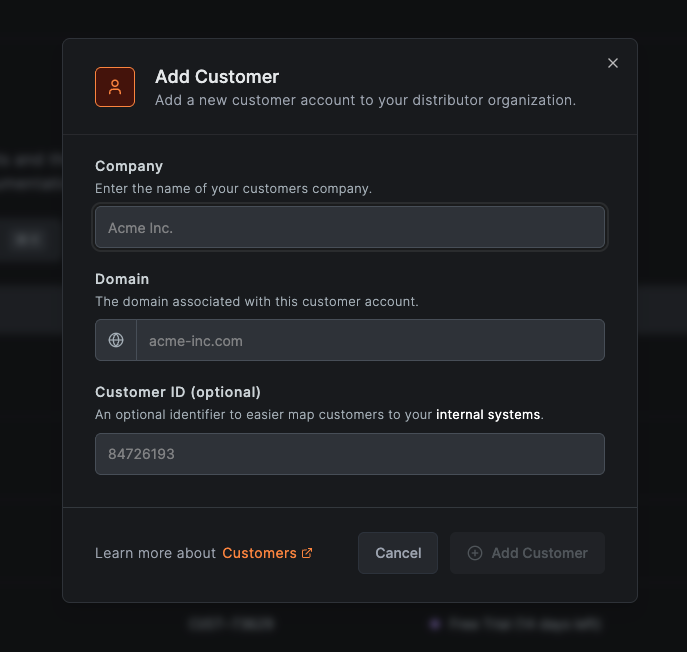
Provide the following details:
- Company — the name of your customer's company (for example,
Acme Inc.). - Domain — the domain associated with the customer account (for example,
acme-inc.com). This field is required and cannot be changed after the customer is created. - Customer ID (optional) — a free-form identifier you can use to map this customer to your internal billing or CRM system.
Click Add Customer to create the account. The customer account is provisioned with the MSP Portal enabled, so your customer can immediately start adding tenants once they sign in.
Select a Plan for the Customer
Right after the customer account is created, the plan selection modal opens automatically so you can pick a NetBird plan for them.
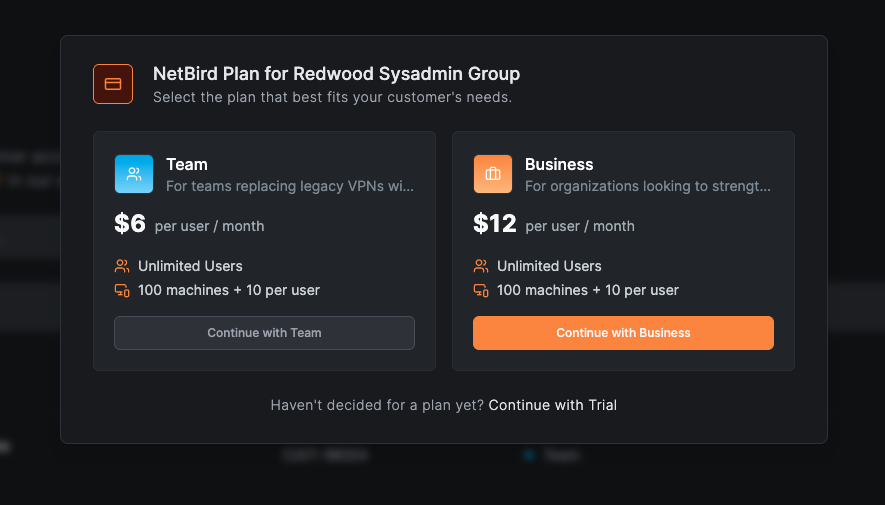
You can:
- Continue with Team — assign the customer the Team plan.
- Continue with Business — assign the customer the Business plan.
- Continue with Trial — skip the plan choice and start the customer on a 14-day free trial. You can change the plan later from the 'Edit Customer' dialog.
See NetBird Plans for a full feature comparison.
Inform the Customer
There is no automatic email notification when you add a customer. You need to inform your customer out-of-band (email, call, ticket — whichever channel you normally use) and direct them to https://app.netbird.io/ to sign up or log in. What they see next depends on whether a NetBird account already exists for their domain.
New Account
If no NetBird account exists for the customer's domain, the customer signs up at https://app.netbird.io/ and the new account is automatically associated with your distributor organization. They can immediately start using the MSP Portal to onboard their own tenants.
Existing Account
If a NetBird account already exists for the customer's domain, the customer is added to your Customers table as a Pending invitation rather than an active customer. The plan and tenants columns stay empty and the Edit button remains disabled until the customer responds.
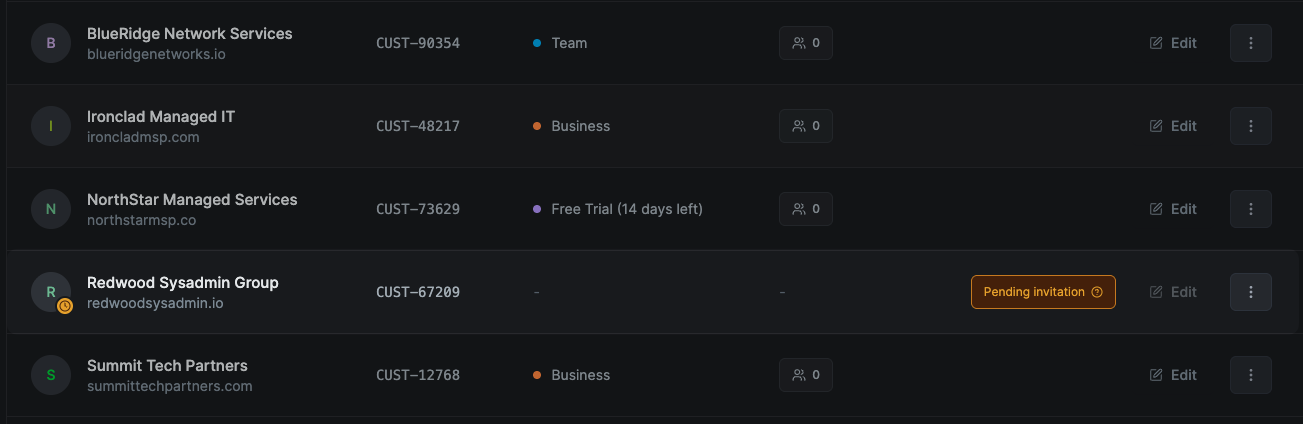
When the account owner next logs in to their NetBird dashboard, they will see this dialog:
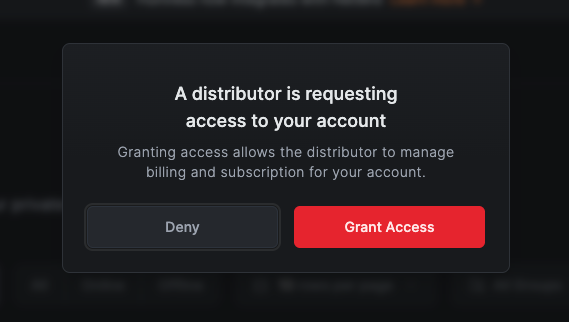
From there the account owner can:
- Grant Access — the account is linked to your distributor organization, the Pending invitation badge disappears, and you can assign a plan and edit the customer like any other.
- Deny — the access request is rejected and the customer entry is removed from your Customers table.
Manage Customers
The Customers table gives you a single view of every customer account linked to your distributor organization.
| Column | What it shows |
|---|---|
| Customer | The company name and primary domain. A clock badge indicates a pending invitation; an alert badge means the customer's free trial has expired. |
| Customer ID | The optional identifier you supplied when adding the customer. Click to copy it to the clipboard. |
| Plan | The customer's current NetBird plan (Business, Team, Free, or Free Trial). Free Trial rows show the days remaining; expired trials show an Upgrade Plan button. |
| Tenants | The number of tenants the customer is managing through their own MSP Portal. Empty for customers that haven't accepted the invitation yet. |
You can search the table by company name, domain, or customer ID using the search box at the top.
Edit a Customer
Click Edit on a customer row to update the company name or customer ID, or to switch the customer to a different plan. The customer's domain is read-only after creation.
Unlink a Customer
To remove a customer from your distributor organization, open the row's overflow menu (⋮) and choose
Unlink.
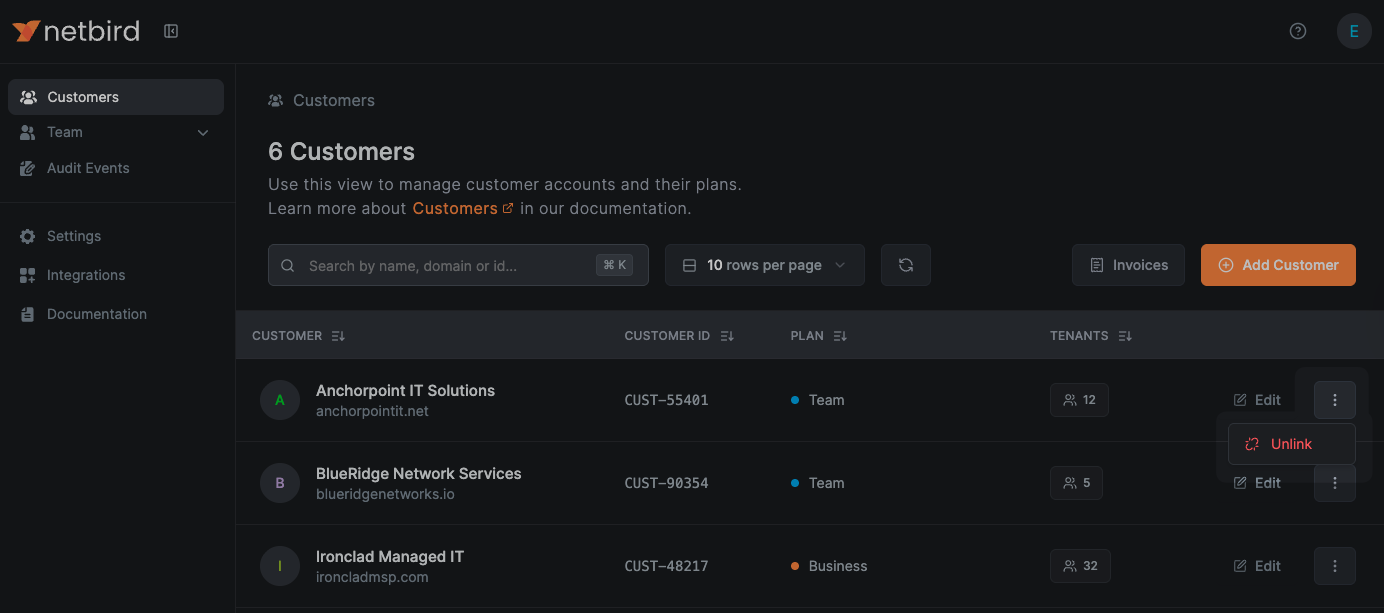
Unlinking a customer removes the account from your distributor organization, but the customer account itself continues to exist independently as an MSP account. Billing for the unlinked customer will no longer be consolidated under your distributor invoice.
Free Trial for Customer Accounts
Every new customer account starts with a 14-day free trial, giving you a window to onboard the customer before committing them to a paid plan. Select Continue with Trial in the plan selection modal to start a customer on the trial.
After the 14-day trial ends, the customer account is restricted until you assign it a paid plan from the Edit Customer → Plan tab. Existing configuration and tenant connections inside the customer's MSP account remain intact during the restriction.
Billing and Invoices
Each customer you onboard is treated as an individual subscription under your distributor account. Billing for all customers is consolidated into a single invoice issued to your distributor organization — you are billed once per cycle for the total across every active customer.
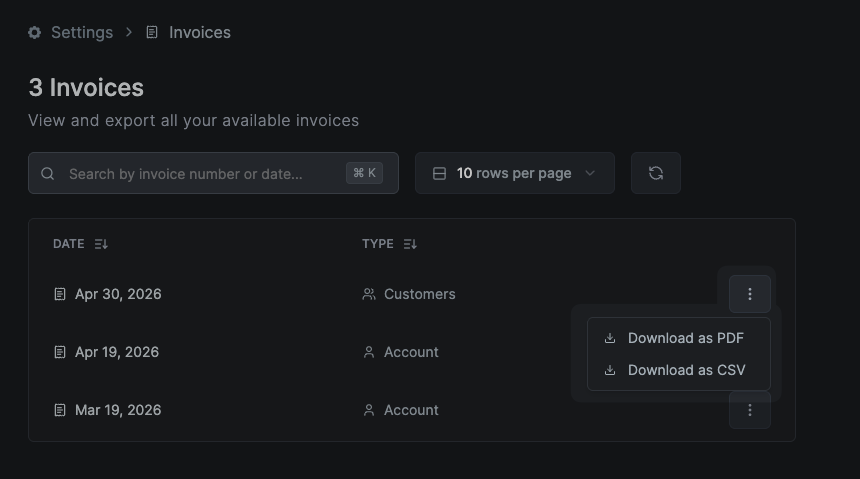
To view and export your invoices, click Invoices on the Customers page or open Settings → Invoices.
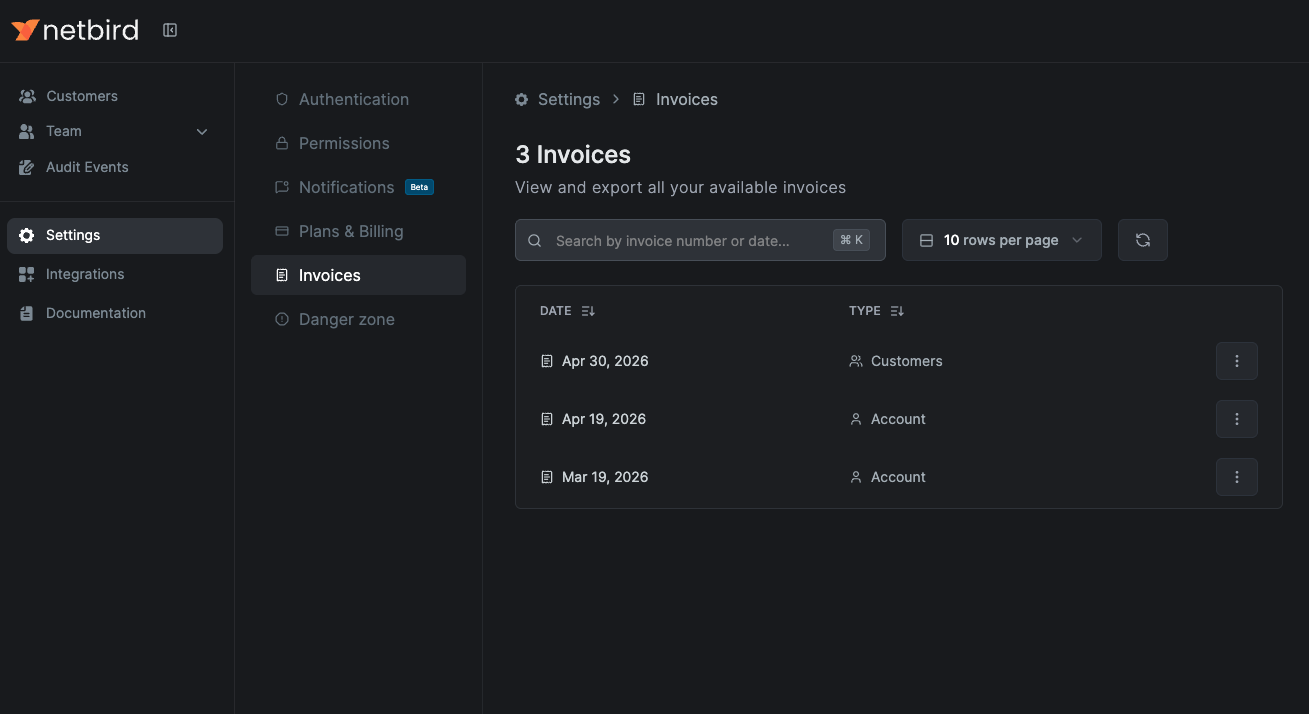
Each row in the table represents an invoice. Use the row's overflow menu (⋮) to download the invoice as a
PDF or export the customer breakdown as a CSV.